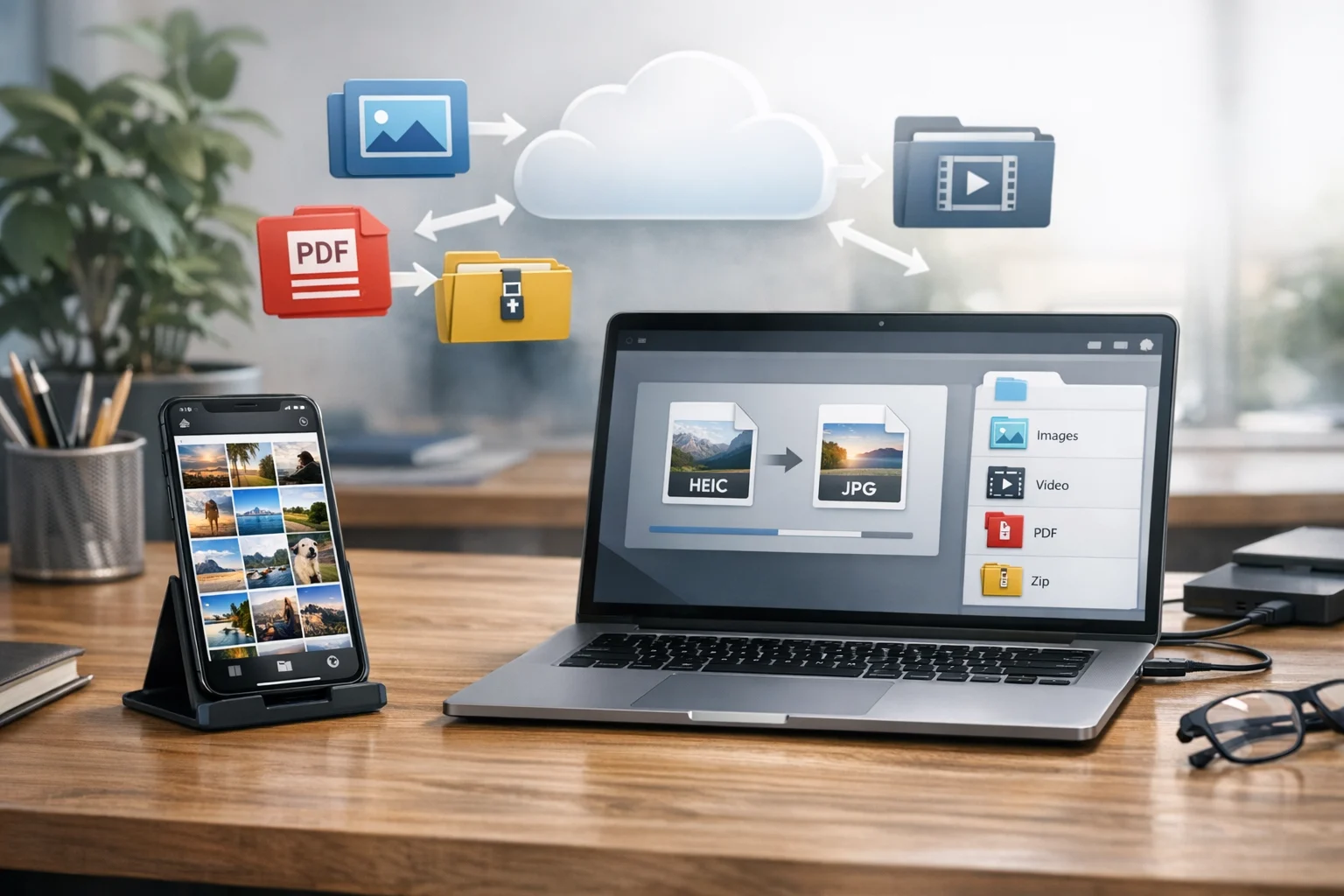
HEIC is great for saving space on Apple devices, but it can be frustrating the moment you need to send a photo to someone else. A classmate might not be able to open it, a client may ask for JPG instead, or a website uploader might reject the file entirely. That is why so many people look for a simple way to convert HEIC to JPG.
JPG is still one of the most widely supported image formats. It works across phones, laptops, browsers, messaging apps, office software, design tools, and online forms. If your main goal is easy sharing, converting a HEIC file to JPG is usually the fastest fix.
This guide explains how to convert HEIC to JPG, when it makes sense to do it, how to keep image quality under control, and how to build a better workflow for storing and sharing image files. If you regularly use a file converter for photos, documents, and media, understanding this format change can save time.
Why HEIC files can be hard to share
HEIC stands for High Efficiency Image Container. Apple uses it because it can keep strong image quality at smaller file sizes than older formats. For device storage, that is useful. For everyday sharing, it can create compatibility issues.
Some people can open HEIC files without any trouble. Others cannot. The problem usually shows up when you need to send photos to mixed devices, older software, office systems, or web platforms that expect JPG or PNG. That is especially common for students uploading assignments, creators sending previews, marketers sharing campaign assets, small businesses posting product photos, and office teams attaching files to shared documents.
HEIC also adds friction when you want to quickly edit a photo in non-Apple software, attach it to a report, or upload it into tools that are built around more universal image formats. If you are dealing with broad compatibility, JPG is usually the safer option.
If you want a deeper comparison of when conversion makes sense, ConvertAndStore has a helpful HEIC vs JPEG guide that breaks down the practical tradeoffs.
Why JPG is still the easiest format for everyday use
JPG remains the default sharing format for a reason. It is familiar, lightweight enough for most uses, and supported almost everywhere. If someone asks you to send a photo without any special instructions, JPG is usually what they expect.
Here is where JPG works especially well:
- Sending images by email or messaging apps
- Uploading photos to websites and forms
- Adding images to slide decks, reports, and documents
- Sharing visuals with clients or coworkers who use different devices
- Posting photos to social platforms or content tools
- Using images in office software or project management systems
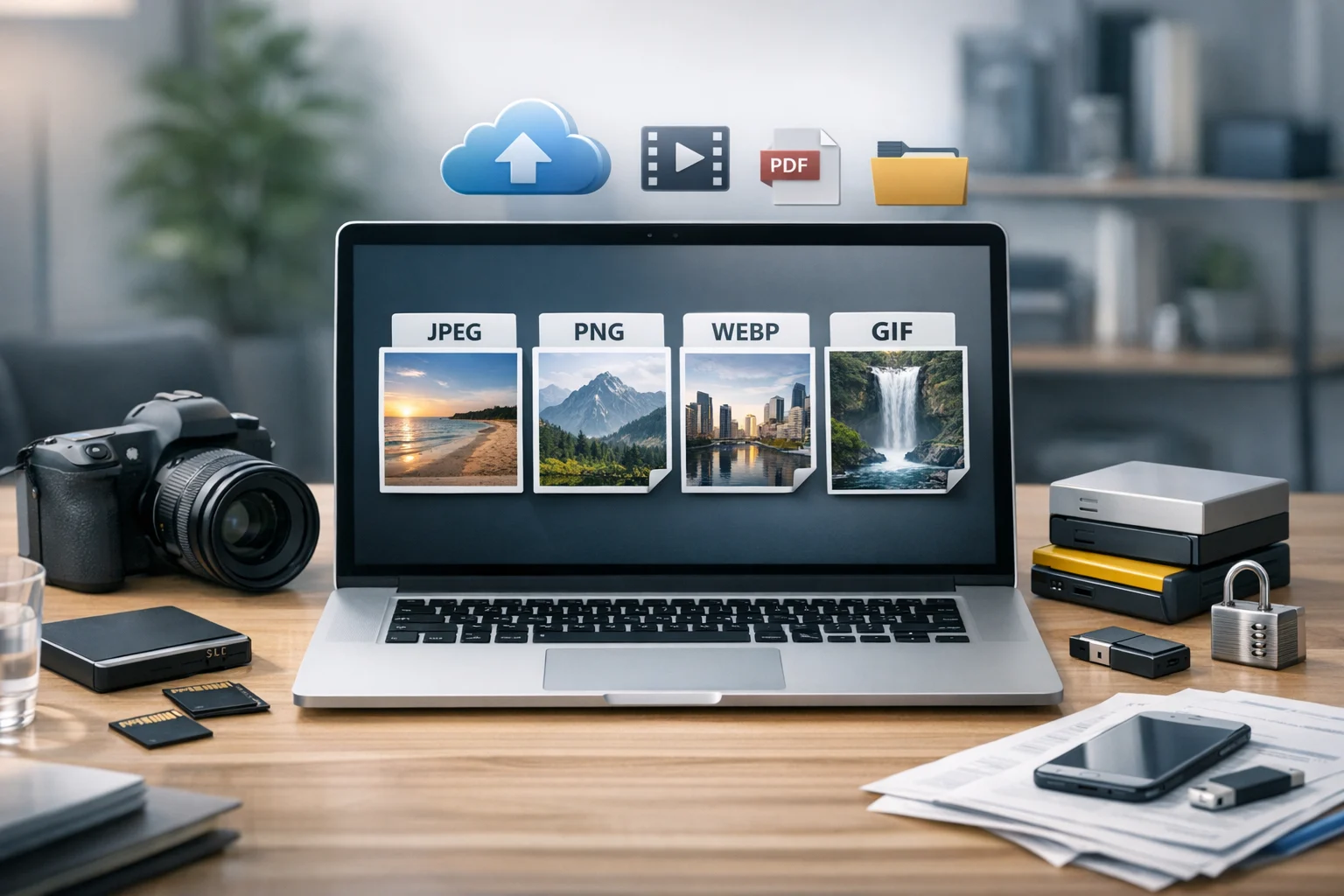
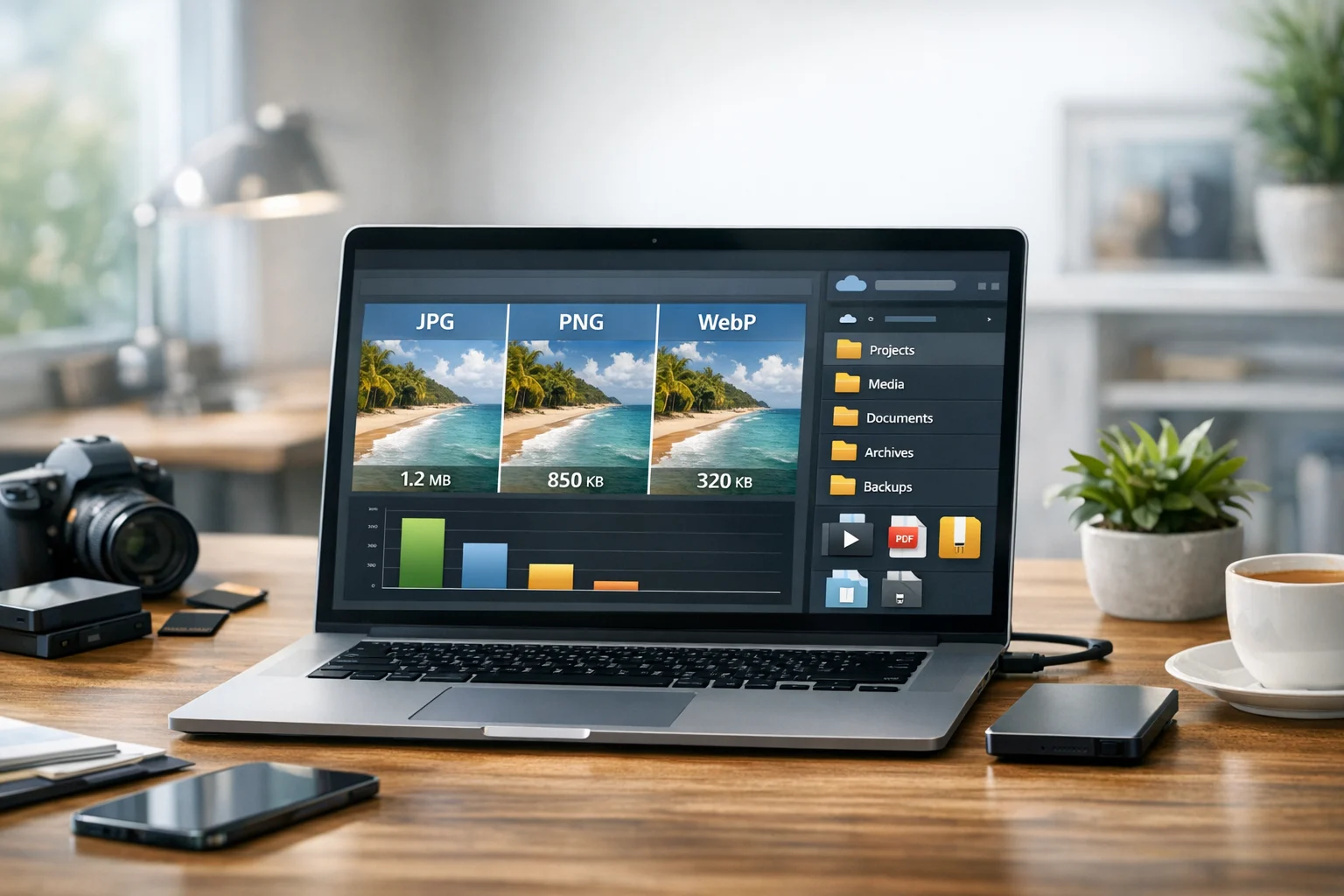
That does not mean JPG is always the best image format for every situation. If you need transparency, PNG may be better. If you want smaller web images, WebP can be a smart next step. A quick JPG vs PNG comparison usually comes down to photo realism versus transparency and crisp graphics, while WebP vs PNG often comes down to size efficiency versus compatibility or editing needs.
If you are deciding what to do after conversion, this JPG vs PNG and WebP vs PNG comparison is a useful follow-up.
How to convert HEIC to JPG step by step
The easiest route is to use online file conversion through a trusted platform. That way you do not need to install extra apps, and you can convert files from almost any device.
A reliable file converter or image converter should make the process simple:
- Upload your HEIC file
- Select JPG as the output format
- Start the conversion
- Download the new JPG file
- Store or share it right away
If you want a starting point for different image formats, ConvertAndStore offers image converter tools that make it easier to convert image files for sharing, editing, and online publishing.
For many users, the ideal workflow is not just converting once. It is converting, checking quality, and then organizing the finished file so it is easy to find later. That matters if you handle lots of screenshots, product photos, event images, or team assets.
You can also reduce future conversion needs on iPhone by changing the camera setting from High Efficiency to Most Compatible. That makes the phone save photos as JPG going forward. Many people still keep HEIC on for storage efficiency and only convert when they need to send something outside the Apple ecosystem.
What to check before you convert
- Image quality: Make sure the JPG export does not use overly aggressive compression.
- Resolution: Keep the original dimensions if the photo may be printed, edited, or reused.
- Metadata: Some files contain location or device information. Remove extra data if privacy matters.
- Batch size: If you are converting many photos, organize them by project or date first.
How to keep good quality when converting HEIC to JPG
When people worry about HEIC to JPG conversion, quality loss is usually the main concern. That concern is valid, but in most real-world cases the drop is small if you use reasonable settings and avoid saving the same image repeatedly.
Here are the practical rules that help:
- Convert from the original HEIC file, not from an already compressed JPG copy
- Use high-quality JPG settings when the image matters visually
- Avoid re-editing and re-exporting the same JPG many times
- Keep a backup of the original HEIC file for future use
For everyday sharing, a good JPG will usually look excellent on phones, laptops, and most web pages. The slight quality tradeoff is often worth it because the file becomes easier to open and easier to send.
This is also where file compression matters. Converting a file changes its format. File compression changes how efficiently that file is stored. Sometimes you need both. For example, you might convert HEIC to JPG so it is compatible, then reduce the size a bit more for email or upload limits. If a file looks fine but is still too big, compression is often the next step rather than another format change.
When JPG is the right choice
- Photos for email, messaging, and general sharing
- Website uploads that accept standard image formats
- Office documents and presentations
- Client review files and internal team approvals
- Quick social media assets
When another format may be better
- Use PNG if you need transparency or crisp text overlays
- Use WebP for smaller website images when compatibility allows
- Keep HEIC originals if long-term storage efficiency matters more than universal access
If your converted JPG is headed to a website, you may later want to make it even lighter with the JPG to WebP converter for faster loading.
Common HEIC to JPG use cases by audience
Students often need to upload photos into learning platforms, attach images to reports, or send screenshots to classmates. JPG keeps things simple when different devices are involved.
Creators frequently move images between phones, editing apps, clients, and social tools. Converting to JPG avoids upload errors and makes review cycles smoother.
Small businesses use product photos, receipts, event pictures, and marketing assets every day. A universal format saves time when staff, vendors, and customers all use different systems.
Marketers need shareable campaign visuals, thumbnails, draft creatives, and email attachments. JPG is often the easiest bridge format before a final export to PNG or WebP.
Developers may receive HEIC screenshots or mobile photos from testers and stakeholders. Converting them to JPG removes compatibility issues in tickets, documentation, and content pipelines.
Office teams need images that open reliably inside shared drives, slide decks, forms, and internal software. JPG reduces back and forth.
Freelancers and everyday users often just want a photo to open on any device without questions. JPG still fits that need well.
Other file tasks that often come right after image conversion
People rarely stop at one file type. If you are converting HEIC to JPG today, there is a good chance you will need other format changes tomorrow. That is why it helps to use one platform that supports broader online file conversion instead of juggling separate apps.
For example, you may need to:
- Convert image files for a report, website, portfolio, or storefront
- Convert PDF files when extracting visuals or rebuilding layouts
- Use a PDF converter to turn pages into shareable image previews
- Create a PDF to JPG export for presentations or web uploads
- Turn an image to PDF when combining receipts, forms, or scanned notes
- Use a video converter to adapt mobile video for easier playback
- Convert video files when clients ask for another format
That cross-format workflow is common. A marketer might convert HEIC photos for a campaign, build an image to PDF presentation for approval, export a PDF to JPG preview for email, then resize video content using a video converter. A small business may do the same for product images, invoices, and social clips.
Format comparisons matter there too. For documents and static visuals, the right choice might involve PDF versus image files. For video, MP4 vs MOV is a similar compatibility question to HEIC versus JPG. MOV can be great in Apple workflows, but MP4 is often easier to share broadly, just like JPG is often easier to share than HEIC.
How to share large batches of converted photos
Converting one image is easy. Converting fifty for a project is where organization matters. If you are sending multiple JPG files to a client, teacher, or teammate, it is often better to group them into a single archive first.
A ZIP archive is usually the easiest option because almost everyone can open it. It keeps the files together, helps avoid missing attachments, and can slightly simplify delivery. If someone sends you a RAR archive instead, you may need to repackage it for broader access depending on who will receive it next.
Archives are especially useful for:
- Photo sets for review
- Course assignments with multiple images
- Marketing asset bundles
- Product photo collections
- Event image delivery
Pairing format conversion with file compression and archive creation gives you a much cleaner workflow than sending individual files one at a time.
Store original and converted files the smart way
After converting HEIC to JPG, do not delete the original automatically unless you are sure you will never need it again. Keeping both versions can be useful. The HEIC file may be smaller and better for long-term storage, while the JPG version is better for quick access and sharing.
This is where cloud storage becomes more valuable than people expect. Instead of leaving files scattered across devices, you can keep originals, converted copies, and project folders together in one place. That helps with version control, team access, and repeat work.
Not all storage options are equal, though. Cheap cloud storage can be fine for everyday files, but if you handle contracts, client documents, private photos, or internal business material, look for encrypted cloud storage and secure file storage features. Privacy, access controls, and reliable syncing matter just as much as price.
Good storage habits also support file backup and document storage. If you regularly convert images, PDFs, and media files for work or study, backing up the original source file is one of the easiest ways to prevent losses later. For a broader system, read these best practices for file conversion, backup, and storage.
A practical format workflow that saves time
If you want fewer file headaches, keep your workflow simple:
- Capture originals in the format that suits your device
- Convert only when compatibility or sharing requires it
- Use JPG for broad access and quick delivery
- Switch to PNG or WebP only when the use case calls for it
- Group related files into folders or archives
- Store originals and final exports in cloud storage
- Keep a basic file backup for anything important
That approach works whether you are a student managing assignments, a freelancer sending drafts, a business organizing product photos, or a team handling media and document storage across departments.
Frequently Asked Questions
It can reduce quality slightly because JPG uses lossy compression, but the difference is usually minor if you export at high quality. For normal sharing, email, and web use, a well converted JPG usually looks excellent.
Many platforms are built around older, more universal formats like JPG and PNG. HEIC is efficient, but support is still inconsistent across software, browsers, upload forms, and non Apple devices.
Yes, if the photo matters. Keeping the original gives you a smaller source file for storage and lets you create another export later if you need different quality, dimensions, or editing options.
It can be safe if you use a trusted service with clear privacy practices. For personal, client, or business files, choose platforms that support secure file storage and avoid sharing sensitive files through unknown converters.
Use JPG for photos and broad compatibility. Use PNG when you need transparency or very sharp graphics. Use WebP when you want smaller web images and your workflow supports it.