PDF files are one of the easiest ways to share contracts, reports, class notes, portfolios, invoices, brochures, and scanned paperwork. They look consistent across devices, they’re familiar to almost everyone, and they work well for document storage. The problem is that PDFs can also become much larger than expected, especially when they include high resolution images, scans, embedded fonts, or pages exported from design software.
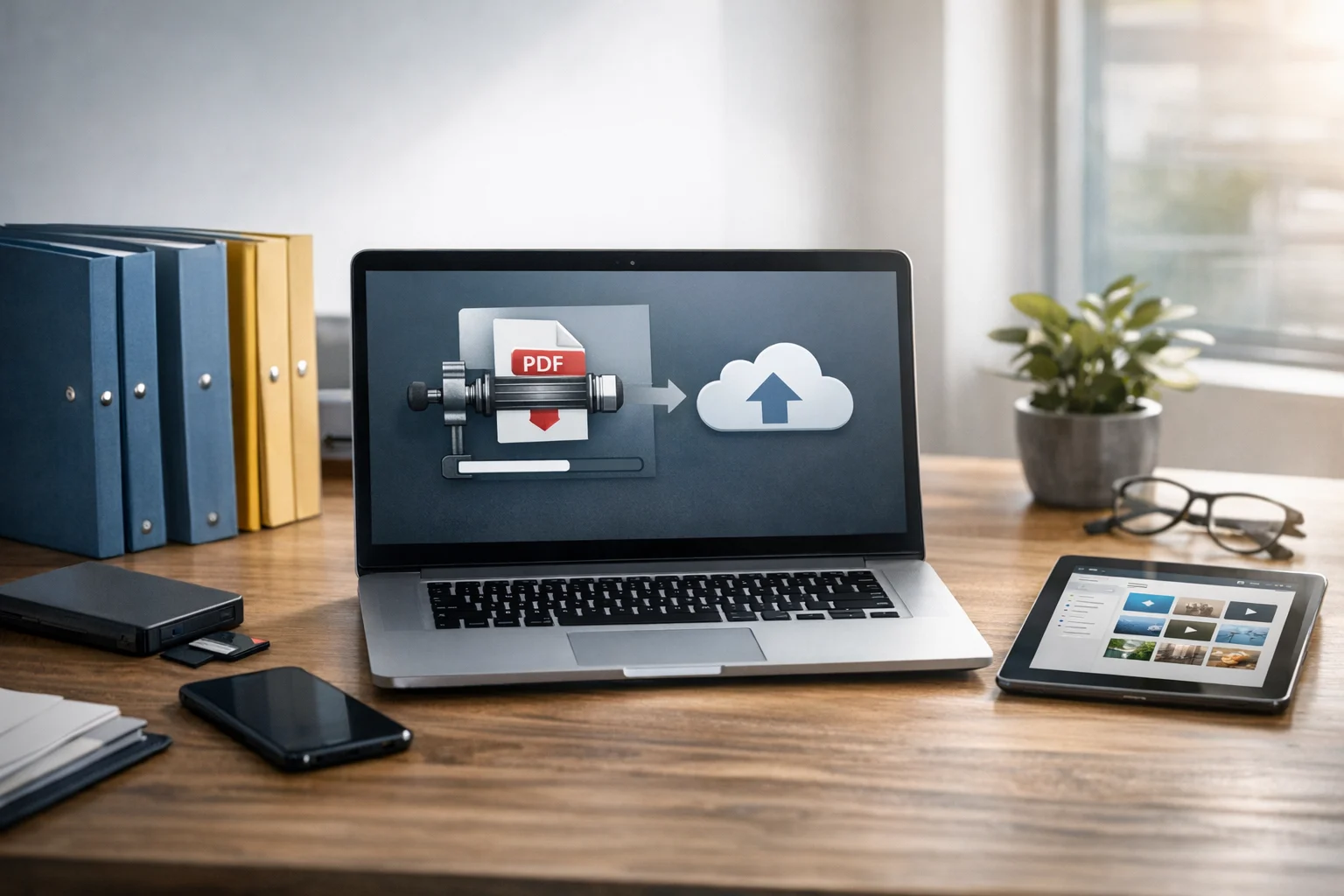
If you upload large PDFs directly to cloud storage, you can run into slower uploads, higher storage costs, cluttered folders, and file sharing limits. That’s why it makes sense to compress them first. A smaller PDF is faster to upload, easier to email, simpler to back up, and better suited for long term file backup and document storage.
For students, creators, freelancers, marketers, office teams, developers, and small businesses, PDF compression is one of the easiest ways to keep cloud storage organized without changing how you work. In many cases, a quick pass through a PDF compressor can cut file size enough to make storage and sharing much easier.
Why compress PDF files before cloud storage
Compressing a PDF before upload does more than save a little space. It improves the whole workflow around storing and sharing documents.
- Faster uploads: Smaller files move to cloud storage more quickly, which matters when your internet connection is limited or when you upload large batches.
- Lower storage costs: If you store many reports, scanned records, client files, or design proofs, reducing file size helps you get more value from cheap cloud storage plans.
- Smoother sharing: Compressed PDFs are easier to email, attach to forms, and send to clients or teammates.
- Better organization: Smaller documents are easier to duplicate, archive, and sync across devices.
- More practical backups: Efficient files make file backup faster and less expensive, especially when you keep both local and cloud copies.
This matters even more if you use encrypted cloud storage or secure file storage, where syncing large files repeatedly can slow things down. The less unnecessary file size you keep, the more efficient your storage system becomes.
What makes a PDF file large
Before compressing a PDF, it helps to know what is actually increasing its size. Not every large PDF needs the same fix.
Scanned pages and photos
Scanners often create image heavy PDFs with every page stored like a full picture. That is useful for preserving exact appearance, but it can make a simple 20 page document far larger than it needs to be.
High resolution images
Marketing decks, product sheets, portfolios, and proposals often include images that were exported for print instead of screen use. A PDF that looks fine on a laptop may still contain oversized images in the background.
Embedded fonts and design assets
Files exported from design tools may include multiple fonts, transparency data, color profiles, and other elements that increase size.
Merged documents
When several PDFs are combined without cleanup, the final file often carries duplicate assets, blank pages, or repeated graphics. If a file contains sections that don’t need to be stored together, using a Split PDF tool can be a smarter first step than heavy compression.
Attachments and hidden extras
Some PDFs contain forms, comments, metadata, layers, or embedded files. These can be useful, but they also add weight.
Choose the right compression approach
The best way to compress a PDF depends on what the document needs to do after upload. A legal contract, a classroom handout, and a visual portfolio should not always be compressed the same way.
For text based PDFs
If your document is mostly text, compression is usually simple. You can often reduce size significantly without affecting readability. Reports, invoices, presentations exported to PDF, and meeting notes usually fit this category.
For scanned PDFs
Scanned PDFs usually benefit the most from compression, but they’re also the easiest to overdo. If compression is too aggressive, text can become fuzzy and difficult to read. For scanned receipts, forms, lecture packets, or paper archives, check a few pages after compression before uploading the whole file set.
For image heavy PDFs
Portfolios, catalogs, brochures, and pitch decks may need more careful handling. A smaller file is helpful, but if image quality drops too far, the document loses value. In these cases, compress for screen viewing rather than maximum reduction.
For records and compliance documents
If a PDF is meant for long term recordkeeping, make sure the compressed version still preserves the necessary detail, signatures, and formatting. Storage efficiency matters, but readability and integrity matter more.
A simple workflow to compress PDFs before uploading
A practical workflow helps you reduce file size without accidentally damaging useful documents. This process works well whether you manage a few school files or a large library of business records.
1. Review the PDF first
Open the file and scroll through it. Look for blank pages, duplicate pages, oversized scans, or sections that do not belong in the same file. If the PDF contains multiple topics or attachments, splitting it into smaller files can improve organization and reduce storage overhead.
2. Remove or separate unnecessary pages
Sometimes the fastest way to reduce size is not compression at all. Removing appendices, duplicates, draft pages, or outdated sections can make a big difference. This is especially helpful for office teams and freelancers who regularly revise proposals and reports.
3. Compress the file
Use a dedicated PDF compression tool rather than relying only on operating system previews or generic export settings. A focused tool is more likely to reduce file size while keeping text readable and layouts intact. ConvertAndStore makes this easy with its Compress PDF Tool, which is useful when you want a quick, practical step before cloud upload.
4. Check the result on desktop and mobile
After compression, open the file and review it at normal zoom. Then test a few pages on a phone or tablet if the document will be read there. Small text, charts, signatures, and screenshots should still be clear.
5. Rename and upload consistently
Use clear names such as client-name-invoice-2026-05.pdf or biology-notes-chapter-4.pdf. Good naming keeps document storage easier to manage and makes search much faster later.
6. Back up the final version
Once the compressed PDF is ready, upload it to your main cloud storage and include it in your file backup workflow. That way you keep the more efficient version everywhere instead of syncing a bloated original by mistake.
When PDF compression is not enough
Some PDFs stay large even after compression. That usually means the file is really a bundle of images inside a PDF wrapper. In those cases, it may help to rethink the format rather than only shrinking the PDF itself.
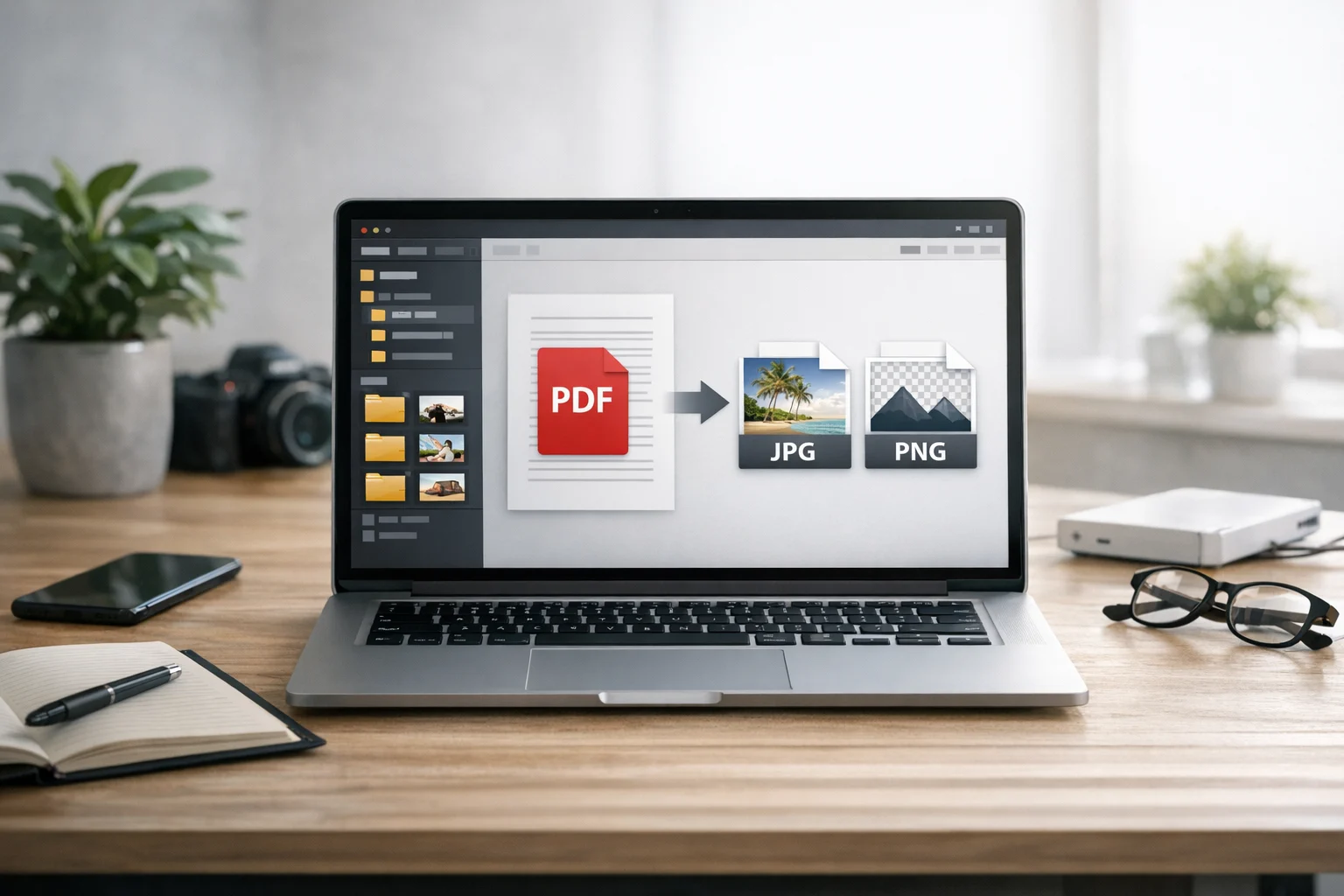
For example, if you have a scanned catalog or slide deck that will mainly be viewed visually, you may want to extract pages first and check whether image based storage is more efficient. A PDF to image converter can help you turn pages into images for review, publishing, or selective reuse.
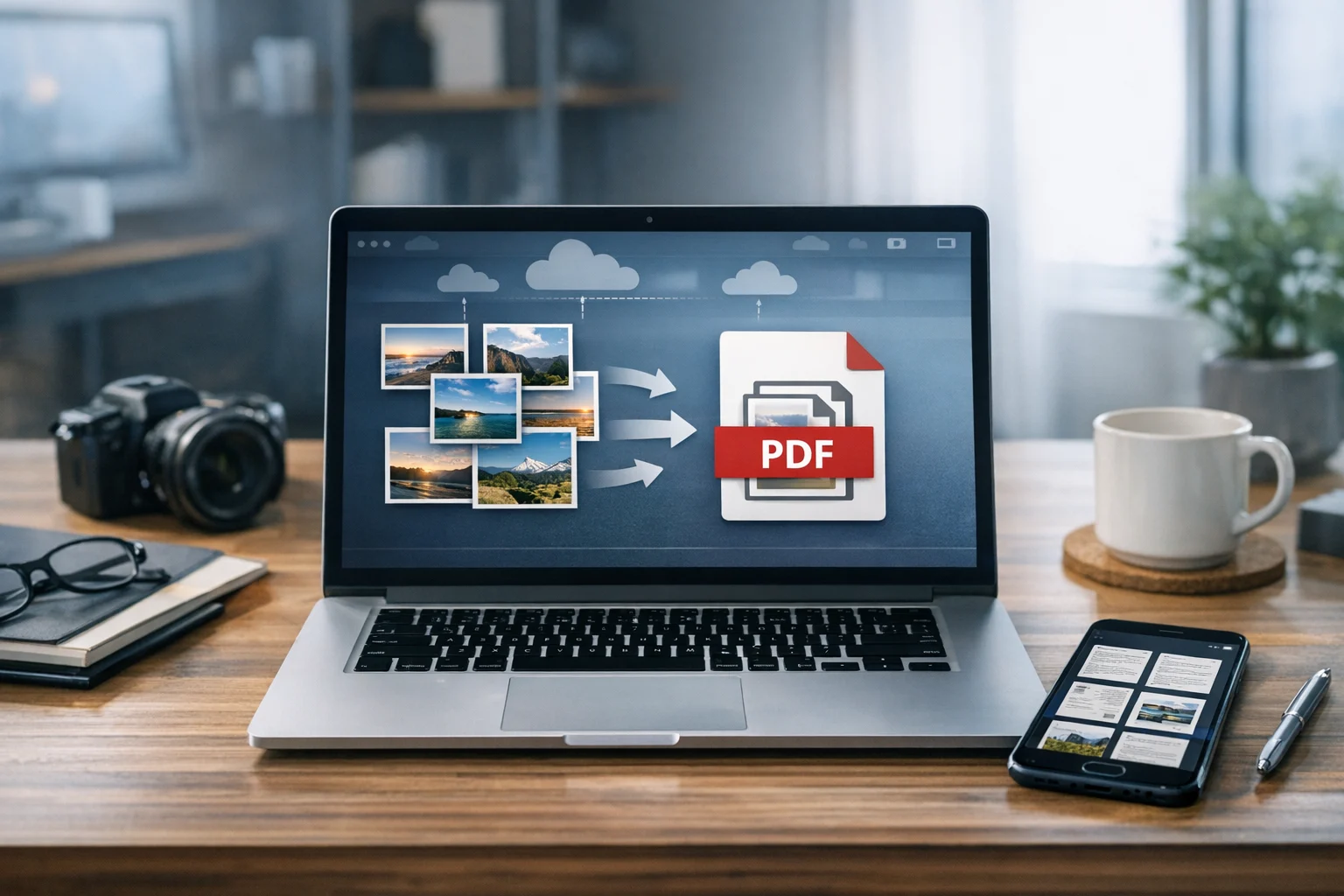
If your original document starts as separate photos or scans, you can often get better control by optimizing those images first and then rebuilding the file with an image to PDF tool. This is especially useful when a phone scanner app creates oversized page images.
Broader file conversion choices also matter if your workflow includes online file conversion and you need to decide when to convert image files before packaging them into a PDF.
- JPG vs PNG: JPG is usually smaller and better for photos or scanned pages, while PNG is better for crisp graphics, logos, or screenshots with sharp edges.
- WebP vs PNG: WebP often gives smaller sizes for web graphics and mixed images, but PNG may still be better when lossless quality is essential.
- PDF to JPG: If you only need selected pages as images for a presentation, social post, or website, converting PDF pages to JPG can be more storage efficient than keeping a full PDF plus separate exports.
There is no single best image format for every file. The best image format depends on whether you prioritize readability, transparency, editing, or smaller storage size. A good image converter helps you decide what to keep as a PDF and what to store as individual images.
Compression, conversion, and archives are not the same thing
People often group everything under file compression, but PDF compression, file conversion, and archive creation solve different problems.
- PDF compression: Reduces the size of the PDF itself.
- File conversion: Changes the format, such as using a PDF converter to convert PDF files into images or turning scans into PDF format.
- Archive creation: Bundles files into formats like a ZIP archive or RAR archive for easier transfer or storage.
If you’re uploading a set of related files, such as a proposal PDF plus image assets, spreadsheets, and source documents, putting them in a ZIP archive may help keep the folder clean. It is useful for packaging, but it does not always shrink PDFs much on its own because PDFs are often already compressed internally.
A RAR archive can sometimes provide better compression for mixed file collections, but ZIP is usually more universally supported. If the main issue is a single oversized PDF, start with PDF optimization first. If the issue is many related files, archive them after cleanup.
That distinction matters for storage planning. You can reduce clutter, improve transfer speed, and lower storage use by combining the right methods instead of expecting one tool to do everything.
How cloud storage changes the way you should compress PDFs
When a file will live in cloud storage, compression is not just about making the smallest possible file. It is about balancing size, quality, accessibility, and security.
Think about sync behavior
Large files take longer to sync across devices. If the same PDF lives on a laptop, phone, shared team folder, and backup account, every extra megabyte gets multiplied across your workflow.
Think about pricing tiers
Even cheap cloud storage becomes less cheap when you keep oversized versions of every document. This is especially true for small businesses and creators who store portfolios, contracts, invoices, and client deliverables for years.
Think about sharing permissions
A smaller PDF is easier to send through links, client portals, and collaboration platforms. Team members are more likely to open and review it quickly.
Think about privacy
If you use encrypted cloud storage, compressing before upload can reduce bandwidth and shorten the time sensitive files spend moving between devices and servers. It also helps when you maintain secure file storage practices, because smaller files are easier to duplicate into protected backups and easier to manage with access controls.
Think about long term retrieval
Compressed, clearly named PDFs are easier to find later. Good document storage is not just about capacity. It is about being able to search, open, and trust your files years later.
Practical quality tips so your PDF still looks good
The biggest fear with compression is losing readability. These checks help you avoid that.
- Zoom in on small text and tables after compression.
- Check signature blocks, stamps, and scanned handwriting.
- Review charts and screenshots, which often show quality loss early.
- Test on both a large screen and a phone.
- Keep the original if the PDF is legally important or hard to recreate.
If quality drops too much, try a lighter compression level or split the file into sections instead of forcing one highly compressed master copy. This is often a better choice for training manuals, design reviews, and pitch decks.
How compression fits into a larger file conversion workflow
Most people do not work only with PDFs. A real storage workflow usually includes documents, images, videos, and archives. That is why it helps to think of PDF compression as part of a broader system.
You might use a file converter to normalize formats before upload. You might use an image converter to reduce the size of screenshots or product photos before turning them into a report. You might convert image files from PNG to JPG when transparency is not needed, or decide between WebP vs PNG for web assets you want to store efficiently.
The same logic applies to video. If your project folder includes media alongside PDFs, a video converter can help convert video files into more storage friendly formats before upload. For example, MP4 vs MOV is a common decision. MP4 is usually the more practical choice for compatibility and smaller file size, while MOV may be larger and better suited to certain editing workflows. Even if your main topic is PDFs, these choices matter because related assets often live in the same cloud storage account.
Using online file conversion tools intentionally can reduce total storage use across your whole library, not just for one document type. That is especially useful for creators, marketers, and teams managing many deliverables every week.
Best practices for different types of users
Students
Compress lecture notes, scans, and assignment packets before uploading to cloud folders. Keep file names organized by class and date so finals week is less chaotic.
Freelancers
Reduce proposals, invoices, contracts, and client presentations before sharing them. Smaller PDFs look more professional when they open quickly.
Small businesses
Standardize a workflow for records, HR forms, invoices, and internal reports. Compress before upload so your document storage scales more cleanly over time.
Creators and marketers
Optimize image heavy PDFs like media kits, brochures, and portfolios. If quality matters, test a few versions and compare file size against visual clarity.
Office teams
Use compression as part of a routine cleanup process before archiving project folders. It reduces clutter and improves file backup efficiency.
Developers
When storing documentation, exported reports, UX reviews, and release notes, compressing PDFs helps keep technical archives tidy and easier to sync across environments.
Common mistakes to avoid
- Compressing without checking the output: Always review the result before replacing the original.
- Keeping both messy drafts and final versions in the same folder: Archive carefully and name files clearly.
- Using PNG based scans when JPG would work better: This often creates larger PDFs than necessary.
- Archiving first, optimizing later: Compress or convert the individual files before building a ZIP archive or RAR archive.
- Ignoring related assets: A PDF may be small, but the attached images, videos, and duplicates in the same cloud folder may still waste storage.
- Treating every document the same: A signed agreement, a portfolio, and a class handout need different quality thresholds.
Frequently Asked Questions
It can, but not always in a noticeable way. Text based PDFs usually compress well with little visible change. Image heavy or scanned PDFs need more careful settings because aggressive compression can make text and graphics blurry.
If you want to reduce the size of a single PDF, compress the PDF itself first. A ZIP archive is better for packaging multiple files together, but it often will not shrink an already optimized PDF very much.
Yes, that can help. If your scans are oversized PNG files, converting them to a more efficient format like JPG before using image to PDF can produce a much smaller final document.
Yes, as long as you use trusted tools and follow good storage practices. For sensitive files, store the compressed version in encrypted cloud storage or another secure file storage system and keep access permissions limited.
There is no perfect size, but smaller is usually better if readability stays intact. Aim for the lowest file size that still keeps text, images, signatures, and charts clear on both desktop and mobile.