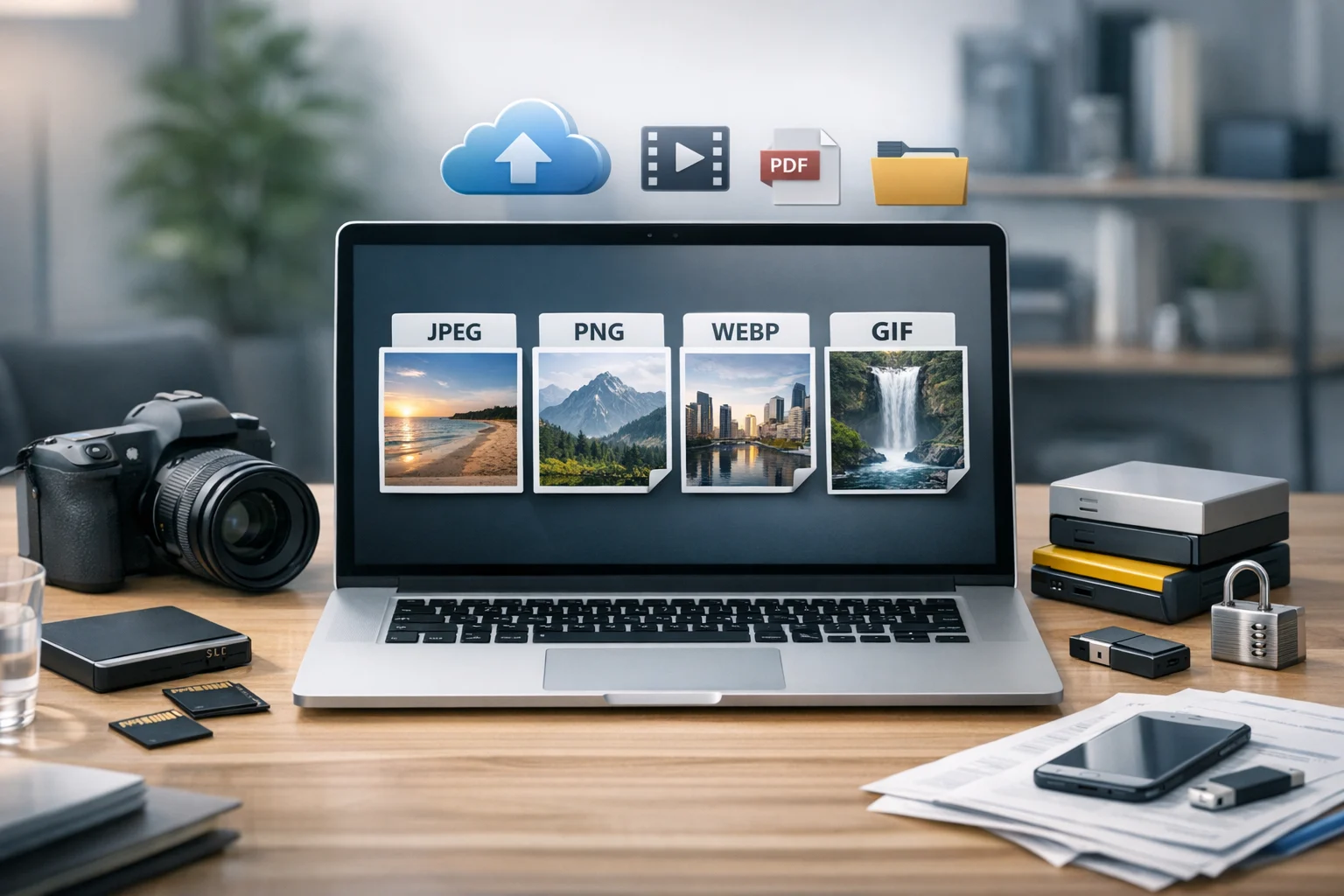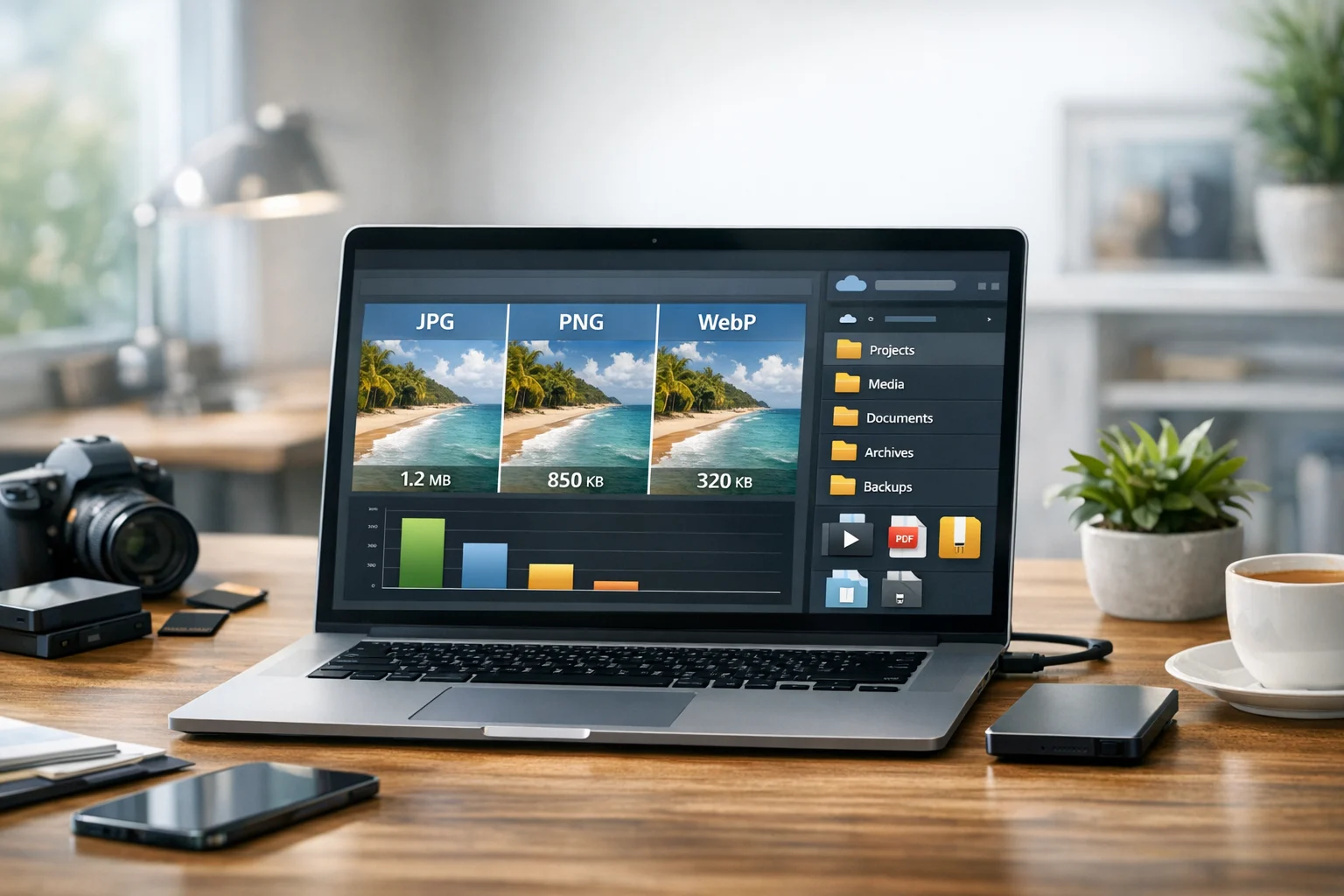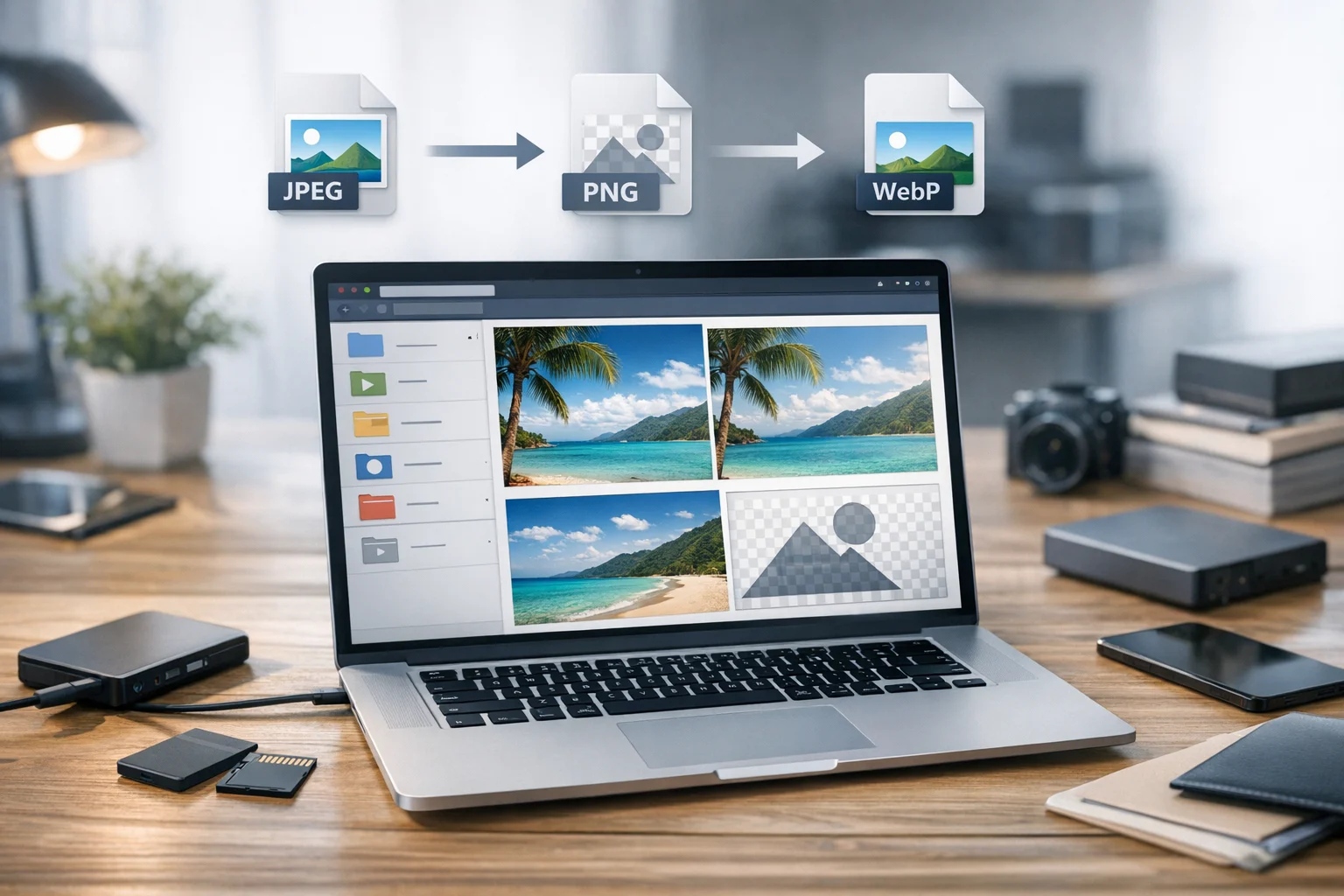
Choosing between JPEG, PNG, and WebP seems simple until you need images that look sharp, load quickly, and stay easy to share. For students building presentations, creators publishing portfolios, small businesses updating product pages, marketers posting campaign graphics, developers improving performance, and office teams organizing files, the format you choose affects more than appearance. It changes file size, page speed, storage use, editing flexibility, and compatibility across apps and devices.
If you have ever wondered about JPG vs PNG, or whether WebP vs PNG is the better choice for modern websites, you are asking the right question. There is no single best image format for every file. A product photo, a logo with transparency, a screenshot, and a social media graphic all behave differently after compression. The best choice depends on the image itself and how people will use it.
Online file conversion matters because you do not need to recreate a design just because the export settings were wrong. With image converter tools, you can convert image files into a format that fits your website, email campaign, report, or shared folder without adding unnecessary friction to your workflow.
What makes JPEG, PNG, and WebP different
All three formats store images, but they do it in different ways.
JPEG and JPG
JPEG and JPG are the same format. The only difference is the file extension. JPEG uses lossy compression, which means some image data is removed to reduce file size. That is usually a good trade when you are working with photos, lifestyle images, blog banners, or large image libraries where page speed matters.
- Best for: photographs, website banners, product images, social images without transparency
- Main advantage: small file sizes with good visual quality
- Main limitation: no transparent background, and repeated saving can reduce quality
PNG
PNG uses lossless compression. It keeps more original detail and supports transparency, which makes it useful for logos, interface elements, icons, screenshots, diagrams, and graphics with sharp edges. PNG is often the safer choice when clean lines matter more than file size.
- Best for: logos, screenshots, text overlays, transparent graphics
- Main advantage: excellent clarity and transparency support
- Main limitation: larger files, especially for full color photos
WebP
WebP was designed for the web. It supports both lossy and lossless compression, can handle transparency, and often creates smaller files than JPEG or PNG at similar visible quality. For many websites, WebP gives the best balance between image quality and performance.
- Best for: modern websites, product galleries, blog images, transparent web graphics
- Main advantage: strong compression with good quality
- Main limitation: some older tools and workflows still default to JPG or PNG
JPG vs PNG for common website content
When people search JPG vs PNG, they are usually deciding between speed and sharpness.
JPEG wins when you are showing photographs. If you run an online shop, restaurant menu site, travel blog, or service business with real world images, JPEG usually keeps pages lighter than PNG. Visitors care about how fast your site opens, especially on phones. Large PNG photos can slow the experience and increase storage costs over time.
PNG wins when the image includes text, simple shapes, UI elements, or transparent backgrounds. A crisp app screenshot, a badge with fine detail, or a logo placed on different colored sections usually looks better as PNG than as JPEG. JPEG compression can create fuzzy edges and visible artifacts around text or flat color areas.
A quick rule helps:
- Use JPEG for photos
- Use PNG for graphics that need transparency or very clean edges
- Consider WebP when you want a smaller, web friendly version of either
The best image format depends on the job.
WebP vs PNG and JPEG for faster websites
If performance is a priority, WebP deserves attention. In many cases, a WebP image can be noticeably smaller than the JPEG or PNG version while still looking nearly the same to most users. Smaller files mean faster loading pages, lower bandwidth use, and a better experience for visitors scrolling through galleries, landing pages, and blog posts.
WebP vs PNG is especially useful when you have graphics that need transparency but feel too heavy as PNG. Converting a transparent product cutout or badge to WebP often reduces file size while preserving the transparent background. If you have a folder full of legacy PNG assets, a PNG to WebP converter can make that transition simple.
WebP is also strong against JPEG for standard photography. If your site is full of hero images, team photos, or event pictures, a JPG to WebP converter can help you shrink heavy files without rebuilding pages from scratch.
JPEG is not obsolete. It still works very well for email attachments, older systems, simple uploads, and situations where wide compatibility matters more than squeezing every possible kilobyte out of an image. Many workflows still depend on JPG because it opens almost everywhere.
How to choose the right format by image type
The easiest way to decide is to look at what kind of file you are handling, not just what format seems popular.
Photos and realistic images
For portraits, events, food photography, travel shots, product photos, and blog visuals, JPEG is usually a safe starting point. WebP often becomes the better website delivery format if you want better compression. Keep the original high quality version for editing, then export a web ready version for publishing.
Logos and transparent graphics
PNG is often the better source format because transparency matters and edges need to stay clean. If the final destination is a website, WebP may offer a smaller delivery file while preserving that transparent background.
Screenshots and interface elements
PNG usually looks better for screenshots because it preserves text and flat UI detail more cleanly. A JPEG screenshot can look blurry around labels and buttons. If the PNG file becomes too large for the web, test WebP and compare the visual result.
Social media and email sharing
JPEG remains convenient because platforms, phones, and email clients handle it easily. PNG works for branded graphics and memes with text. WebP is great for web publishing, but always check the destination platform before relying on it for every share workflow.
When conversion makes more sense than redesign
Plenty of websites and shared folders contain images in the wrong format simply because they were exported quickly. A designer may hand off heavy PNG photos. A marketer may upload giant screenshots. A student may save every project image as JPEG even though some graphics need transparency. Those problems usually do not require a new design. They require the right image converter and a simple cleanup pass.
Common examples include:
- Turning large PNG photos into smaller JPEG files for email or slide decks
- Converting JPG product photos into WebP for faster ecommerce pages
- Creating transparent assets from original designs, then exporting web ready WebP copies
- Changing oversized PNGs into lighter formats before uploading them to a CMS
If someone sends you the wrong version, conversion is often the fastest fix. For example, a PNG to JPG converter is useful when a photo was saved as PNG and now needs a smaller file for sharing, embedding, or document use.
It is also worth remembering that image conversion and file compression are related, but not identical. Compression reduces size inside the same format or during export. Conversion changes the format itself. If you want a practical breakdown of where each approach fits, the ConvertAndStore article Best Practices for File Conversion, Backup, and Storage is a useful next read.
How online sharing changes your format choice
A website is only one destination. Files also move through email, chat apps, project tools, client portals, and shared drives. That changes what format works best.
If your image is going into a presentation, report, or handout, compatibility usually matters more than maximum compression. JPEG and PNG still fit many office workflows because they paste smoothly into documents and slide software. Teams that regularly convert PDF files may also need images in familiar formats for previews and inserts. A PDF converter is useful when you need PDF to JPG previews for thumbnails, or when you want to combine screenshots and visuals from image to PDF for approvals, training materials, or client handoffs.
For publishing on the web, WebP often becomes the strongest final format. For internal review, design edits, or cross app compatibility, PNG and JPEG may still be better working files. Many teams keep more than one version for the same image: an editable original, a high quality archive copy, and a compressed web export.
Image formats are part of a bigger file workflow
Most people who compare image formats are not only working with images. They also convert PDF files, rename assets, compress project folders, manage shared documents, and sometimes handle video. That broader workflow matters because image choices affect storage and organization.
For example, a freelancer building a client landing page may need to:
- convert image files into JPEG, PNG, or WebP
- use a PDF converter to create preview pages or export PDF to JPG graphics
- combine images into image to PDF files for approvals
- bundle source files into a ZIP archive before delivery
- open a RAR archive received from a client and standardize the assets
- use a video converter to convert video files for the same page and compare MP4 vs MOV before upload
A reliable file converter matters beyond one single task. The same users choosing between WebP and PNG today may be checking MP4 vs MOV tomorrow, compressing a folder the next day, and storing documents long term after that.
Storage, organization, and security matter after conversion
Once you create multiple versions of the same image, organization becomes important fast. Without a naming system, folders fill up with duplicates such as hero-final, hero-final-2, hero-web, hero-new, and hero-fixed. That wastes time and makes it harder to know which file belongs on the site.
A simple structure helps:
- Originals: highest quality source files
- Editable: design exports or images that may need revisions
- Web: compressed JPEG or WebP versions for publishing
- Shared: copies sized for email, presentations, or chat
- Archive: completed project bundles for file backup
Storage decisions matter too. If you manage growing image libraries, cheap cloud storage can keep costs predictable, but price should not be the only factor. Encrypted cloud storage is important when files include client work, internal brand assets, unreleased campaigns, or student records. Secure file storage helps reduce risk when teams upload, organize, and share materials across devices. The same platform can also support document storage for PDFs, contracts, reports, and exported image sets.
For many teams, good file backup habits are just as important as choosing the right format. It is frustrating to optimize a whole media library and then lose the original masters. Keep the source version, the published version, and a clear backup copy. That way you can adapt later if a platform changes its preferred format or if you need a new export size for another channel.
Practical rules you can use right away
If you want a fast decision process, these rules work well for most users:
- Use JPEG for photos when compatibility and smaller file size matter
- Use PNG for transparency, screenshots, diagrams, logos, and text heavy graphics
- Use WebP for website delivery when you want strong compression and modern performance
- Keep a higher quality original before converting or compressing
- Test actual files, because some images compress better than others
- Store originals and exports in organized folders with secure backup
For many websites, the practical answer is not JPEG or PNG or WebP alone. It is a mix. Keep the source image that preserves flexibility, then export the best version for the destination. That approach gives you better speed, better quality control, and less rework later.
Frequently Asked Questions
WebP is often better for website delivery because it usually creates smaller files at similar visible quality. JPEG is still a strong choice when you need broad compatibility across older tools, apps, and sharing workflows.
Use PNG when your image needs transparency or very crisp edges, such as logos, screenshots, diagrams, icons, and graphics with text. JPEG is usually better for photos because PNG files can become much larger.
It can, depending on the compression settings, but in many cases the visual difference is minor while the file size drops significantly. The best approach is to compare the converted version against the original and keep the original as a backup.
WebP is widely supported on modern websites and browsers, but some older software, office tools, and client workflows still prefer JPG or PNG. If you are sharing files outside the web, check what the recipient or platform accepts before converting everything to WebP.
Yes. Keep the original file for editing, re exports, and future format changes. Store the original and the converted version in organized folders, and use secure file storage or encrypted cloud storage if the files contain business, client, or personal information.