SVG is a great format when you need crisp graphics that scale cleanly. It works especially well for logos, icons, charts, and interface elements. But SVG is not always the most compatible choice. Some websites, apps, document editors, email platforms, and upload forms still handle PNG more reliably. That is why many people need to convert SVG to PNG.
If you have ever opened an SVG and found that it would not display properly in a presentation, social post, office document, marketplace listing, or older software, you have already seen the compatibility gap. PNG is one of the safest image formats for broad support, and converting from SVG can make your files much easier to use across devices and platforms.
This guide explains when converting SVG to PNG makes sense, how the process works, what settings affect quality, and how to avoid common problems. It also looks beyond a single file, because many people who convert image files also end up managing PDFs, archives, videos, and shared folders in the same workflow. A practical platform like ConvertAndStore can help with both file conversion and storage for everyday work.
What SVG and PNG actually do differently
SVG stands for Scalable Vector Graphics. It stores shapes, lines, colors, and text as mathematical instructions instead of fixed pixels. That means an SVG can scale up or down without becoming blurry. A small icon and a large banner can use the same SVG source file.
PNG is a raster image format. It stores an image as pixels. Once exported, its quality depends on the dimensions you choose. PNG is widely supported across browsers, office apps, CMS platforms, design tools, social platforms, and e-commerce systems. It also supports transparency, which makes it useful for logos and layered graphics.
If you are comparing formats more broadly, SVG is often best for editable vector graphics, while PNG is often the safer output for distribution. If you want a deeper format comparison, see PNG vs SVG for logos, icons, screenshots, and graphics.
Why people convert SVG to PNG for compatibility
There are a few common reasons PNG wins on compatibility even when SVG is technically more flexible.
- More universal support. PNG opens in almost every image viewer, browser, office suite, and phone app.
- Safer uploads. Many websites accept PNG but reject SVG due to security restrictions or limited parser support.
- Consistent appearance. SVG can depend on fonts, CSS, or embedded settings. PNG locks the appearance into a flat image.
- Better sharing. Clients, teammates, and customers are more likely to open a PNG without extra steps.
- Easy placement in documents. Presentations, proposals, reports, and email signatures often work better with PNG.
For students, creators, freelancers, office teams, developers, marketers, and small businesses, this matters in daily work. A logo might look perfect as SVG on a website but fail inside a slide deck. A product badge may upload as PNG but not as SVG. A chart might display properly in a design tool yet break in a marketplace image field. Converting solves these issues quickly.
When PNG is the safer format
PNG is usually the better choice when your top priority is reliable display across platforms.
Presentations and office documents
Many people place logos, icons, badges, diagrams, or exported graphics into slides and reports. PNG is often easier to insert and less likely to render differently on another device. If your work later moves into a PDF, PNG is also a straightforward format to embed.
Web uploads and content management systems
Some websites sanitize or block SVG uploads for security reasons. PNG is widely accepted for featured images, product listings, profile graphics, and downloads.
Social media and online sharing
Most social platforms expect raster images. If you are preparing social assets, ad creatives, or thumbnails, PNG is usually a dependable export option.
Email signatures and newsletters
SVG support in email clients can be inconsistent. PNG tends to display more reliably across inboxes and devices.
Apps, messaging tools, and internal portals
Internal systems and third-party tools often support PNG without issue, while SVG behavior can vary based on rendering engine, permissions, or font handling.
When you should keep the SVG instead
Converting SVG to PNG is helpful, but it is not always the right move. Keep the original SVG if you need:
- Infinite scaling without quality loss
- Editable vector elements
- Small file sizes for simple shapes or icons
- CSS or script-based styling on a website
- A master design asset for future exports
A smart workflow is to keep the SVG as the source file and export PNG versions for distribution. That way, you get both flexibility and compatibility.
How to convert SVG to PNG online
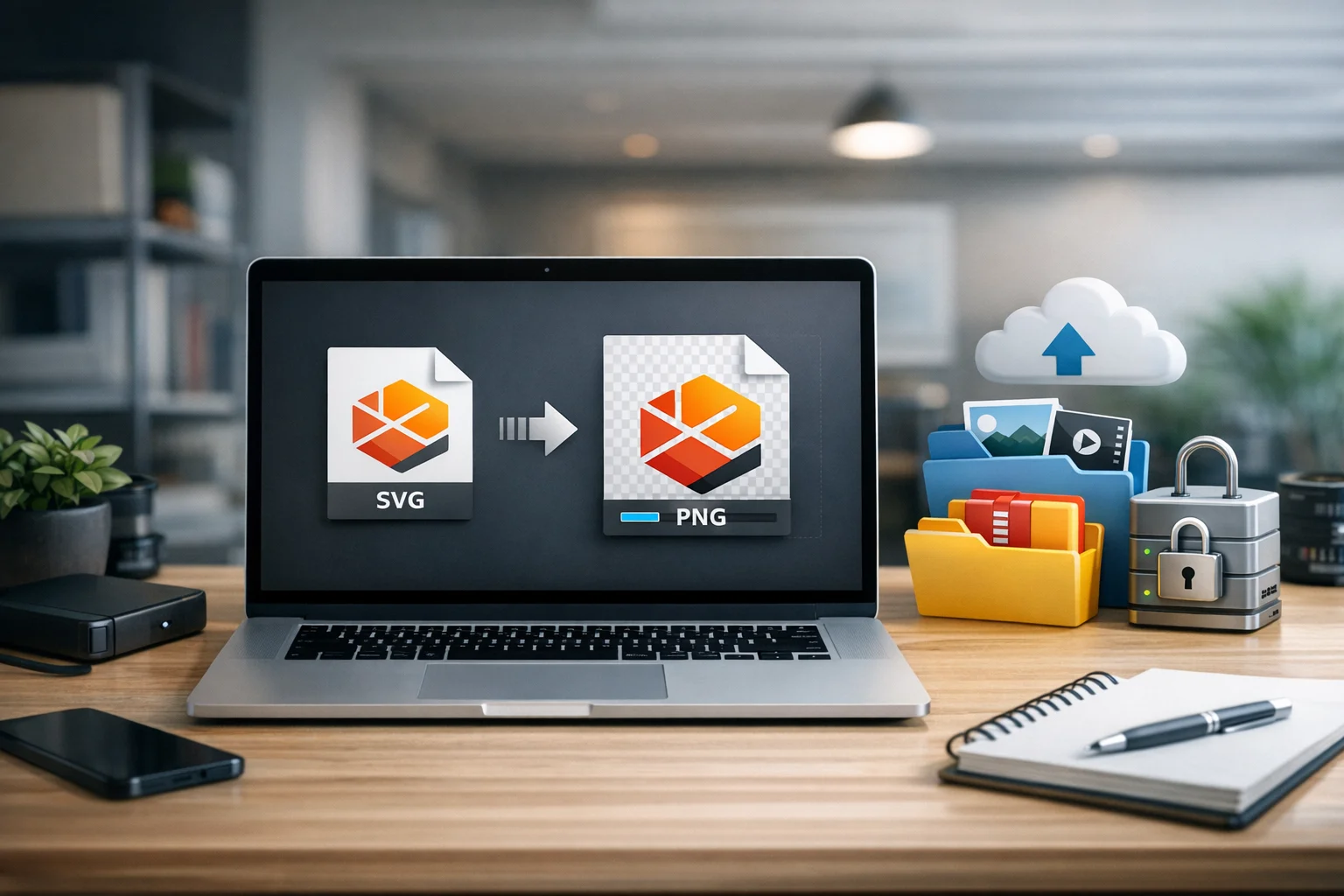
The fastest method for most people is online file conversion. You upload the SVG, choose PNG as the output format, adjust any size or appearance settings, and download the new file. If you regularly work with graphics, a good image converter tools page makes it easier to handle multiple formats in one place.
Here is a simple step-by-step workflow:
- Upload your SVG file.
- Select PNG as the output format.
- Choose the export size. This is important because PNG is pixel-based.
- Check transparency or background settings if your graphic needs a transparent canvas.
- Convert and download the PNG.
- Preview the result before using it in a website, document, product listing, or app.
If you need to crop, resize, or make visual adjustments before exporting, an online image editor can help you prepare the image for the exact use case.
The export settings that matter most
SVG to PNG conversion is easy, but the output quality depends on a few choices. These are the settings worth checking.
Image dimensions
This is the biggest one. Since SVG is resolution independent, you must decide how many pixels the PNG should have. If the output is too small, it will look soft when enlarged. If it is unnecessarily large, the file may become heavier than needed.
For example:
- Icons might only need a few hundred pixels
- Presentation graphics may need medium resolution
- Print or high-density screens may need a much larger export
Choose the final display size first, then export slightly larger if the image may be scaled up later.
Transparency
PNG supports transparency, which is one reason it is popular for logos and product graphics. If your SVG uses a transparent background, make sure the exported PNG preserves it. Otherwise, you may end up with an unwanted white box behind the artwork.
Background color
Sometimes transparency is not ideal. A white or branded background may display better in documents, marketplaces, or thumbnails. Think about where the image will live before exporting.
Sharpness and anti-aliasing
Text, thin lines, and small icons can look different after rasterization. If the graphic seems fuzzy, try increasing the output dimensions and then test again at the actual display size.
Fonts and text rendering
Some SVG files rely on fonts that may not be embedded. During conversion, substitute fonts can alter spacing or appearance. If exact text rendering matters, outline the text in the original design or verify the result closely after export.
How to keep SVG to PNG quality high
People often assume conversion reduces quality automatically. That is not quite right. The main issue is not the act of conversion itself. It is choosing the wrong export size or using the PNG in a context it was not sized for.
Use these tips to keep quality strong:
- Export at the right pixel dimensions. Match the image to the largest place it will appear.
- Keep the original SVG. Always save the vector source so you can export again later.
- Test on the target platform. A logo for a website header may need a different size than one for a PDF or app.
- Avoid repeated conversions. Do not keep exporting from already converted PNG files when the SVG source is available.
- Resize carefully after export. Large downscales are usually fine, but upscaling a small PNG will reduce clarity.
If file size matters as much as visual quality, it helps to understand the difference between format changes and optimization. This related guide explains that clearly: Image Compression vs Image Conversion: When Each Matters.
Common SVG to PNG problems and how to fix them
The PNG looks blurry
The export dimensions were probably too small. Re-export the SVG at a larger pixel size. Since SVG is vector-based, you can do this without harming the source.
The background is not transparent
Check the export settings and enable transparency if needed. Some workflows default to a solid background.
The text looks different from the original
The SVG may use fonts that are not embedded or supported in the conversion environment. Convert text to outlines in the original design if consistency is essential.
The colors seem off
Color handling can vary across tools and displays. Preview the exported PNG on the actual device or platform where it will be used.
The file is too large
Your output dimensions may be bigger than necessary. Reduce the export size or use file compression after conversion if the image is meant for web delivery or attachments.
Where PNG fits compared with other image formats
Converting SVG to PNG is only one part of a broader file workflow. Many people also compare PNG with other formats depending on the content.
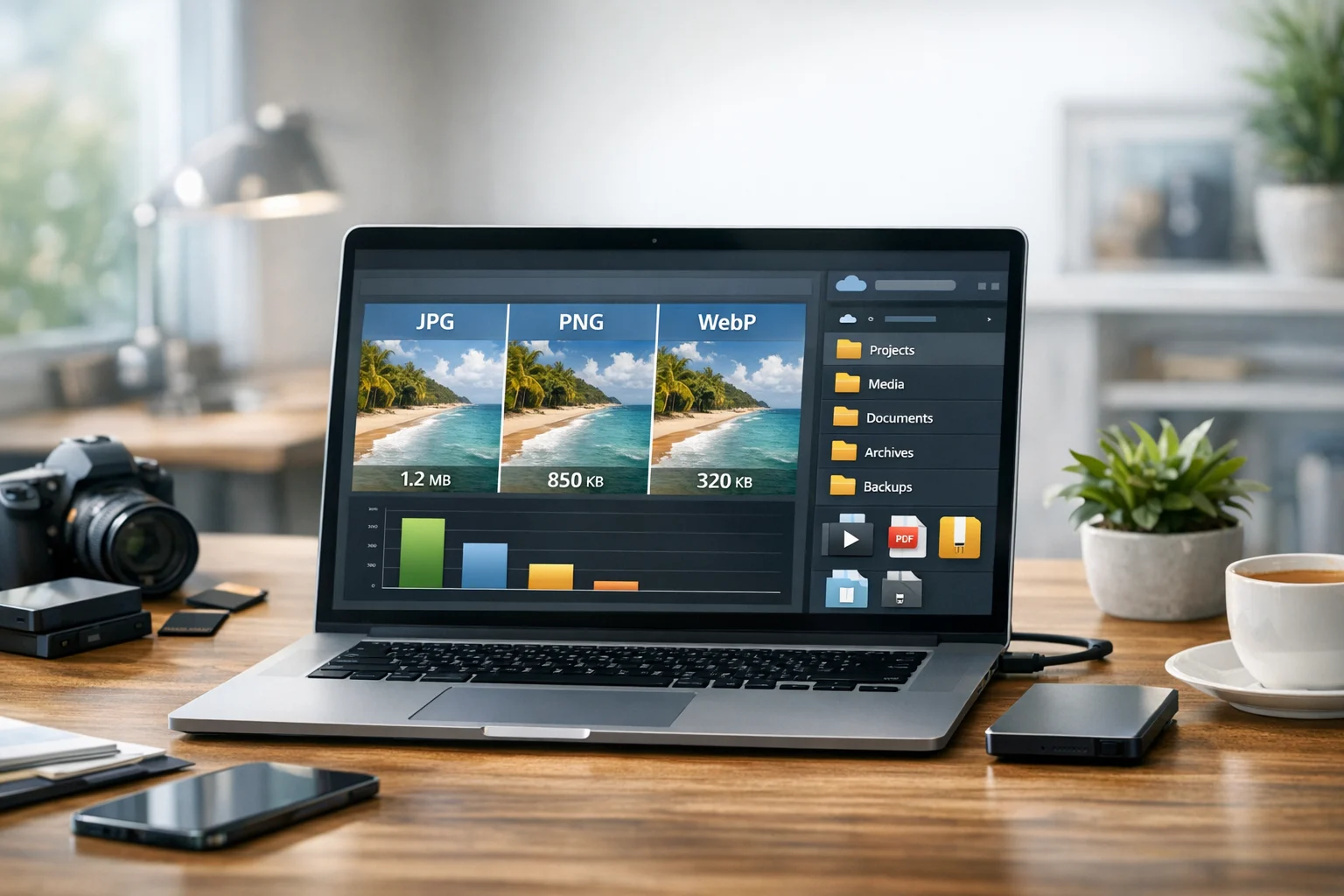
For photos, JPG vs PNG is a common question. JPG usually creates smaller files for camera images, while PNG often works better for graphics, screenshots, and transparent elements. For web performance, WebP vs PNG is another useful comparison. WebP can reduce file size significantly, but PNG still wins in many compatibility and editing scenarios. If you want a broader look at what may be the best image format for online use, this guide helps: JPEG vs PNG vs WebP for Website Images and Online Sharing.
SVG is great as a source format for vector artwork, PNG is excellent for safe sharing and broad support, JPG is often better for photos, and WebP is useful when smaller web files matter more than universal compatibility.
Practical use cases by audience
Students
If you need to place a graphic into slides, a report, or an LMS upload, PNG is often more dependable than SVG. It is also easier to insert into documents that may later be exported as PDF.
Creators and freelancers
You may design in vector but deliver in PNG because clients want something they can drag into Canva, PowerPoint, social tools, or a website builder without issues.
Small businesses and marketers
Brand assets, ad graphics, product badges, and promotional visuals often need to work across many tools. A PNG version reduces friction when sharing with vendors, printers, and teammates.
Developers
SVG is often ideal in code, but PNG can still be useful for fallback assets, app store images, thumbnails, or environments where SVG support is restricted.
Office teams
When documents move between teams, contractors, and clients, predictable formatting matters. PNG is a safer choice for logos, signatures, and fixed visual elements.
How SVG to PNG fits into a bigger file workflow
Most people do not stop with one conversion. A converted logo might go into a PDF proposal, a product sheet, a slide deck, a website upload, or a shared archive. That is why it helps to think in terms of an entire file workflow instead of one format change.
For example, after you convert image files from SVG to PNG, you might also:
- Use a PDF converter to convert PDF files for previews or sharing
- Create PDF to JPG exports for thumbnails or quick email attachments
- Turn an image to PDF when sending a simple handout or proof
- Bundle project assets into a ZIP archive for clients
- Receive a RAR archive from a collaborator and reorganize the files
- Apply file compression when attachments are too large
- Use a video converter to convert video files if the project includes motion assets, where comparisons like MP4 vs MOV matter
All of that becomes easier when your files are kept in one organized system. Teams that manage graphics, PDFs, and media regularly should think about cloud storage as part of the process, not as an afterthought.
Why storage matters after conversion
Once you export PNGs, you usually end up with multiple versions. You may have a transparent logo, a white background version, several sizes for web and print, and separate copies for social, documents, and marketplaces. Without a storage system, those versions get messy fast.
This is where secure file storage matters. Good organization helps you keep the source SVG, the exported PNGs, and any related PDFs or documents in one place. If you work with client files or internal brand assets, encrypted cloud storage is worth considering for privacy and control. And if you are watching costs, cheap cloud storage can still be useful as long as it does not force you to compromise on access, sharing, or security.
It also helps to keep file backup in mind. If a teammate edits the wrong version or a file gets lost in email threads, a central storage workflow saves time. The same applies to document storage for proposals, reports, and image-based reference material.
A simple workflow that works well
- Keep the SVG as the master file
- Export PNG versions for sharing and uploads
- Name files clearly by size and use case
- Store everything in organized folders
- Compress or archive files when sending batches
- Use online file conversion when you need quick format changes without installing extra software
This kind of process helps whether you are managing a school project, a brand kit, a product launch, or everyday office documents.
Frequently Asked Questions
Convert SVG to PNG when you need broader compatibility with websites, office apps, email clients, upload forms, and sharing platforms that may not fully support SVG.
Not if you export at the right dimensions. SVG is vector based, so the key is choosing a large enough PNG size for where the image will be used.
Yes. PNG supports transparency, so logos, icons, and graphics can keep a transparent background if that option is enabled during export.
SVG is usually better as the master file because it scales perfectly, but PNG is often better for sharing, uploads, presentations, and tools that need a standard raster image.
Yes. Keep the SVG as your source file so you can export new PNG sizes later without losing flexibility or quality.
Store the original SVG and exported PNG versions in organized cloud storage, keep backups, and use secure file storage if the files are important for client work, brand assets, or internal documents.