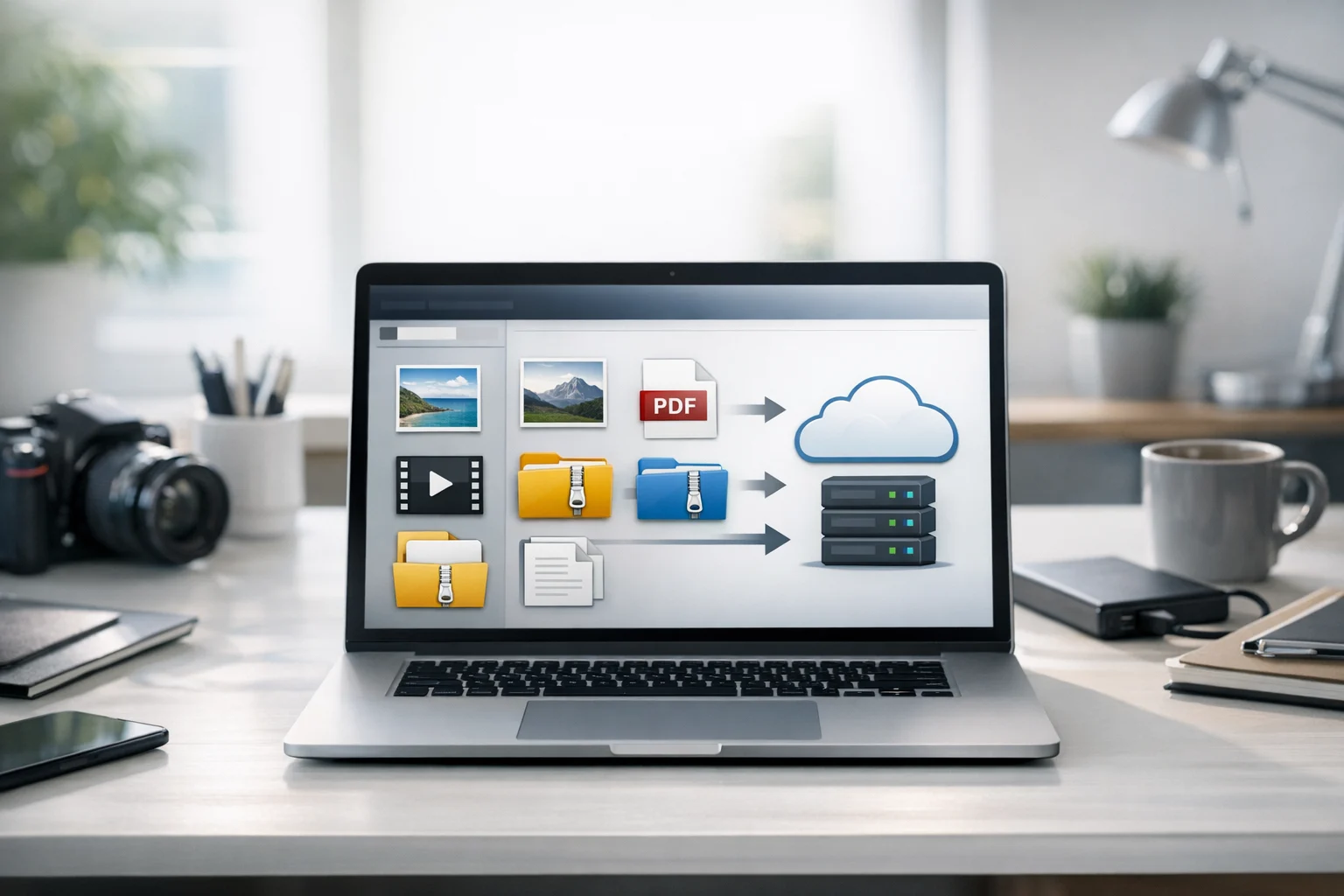
If your cloud storage bill keeps growing, the problem often starts before upload. People save original camera photos, oversized PDFs, long screen recordings, design exports, and folders full of duplicates. Then those files get copied into shared drives, backup folders, client portals, and personal accounts. A plan that looked like cheap cloud storage suddenly fills up much faster than expected.
A simple way to lower storage costs is to convert and compress files before you store them. Smaller, more compatible files take up less space, sync faster, download faster, and are easier to share across devices and apps. For students, creators, small businesses, marketers, developers, office teams, freelancers, and everyday users, this is one of the easiest ways to reduce recurring storage costs without changing how you work.
A practical file converter helps you avoid uploading the heaviest version of every file. You can choose a format that fits the job, apply file compression where it helps, and keep only the originals that truly need to stay untouched. Done consistently, that habit can save a surprising amount of space over weeks and months.
Why cloud storage costs rise so quickly
Most storage overuse does not come from one giant file. It comes from hundreds or thousands of medium sized files that were never optimized. A presentation deck with full resolution images, a scanned contract saved as a huge PDF, or a product video exported in a bulky format may not seem like a big deal on its own. But when those files are duplicated for sharing, editing, backup, and version history, the total climbs fast.
These are some of the biggest storage offenders:
- Images saved in the wrong format, such as screenshots stored as large PNG files when JPG or WebP would be smaller.
- Scanned PDFs that contain high resolution images with no compression.
- Videos exported at unnecessarily high bitrates or in less efficient formats.
- Project folders with many loose files that could be packed into one ZIP archive.
- Multiple copies of the same file saved in slightly different names or formats.
- Original assets kept forever even when only a compressed delivery version is used day to day.
Before you pay for more space, it makes sense to reduce the size of what you already store. That does not mean damaging quality. It means using the right format for the right purpose.
Convert first, store second
The basic rule is simple: if a file can be made smaller without hurting its purpose, do that before you upload it. This works because file type affects storage size just as much as file content. The same photo, document, or video can vary a lot in size depending on the format you choose.
Online file conversion is especially helpful when you work across different devices and software. You do not need to keep extra desktop apps just to make a file smaller or more compatible. You can convert image files, convert PDF files, create archives, or use a video converter when a file is too large for practical storage and sharing.
- Less storage used per file, which extends the life of your current plan.
- Faster uploads and sync, which matters for teams and backups.
- Better compatibility, so fewer duplicate versions are needed.
- Cleaner organization, because you keep the formats you actually use.
In many cases, the savings are not small. Image libraries, PDF heavy workflows, and video folders are often where the biggest reductions happen first.
Use smarter image formats before uploading
Images are one of the easiest places to save space. Students keep screenshots and scanned notes. Creators store portfolio images and exports. Marketers manage product photos, ad creatives, and social assets. Office teams save charts, signatures, forms, and presentations. If you never review image formats, image folders grow fast.
The best image format depends on how the image will be used. An image converter lets you choose a format based on quality needs, transparency, compatibility, or file size rather than just saving whatever default your app created. If you regularly need to convert image files for websites, documents, email, or storage, browse ConvertAndStore's image converter tools to pick the format that fits the task.
JPG vs PNG
The JPG vs PNG question comes up all the time because both are common, but they serve different purposes.
- JPG is usually better for photos and complex images with many colors. It uses lossy compression, which means smaller file sizes with some quality tradeoff.
- PNG is better for graphics that need transparency, sharp edges, or lossless quality, such as logos, icons, and screenshots with text.
For storage savings, JPG often wins for photographs. PNG is useful, but many people keep PNG files when a JPG version would be much smaller and still look perfectly fine for their real use case. If your folder is full of photo style PNG files, converting them can make a major difference.
WebP vs PNG
WebP vs PNG is another important comparison if you manage web images, blog visuals, product listings, or shared design assets. WebP often produces significantly smaller files than PNG and can still support transparency. That makes it a strong option for people who want to store and serve lighter images.
For many everyday images, WebP is also smaller than JPG. If you publish lots of product photos, article thumbnails, or portfolio previews, using a JPG to WebP converter can help reduce both storage usage and page weight without creating a second oversized duplicate.
A practical rule for image storage looks like this:
- Use JPG for general photos when compatibility matters most.
- Use PNG when you need transparency or very sharp graphic detail.
- Use WebP when you want smaller files for websites, content libraries, and lightweight sharing.
If you are trying to choose the best image format for storage, do not think in absolutes. Think in purpose. The right format is the one that gives you acceptable quality at the lowest practical size.
Shrink PDFs and scanned documents
PDF files are another common reason storage fills up. Schools, offices, freelancers, and small businesses all accumulate proposals, reports, contracts, invoices, forms, manuals, and scanned records. Many of those files are much larger than they need to be, especially when they contain scanned pages or embedded images.
A PDF converter helps when you need to repurpose files instead of saving multiple heavy versions. You might convert PDF files for sharing, turn pages into images, or combine images into one smaller document. Common tasks like PDF to JPG and image to PDF are useful when you want faster previews, lighter uploads, or cleaner document organization.
If documents are a big part of your workflow, ConvertAndStore's PDF tools make it easier to manage document storage without keeping oversized copies of everything.
- Compress scanned PDFs before uploading them to long term storage.
- Store delivery versions separately from editable source files.
- Convert unnecessary image heavy PDFs into smaller formats when you only need viewing access.
- Merge related pages into one organized document instead of many loose files.
This is especially helpful for file backup and document storage. Backups become lighter, indexing becomes easier, and your files are simpler to search and share later.
Reduce video size before it eats your plan
Video is usually the fastest way to burn through storage. A few screen recordings, product demos, lectures, raw clips, or mobile videos can take more space than thousands of documents. If those videos are stored in original export formats with high bitrates, your account can balloon quickly.
Video conversion can save real money. When you convert video files into a more efficient format, lower the bitrate, or reduce resolution to match actual viewing needs, storage use drops fast. Not every video needs to be full quality forever. Training videos, drafts, social media edits, and internal review clips often work perfectly well at smaller sizes.
MP4 vs MOV
The MP4 vs MOV comparison matters because both are common, but one is usually more practical for storage and sharing. MOV files are often associated with Apple workflows and may be larger depending on the export settings. MP4 is typically the better choice for broad compatibility, smaller file sizes, and easier playback across platforms.
- Use MP4 for most general storage, streaming, sharing, and backup needs.
- Keep MOV only when your editing workflow or source quality truly requires it.
- Lower resolution and bitrate for archive copies that do not need full production quality.
A common mistake is storing raw videos, review exports, and final delivery copies all together in the same cloud folder. If only one version is used regularly, archive the rest selectively or compress them first.
Bundle folders with ZIP and RAR when it makes sense
Not every storage problem is about format conversion. Sometimes the issue is folder sprawl. A project may contain dozens of images, documents, code files, and drafts. That creates clutter and can make downloads messy. In those cases, packaging files into an archive helps organization and sometimes saves space too.
A ZIP archive is usually the most practical choice for everyday use. It is widely supported and easy to open across devices. A RAR archive can sometimes offer better compression, but it is less universally convenient. For long term sharing and common workflows, ZIP is often the safer default.
If you frequently package projects, reports, design folders, or exports for clients and teams, ConvertAndStore's archive tools can help you bundle files more cleanly before uploading them.
- Create one archive for each finished project instead of storing dozens of loose files.
- Use file compression on folders that are rarely opened but must be retained.
- Convert a RAR archive to ZIP when compatibility matters more than maximum compression.
- Archive completed work so active folders stay smaller and easier to manage.
Archives also help reduce accidental duplication. When everything for one job sits in one packaged file, people are less likely to make scattered copies in multiple places.
Build a low cost storage workflow
Saving space is easier when you turn it into a simple routine instead of a cleanup project you do once a year. A lightweight process prevents storage bloat before it starts.
- Step 1: Review the file's purpose. Is it for editing, sharing, previewing, archiving, or backup?
- Step 2: Convert to the format that best fits that purpose. Use JPG, PNG, WebP, PDF, MP4, ZIP, or another practical choice.
- Step 3: Compress where appropriate. This is especially helpful for scans, images, folders, and draft videos.
- Step 4: Name files clearly so you do not create duplicate mystery versions later.
- Step 5: Upload only the versions you actually need in cloud storage.
- Step 6: Keep originals in a separate archive only if they have long term value.
For many users, this can be as simple as converting screenshots, compressing PDFs, exporting videos to MP4, and archiving completed folders before upload. A few seconds of preparation can prevent gigabytes of waste.
Keep files small without sacrificing security
Cost matters, but so does privacy. Reducing file size should not mean giving up control over sensitive documents, financial records, creative work, or client materials. If you store personal or business files online, look for secure file storage features and encrypted cloud storage options so your data stays protected while remaining accessible.
Using smaller files can actually support better security habits. When storage is organized, you are less likely to scatter copies across email threads, temporary drives, and personal devices. That means fewer uncontrolled versions floating around. Cleaner storage also makes it easier to separate active work from archived material and maintain a more reliable file backup plan.
Once your files are converted and compressed into practical formats, keeping them in dedicated cloud storage is much easier. You use less space, spend less on upgrades, and maintain a cleaner system for secure file storage, document storage, and regular file backup.
What to compress first, and what to leave alone
Not every file should be compressed aggressively. Some already use efficient compression, and some originals are worth preserving. The goal is not to shrink everything at all costs. The goal is to reduce waste while keeping the versions that serve a real purpose.
Start with these high impact candidates:
- Screenshots and graphics saved as oversized PNG files
- Photo libraries that could be converted to JPG or WebP
- Scanned contracts, notes, and receipts stored as huge PDFs
- Screen recordings and review videos saved in bulky formats
- Completed project folders that can be packed into a ZIP archive
- Duplicate copies of the same document in slightly different versions
Be more careful with these:
- Master design assets that may need future editing
- Source videos needed for production work
- Legal, archival, or compliance documents where original fidelity matters
- Images that have already been compressed many times, since repeated conversion can reduce quality
A good rule is to keep originals only when they have a clear future use. If a source file will never be edited again, a smaller delivery format may be the better storage choice.
Examples for different types of users
Different users waste storage in different ways, but the same convert first mindset works across the board.
- Students: Convert phone photos of notes into smaller PDFs, compress scanned assignments, and archive completed coursework by semester.
- Creators: Export portfolio previews in WebP or JPG, store final client delivery folders as ZIP archives, and archive raw media separately.
- Small businesses: Compress invoices, contracts, and reports, standardize document storage, and store only final versions in shared folders.
- Marketers: Convert campaign images into lighter web formats, shrink slide decks and PDFs, and keep one approved asset library instead of many duplicates.
- Developers: Archive release packages, compress screenshots and documentation, and avoid storing heavy build artifacts longer than necessary.
- Office teams: Use smaller PDFs for internal sharing, package closed projects into ZIP files, and move old records into separate backup storage.
- Freelancers and everyday users: Convert receipts, forms, resumes, and photos into more efficient formats before saving them online.
The pattern is always the same. Choose the right format, reduce unnecessary size, then store the file once in a place that is easy to manage.
ConvertAndStore gives you tools for online file conversion, file compression, archive creation, and organized storage, so you can prepare files properly before they reach your account. Start with the heaviest images, PDFs, videos, and project folders, and the savings usually show up quickly.
Frequently Asked Questions
Yes. Choosing smaller, more efficient formats before upload reduces the space each file uses. Over time, that can delay or eliminate the need to upgrade your cloud storage plan.
It depends on the image. JPG is usually best for photos, PNG is better for graphics that need transparency, and WebP is often the smallest option for web and general sharing while keeping good quality.
Sometimes. Lossy formats such as JPG can reduce quality slightly to make files smaller, while lossless compression keeps original data intact. The right choice depends on whether you need editing quality or just a smaller file for storage and sharing.
For most people, yes. MP4 is usually more compatible and often more storage efficient than MOV, especially for sharing, streaming, backups, and everyday viewing.
Keep originals only if they have real long term value, such as future editing, legal records, or archival needs. For many everyday files, a well converted version is enough and saves space.
It can be, especially when you use trusted platforms and store finished files in secure file storage or encrypted cloud storage. Always review privacy practices before converting sensitive documents.