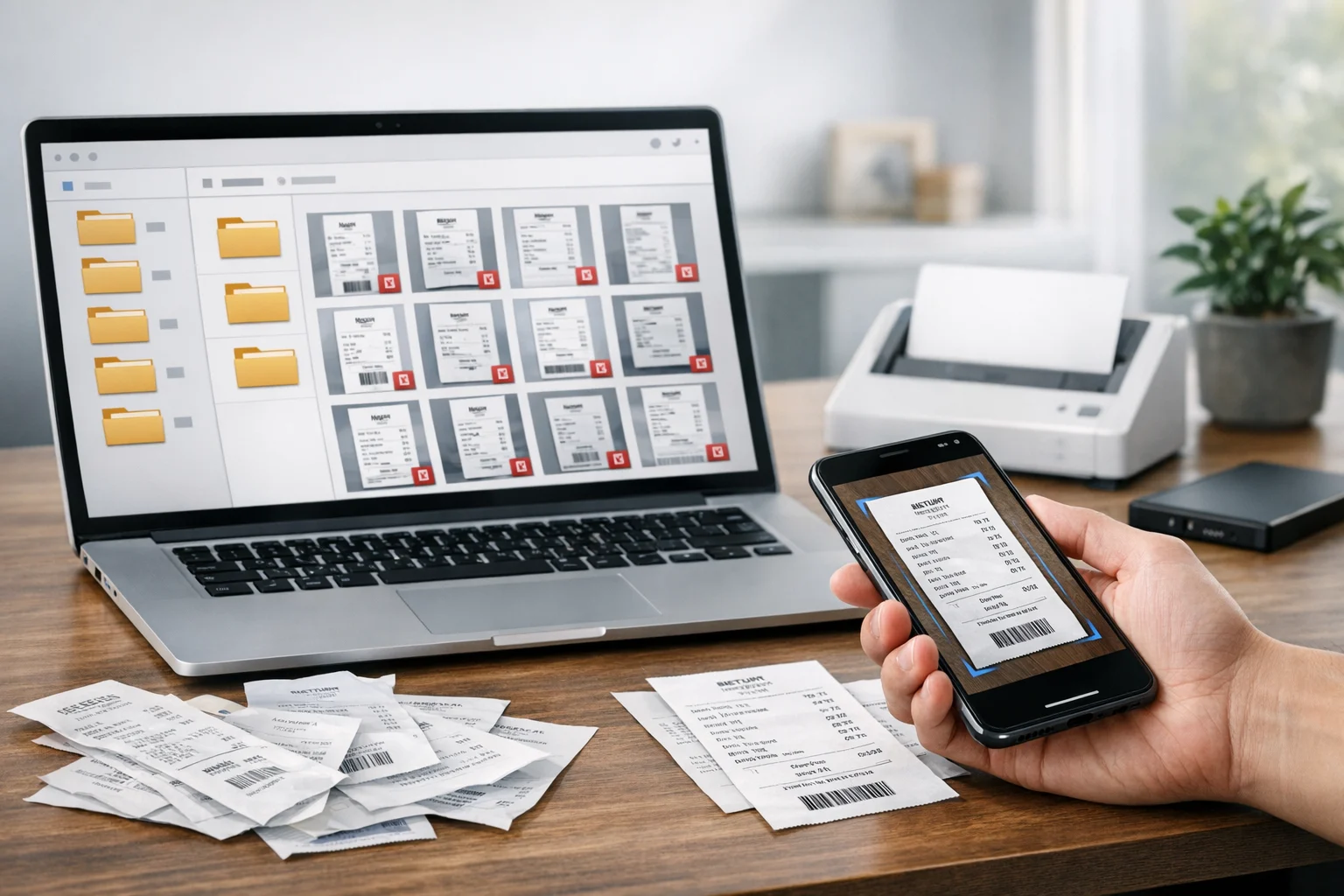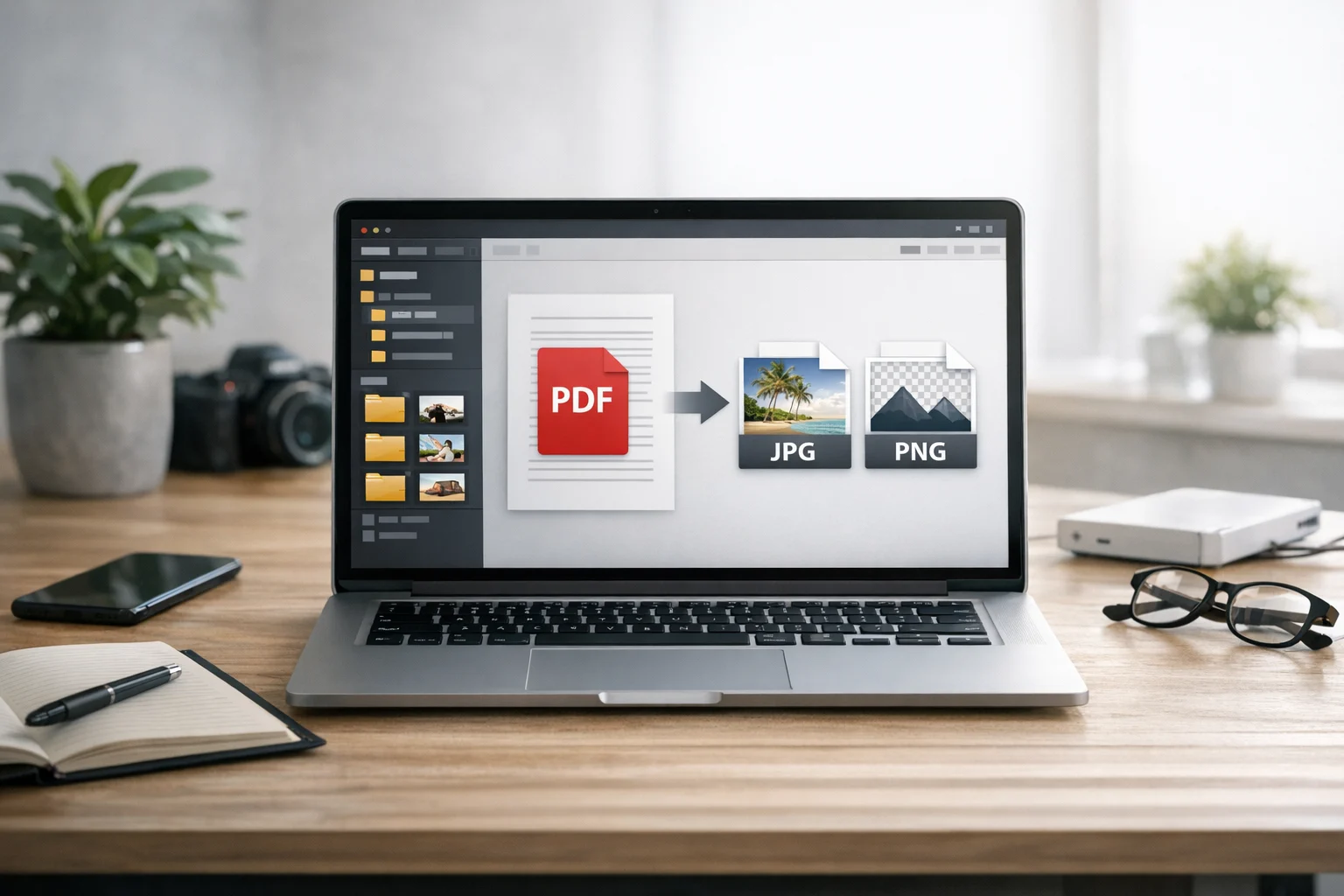
Converting PDF pages into image files sounds simple, but the best method depends on what you need to do next. A student may want a lecture slide as a quick JPG for notes. A designer may need a high quality PNG from a brand guide. A small business might need to pull product sheets out of a PDF and send them as individual images for a marketplace listing or social media post.
If you pick the wrong format or use the wrong workflow, you can end up with blurry text, oversized files, hard to manage folders, or images that don’t look right on websites and mobile devices. It helps to think about format, quality, storage, and file size before you start.
This guide breaks down the best ways to convert PDF pages into JPG or PNG files, when to use each format, how to keep quality under control, and how ConvertAndStore can help you handle the full workflow from online file conversion to document storage and secure sharing.
Why people convert PDF pages into image files
PDFs are great for preserving layout, fonts, and page structure. They’re often the best format for contracts, brochures, reports, manuals, invoices, and forms. But image files are easier to use in many day to day situations.
- Students often convert slides or textbook pages into images they can drop into study notes.
- Creators and marketers may need individual pages for social posts, email graphics, ads, or visual references.
- Small businesses use page images in product listings, internal training, and customer support docs.
- Office teams may convert PDF files so pages can be added to presentations, shared in chat tools, or inserted into reports.
- Developers and freelancers often extract pages for apps, websites, documentation, or design handoff.
In many cases, a PDF converter that exports pages as images is faster than manually taking screenshots. Screenshots can work in a pinch, but they’re harder to keep consistent and often reduce quality.
When JPG makes more sense and when PNG is the better choice
The format you choose matters just as much as the conversion tool itself. The most common decision is JPG vs PNG.
Choose JPG when file size matters most
JPG is usually the better option when you want smaller files for faster uploads, easier email sharing, or lighter website assets. If the PDF page is mostly photography, gradients, or mixed content that doesn’t need a transparent background, JPG is often a practical choice.
PDF to JPG is such a common workflow because it gives you a widely supported image format that works almost everywhere. For quick sharing, client review, or posting visuals online, JPG is usually enough.
Choose PNG when clarity matters most
PNG is better when the PDF page includes sharp lines, logos, diagrams, screenshots, interface elements, or text that needs to stay crisp. It’s also a good fit when you want better quality for design work or future editing.
If a PDF page contains charts, icons, or thin fonts, PNG usually looks cleaner than JPG. The tradeoff is larger file sizes.
How to think about the best image format
There isn’t one universal best image format. The right choice depends on your goal:
- JPG for smaller files and broad compatibility
- PNG for sharper text and graphics
- WebP for modern web use in some workflows after conversion
If you want a deeper format comparison for online sharing and site performance, this guide on JPG vs PNG and WebP is useful. It also helps explain the practical differences in WebP vs PNG for websites.
The easiest way to convert PDF pages into JPG or PNG
For most people, the simplest option is an online tool that can export each PDF page as an image. A browser based workflow is fast, doesn’t require software installation, and works well across laptops, tablets, and office computers.
Using a dedicated PDF to image converter is usually the best place to start. Instead of opening a PDF in one app and then trying to capture each page manually, you can convert the file directly and download the resulting images in a cleaner, more consistent way.
This is especially useful when you need to convert multi page documents, keep the output organized, or handle repeated file conversion tasks as part of a regular workflow. A good file converter saves time because it removes extra steps and reduces formatting problems.
Best workflows based on what you actually need
Convert the whole PDF when every page matters
If you need every page as an image, a full export is the fastest route. This works well for:
- Slide decks
- Catalogs
- Training manuals
- Design presentations
- Reports with visual pages
In this case, convert PDF files in one batch and then sort the resulting JPG or PNG files by page number. This is much easier than saving pages one by one.
Extract only the pages you need before converting
If the PDF is large, don’t convert the entire file unless you actually need every page. It’s often smarter to isolate the relevant pages first. For example, if a 70 page document contains only 3 pages you want to publish as images, extract those pages and convert just that smaller file.
That reduces processing time, keeps downloads tidy, and makes later storage easier. You can do this with Extract PDF Pages before exporting to JPG or PNG.
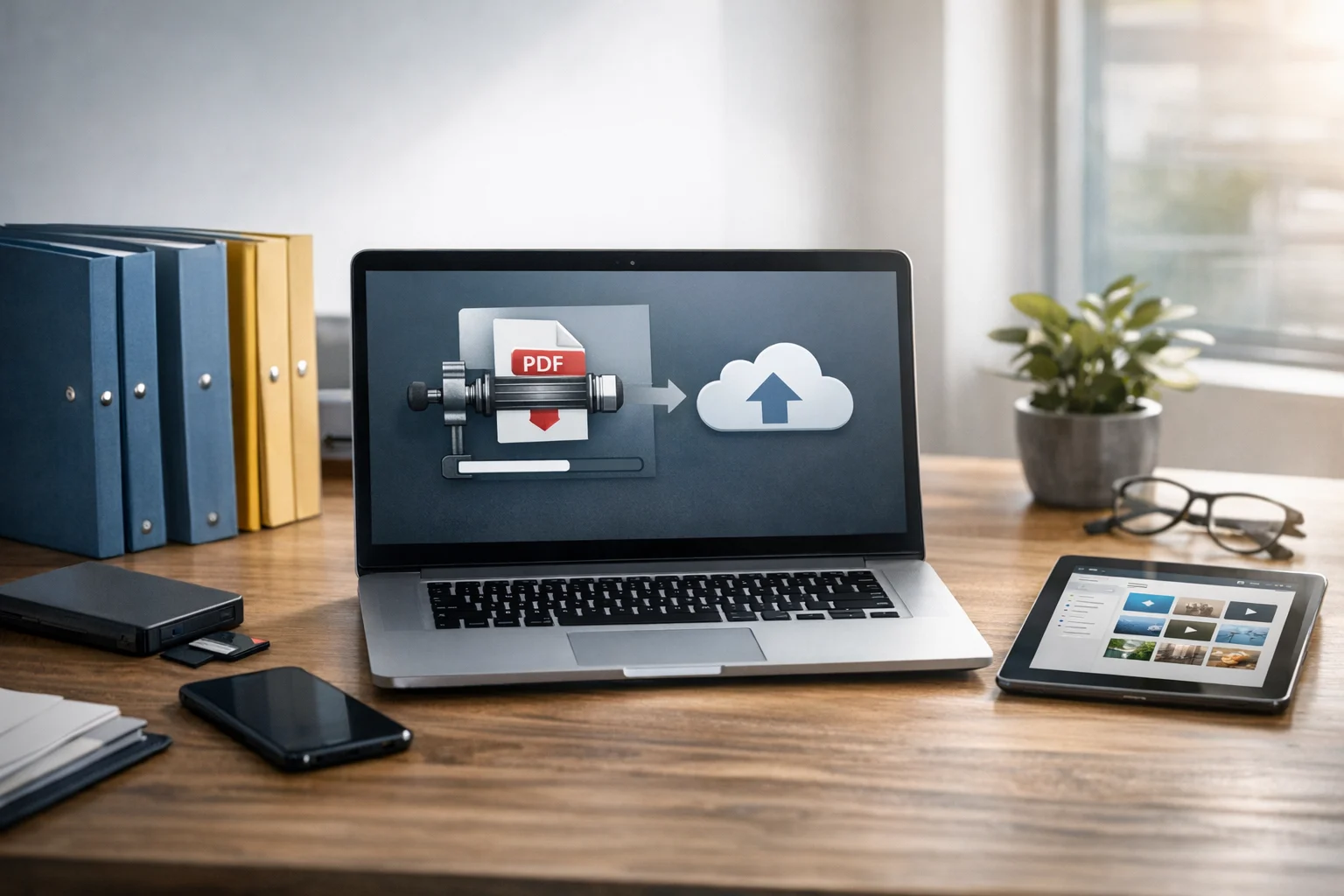
Compress the PDF first if uploads are slow
Large PDFs can take longer to upload and process, especially if they contain embedded images or scans. In many cases, light file compression before conversion speeds things up without noticeably hurting the result.
If your document is unusually large, try a PDF compressor first. This is especially helpful for scanned documents, presentations, and image heavy reports. It also makes later cloud storage uploads more manageable.
How to keep image quality high after conversion
A good conversion process should preserve readability and visual detail, but a few practical choices make a big difference.
- Use PNG for text heavy or graphic heavy pages. Fine lines and small text often stay sharper.
- Use JPG for photo based pages. This keeps size lower while still looking good for normal viewing.
- Avoid repeated re-saving. Every extra export or recompression step can reduce quality, especially with JPG.
- Start with the cleanest PDF possible. If the source PDF is blurry, the converted image won’t improve it.
- Check page dimensions. If you plan to use the output online, you may need to resize after conversion.
Some users assume PNG always means better quality. That’s not always true. PNG preserves detail well, but if the original PDF was built from low resolution scans, the output will still reflect that source quality. The real goal is matching the format to the page content and intended use.
Common use cases for PDF page conversion
Sharing a single page quickly
If you need to send a single quote, invoice page, slide, or brochure panel in chat or email, an image file can be more convenient than a full PDF attachment. JPG is often enough here.
Publishing pages on a website or landing page
Websites rarely display PDF pages directly as elegantly as images. Converting selected pages gives you more control over layout and performance. If you later want to optimize further, an image converter can help you convert image files into web friendly formats such as WebP.
Using PDF pages in presentations or documents
When a PDF page needs to be inserted into a deck, report, or visual brief, converting it to PNG is often the easiest way to preserve the layout.
Archiving visual references
Creative teams often keep mood boards, signed pages, proofs, or product sheets as image files for quick visual browsing. In that case, folder naming and document storage matter just as much as the original conversion.
What to do after converting your PDF pages
Conversion is only one step. Once you’ve created the JPG or PNG files, think about what happens next.
Organize files clearly
Name files by project, version, and page number so they’re easy to find later. A structure like project-name_page-01.png is much easier to manage than random downloads.
Store them in cloud storage
If you work across devices or collaborate with clients, move finished image files into cloud storage right away. That gives you easier access, safer sharing, and a more reliable file backup routine. For many users, even cheap cloud storage is worth it if it prevents lost work or duplicate versions.
Use secure storage for sensitive documents
If the PDF contains contracts, personal records, internal documents, or private client materials, storage should be treated seriously. Look for encrypted cloud storage and secure file storage practices so converted pages are protected, not just accessible. This matters even more when image files are easier to preview and reshare than the original PDF.
When it makes sense to convert images back into a PDF
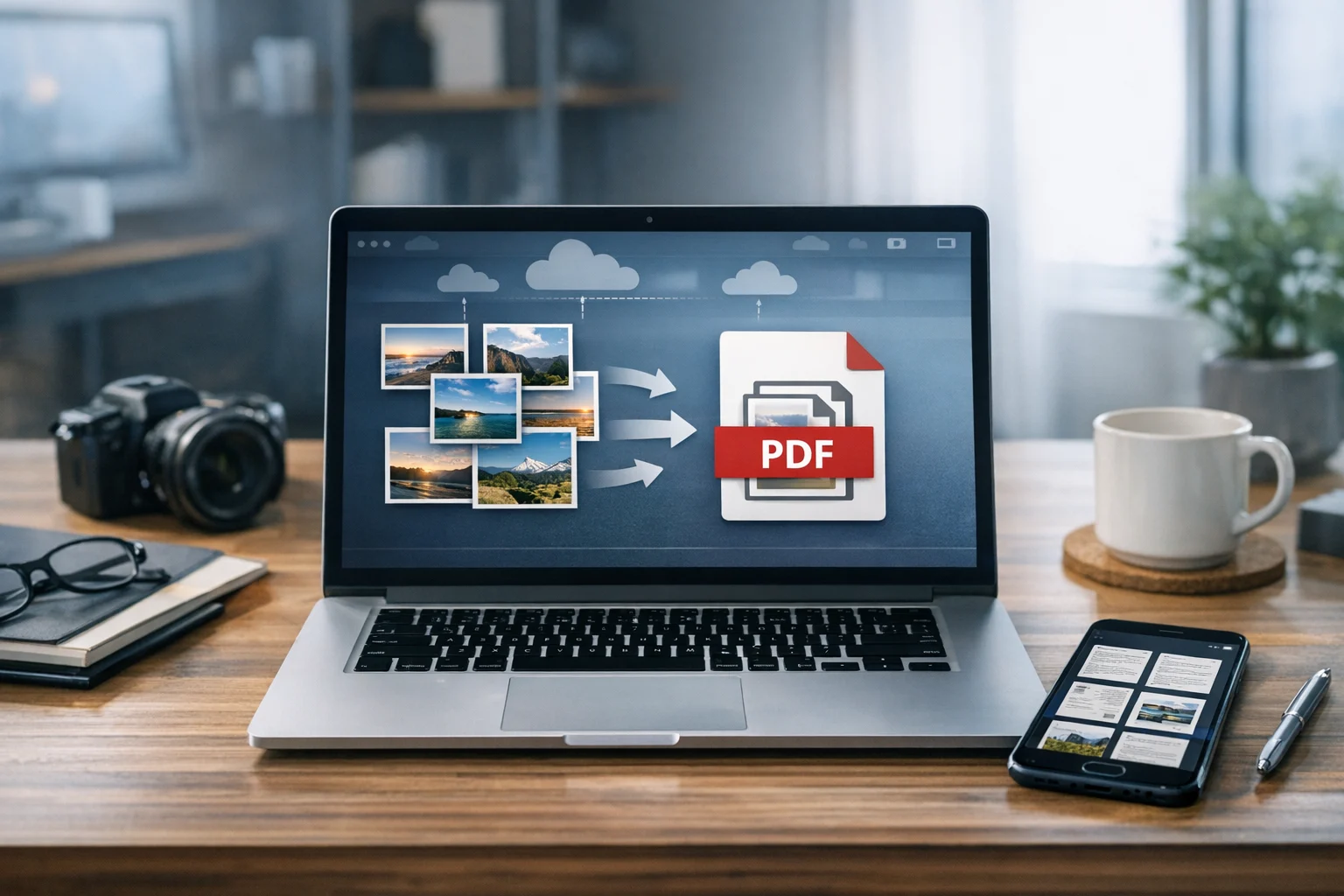
Sometimes the process goes in both directions. You may start by exporting pages from a PDF, edit or mark up the images, and then want to package them back into one file for sharing. That’s where image to PDF becomes useful.
If you need to combine converted images into a single document, try the Image to PDF Converter. This is helpful for client proofing, school submissions, handouts, or reorganized visual documents.
It’s also a reminder that file workflows are rarely one way. A strong platform should help you convert PDF files, convert image files, compress them, organize them, and store them without bouncing between too many apps.
How archives help when you have many converted pages
Once you convert a large PDF into dozens of images, downloads can get messy. That’s where archives come in. If you’re sending a batch of page images to a client, teammate, or printer, placing them into a ZIP archive keeps everything together and easier to share.
A ZIP file is usually the simplest option because it works broadly across operating systems. A RAR archive may also be used in some workflows, especially when someone already works with RAR files, but ZIP is usually more convenient for everyday sharing.
Archives are also useful for project handoff, backups, or keeping grouped versions organized. If a PDF converts into 40 PNG pages, one archive is much cleaner than 40 separate attachments.
How this fits into bigger file workflows
People who convert PDFs often work with many other file types too. A student may turn notes into PDFs, compress them, and upload them for backup. A marketer may export a brochure page as PNG, convert it into WebP for a website, then package supporting assets in a ZIP folder. A freelancer might handle PDFs, image files, and short clips in the same client project.
That’s why tools like a PDF converter, image converter, and even a video converter often belong in the same workflow. While this article focuses on PDF pages, many users also need to convert video files for campaigns, documentation, or product demos. Similar format decisions come up there too, such as MP4 vs MOV, where compatibility and file size often matter just as much as quality.
Good file handling is connected. Online file conversion, file compression, archive creation, and storage all support each other. If one step is messy, the whole process becomes slower.
Privacy and compatibility tips before you convert
- Check whether the PDF contains sensitive information. Once pages become image files, they may be easier to preview, forward, or upload elsewhere.
- Think about who will receive the files. JPG is usually easier for general sharing. PNG is better when recipients need clearer detail.
- Use secure storage after conversion. Don’t leave sensitive exports sitting in temporary folders longer than needed.
- Keep the original PDF. Converted images are useful, but the original document is still the best source file for future edits, audits, or clean re-exports.
- Archive final batches when needed. This helps reduce clutter and makes transfer simpler.
Mistakes that slow people down
Most conversion problems come from a few avoidable habits.
- Converting the full PDF when only one or two pages are needed
- Using JPG for pages that should have been PNG
- Ignoring file size until upload time
- Saving converted pages with unclear names
- Forgetting to back up or store final files properly
A smoother process usually looks like this: identify the pages you need, compress if necessary, convert with the right format, organize the output, then move it into secure storage or share it as an archive.
A practical workflow that works for most users
If you want a simple method that covers most situations, use this order:
- Start with the original PDF and decide whether you need all pages or only selected ones
- Extract or split pages if that will reduce clutter
- Compress large files before upload if speed is an issue
- Convert the selected pages to JPG or PNG based on quality and file size needs
- Rename and sort the output files right away
- Upload to cloud storage for access, backup, and sharing
- Create a ZIP archive if you need to send many page images together
That approach works well for students, creators, office teams, freelancers, and business users because it keeps the process fast without sacrificing organization.
Why ConvertAndStore is a practical option for this job
ConvertAndStore helps you do more than just one-off conversion. You can handle PDF pages, optimize large documents, convert files in a browser, and keep your workflow moving without unnecessary steps. Whether you need a quick PDF to JPG export, a sharper PNG output, better file compression, or safer document storage after conversion, the tools are built for everyday work.
Frequently Asked Questions
Use JPG when you want smaller files for quick sharing, email, or web use. Use PNG when the page contains text, diagrams, logos, or screenshots that need to stay sharp.
Yes. It’s often better to extract the pages you need first and then convert only those pages. This saves time, reduces clutter, and keeps your downloads easier to manage.
It can, depending on the source file and output format. PNG usually preserves text and graphics better, while JPG creates smaller files. If the original PDF is low quality, the converted image will still reflect that.
If the PDF is very large, compressing it first can speed up uploads and conversion. Just avoid heavy compression if you need sharp text or detailed graphics in the final images.
Store them in organized folders and upload them to cloud storage for easier access and file backup. If the files are sensitive, use encrypted cloud storage or another secure file storage option.