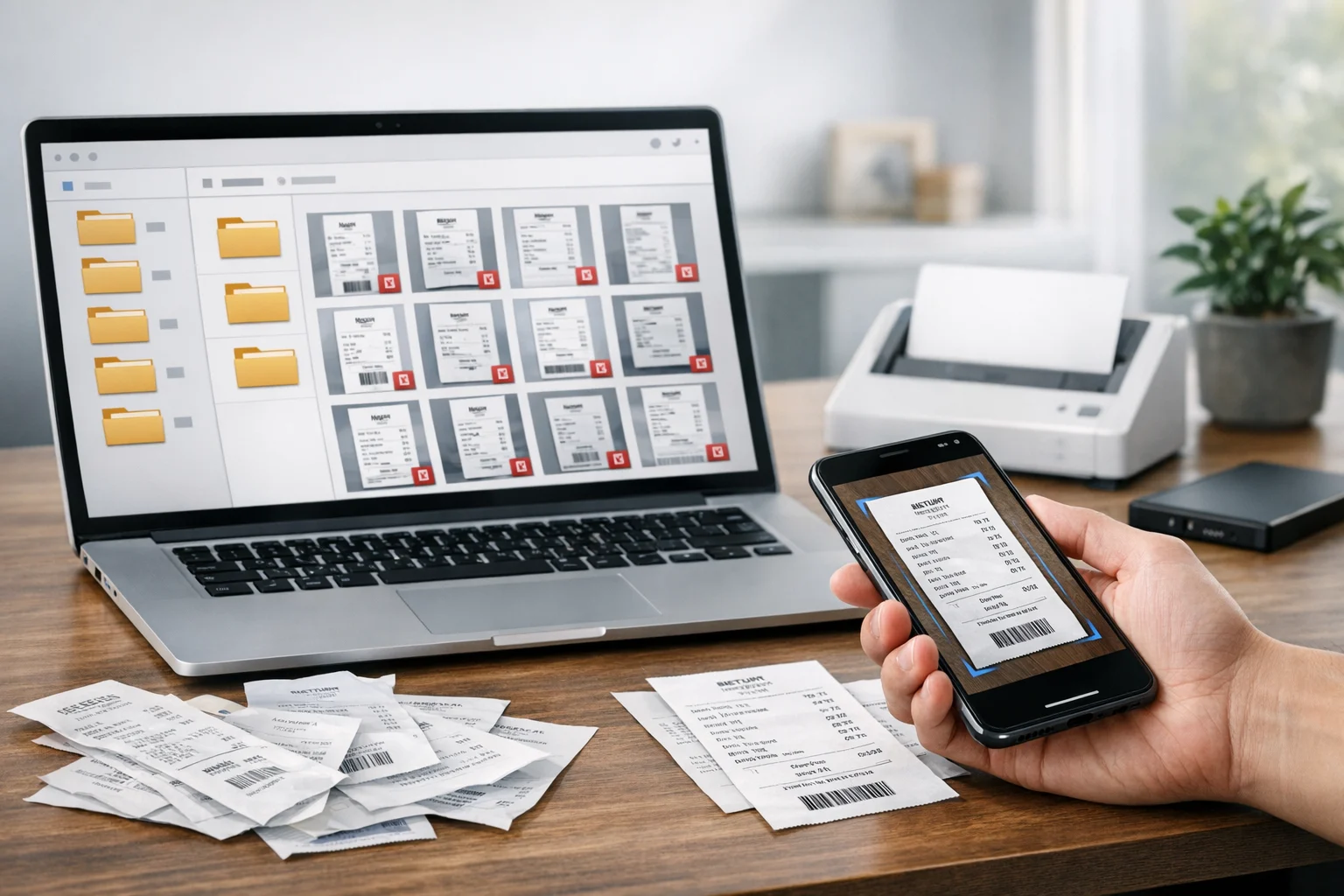
Scanned receipts get messy fast. A few phone photos turn into dozens of JPGs. Email attachments pile up next to screenshots, PDFs, and exports from finance tools. A month later, finding one train ticket, software invoice, or tax-deductible purchase can feel harder than the actual expense report.
A better system is to turn receipt images into searchable PDFs, name them clearly, and store them in a structure that makes sense. That works for students tracking reimbursements, freelancers handling tax records, office teams managing shared expenses, small businesses preparing for bookkeeping, marketers saving ad spend receipts, developers keeping software purchase records, and everyday users who want less digital clutter.
The key is not just scanning. It is scanning cleanly, using OCR so text can be searched, grouping related pages, keeping file sizes reasonable, and saving everything in secure file storage that is easy to back up. Once you set up the workflow, it gets much faster.
What makes a receipt PDF searchable
A searchable PDF is more than a picture inside a PDF file. It includes text that software can read, index, and find later. That usually happens through OCR, short for optical character recognition. OCR reads printed text from a scan or photo and adds a text layer to the PDF.
If your scanner app, phone scanning app, printer software, or document app offers OCR, turn it on before saving. Many tools can detect merchant names, dates, totals, and line items well enough for search, even when the layout is cramped.
If you skip OCR, your file may still open as a PDF, but searching for a store name or amount will not work reliably. You will only have an image-based PDF. That is fine for viewing, but not ideal for long-term document storage.
Once your images are scanned or photographed, you can use ConvertAndStore to turn them into PDFs, merge batches, reorder pages, compress large files, and keep everything ready for cloud storage.
Start with a simple folder structure
Before you convert anything, decide where receipts will live. A good structure makes searching easier even when OCR misses a line or two. Keep it simple enough that you will actually use it.
Good folder structures for receipts
- By year and month: 2026 > 2026-01 January, 2026 > 2026-02 February
- By business area: Travel, Office Supplies, Software, Meals, Client Projects
- By client or project: Client A, Client B, Internal Ops
- By tax status: Deductible, Reimbursable, Personal
For most people, year and month is the easiest starting point. You can always add project or vendor details in the file name. The goal is consistency, not a perfect taxonomy on day one.
If you already have a messy downloads folder, sort new receipts first and clean up old ones in batches. A receipt system works best when it becomes part of your regular routine instead of a once-a-year emergency.
Choose the right scan settings before you build the PDF
Organizing receipts becomes easier when the scans are clear from the start. If your source images are crooked, blurry, washed out, or too low resolution, searchable PDFs will be less accurate and less useful.
Recommended scan settings for receipts
- Resolution: 300 dpi is usually the sweet spot for readability and file size
- Color mode: Grayscale works well for most receipts and saves space
- Cropping: Remove table edges, backgrounds, and fingers from phone photos
- Straightening: Flatten the page so OCR can read lines correctly
- Lighting: Avoid shadows and glare, especially on glossy thermal receipts
Thermal paper fades over time, so scanning early matters. If a receipt is already faint, use a dark background when photographing it and increase contrast before you convert image files into PDF format.
JPG, PNG, TIFF, and WebP for receipt scans
People often ask for the best image format for scanned documents. For receipts, there is no single answer for every case, but there are practical rules.
- JPG: Small file size and widely supported. Great for phone photos and fast sharing.
- PNG: Better for sharp text and line detail, but often larger than JPG.
- TIFF: Useful for archival scanning workflows, though it is larger and less convenient for everyday sharing.
- WebP: Efficient for web images, but not always the best choice for document archiving or accounting workflows.
If you are comparing JPG vs PNG for receipts, JPG is usually fine for clean photos and smaller files, while PNG can preserve sharper text when scan quality matters more than storage. In WebP vs PNG, PNG is often safer for receipts because compatibility with scanners, finance software, and record-keeping systems is more predictable. For long-term records, many teams still prefer PDF as the final format because it packages pages neatly and is easier to search, share, and store.
Turn receipt images into PDFs in batches
Once you have clean images, combine them into PDFs instead of leaving everything as loose files. PDFs are easier to sort, upload, and share with accountants, managers, or clients.
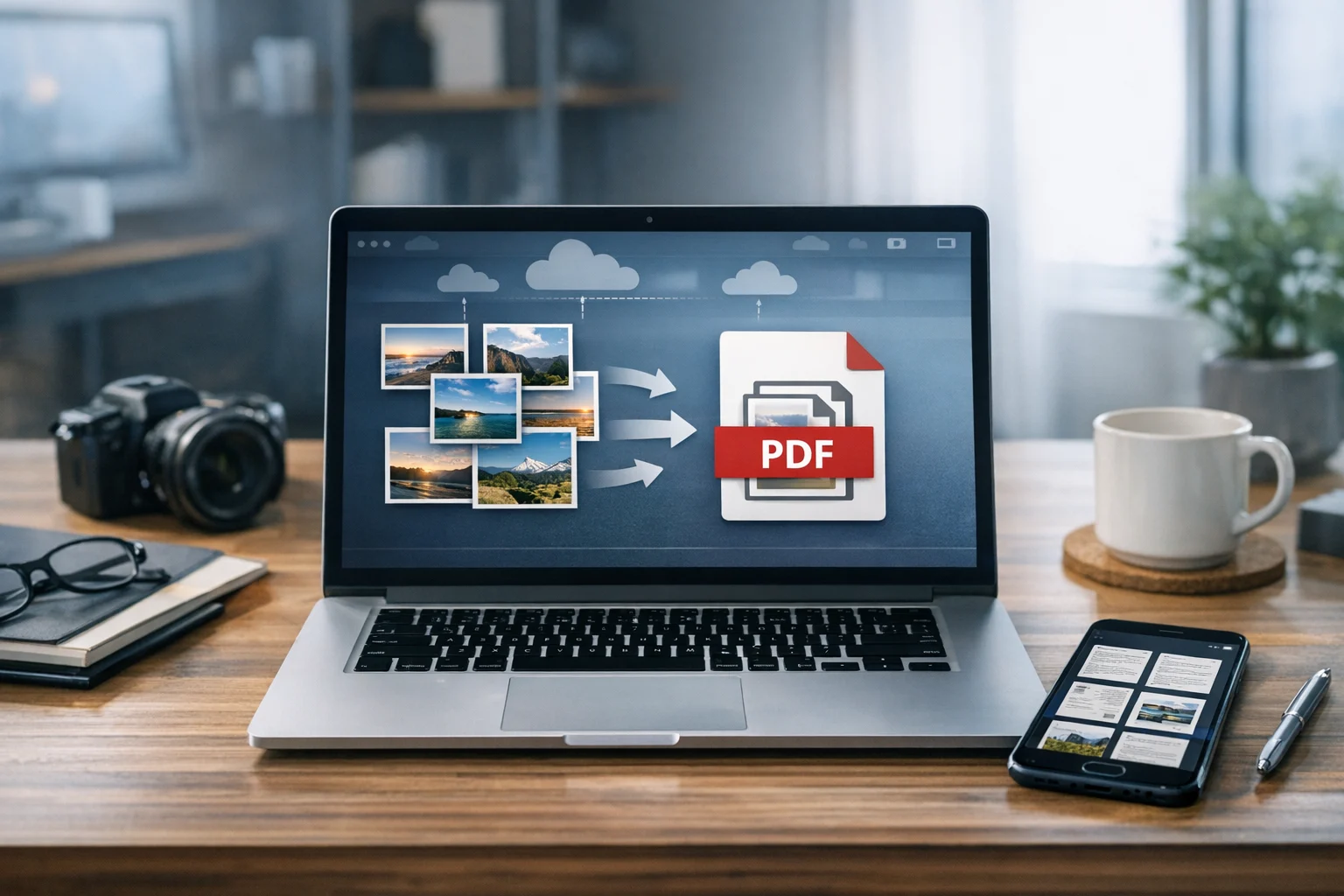
If your receipts start as JPG or PNG files, use ConvertAndStore’s image to PDF tool to combine related scans into one file. This works especially well for monthly reimbursements, project expense bundles, and multi-page invoices with attached proof.
Batching matters. Instead of creating one giant file for the whole year, create manageable PDFs such as:
- 2026-01-business-receipts.pdf
- 2026-01-client-a-travel-receipts.pdf
- 2026-q1-software-subscriptions.pdf
That keeps search results tighter and makes uploading faster. It also avoids the problem of opening a 300-page PDF when you only need one taxi receipt.
For people who use a file converter regularly, this is one of the biggest time savers. You scan once, convert image files into one PDF, and stop chasing scattered attachments later.
Group related pages and keep them in the right order
A receipt record is often more than one page. You might have the physical receipt, an order confirmation screenshot, a refunded item note, or a second page with tax details. These belong together.
After converting your scans, combine related files with the Merge PDF tool. That gives you one clean document for each expense batch, vendor, or reporting period.
If pages end up mixed or you scan out of order, fix them with reorder PDF pages. Page order matters more than many people think. When the cover receipt appears first and supporting pages follow in sequence, review is faster and less confusing.
Useful grouping ideas
- One PDF per month for personal spending records
- One PDF per expense report for employee reimbursement
- One PDF per vendor for subscription and software receipts
- One PDF per project for client billable expenses
- One PDF per quarter for tax preparation
If you need to keep originals separate, keep both versions. Store the individual image files in a source folder and the organized PDF in your main receipts folder. That gives you a clean working copy without losing the raw scans.
Name receipt PDFs so search works even without perfect OCR
Searchable text helps, but strong file naming still matters. OCR can miss dates, faded amounts, or vendor names on crumpled paper. A smart file name fills that gap.
Use a naming format that sorts well and tells you what the file contains at a glance:
- YYYY-MM-DD_vendor_amount_category.pdf
- YYYY-MM_vendor_batch-purpose.pdf
- client-project_YYYY-MM_expenses.pdf
Examples:
- 2026-02-14_amtrak_48-00_travel.pdf
- 2026-02_google-workspace_18-00_software.pdf
- client-a_2026-02_field-visit-receipts.pdf
Keep dates at the beginning so files sort naturally. Use hyphens or underscores consistently. Avoid vague names like scan001.pdf or receipt-final-new.pdf.
If you want a deeper system for consistent file names across PDFs, images, and exports, this guide on how to name converted files so they stay organized is a useful next step.
Reduce file size before you upload or archive
Receipt PDFs can become surprisingly large, especially when they include color photos, high-resolution scans, or multiple pages. That affects upload speed, sharing, and long-term storage costs.
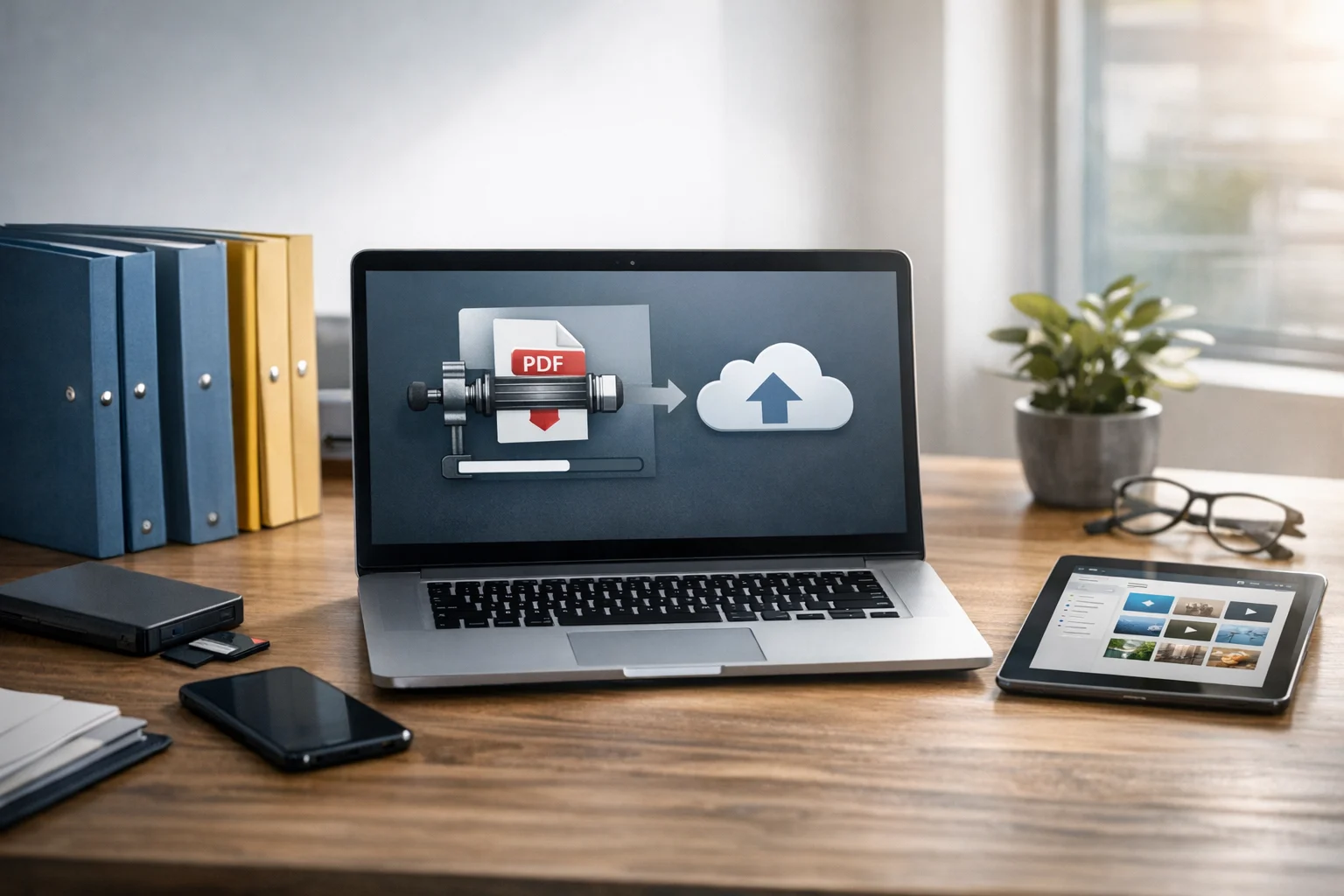
Before you move files into cloud storage, run them through ConvertAndStore’s PDF compressor. Good file compression can shrink scanned receipt PDFs while keeping text readable enough for search and review.
How to keep receipt PDFs smaller
- Scan at 300 dpi instead of 600 dpi unless tiny print needs extra detail
- Use grayscale for most receipts
- Crop empty margins before saving
- Bundle by month or project instead of one huge yearly file
- Compress after merging pages
This is especially useful if you rely on cloud storage with upload limits or want cheap cloud storage options without paying for space wasted by oversized scans. Smaller files also make file backup faster.
Store receipts in secure cloud storage with backup in mind
Once your PDFs are searchable and named clearly, the next step is storage. A good receipt system is not just organized. It is protected. Financial documents may contain merchant details, payment fragments, addresses, and tax-related information. That means secure file storage matters.
Look for a setup that supports:
- Cloud storage so files stay available across devices
- Encrypted cloud storage when privacy is a priority
- Document storage with folders and search
- File backup so one lost laptop does not wipe your records
- Permission controls if teams share financial documents
For freelancers and small businesses, cheap cloud storage can work well if you compress first and avoid duplicate files. For sensitive business records, encrypted cloud storage is a better fit than leaving receipts on random devices or in an unprotected email inbox.
A simple rule helps here: keep one working copy in your main folder, one backup copy in secure storage, and avoid keeping receipts only in a phone gallery. Phone albums are convenient, but they are not a reliable receipt archive.
Handle mixed file types without breaking your system
Receipts rarely stay in one format. Some arrive as email PDFs. Others are screenshots, photos, exported web invoices, or downloaded billing statements. A few might be bundled in a ZIP archive from a vendor portal. The more sources you use, the more important standardization becomes.
This is where a flexible PDF converter, image converter, or general file converter helps. You may need to convert image files into one PDF, convert PDF files for a platform that accepts images only, or standardize a mix of documents before uploading them.
Useful examples:
- Image to PDF: Turn phone photos of paper receipts into a single document
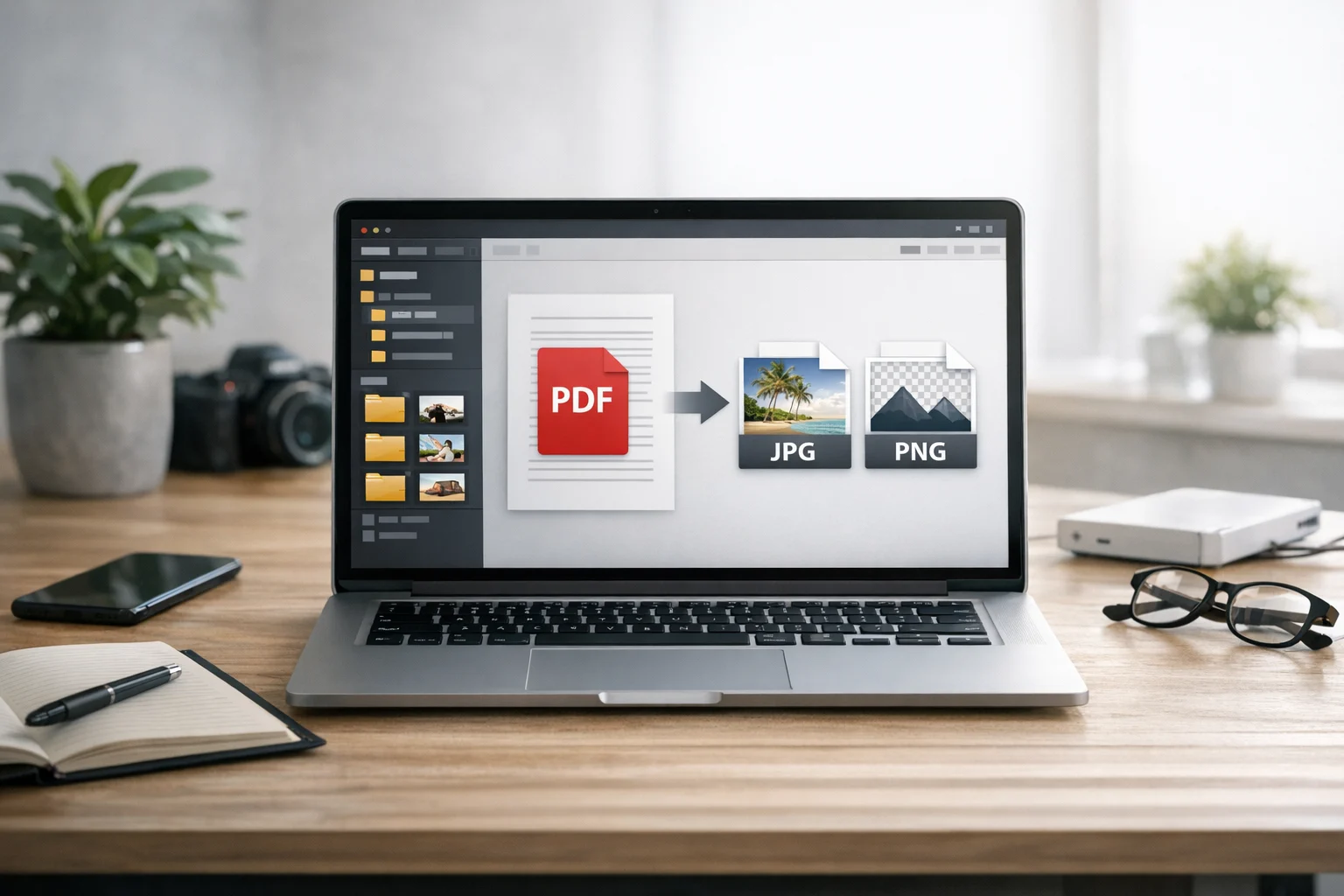
- PDF to JPG: Useful when a reimbursement platform only accepts image uploads
- Convert PDF files: Break out pages, share previews, or prepare files for another workflow
- Online file conversion: Handy when you need quick format changes without installing desktop tools
If you receive older financial records in a ZIP archive or RAR archive, extract them, rename the contents, and convert them into a cleaner PDF-based system. Archives are useful for bulk transfer, but they are not ideal for everyday lookup. Keep them as original source bundles if needed, but rely on searchable PDFs for day-to-day access.
This broader workflow also matters for teams who manage more than receipts. Marketers may store invoice screenshots with campaign exports. Developers may keep purchase records alongside license files and billing PDFs. Office teams may save signed forms, statements, and reimbursement attachments. A good PDF-based system keeps these related records manageable.
What about supporting videos and other proof files?
Some expenses include more than documents. Creators, ecommerce sellers, and operations teams may save package damage clips, unboxing proof, event footage, or screen recordings that support a charge or refund request. In that case, file organization should cover media too.
Use the same naming logic across documents and videos so a receipt PDF and proof clip stay connected. If you ever need to standardize media, a video converter can help convert video files into a more compatible format for storage and sharing.
For compatibility, MP4 vs MOV comes up often. MP4 is usually the better choice for broad playback support and smaller file sizes, while MOV can be larger and more editing-focused. Even if your main record is a PDF, keeping supporting media in a consistent format reduces confusion later.
Common mistakes that make receipt search harder
- Saving everything as scan1, scan2, and final-final.pdf
Search depends on meaningful names. - Creating one giant annual PDF
Monthly or project-based files are easier to load and share. - Using low-quality photos
Blurry text reduces OCR accuracy and searchability. - Ignoring compression
Oversized files waste upload time and storage space. - Keeping only image files
Loose photos are harder to search and manage than organized PDFs. - No backup plan
Receipts stored only on one device are easy to lose. - Mixing personal and business receipts without labels
Clear categories save time during taxes and reimbursements.
A practical workflow you can start using today
If you want a system that is easy to maintain, this version works well for most people:
- Scan or photograph receipts weekly
- Use OCR in your scanning app so text becomes searchable
- Save source images in a temporary inbox folder
- Convert related images into one monthly or project-based PDF
- Merge supporting pages where needed
- Reorder pages into a clean sequence
- Name the file with date, vendor, and purpose
- Compress the finished PDF
- Move it into cloud storage and keep a backup copy
For students, that may mean one PDF per semester for books, travel, and lab fees. For freelancers, it may be one PDF per month plus separate files for client billables. For small businesses and office teams, it may be one folder per department and one PDF per expense report. The structure can change, but the core process stays the same.
When receipt files are clean, searchable, and compressed, you spend less time hunting through downloads and more time using your records. ConvertAndStore includes the tools to turn receipt images into PDFs, organize pages, reduce file sizes, and keep documents ready for secure storage.
Frequently Asked Questions
Use a scanner app or document tool with OCR enabled. OCR reads the text in the receipt image and adds a searchable text layer to the PDF. Without OCR, the PDF is usually just an image and search will be limited.
JPG is usually better for smaller file sizes and quick sharing. PNG can preserve sharper text and edges, which may help OCR on detailed receipts. For most users, either works well as long as the image is clear and properly cropped.
A simple system is to sort by year and month, then use file names with the date, vendor, amount, and category. For business use, you can also group by client, project, or expense report.
Scan at around 300 dpi, use grayscale when possible, crop extra background, and compress the final PDF. This keeps files smaller while preserving text quality for review and search.
It can be, especially if you use secure file storage with encryption, strong passwords, and backup practices. Encrypted cloud storage is a good option for receipts that contain sensitive business or personal information.