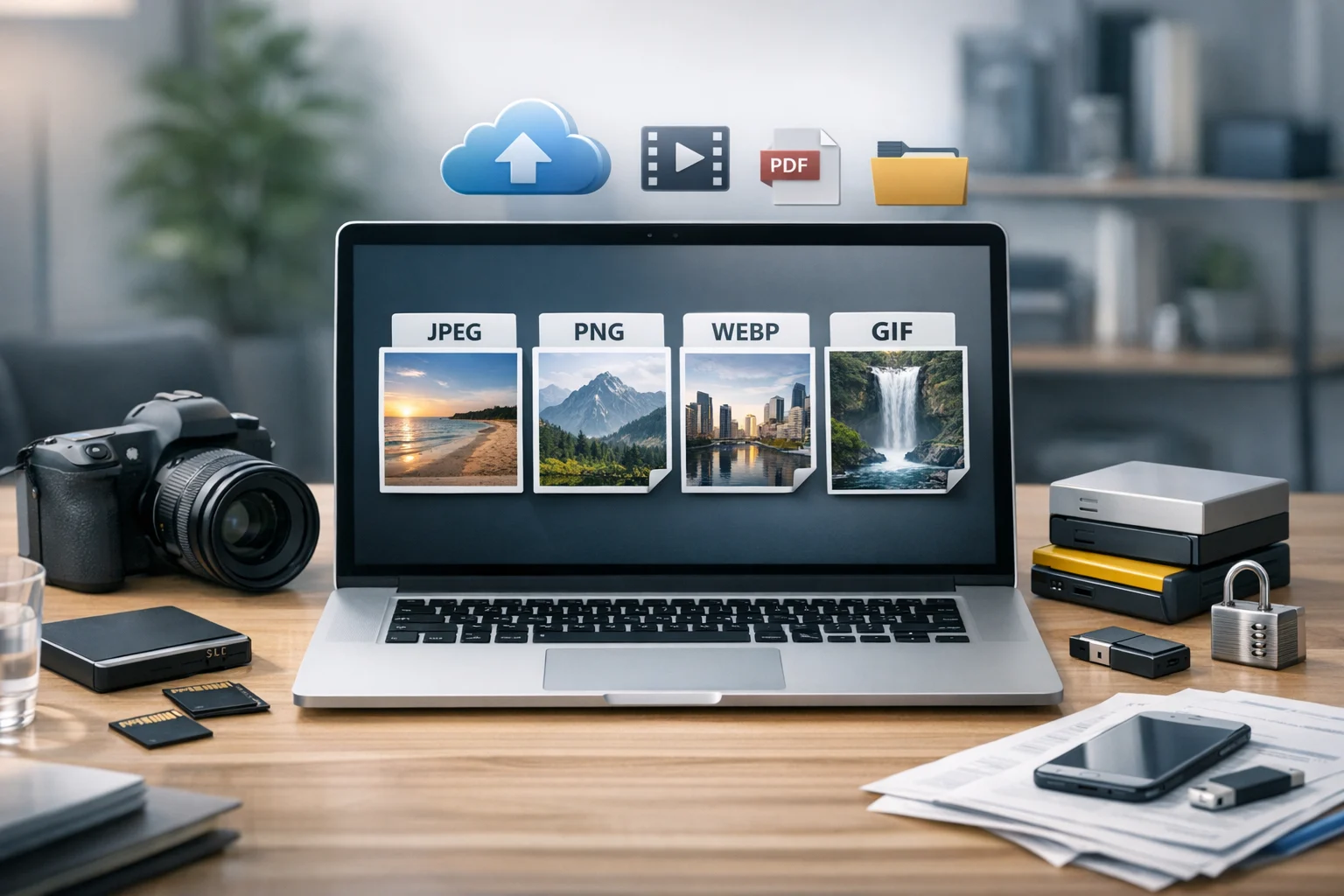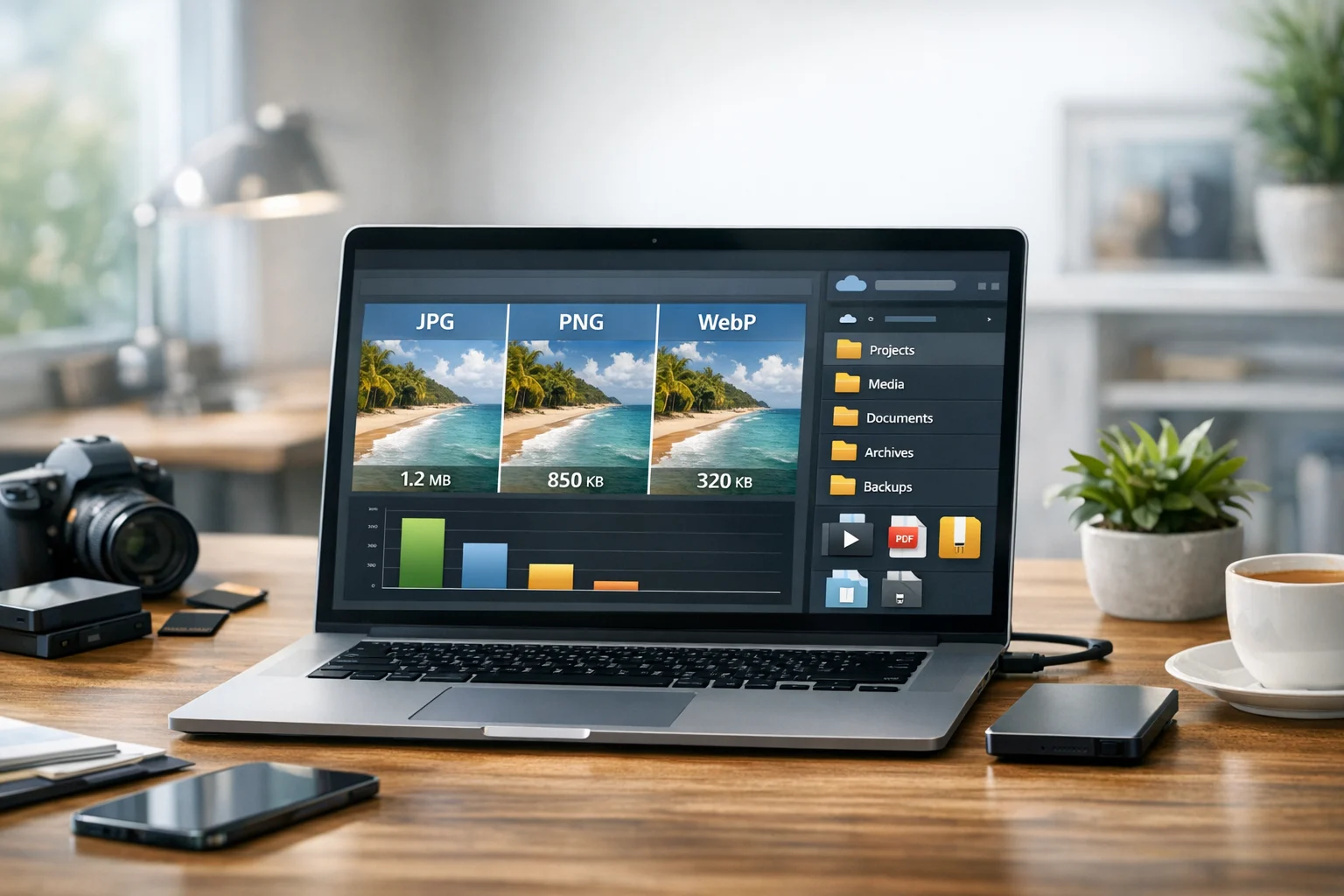
People often use image compression and image conversion as if they mean the same thing. They do overlap, but they solve different problems. If you are shrinking a file so it uploads faster, that is usually compression. If you are changing a JPG into a PNG or WebP so it works better in a design, app, or browser, that is conversion.
Knowing which one you need saves time and avoids a common mistake: reducing quality when you really needed compatibility, or changing format when the real issue was file size. For students sending assignments, creators publishing images online, marketers managing campaigns, developers optimizing websites, and office teams organizing shared assets, that distinction matters more than it sounds.
A reliable file converter helps because the goal is rarely just changing one file. Most people also need to organize files, store them, share them safely, and keep a clean workflow across devices. That is especially true when images are part of larger projects that also include PDFs, videos, archives, and client documents.
What image compression actually does
Image compression reduces file size. It does not always change the file format. A compressed JPG is still a JPG unless you also convert it. A compressed PNG is still a PNG unless you choose another output format.
The main reason to compress an image is to make it easier to use. Smaller files load faster, upload faster, take up less space in cloud storage, and are easier to email or attach in forms. Compression is usually the right move when the image already works everywhere you need it, but the file is just too large.
Lossy and lossless compression
There are two broad types of image compression.
- Lossy compression reduces file size by removing some visual data. JPG is the classic example. Done well, the difference can be hard to notice, but aggressive compression can create blur, blockiness, and artifacts.
- Lossless compression reduces file size without throwing away image detail. PNG commonly uses lossless compression. The file gets smaller, but the image data stays intact.
If you need the smallest possible file for the web or for quick sharing, lossy compression is often the better choice. If you need sharp text, screenshots, logos, or transparency, lossless compression is usually safer.
What image conversion actually does
Image conversion changes a file from one format to another. For example, you might convert image files from JPG to PNG, PNG to JPG, or JPG to WebP. Conversion is about compatibility, features, and use case. Sometimes the converted file will also become smaller, but that is a side effect, not the main definition.
Format changes matter because image types are built for different jobs. JPG is great for photos. PNG is better for graphics and transparent backgrounds. WebP is often ideal for websites because it balances quality and file size well. TIFF may be better for high quality scans and print workflows. BMP is simple but usually too large for modern sharing or storage.
If you need a quick starting point, ConvertAndStore offers image converter tools that make it easy to switch between common formats.
When compression matters more than conversion
Compression should be your first choice when the image format is already correct, but the file is too heavy for the job.
1. Website speed and performance
If your site is slow because product images are huge, compressing them can improve loading times immediately. Faster pages are better for user experience and search visibility. Marketers and small businesses run into this all the time when uploading banners, blog images, and storefront photos.
In many cases, the best image format for a website is not just about format. A properly compressed image in the same format can be enough. If a JPG is already the right format for a photo, reducing its size may solve the problem faster than converting it.
2. Email attachments and messaging apps
Office teams, freelancers, and students often hit file size limits before they hit format limits. If your professor, client, or coworker can already open the image, compression is usually the simplest fix. You keep the same format, reduce the upload time, and avoid sending oversized attachments.
3. Storage efficiency
If you manage a growing media library, compression can reduce how much space your files consume. That matters whether you are storing class materials, product images, campaign assets, or receipts for a side business. Better file compression means better use of cloud storage, especially when you want affordable plans and predictable organization.
For teams comparing options, cheap cloud storage can look attractive at first, but efficiency matters too. Smaller files mean more room for file backup, document storage, and shared folders without reaching limits as quickly.
4. Faster uploads to forms and platforms
Job applications, support portals, e-commerce systems, and social platforms often reject large files. If the platform accepts your current format, compression is the easiest way through.
When conversion matters more than compression
Conversion is the better move when the file needs to behave differently, not just become smaller.
1. You need transparency or clean graphics
If you are working with a logo, icon, screenshot, or graphic that needs a transparent background, PNG is often a better choice than JPG. This is one of the clearest JPG vs PNG situations. JPG supports smaller photo files, but PNG preserves sharp edges and transparency better.
If you received a transparent graphic in the wrong format, compression will not fix that. Conversion will.
2. You need a more compatible file
Some apps, websites, design tools, and content systems prefer specific image types. A platform may reject TIFF, BMP, or WebP even if the file looks fine. In those cases, you need an image converter, not just smaller file size.
If you have a screenshot or graphic that should be lighter and more widely accepted, using a PNG to JPG converter can be the fastest solution.
3. You want modern web formats
WebP often gives better compression than older formats while maintaining strong visual quality. If you are publishing photos on a website, converting from JPG or PNG to WebP can improve performance while keeping the image looking good.
WebP vs PNG becomes important here. PNG is excellent for transparency and crisp graphics, but WebP usually delivers much smaller files for web use. If you are optimizing photos or web graphics, a JPG to WebP converter is often the right next step.
4. You need a file that is easier to edit or archive
Some formats are better for editing, scanning, or preserving detail. TIFF files, for example, are common in professional scanning and print workflows. BMP files are simple but bulky. If you receive one of these formats and need something more practical for everyday use, conversion makes more sense than compression.
Compression vs conversion in real workflows
For students
If you are submitting a lab report image or scanned worksheet, compress the file when the upload portal accepts the format but rejects the size. Convert the file when the platform specifically wants JPG or PNG, or when you need PDF to JPG for an image-based upload.
For creators and marketers
Use compression for social media assets, blog images, and email graphics that are already in the right format. Use conversion when you need transparency, faster site delivery, or more flexible format support across tools. A campaign image might start as PNG for editing, then be converted to WebP or JPG for publishing.
For developers
Compression helps performance budgets. Conversion helps compatibility and rendering strategy. If you are comparing the best image format for a web app, you are not just asking which file is smallest. You are also asking what browsers, CMS tools, and user devices will handle reliably.
For small businesses and office teams
Invoices, product photos, staff headshots, and scanned forms often move between documents, shared drives, and websites. Compression reduces storage overhead. Conversion keeps files usable across departments and systems. If you already use document storage for PDFs and reports, image formatting becomes part of the same workflow.
How compression and conversion often work together
Many people need both. You might convert a PNG to JPG to make it more compatible, then apply compression to reduce file size. Or you might convert a large JPG to WebP because the format itself compresses more efficiently for web delivery.
A simple rule helps:
- If the problem is size, start with compression.
- If the problem is format, features, or compatibility, start with conversion.
- If the problem is both, you may need both.
It also helps to preview before saving final versions. If you need to crop, resize, or adjust before exporting, ConvertAndStore includes an image editor so you can clean up visuals before choosing a final format.
Picking the best image format for the job
JPG vs PNG
This is still one of the most common image decisions.
- Choose JPG for photos, smaller file sizes, and general web or email use.
- Choose PNG for screenshots, logos, graphics with text, and transparent backgrounds.
Converting JPG to PNG does not magically improve photo quality, because lost detail does not come back. But it can still be useful when you need compatibility with tools that work better with PNG, or when you want to continue editing without adding more JPG compression stages.
WebP vs PNG
- Choose WebP when web performance matters and you want strong compression.
- Choose PNG when you need reliable editing support, transparency, or a lossless workflow in tools that do not fully support WebP.
WebP vs PNG is mostly a delivery question. For publishing on modern websites, WebP often wins. For editing and design handoff, PNG may still be easier.
Other formats you may see
- GIF works for simple animations, but it is limited for modern image quality.
- TIFF is common for print, scans, and high quality archival workflows.
- BMP is older and usually far too large for efficient sharing.
How image tasks connect to PDFs, videos, and archives
Image workflows rarely stay isolated. The same people who convert image files often also convert PDF files, manage video clips, and create archives for upload or backup.
PDFs and images
If you scan documents or export pages from reports, you may need both a PDF converter and an image converter. Common jobs include PDF to JPG for previews, thumbnails, or image submissions, and image to PDF for combining receipts, forms, or signed pages into one portable document.
Compression matters here too. Large scanned PDFs often contain oversized images. That is why people who convert PDF files also care about image settings inside the document. Smaller image assets usually mean smaller PDFs.
Video files
The same logic applies to video. A video converter changes format, such as when you compare MP4 vs MOV for compatibility, editing, or upload support. Compression reduces file size so the video is easier to store or share. If you need to convert video files, the question is similar to images: is the issue the format, the size, or both?
ZIP and RAR archives
Archive formats add another layer. A ZIP archive or RAR archive bundles files together for easier sharing and download. That is not the same thing as image compression, even though both reduce practical overhead. Zipping a folder is useful when sending many assets at once. It does not replace choosing the right image format or optimizing image size inside the folder.
For example, sending ten unoptimized PNG files inside a ZIP archive may still be less efficient than converting or compressing the images first. Archive creation helps organization. Format optimization helps performance.
Why storage and privacy matter just as much
Once files are converted or compressed, they still need a secure home. Many users focus on getting the right output file but forget about long-term management. Cloud storage becomes part of the same decision.
If you work across devices or with a team, storing optimized files in one place reduces duplicates and confusion. It also makes file backup much easier. Instead of keeping random versions on phones, laptops, and email threads, you can keep finished assets organized by project and format.
Security matters too. If you handle client files, student records, financial documents, or private creative work, encrypted cloud storage and secure file storage are not optional features. They are part of responsible file handling. The same is true for document storage when your image files are tied to PDFs, forms, contracts, or reports.
ConvertAndStore is built for more than one-off conversions. It helps with online file conversion, storage, organization, and safer sharing, which matches what many real workflows need after the conversion step is done.
A simple way to decide what to do first
- The file is too big but opens fine: compress it.
- The file size is fine but the app will not accept it: convert it.
- You need transparency, sharper graphics, or better editing support: convert it.
- You need faster web loading: compress it, convert it to a web-friendly format, or both.
- You are preparing files for storage or backup: optimize them first, then organize them in cloud storage.
- You are sending a folder of mixed files: convert or compress what needs attention, then package the set in a ZIP archive if needed.
Matching the task to the real problem usually gives the best result. If you need to convert image files, prepare PDFs, compare formats like JPG vs PNG or WebP vs PNG, or keep projects organized in secure file storage, ConvertAndStore gives you one place to handle the work and keep finished files ready to use.
Frequently Asked Questions
Image compression reduces file size, while image conversion changes the file from one format to another, such as JPG to PNG or PNG to WebP. You may need one or both depending on whether the issue is size, compatibility, or features.
Not usually. Converting a JPG to PNG does not restore detail already lost in JPG compression. It can still help if you need PNG features like transparency support or a format better suited for editing and graphics.
It depends on the goal. If format is the main issue, convert first. If size is the main issue and the format is already correct, compress first. When you need both, test the converted file and then compress if needed.
Often yes for web delivery, because WebP usually produces smaller files at similar visual quality. PNG is still useful for transparency, screenshots, and editing workflows, especially when you want lossless quality.
Yes, especially with lossy compression. Strong compression can create blur, artifacts, and loss of detail. Lossless compression keeps the image data intact but may not reduce file size as much.
After files are optimized, they still need to be stored, shared, and backed up safely. Secure file storage and encrypted cloud storage help protect private images, documents, and project files while keeping them organized across devices.