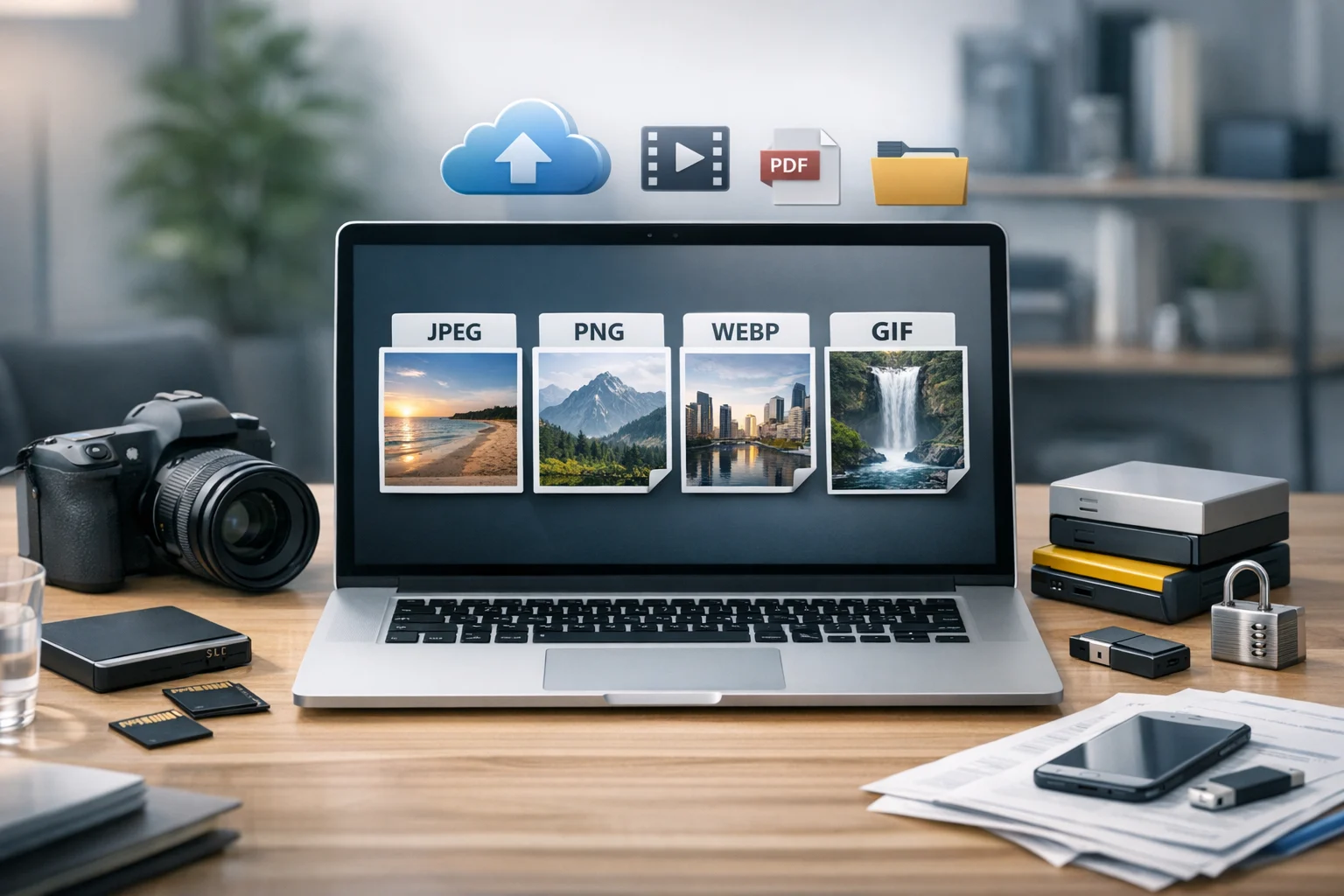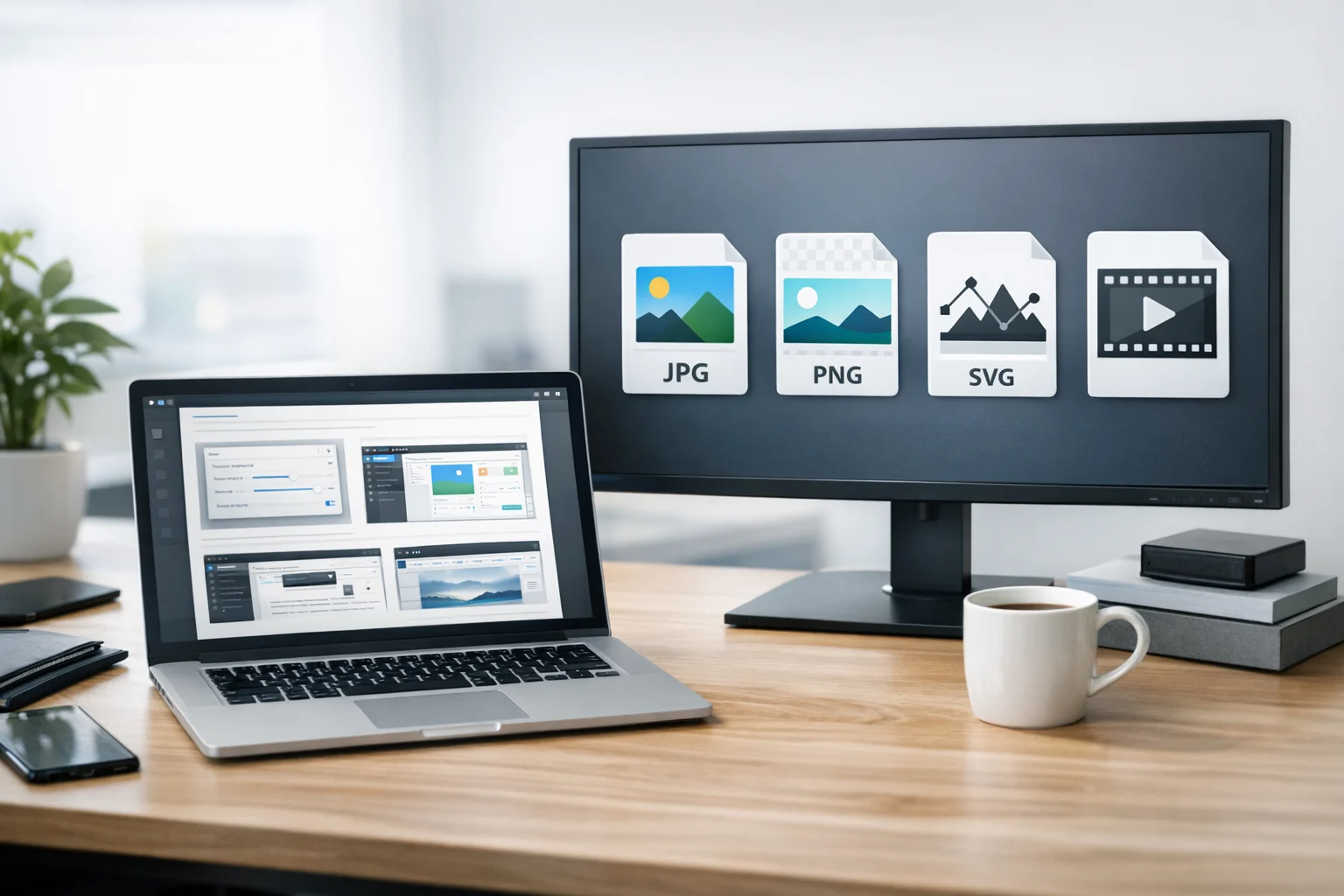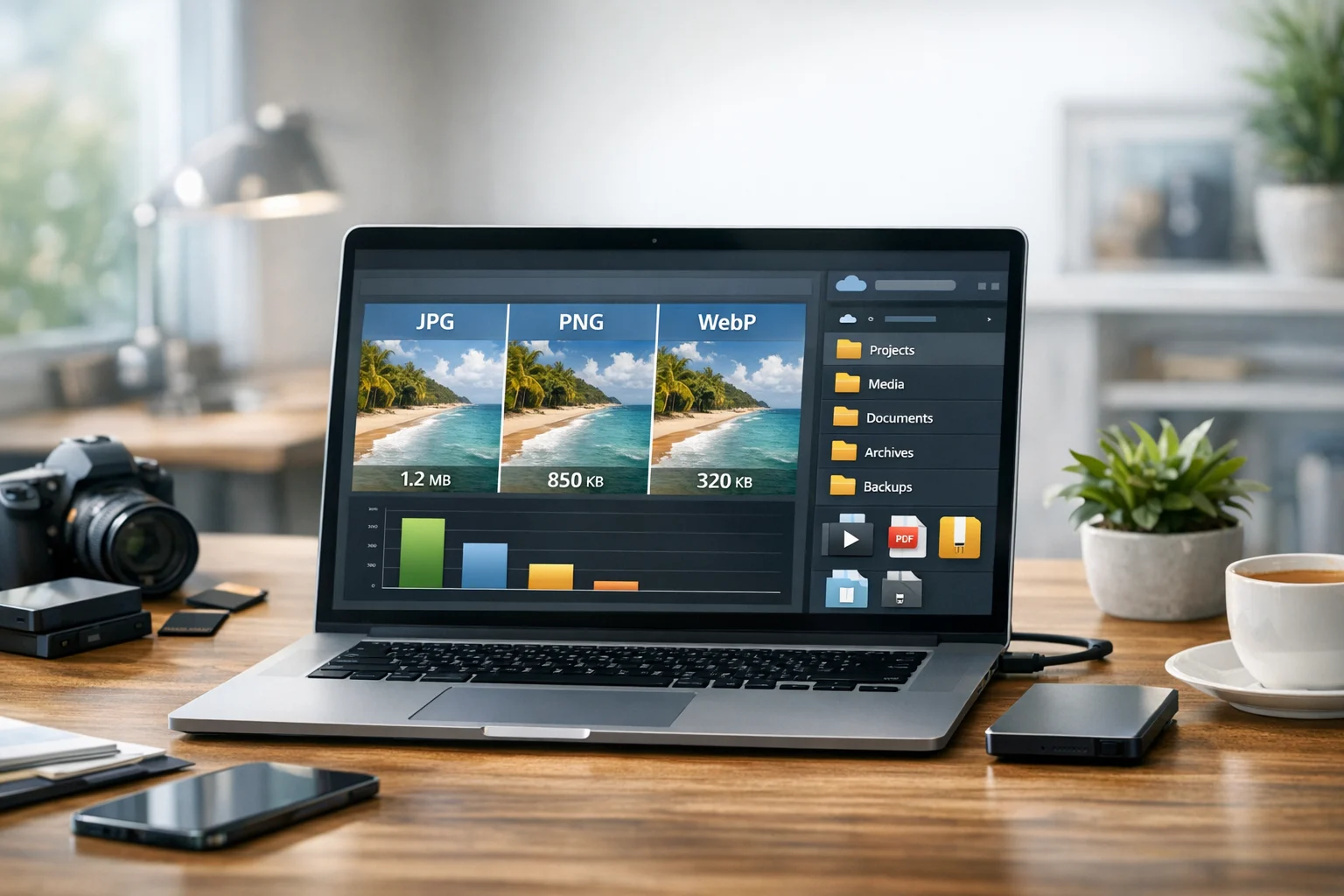
Choosing the best image format can make a noticeable difference in both SEO and page speed. A page filled with oversized or poorly chosen images can feel slow, use more bandwidth, and frustrate visitors before they even read your content. The right format helps your pages load faster, look sharp, and perform better across desktop and mobile devices.
For site owners, marketers, students, creators, freelancers, office teams, and developers, image choices are not just a design decision. They affect user experience, crawl efficiency, bounce rate, and how quickly people can access your content. If you publish product photos, blog graphics, screenshots, scanned files, or downloadable documents, understanding image conversion and file compression is part of building a better website.
A practical file converter helps you adapt each asset to its purpose instead of keeping everything in its original format. A photo for a blog post may work best as WebP or JPG. A screenshot with text may stay clearer as PNG. A document preview might need PDF to JPG conversion for thumbnails, while a group of images may be combined as image to PDF for sharing or document storage.
If you need a simple place to start, ConvertAndStore offers image converter tools that make online file conversion easier when you need to test quality, reduce file size, or prepare website images for faster delivery.
Why image format matters for SEO
Search engines want to send people to pages that load quickly and work well. Image files are often one of the biggest contributors to page weight, especially on product pages, landing pages, portfolios, and blogs. When images are too large, several things can happen:
- Pages take longer to load
- Largest Contentful Paint can suffer
- Mobile visitors may leave sooner
- Bandwidth usage increases
- Crawlers may take longer to process pages with heavy assets
Image format alone does not guarantee rankings, but it supports technical performance, and technical performance supports SEO. A smaller file that still looks good is usually better than a large file with no visible quality benefit.
The goal is not to use one format for everything. The goal is to match the format to the image type. That is usually the real answer behind searches for the best image format.
The main image formats to know
JPG or JPEG
JPG is one of the most common formats for photos. It uses lossy compression, which means it reduces file size by removing some image data. Done well, this creates a much smaller file without an obvious drop in quality.
Best for: photos, blog images, lifestyle shots, product photos without transparency, banners, and social graphics with complex color.
Watch out for: repeated saves can degrade quality, and text-heavy images may look softer than in PNG.
PNG
PNG is a strong choice for graphics that need crisp edges or transparency. It is usually better than JPG for screenshots, diagrams, UI captures, logos with transparent backgrounds, and graphics with text.
Best for: screenshots, interface images, logos, charts, illustrations, and transparent assets.
Watch out for: file sizes can get large, which hurts page speed if you use PNG for full-size photos.
WebP
WebP is often one of the best options for modern websites because it can provide good visual quality at much smaller sizes than older formats. Many site owners compare WebP vs PNG and WebP vs JPG when optimizing pages for that reason.
Best for: website photos, product images, blog visuals, and many graphics where you want a better balance of quality and size.
Watch out for: older workflows or apps may still prefer JPG or PNG, so compatibility checks matter.
Other formats you may encounter
GIF still appears in lightweight animations, but it is usually not the best choice for static website images. TIFF is common in scanning and archiving, not in public page delivery. BMP files are generally too large for web use. SVG is ideal for vector graphics such as logos and icons, but it serves a different role from raster images like JPG, PNG, and WebP.
JPG vs PNG: which one should you choose?
The JPG vs PNG question comes up constantly because both formats are useful, but for different reasons.
Choose JPG when the image is a photo and you want a smaller file. This is often the better option for articles, hero banners, profile photos, and product photography where transparency is not required.
Choose PNG when clarity matters more than size, especially for screenshots, software tutorials, charts, and visuals that contain text or transparent backgrounds.
A quick test makes the difference obvious. A screenshot saved as JPG may create blur around letters and interface lines. The same image as PNG often stays much sharper. But a photo saved as PNG can be far larger than needed, which adds unnecessary weight to the page.
If you have a PNG that would work better as a lighter photo asset, ConvertAndStore has a fast PNG to JPG converter that helps reduce file size for web delivery when transparency is not needed.
WebP vs PNG: where speed usually wins
The WebP vs PNG comparison matters most when you care about both quality and performance. In many website use cases, WebP gives you a noticeably smaller file than PNG while preserving good visual quality. That makes it attractive for page speed improvements.
WebP is often a smart default for:
- Blog images
- Marketing graphics
- Product photos
- Featured images
- Many UI and content visuals
PNG still wins when you need perfect clarity for text-heavy images or when your workflow depends on lossless editing and repeated export. But if your PNG files are making pages heavy, testing WebP is one of the easiest performance gains available.
If you regularly publish JPG photos, try ConvertAndStore's JPG to WebP converter to create lighter versions for your site while keeping the originals in secure file storage.
How to choose the best image format by use case
Blog post images and article thumbnails
For most blog content, WebP is often the strongest option because it supports fast loading and good visual quality. If WebP is not ideal for your workflow, JPG is still a practical fallback for photographs and general article visuals.
Product photos for ecommerce
Use WebP or JPG for product photography. The main goal is a clean image at a file size that does not slow category pages or mobile product pages. If you need transparent backgrounds for layered design elements, PNG can still be useful, but do not use it automatically for every product image.
Screenshots, tutorials, and documentation
PNG is often the better choice because text, interface elements, and sharp edges stay clearer. This matters for support guides, educational content, developer tutorials, and internal office documentation. If you want a deeper comparison, the article Image Compression vs Image Conversion explains when changing the format matters more than just shrinking the file.
Logos and graphics with transparency
PNG is usually the safer option for raster logos with transparent backgrounds. If the logo is vector-based, SVG may be better, but that is a separate decision from raster website images.
Scanned files and document previews
Documents are often stored as PDF, but websites sometimes need image previews. In that case, PDF to JPG conversion can help you create thumbnails or inline previews for articles, file libraries, and document storage systems. If you are compiling several visuals for sharing, image to PDF can also be useful for handoff, presentations, or record keeping.
Compression and conversion are not the same
Many people treat file compression and format conversion as if they are the same thing, but they solve different problems.
Compression reduces file size within the current format.
Conversion changes the file into a different format that may be better suited for the task.
For example:
- A large JPG can be compressed to load faster
- A PNG screenshot can stay PNG but be compressed
- A photo saved as PNG can be converted to JPG or WebP for better page speed
- A scanned PDF can be converted into images for previews
Sometimes compression alone is enough. Sometimes the format itself is the problem. That is why choosing the best image format is really about understanding both quality and purpose.
A simple workflow for faster image pages
If you want a reliable process, use this workflow:
- Start with the original file. Keep a master copy in your project folder or cloud storage.
- Decide how the image will be used. Photo, screenshot, logo, thumbnail, document preview, or downloadable asset.
- Choose the best format. JPG for many photos, PNG for screenshots and transparency, WebP for modern site delivery.
- Resize before uploading. Do not upload a 4000-pixel image if the page only displays 1200 pixels.
- Compress carefully. Reduce weight without making quality look poor.
- Test on mobile. Small artifacts are easier to spot on text-heavy images.
- Keep originals backed up. Use file backup and document storage so you can create new versions later.
This approach works well for solo creators and for teams managing dozens or hundreds of assets.
How image choices fit into a broader file workflow
Most websites do not manage images alone. They also handle PDFs, videos, archives, and shared files. That is why a full file converter can save time across multiple tasks.
For example, a marketing team might:
- Convert image files for blog posts and landing pages
- Convert PDF files into preview images for resource pages
- Use a PDF converter to prepare downloadable lead magnets
- Compare MP4 vs MOV when publishing video on a landing page
- Use a video converter to convert video files for web compatibility
- Create a ZIP archive for client delivery or design handoff
- Receive a RAR archive from a freelancer and reorganize assets for easier sharing
These tasks are all connected. If your image workflow is messy, page speed often suffers. If your file management is messy, teams waste time hunting for the latest version.
Cloud storage also matters. Keeping originals, exports, and compressed versions in organized cloud storage makes it easier to update pages later. For many users, cheap cloud storage is useful for large media libraries, while encrypted cloud storage and secure file storage are important when files include private business documents, internal presentations, or client content.
A practical setup usually includes:
- One folder for original images
- One folder for web-ready exports
- One folder for PDFs and document storage
- One archive folder for completed projects and file backup
That structure makes future conversion work much easier, especially if you need to revisit old content and improve page speed later.
Common mistakes that hurt SEO and speed
Uploading PNG photos by default
This is one of the most common problems. A photo that could be a small JPG or WebP is often uploaded as a very large PNG.
Using high-resolution originals on the live page
Camera and phone images are often much larger than needed for website display. Resize them first.
Ignoring screenshots with text
People sometimes turn screenshots into JPG to save space, but the result can look blurry. For tutorials and documentation, clear text matters.
Skipping format tests
Do not guess. Export the same image as JPG, PNG, and WebP, then compare quality and size.
Forgetting storage and backup
If you only keep the final web file, future edits become harder. Always keep originals in secure file storage or encrypted cloud storage so you can create fresh versions later.
When to use JPG, PNG, or WebP quickly
- Use JPG for photos where small size matters and transparency is not needed.
- Use PNG for screenshots, charts, logos with transparency, and text-heavy graphics.
- Use WebP for many website images when you want a strong balance of page speed and visual quality.
If you are still comparing options, the biggest question is simple: what matters more for this specific image, maximum clarity, smallest file size, or compatibility? The answer usually points to the right format.
Practical examples
A food blog hero image is usually best as WebP or JPG. A software onboarding screenshot is usually better as PNG. A transparent badge on a landing page may need PNG. A downloadable resource preview may require PDF to JPG for a clean thumbnail. A team sharing a batch of source images might package them in a ZIP archive for easier transfer and long-term file backup.
These are everyday publishing decisions, and making the right call repeatedly adds up to faster pages and a cleaner workflow.
If you want a quick way to test formats, reduce file size, and convert image files without extra software, ConvertAndStore gives you practical tools for online file conversion, plus a simple workflow you can pair with cloud storage, document storage, and secure file storage for the originals you need to keep.
Frequently Asked Questions
Not always. WebP is often excellent for page speed because it can deliver smaller files, but the best image format still depends on the content. Photos often work well as WebP, while screenshots and text heavy graphics may still look better as PNG.
PNG is usually better for screenshots because it preserves sharp edges and readable text. JPG can reduce file size, but it may introduce blur around letters and interface details.
Image conversion changes the file format, such as PNG to JPG or JPG to WebP. File compression reduces the file size within the current format or during export. Sometimes you need one, and sometimes you need both.
Yes. Converting PDF files into JPG or other image formats is useful for thumbnails, article previews, and document libraries. PDF to JPG is a common workflow when you want visitors to preview a document before downloading it.
Keep original files in organized cloud storage so you can make fresh exports later. For business, client, or internal files, secure file storage or encrypted cloud storage is a smart choice, especially when you also need file backup and document storage.