Turning a folder of images into one PDF is one of the easiest ways to make files simpler to send, open, review, and store. Instead of attaching six screenshots, ten scanned receipts, or a long list of product photos, you can combine everything into a single document that works almost anywhere. For students, freelancers, office teams, marketers, creators, and small businesses, that usually means fewer upload issues, cleaner file organization, and less back and forth.
An image to PDF workflow is especially useful when you want your files to stay in a fixed order. A PDF keeps pages together, preserves a more professional layout, and is usually easier for the other person to print or archive. It also helps when you're dealing with online forms, homework, client proofs, scanned paperwork, invoices, slide exports, mood boards, or visual reports.
If you've never done it before, the process is straightforward. The key is choosing the right image files, putting them in the correct order, and keeping the final PDF small enough to share without hurting quality. With browser-based online file conversion, you can do all of that in minutes.
Why turn separate images into one PDF?
Images are great for quick viewing, but they can get messy fast when you need to share more than one. Sending images one by one creates extra work for both you and the recipient. Files can arrive out of order, previews can vary by device, and important pages can get missed. A PDF solves most of those problems in one step.
- It keeps everything in one file. That makes emailing, uploading, and storing documents much easier.
- It preserves page order. This matters for scans, presentations, visual instructions, and multi-page reports.
- It feels more professional. A polished PDF is easier to review than a loose set of screenshots or camera photos.
- It improves compatibility. Most devices can open PDFs without changing the layout.
- It supports document storage. PDFs are much easier to label, archive, and retrieve later than a scattered image folder.
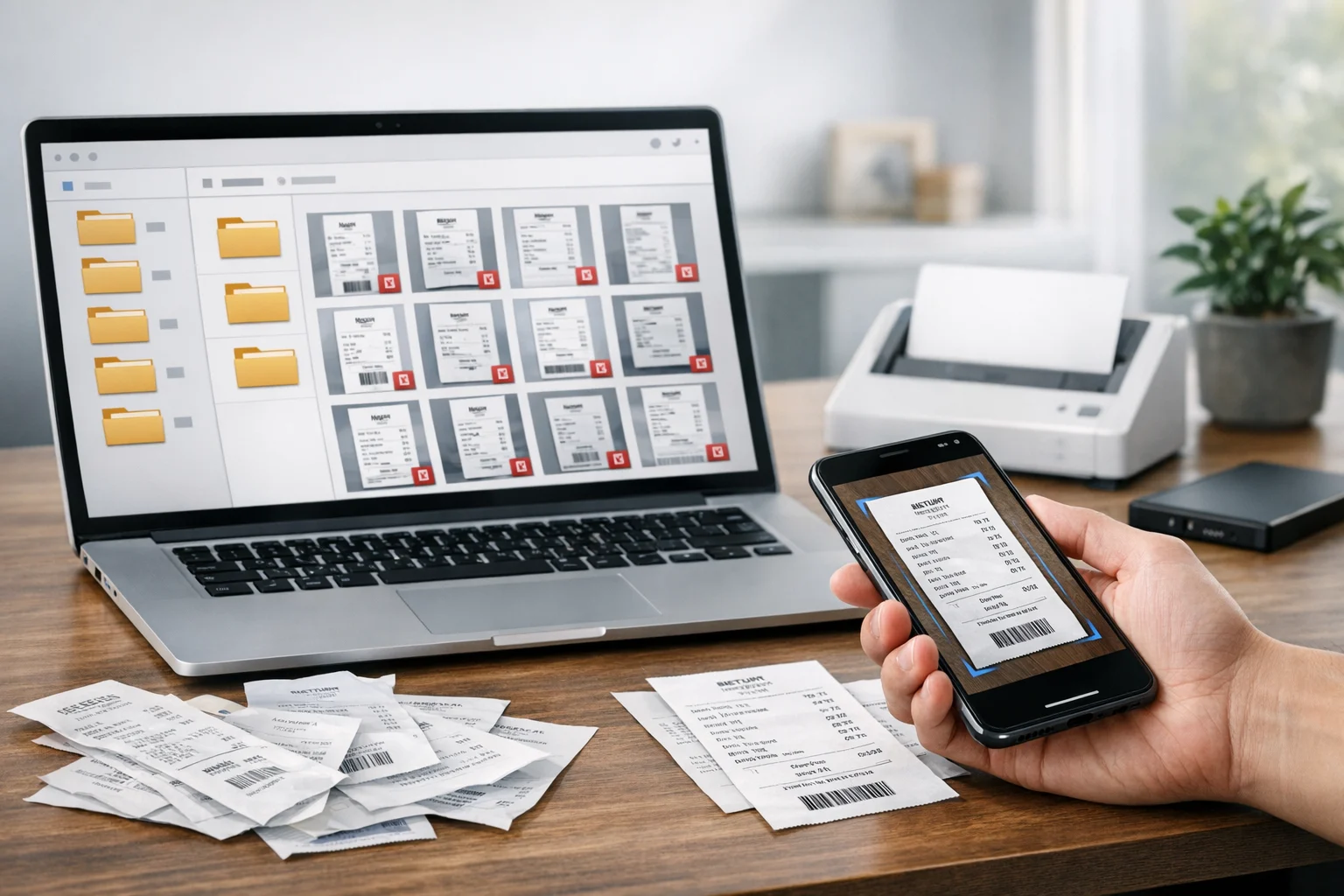
For example, a student might combine handwritten notes and reference screenshots into one PDF before submitting an assignment. A freelancer might package concept images into a client proof. A small business might turn photographed receipts into a single expense report. The files are still visual, but now they're easier to manage.
When image to PDF is the best choice
Not every image needs to become a PDF, but there are common situations where it clearly helps. If the main goal is easy sharing, a PDF is often better than sending raw image files.
- Submitting schoolwork or scanned worksheets
- Sending contracts, forms, invoices, or receipts
- Combining screenshots into a bug report or product feedback file
- Sharing design mockups or mood boards in a specific sequence
- Packaging event photos, menus, or brochures for review
- Creating simple handouts from image-based content
If the recipient needs to view the content, a PDF usually wins. If they need to edit the original images, keeping the source files may be better. It helps to think about the end use before you convert image files.
Start with the right image format before you convert
People often ask for the best image format before creating a PDF. The answer depends on what the images contain. Photos, logos, screenshots, scans, and graphics all behave a little differently, and that affects both quality and file size.
JPG vs PNG for PDFs
JPG vs PNG is the most common comparison. JPG is usually better for photographs because it keeps file sizes smaller. PNG is often better for screenshots, diagrams, or text-heavy graphics because edges stay sharper. If you're building a PDF from phone photos or scanned pages, JPG is often the practical option. If you're combining UI screenshots, line art, or transparent graphics, PNG may look cleaner.
A good rule is simple: use JPG for photo-based pages and PNG for crisp text or graphics when quality matters more than file size.
WebP vs PNG for modern workflows
WebP vs PNG comes up more often now because WebP is widely used online. WebP can be very efficient, but not every workflow handles it the same way. If your source images are in WebP, it may still be worth checking how they render in the final PDF. For broad compatibility, JPG and PNG remain safer choices for most document sharing tasks.
If your image set includes mixed formats, it can help to standardize them first with an image converter. That is not always required, but it can make the final PDF more predictable in quality and size.
How to turn images into a PDF step by step
The easiest method is to use an online tool that combines image files into a single document in your browser. With ConvertAndStore, you can upload your images, arrange them in the right order, and create one shareable file without installing software.
To get started, open the image to PDF converter and prepare your files first.
- Rename or sort your images in the order you want them to appear.
- Remove duplicates, blurry shots, or pages you don't need.
- Rotate sideways images before uploading if possible.
- Crop distracting backgrounds if the images are scans or phone photos.
- Check that text is readable at full size.
Once uploaded, convert image files into a single PDF and review the result before sharing it. This is especially useful for forms, scanned records, and visual presentations where order matters. If you're building a document from screenshots, place the most important pages first so the recipient sees context immediately.
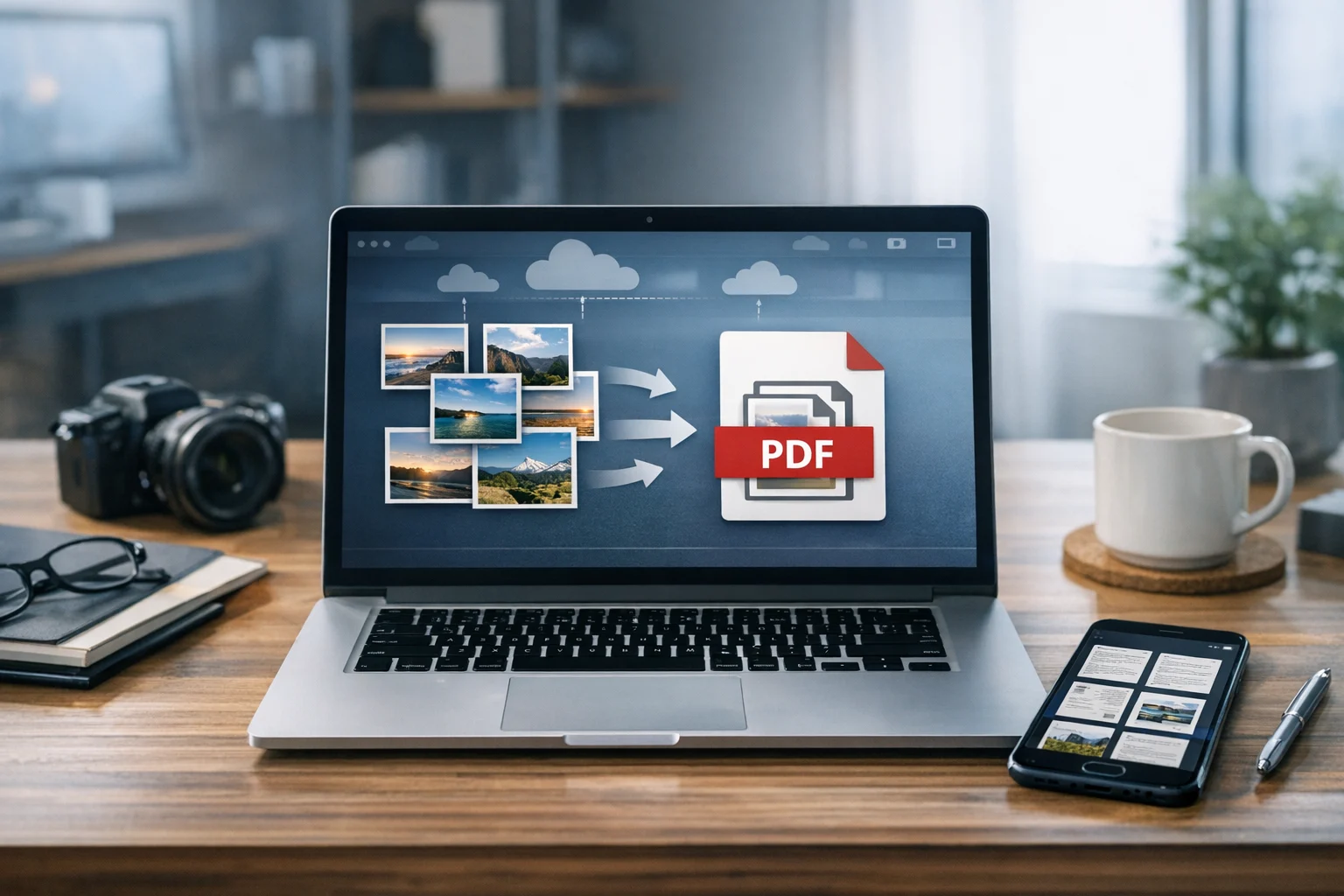
You start with a set of images, run a quick image to PDF conversion, and end up with one file that's far easier to email or upload than a folder full of separate images.
Get the page order and layout right
One of the biggest advantages of PDF is control over sequence. But that only helps if your pages are in the right order. Before you send the file, scroll through the full document once and check that nothing feels out of place. This matters for scanned IDs, contracts, forms, receipts, and step-by-step image guides.
If you need to adjust things after creating the PDF, use the reorder PDF pages tool to move pages around without starting over. That's useful when a cover page needs to go first, a signature page belongs at the end, or a few screenshots were imported in the wrong sequence.
It also helps to think about page orientation. Landscape images can look awkward in a portrait document if they are not rotated properly. Mixed orientation is fine when necessary, but if you're sharing with clients or colleagues, consistency makes the file feel cleaner and easier to review.
How to keep image-based PDFs small enough to share
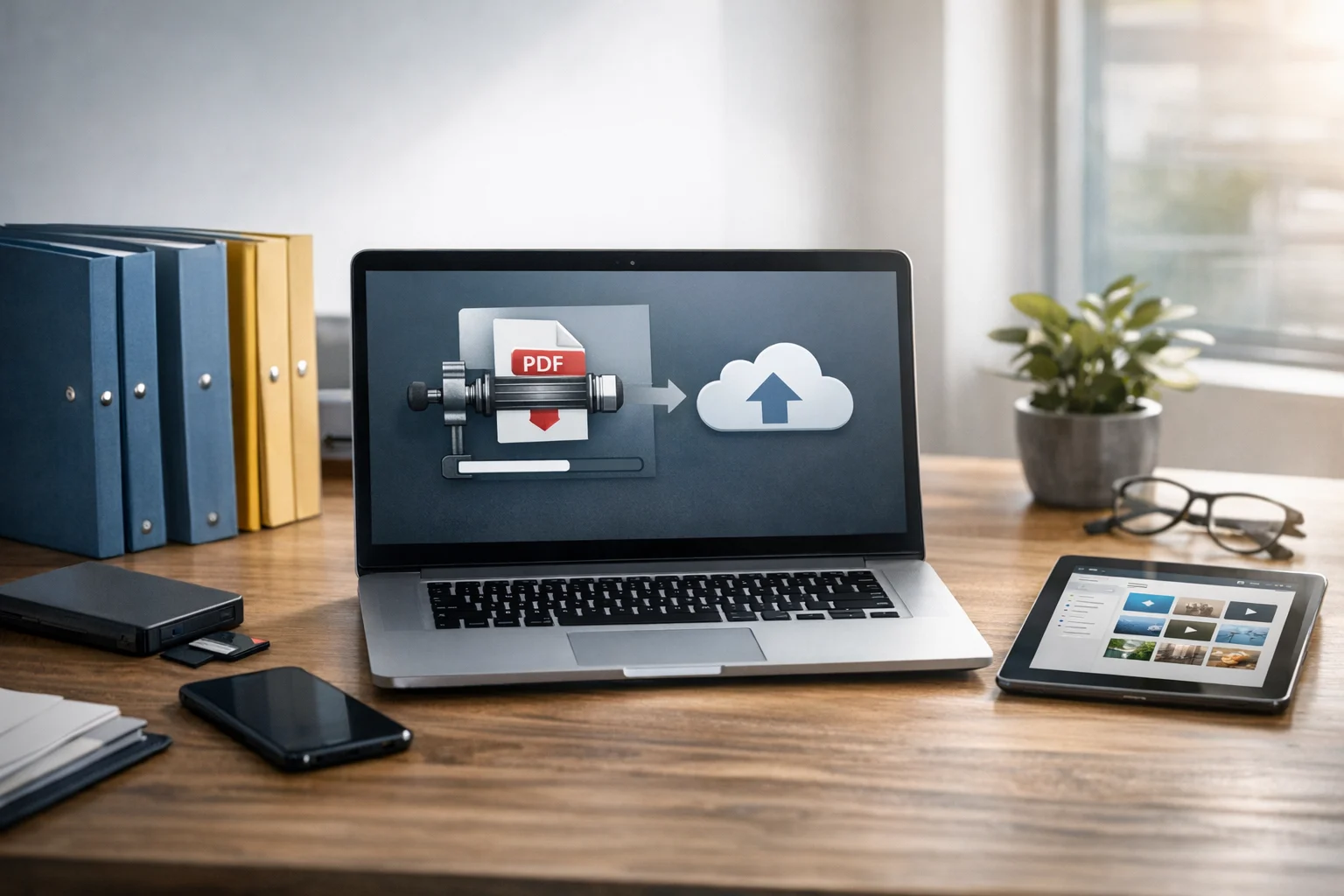
A PDF made from large image files can become surprisingly heavy. High-resolution phone photos, scanned pages, and PNG screenshots can all add up quickly. If your PDF is too large for email, uploads, or cloud sync, a few changes can reduce the size without ruining the result.
- Resize oversized images before converting, especially if they were captured at full camera resolution.
- Use JPG for photos when you don't need perfect lossless quality.
- Remove duplicate pages or unnecessary blank space.
- Use file compression after the PDF is created if the document is still too large.
If you already made the file and need a smaller version, try the PDF compressor. This is often the easiest fix for email limits, form uploads, and document portals.
It also helps to distinguish between image compression and PDF compression. Compressing images before conversion can reduce size early. Compressing the PDF afterward can make the final document lighter for delivery. In some workflows, doing both gives the best result.
When a PDF is better than a ZIP archive or RAR archive
A PDF is ideal when the goal is viewing, printing, or sending pages in a specific order. But sometimes a PDF is not the best container. If the other person needs the original image files for editing, design work, or batch processing, sending a ZIP archive may be the smarter move. A RAR archive can also package files, but ZIP is usually easier for everyday users to open on more devices.
Think of it this way:
- Use a PDF when the images should be read like a document.
- Use a ZIP archive when the original files need to stay separate and editable.
- Use a RAR archive only if your workflow already depends on it or the recipient specifically asks for it.
If you need to send originals alongside the finished PDF, it can help to create a separate archive for the source images. ConvertAndStore also has a helpful guide on creating ZIP archives for faster file sharing, which is useful when you're packaging large photo sets or design assets.
What to do if someone needs the images back out of the PDF
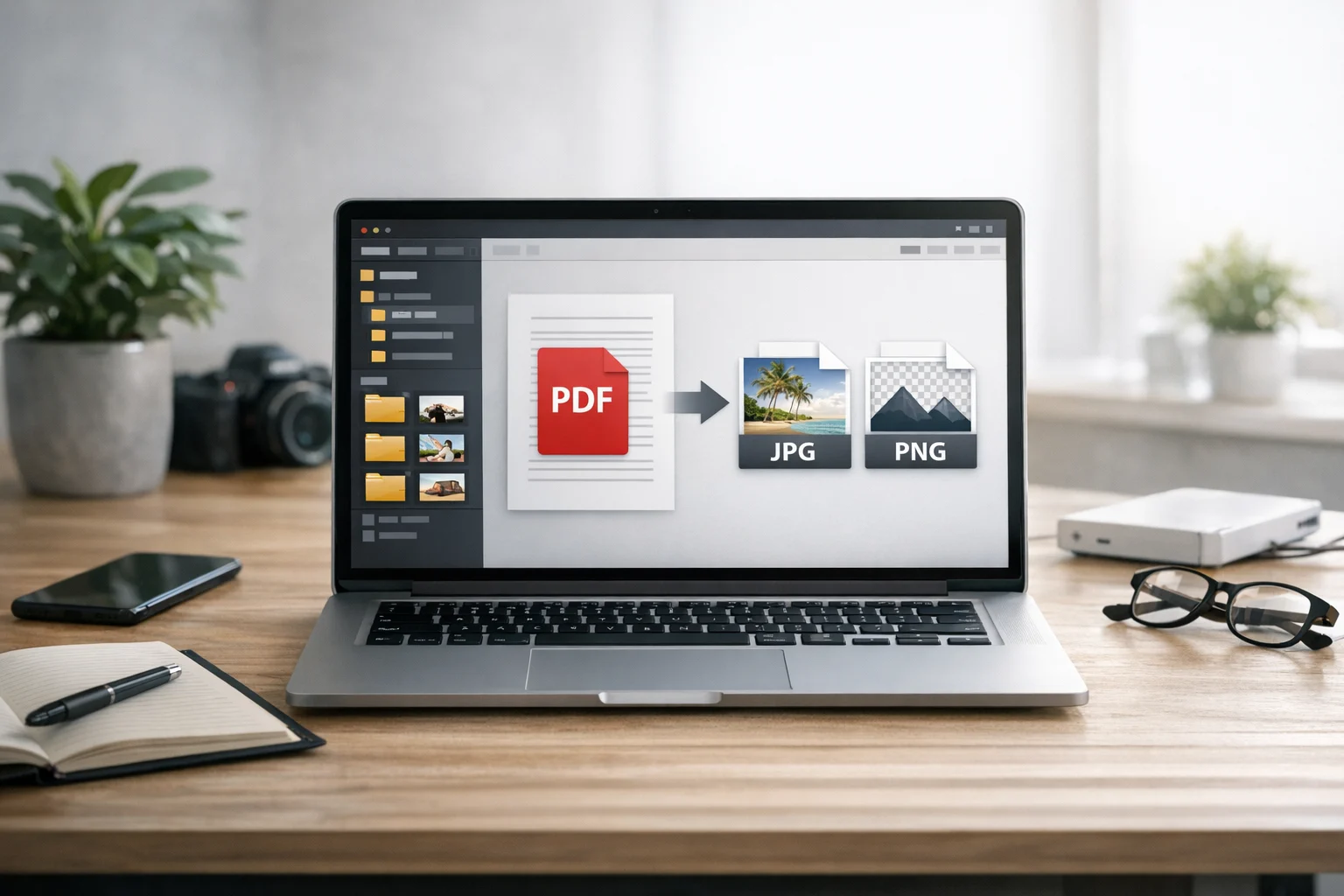
Creating a PDF does not lock you into one format forever. There are many times when you may need to convert PDF files back into images later. A client might want individual pages for social posting. A teammate might need screenshots pulled from a report. A support team may ask for a quick PDF to JPG export so the pages can be pasted into chat or documentation.
This is where using a solid PDF converter matters. The PDF is great for sharing, but it still helps to know that you can convert PDF files again later if your workflow changes. That flexibility is a big reason people rely on online file conversion tools rather than one-time desktop exports.
Store and share the PDF safely after conversion
Once the file is ready, the next question is where to keep it. For temporary sharing, email may be enough. For ongoing access, version control, or client delivery, cloud storage is usually the better option. A single PDF is easier to upload and manage than a folder of unorganized images, especially when you're working across devices or with a team.
If you're comparing cheap cloud storage plans, PDFs can also save space because one organized document often takes less room than a large set of full-resolution source images. That becomes even more helpful when you're dealing with repeated uploads, file backup routines, or long-term document storage.
For sensitive paperwork, look for encrypted cloud storage and strong access controls. The goal is not just convenience, but secure file storage that protects personal records, financial documents, internal reports, and client files. Good security habits matter whether you're storing scanned IDs, invoices, medical paperwork, or signed agreements.
It also helps to follow smart sharing practices, especially if your PDF contains private information. This guide to secure file sharing tips is a good next read if you want to protect documents after uploading them.
Common mistakes that make image to PDF files harder to use
Most image to PDF issues come from a few avoidable mistakes. Fixing them before you send the file can save time and keep the document looking professional.
- Using raw camera photos without cropping. Receipts, forms, and notes often include desk backgrounds or shadows that waste space.
- Uploading images in random order. This confuses readers and makes the PDF feel disorganized.
- Mixing very different image sizes. One huge image among several small ones can make the document look uneven.
- Keeping every file at maximum resolution. That often creates oversized PDFs with no practical quality benefit.
- Ignoring readability on mobile. Small text that looks fine on a desktop may be hard to read on a phone.
If the file is going to be reviewed on multiple devices, test it on both desktop and mobile before sending. That small check catches a lot of layout and legibility problems.
How image to PDF fits into a bigger file conversion workflow
For many users, turning images into a PDF is just one part of a larger digital workflow. You might also need a file converter for everyday format changes, an image converter for preparing source files, or a PDF converter for extracting pages later. The same goes for teams handling media across content, sales, and operations.
For example, a marketing team may use image to PDF for proposal screenshots, then later convert PDF files for web previews. A creator might organize product photos as a PDF for clients, while also using a video converter to convert video files for social campaigns. In that context, format choices like MP4 vs MOV for video are similar to choosing JPG vs PNG for document images. In both cases, you're balancing quality, file size, and compatibility.
Choose the format that matches how the file will be used next. A PDF is excellent when you want structure and easy viewing. Individual image files are better when editing or reusing assets matters more.
Practical uses for students, teams, creators, and businesses
This workflow shows up almost everywhere once you start noticing it.
- Students can combine handwritten pages, screenshots, and lab notes into one assignment upload.
- Freelancers can send branded proofs, mood boards, and approval decks in a clean format.
- Office teams can organize scanned paperwork, receipts, and internal records for easier document storage.
- Small businesses can keep invoices, purchase records, and product sheets in one place for file backup and compliance.
- Developers and product teams can package UI screenshots and bug evidence into one reviewable document.
- Everyday users can turn photo-based forms or ID scans into something easier to upload to portals and applications.
Image to PDF remains one of the most practical forms of online file conversion because it solves a common problem without adding complexity.
If you want the fastest route from a folder of images to a document you can actually send, start with ConvertAndStore's image to PDF converter, then compress or organize the file if needed and store it where it's easy to access later.
Frequently Asked Questions
It depends on the content. JPG is usually best for photos because it keeps file sizes smaller. PNG is often better for screenshots, text heavy graphics, and images that need sharper edges. If compatibility matters most, JPG and PNG are the safest choices.
Not always. Quality mainly depends on the source files and whether compression is applied during or after conversion. If your images are already clear and you use light compression, the PDF can still look very good.
Start by removing extra pages, resizing very large images, and using JPG for photo based pages when appropriate. If the PDF is still too large, use a PDF compression tool to reduce file size after conversion.
It can be safe if you use a trusted service and good security practices. For sensitive files, use secure file storage, limit sharing access, and choose encrypted cloud storage when keeping the PDF online.
Send a PDF when the recipient should view the images in a fixed order like a document. Send a ZIP archive when they need the original files for editing, design work, or reuse.
Yes. If someone later needs separate pages, you can convert PDF files back into image formats such as JPG. That is useful for previews, web uploads, or pulling individual pages from a document.