Choosing the right image format can make a bigger difference than most people expect. It affects page speed, upload times, editing flexibility, file size, print quality, and whether someone can actually open the file without extra steps. For students, creators, small businesses, marketers, office teams, developers, freelancers, and everyday users, this is not just a technical detail. It changes how easily you can share, store, and reuse your files.
If you're trying to find the best image format, the answer depends on what matters most to you. Some formats are best for fast websites. Others protect quality for editing and print. Others give you the widest compatibility across apps, devices, and platforms. The right format helps you send lighter files, protect detail where needed, and avoid frustrating compatibility issues.
This guide ranks the top image formats for speed, quality, and compatibility, and explains when to use each one. It also shows how image choices connect to broader file workflows like file compression, PDF conversion, archive creation, cloud storage, and secure file storage.
Which image formats rank highest right now?
If you want a practical ranking for common use, this is a solid starting point:
- WebP for the best balance of speed, quality, and modern compatibility
- JPG or JPEG for broad compatibility and good photo compression
- PNG for transparency, screenshots, and graphics that need crisp edges
- AVIF for very small file sizes and strong compression, with some workflow limits
- SVG for logos, icons, and vector graphics that need perfect scaling
- TIFF for archival, print, scanning, and professional editing
- GIF for simple animation, though it is often outdated compared with newer options
- BMP for niche compatibility cases, not for efficient sharing
That ranking changes depending on your task. WebP may lead for websites, but PNG still wins for many transparent graphics, and TIFF remains valuable for print workflows. There is no single format that dominates every job.
Why image format matters so much
The format you choose affects four things at once:
- Speed, because file size impacts loading and transfer time
- Quality, because some formats preserve more detail than others
- Compatibility, because older apps and platforms support some formats better than others
- Workflow, because editing, printing, archiving, and sharing all have different needs
A high quality image that loads slowly can hurt a website, a campaign, or a product page. A tiny image that looks blurry can damage trust. A file that looks perfect on your device but fails in someone else's app creates unnecessary extra work. Many people use an image converter to create different versions of the same image for different needs.
If you often need to convert image files for work, school, eCommerce, or client delivery, ConvertAndStore's image converter tools make it easier to switch formats without hunting for separate apps.
WebP ranks highest for general speed and web use
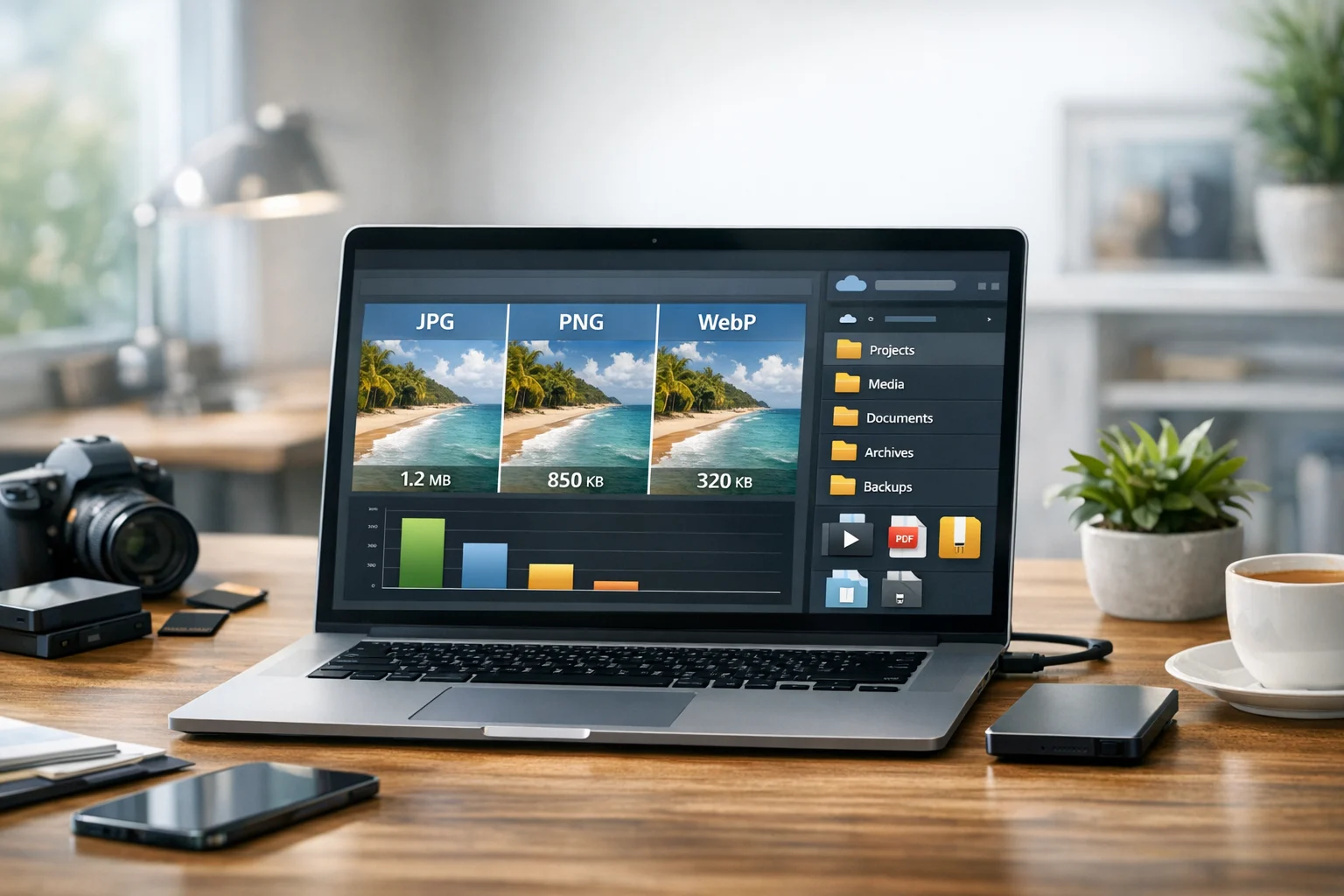
For many modern workflows, WebP is the top choice. It offers excellent compression, good quality, transparency support, and broad support in modern browsers and platforms. If your main goal is faster loading with minimal visible quality loss, WebP is hard to beat.
Why WebP performs so well
- Smaller file sizes than JPG and PNG in many real world cases
- Good visual quality for photos and graphics
- Supports transparency, unlike standard JPG
- Works well for websites, blogs, product images, and social content preparation
WebP is especially useful for teams focused on SEO and user experience. Smaller images help pages load faster, which supports engagement and search visibility. If you want to go deeper into this topic, see ConvertAndStore's guide on best image format for SEO and page speed.
If you already have a folder full of JPEGs, using a JPG to WebP converter can reduce weight without changing your whole content workflow.
Where WebP is not ideal
WebP is not always the best choice for heavy editing, professional print production, or older software environments. Some users also keep a JPG or PNG copy for compatibility, especially when sending files to clients, vendors, or systems with stricter format support.
JPG remains one of the safest choices for compatibility
JPG, also called JPEG, is still one of the most practical formats in everyday use. It is supported almost everywhere, from websites and email platforms to office software, mobile devices, printers, and document systems.
Where JPG shines
- Photos and realistic images
- Email attachments and quick sharing
- General uploads to websites, forms, and marketplaces
- Situations where compatibility matters more than advanced features
JPG uses lossy compression, which means file size drops by removing some image data. Done carefully, that tradeoff is often worth it. Done too aggressively, it creates visible artifacts and softness. JPG is best when you want a reasonable size and wide support, not maximum editability.
JPG is also a common output for PDF to JPG workflows when people need to extract slides, scans, reports, or individual pages as images. It often connects image and document workflows better than newer formats.
PNG is still essential for screenshots and transparency
PNG may not win for smallest file size, but it remains one of the most useful image formats around. It is often the better answer for logos, screenshots, interface captures, diagrams, and graphics with text or clean edges.
Why PNG still matters
- Lossless compression preserves sharp details
- Supports transparency
- Handles text and graphics better than JPG in many cases
- Useful for design assets, layered workflows, and clean visual elements
This is why the classic JPG vs PNG comparison is still relevant. If you're working with photographs, JPG usually gives smaller files. If you're sharing screenshots, simple graphics, or transparent assets, PNG is often better.
PNG files can become large, though. If you need a lighter version for uploads or sharing, a PNG to JPG converter can help when transparency is not required anymore.
PNG is best when clarity matters
For charts, user interface captures, labels, icons, and instructional images, PNG often looks cleaner than JPG because it avoids the compression artifacts that can blur fine edges and text.
AVIF can beat everyone on file size, but not always on workflow
AVIF is one of the most efficient modern formats available. It often produces very small files while keeping impressive visual quality. For speed focused publishing, that sounds ideal. The reason it has not fully replaced other formats is workflow friction.
AVIF advantages
- Excellent compression efficiency
- Strong quality at small sizes
- Useful for high performance websites and image heavy content
AVIF limitations
- Some tools and apps still have inconsistent support
- Editing and batch workflows may be slower or less convenient
- Not always the easiest format for clients or office teams
For developers and advanced publishers, AVIF can be a strong option. For broader compatibility, WebP and JPG are usually easier to work with right now.
SVG is unmatched for logos and vector graphics
SVG is different from the raster formats above. It is vector based, which means it scales without losing sharpness. That makes it ideal for logos, icons, illustrations, and interface elements.
Use SVG when you need:
- Perfect scaling across screens and sizes
- Crisp logos and icons
- Small file sizes for simple vector artwork
- Editability in design workflows
SVG is not right for photos. It also may not fit some upload systems that only accept raster images. In those situations, people often convert image files from SVG to PNG for better compatibility in documents, slides, forms, and marketplaces.
TIFF is for quality preservation, scans, and print
TIFF does not rank near the top for fast sharing, but it remains important when preserving detail matters more than file size. It is common in scanning, publishing, professional photography, archiving, and print production.
TIFF works well for:
- High resolution scans
- Archival image storage
- Professional editing pipelines
- Print ready image handling
TIFF files are often large, which makes them less convenient for websites, messaging, and general sharing. Many users keep TIFF as a master file, then create JPG, PNG, or WebP copies for distribution. If you work with old scans or print assets, ConvertAndStore's TIFF converter can help turn those files into easier everyday formats.
GIF and BMP are mostly niche formats now
GIF still appears in messaging, simple animations, and internet culture, but it is no longer a top ranked image format for efficiency. Animated WebP and video often provide better quality and smaller files. BMP is even less efficient for normal use. It can help with legacy systems or raw compatibility situations, but it produces large files and is rarely the best option for modern sharing.
In most current workflows, if you receive GIF or BMP files, conversion is usually the smart next step.
JPG vs PNG and WebP vs PNG
These two comparisons come up constantly because they affect everyday decisions.
JPG vs PNG
- Choose JPG for photos, lighter sharing, and broad compatibility
- Choose PNG for screenshots, graphics, text heavy images, and transparency
If the image is a product photo or team headshot, JPG is often enough. If it is a design mockup, app screenshot, or transparent logo, PNG is usually stronger.
WebP vs PNG
- Choose WebP when smaller size matters and modern compatibility is acceptable
- Choose PNG when lossless quality and easy editing matter more
WebP vs PNG is especially important for websites. WebP often cuts file size while still supporting transparency, which makes it a practical replacement for many PNG files used online. PNG still holds up for master assets and some design situations.
How to choose the best image format by use case
The best image format depends on what you need the file to do next.
For websites and blogs
- Use WebP for most images
- Keep JPG as a fallback if needed
- Use PNG or SVG for logos and interface graphics
For photography and social sharing
- Use JPG for wide compatibility
- Use WebP for optimized online publishing
- Keep original high quality files separately for editing
For screenshots, tutorials, and presentations
- Use PNG for sharp edges and readable text
- Convert to JPG only if size becomes a problem
For print and archiving
- Use TIFF as a master where detail matters
- Create smaller sharing copies in JPG or PNG
For logos and icons
- Use SVG when possible
- Export PNG for systems that require raster images
Conversion matters as much as compression
People often focus only on file compression, but format conversion can make a bigger difference. File compression reduces size within the same format. Conversion changes the format itself, which can improve speed, compatibility, or transparency support.
For example:
- Converting PNG to WebP can reduce size more than basic compression alone
- Converting TIFF to JPG can make scans easier to email
- Converting HEIC to JPG can make phone photos easier to share anywhere
- Converting a heavy image set before upload can streamline collaboration
Online file conversion is useful because it lets you adapt files quickly for the task in front of you without installing separate software for each format.
Image formats are part of a larger file workflow
Image files rarely live alone. In real work, they connect with documents, video, archives, and storage.
A marketer might convert image files for a landing page, then convert PDF files into preview images for social posts. A student may use a PDF converter to turn lecture notes into shareable visuals, or combine screenshots into image to PDF submissions. An office team may need PDF to JPG exports for a report, while a freelancer sends project assets as a ZIP archive. A developer may compare MP4 vs MOV for a demo clip, then use a video converter to convert video files before uploading them with images and documents to the same project folder.
An all around file converter platform is more useful than a single purpose tool because people rarely have only one file problem.
There is also a storage angle. Once you've created optimized versions of images, you need a reliable place to keep originals, exports, and project bundles. Good cloud storage supports file backup, sharing, and document storage without turning your workspace into chaos. If you're evaluating cheap cloud storage options, price matters, but so do privacy and organization. For sensitive work, encrypted cloud storage and secure file storage features matter even more.
Many teams also archive final project packages in a ZIP archive or RAR archive so they can send everything together, including logos, photos, PDFs, and videos. That is especially helpful when handing off website assets, design kits, reports, or campaign materials.
Simple rules for choosing the right format fast
- If you want the best balance for the web, start with WebP
- If you need maximum compatibility, choose JPG
- If you need transparency or crisp screenshots, use PNG
- If you need top compression and support is not a problem, test AVIF
- If you need scalable logos or icons, use SVG
- If you need print quality or archival detail, keep a TIFF master
It also helps to keep two versions when needed: a high quality original for editing and a smaller export for sharing. That approach saves time later, especially for teams juggling web publishing, client delivery, and file backup.
Frequently Asked Questions
WebP is often the best choice for website speed because it usually delivers smaller files than JPG and PNG while keeping good quality. AVIF can be even smaller, but WebP is often easier to use across everyday workflows.
Use JPG for photos and general sharing when you want smaller files and strong compatibility. Use PNG for screenshots, graphics, text heavy images, and transparent backgrounds.
It depends on the formats involved. Converting to a lossy format like JPG can reduce quality, especially at high compression levels. Converting between lossless formats or keeping high quality settings can preserve more detail.
Use TIFF when you need a high quality master file for print, scanning, archival storage, or professional editing. Use WebP or JPG for smaller files that are easier to share online.
It can be safe when you use a trusted service with clear privacy practices and secure handling. For sensitive files, look for secure file storage, encrypted cloud storage, and controlled access to uploaded content.
Formats affect both file size and usability. Smaller optimized files save space in cloud storage, while high quality originals are useful for editing and long term file backup. Keeping both versions gives you flexibility without losing the source.