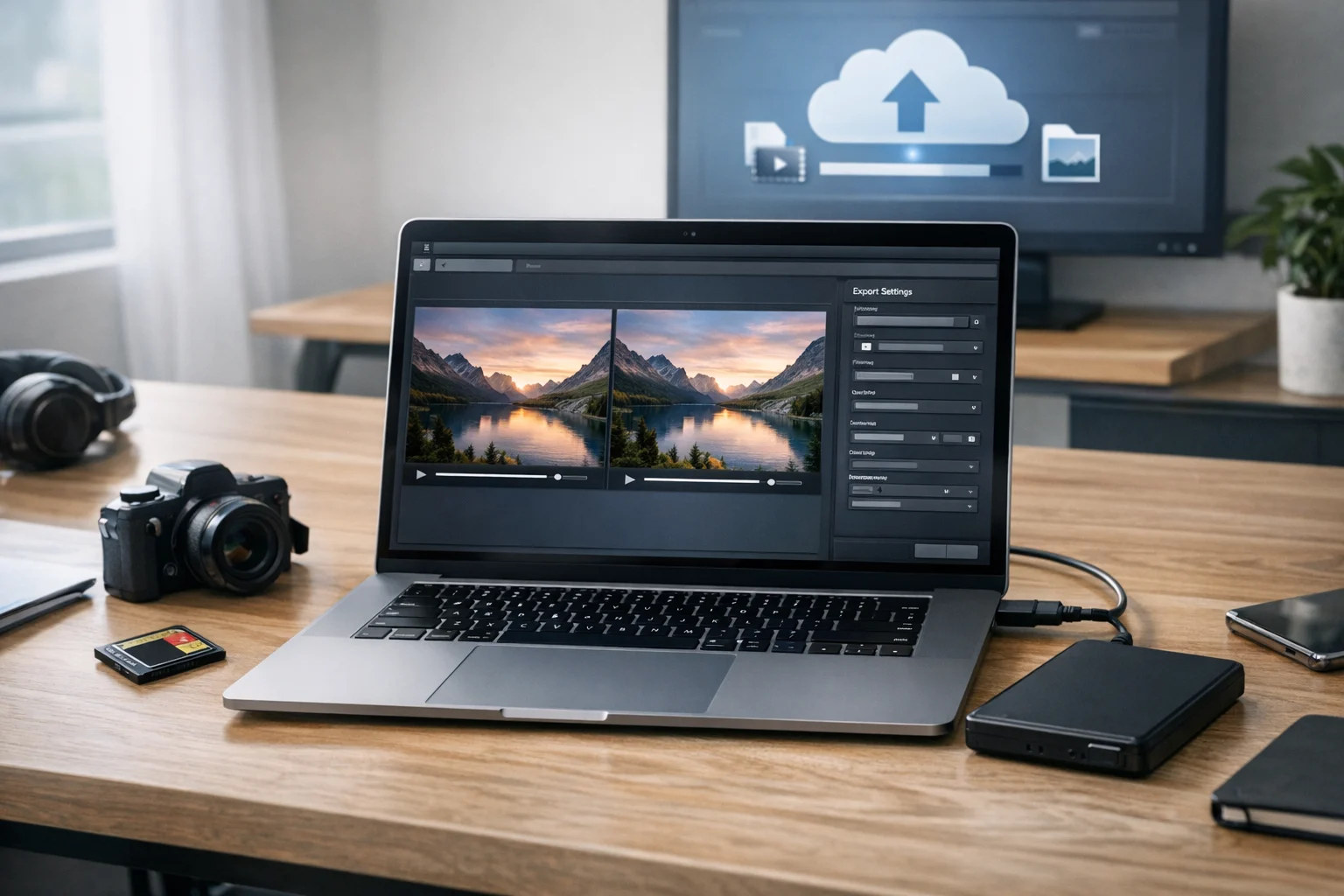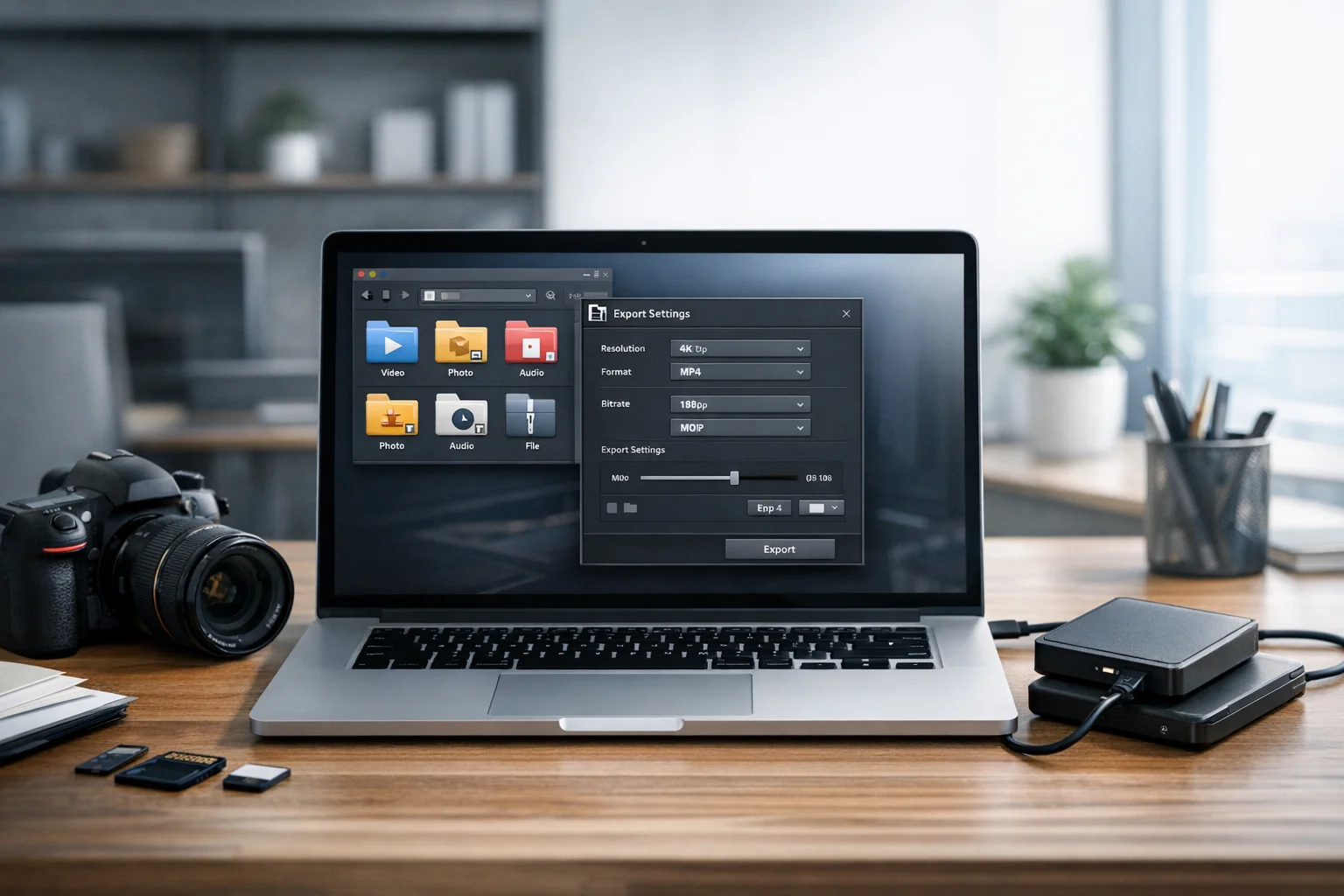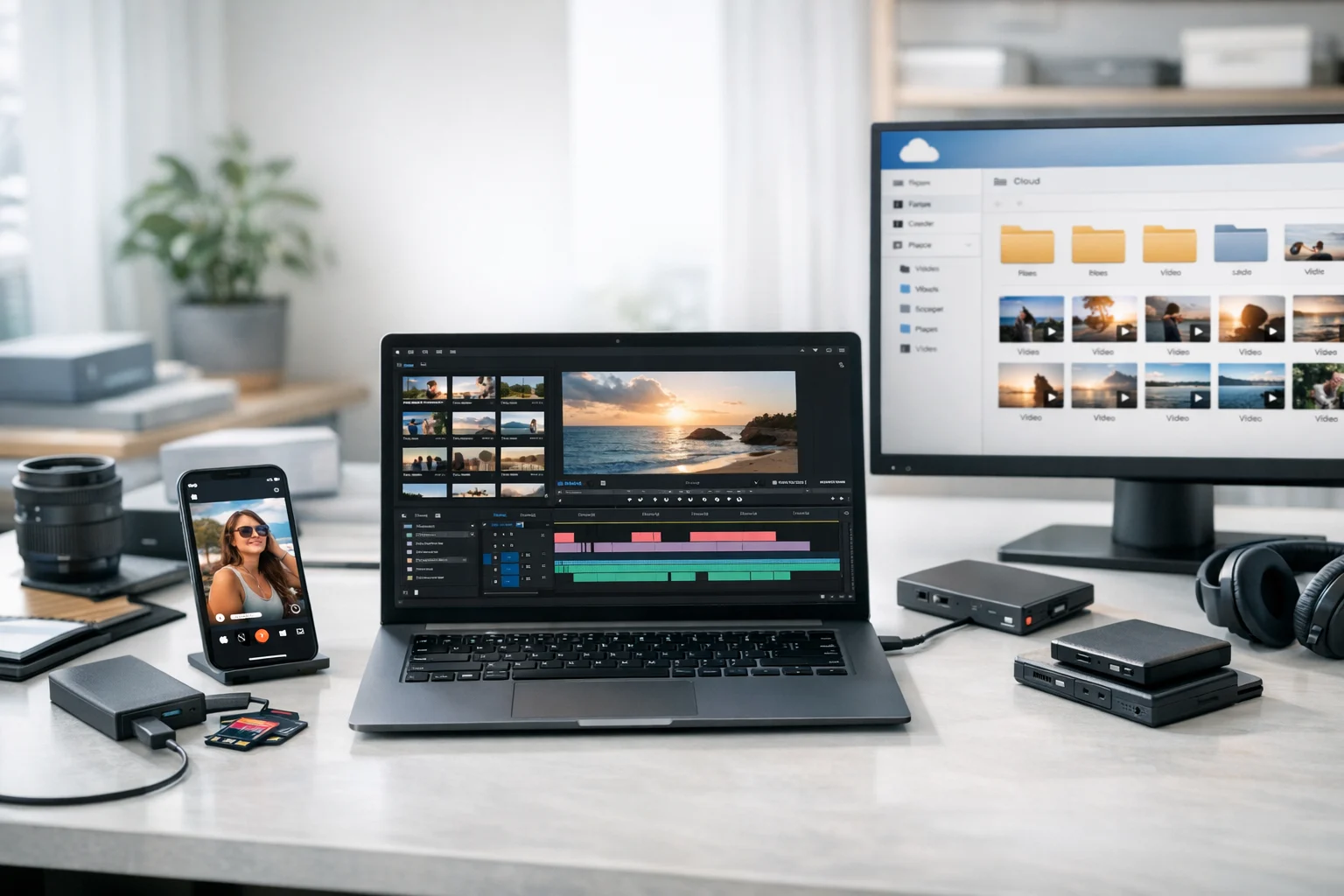
Picking the best video format sounds simple until you actually need to upload, share, embed, store, and back up real files. A video that looks perfect on your laptop might load slowly on a website, fail on a social platform, or take up far more storage than it should. The best format depends on what the video needs to do next.
For most people, the safest answer is MP4. It works well on websites, plays smoothly on most devices, and is usually the easiest option for social media. But that does not mean every video should stay in MP4 forever. If you edit professionally, preserve original footage, or manage a large library in cloud storage, you may need a different format for your master files and another one for delivery.
This guide breaks down the best video format for websites, social media, and storage, with practical advice for students, creators, marketers, small businesses, developers, freelancers, office teams, and everyday users. It also covers the other files that usually come with video projects, including thumbnails, PDFs, and archives, because video workflows rarely involve just video alone.
What makes one video format better than another
When people compare formats, they usually mean a mix of three things: the file container, the video codec, and the audio codec. For example, MP4 is a container. H.264 is the video codec that is often inside it, and AAC is the audio codec commonly paired with it. That combination is popular because it balances compatibility, quality, and file size better than many alternatives.
The best choice usually comes down to five questions:
- Will it play everywhere? Compatibility matters for websites, phones, browsers, and apps.
- How large is the file? Smaller files are easier to upload, share, and store.
- How much quality do you need? Social posts and archive masters do not need the same settings.
- Will you edit it again? Editing formats are often larger but easier for software to handle.
- How long do you need to keep it? Storage strategy matters if you are building a library or keeping client work.
If you regularly need to convert video files, images, documents, and archives, ConvertAndStore gives you a practical place to handle file converter tools and online file conversion without juggling separate apps for every task.
Best video format for websites
For website use, MP4 with H.264 video and AAC audio is still the best default for most cases.
It is widely supported by browsers, content management systems, video players, marketing platforms, and mobile devices. It also gives you strong quality at manageable file sizes, which matters because page speed affects user experience and search performance. A huge file can slow a landing page, increase bounce rate, and frustrate visitors before your video even starts.
If you are embedding product demos, course clips, background videos, testimonials, or homepage explainers, MP4 is usually the safest format to publish. It is the format most teams can work with easily, even if the original footage started as MOV or something else.
Why MP4 works so well on the web
- High compatibility: Most browsers and devices handle MP4 smoothly.
- Good compression: It keeps file size practical without destroying quality.
- Easy playback: Hosting platforms and website builders expect it.
- Simple sharing: Clients, coworkers, and customers can usually open it without extra software.
If you are comparing web-friendly video formats in more detail, this MP4 vs MOV vs AVI comparison is a useful next read.
When WebM makes sense
WebM can be a smart option for some modern web projects, especially when developers want highly optimized browser delivery or lightweight looping visuals. In some cases, WebM can produce smaller files than MP4 at similar visual quality. It can also be useful for certain design and interface use cases.
That said, WebM is not always the easiest universal choice for business teams, clients, or social workflows. If you need one video file that will move from website to email to cloud storage to social posting with minimal friction, MP4 is still easier for most users.
Why MOV is less ideal for website delivery
MOV files often come from editing software, screen recorders, or Apple-based workflows. They can look great, but they are often larger and less convenient for direct website use. If your site receives MOV files from a freelancer, editor, or phone export, you will usually get better web performance by converting them to MP4 first.
If that is your situation, this guide on how to convert MOV to MP4 can save time and reduce playback issues.
Best video format for social media
For social media, the answer is also usually MP4. Most major platforms prefer it, and many will reprocess uploaded videos anyway. Your goal is not just picking the right container. You also want the right aspect ratio, resolution, bitrate, and duration for the platform.
In practice, platforms tend to handle MP4 uploads more predictably than older or more specialized formats. If you upload MOV, AVI, or another large file type, the platform may still accept it, but you may wait longer for processing or get less consistent results.
For short-form and social video, keep these points in mind:
- Use MP4 as your export format.
- Match the aspect ratio to the platform. Vertical works for stories and reels, square can work for feeds, landscape is common for longer content.
- Keep file size reasonable. Social apps compress aggressively, so huge source files do not always help.
- Check captions and burned-in text. Compression can make small text harder to read.
- Upload a clean final export. Avoid sending editing masters straight to a platform.
Social media often changes technical recommendations, but MP4 stays a reliable baseline. If you need to convert video files before posting, a video converter can help standardize mixed uploads from phones, cameras, screen captures, and editing apps.
Best video format for storage
The best storage format depends on whether you are saving a working project, preserving original footage, or keeping a space-efficient copy for future viewing.
For most users, the smartest approach is not choosing one format for everything. It is keeping different versions for different jobs.
A practical storage setup
- Original file: Keep the source video if it matters. This is your best recovery option.
- Master or edit copy: If you edit regularly, keep a high-quality version in the format your software prefers.
- Access copy: Save an MP4 version for easy playback, sharing, and quick review.
This is especially helpful for creators, marketers, office teams, and freelancers who need both quality and convenience. The original file protects your quality ceiling. The MP4 copy keeps the workflow fast.
If you are uploading large video libraries, file size starts to affect cost. That is where file compression and smart export settings matter. You do not want to waste cloud storage on oversized files that no one needs in full editing quality. For many teams, the best balance is keeping the original or best master for important projects, then compressing delivery copies before upload. This article on how to compress video files before uploading to cloud storage goes deeper into that process.
Storage is also about trust. If you are handling client footage, training videos, contracts, or internal recordings, look for cloud storage that supports privacy and organization, not just raw space. Cheap cloud storage can be useful when budgets are tight, but cost should not be the only factor. Encrypted cloud storage and secure file storage matter when you are working with sensitive business content, team documents, or personal recordings.
A good storage setup should also support file backup, version control, and document storage, because video projects often include scripts, approvals, subtitles, invoices, PDFs, and image assets that need to stay together.
MP4 vs MOV and where each one fits
The MP4 vs MOV question comes up constantly because both formats are common, but they serve different purposes.
- MP4: Best all-around option for websites, social media, general sharing, and everyday playback.
- MOV: Often better as an editing or capture format, especially in Apple-centered workflows.
If you care most about compatibility and manageable file size, MP4 usually wins. If you care most about editing flexibility and you are still working on the project, MOV can make sense as an intermediate or master file.
Many people end up with both: MOV while editing, MP4 when publishing or sharing.
How compression changes the answer
Many people ask for the best format when the real issue is compression. A large MP4 can still be too slow for a website. A small MOV can still be inconvenient to share. Format matters, but the export settings matter just as much.
When people say file compression in a video workflow, they can mean a few different things:
- Video compression: Reducing bitrate, resolution, or changing codec settings to shrink a video file.
- Archive compression: Putting files into a ZIP archive or RAR archive for transfer and organization.
These are not the same. A ZIP archive will not dramatically shrink an already compressed MP4 in most cases. Video files are usually compressed already, so archiving them often helps more with organization than size reduction.
Use a ZIP archive when you want to bundle a video with subtitles, thumbnail images, transcripts, or approval documents. A RAR archive can be helpful if you need advanced compression options or split archives for easier transfer, but ZIP is usually the simplest choice for broad compatibility.
If your actual problem is that a video is too large, use a video converter or compression workflow first. If your problem is that you need to send a complete package of related assets, then archive tools make more sense.
Do not forget the files around the video
Video rarely lives alone. Most real projects also include thumbnails, poster images, PDFs, spreadsheets, screenshots, and delivery notes. That is why broader file management matters, not just video conversion.
Choosing the best image format for thumbnails and posters
If you are publishing a video on a website, your thumbnail can affect clicks almost as much as the video itself. The best image format depends on the use case:
- JPG: Good for photos and lighter file sizes.
- PNG: Better when you need transparency or very crisp graphics.
- WebP: Often ideal for modern websites because it can keep quality high while reducing size.
That is where questions like best image format, JPG vs PNG, and WebP vs PNG become relevant. If you need to convert image files for thumbnails, banners, or preview graphics, ConvertAndStore offers image converter tools that make it easier to switch formats without adding another step to your workflow.
An image converter is also useful when a designer sends a format that does not fit your site, ad platform, or email tool. Being able to convert image files quickly keeps video publishing moving.
PDFs, storyboards, and approval files
Video projects often include documents too. Maybe you have a script in PDF, a client brief, a storyboard, a training handout, or a signed approval. In those cases, a PDF converter can save time when you need to convert PDF files for review or publishing.
Common examples include turning a storyboard from PDF to JPG for easier visual sharing, or combining screenshot notes into image to PDF format for a cleaner handoff. These sound like separate tasks, but they are part of the same content workflow. When one project includes video, images, and documents, keeping everything organized in one place is a real advantage.
A simple format strategy that works for most people
If you do not want to think about codecs all day, this simple approach covers most situations well:
- For websites: Use MP4 with H.264 and AAC.
- For social media: Export MP4 in the right aspect ratio for the platform.
- For editing: Keep the original file or a high-quality master if you expect revisions.
- For storage: Save the original plus an MP4 access copy in cloud storage.
- For thumbnails: Use JPG, PNG, or WebP based on quality and transparency needs.
- For supporting documents: Keep PDFs, transcripts, and notes with the video files.
- For bundled delivery: Use a ZIP archive when you need to package related assets together.
This works for students submitting projects, creators posting clips, marketers managing campaigns, office teams storing training media, developers publishing product demos, and freelancers sharing deliverables with clients.
When you should use something other than MP4
MP4 is the best default, but there are still cases where another format is worth using:
- Use MOV if you are keeping an editing-friendly file from your camera or software.
- Use WebM if your web project specifically benefits from it and your audience is browser-focused.
- Keep the original format if long-term preservation matters more than convenience.
The key is to separate your working file from your delivery file. Many video problems happen because people try to use the same file for editing, web publishing, social posting, storage, and client delivery. One format rarely does all of that equally well.
How ConvertAndStore fits into the workflow
A real content workflow is usually mixed. One folder might contain MOV clips from a phone, MP4 exports from an editor, thumbnail images that need format changes, a PDF brief, and a ZIP archive of final deliverables. ConvertAndStore helps you handle online file conversion across those connected tasks, whether you need a file converter for video, an image converter for thumbnails, tools to convert PDF files for review, or a simpler way to organize file backup and document storage in one place.
Frequently Asked Questions
For most websites, MP4 with H.264 video and AAC audio is the best choice because it offers broad browser support, good quality, and manageable file sizes.
MP4 is usually better for social media. Most platforms handle it well, and it is easier to upload, process, and play across devices than MOV.
Keep MP4 for easy playback, but store the original file too if quality matters. A good storage setup includes the source file, a high quality master if needed, and an MP4 access copy.
Usually not. Most video files are already compressed, so ZIP or RAR archives help more with packaging and transfer than with major size reduction.
WebM can make sense for some browser focused web projects or lightweight looping visuals, but MP4 is still the safer default for compatibility and sharing.
Use cloud storage that supports privacy, organized folders, and reliable file backup. Encrypted cloud storage and secure file storage features are especially important for client work, internal media, and sensitive documents.