Converting video sounds simple until the finished file looks softer, blockier, or less smooth than the original. That usually happens because many video formats use lossy compression. Every time a video is re-encoded, some detail can be thrown away. The good news is that you can still convert video files without losing too much quality if you choose the right format, settings, and workflow.
For students sharing lecture recordings, creators publishing content, small businesses sending product demos, marketers exporting social clips, developers documenting app flows, office teams moving training videos, and freelancers delivering client work, the goal is usually the same. You want a file that plays everywhere, uploads faster, and stays sharp enough for the job. A good video converter or file converter helps, but the settings matter just as much as the tool itself.
This guide breaks down what affects video quality during conversion, which settings are safest to change, when to compress instead of convert, and how to store both your originals and smaller delivery copies in a practical way.
Why video quality drops during conversion
When people say a video lost quality after conversion, they usually mean one of four things happened. The resolution changed, the bitrate dropped too far, the frame rate changed, or the codec used stronger compression than the original. Sometimes all four happen at once because a preset is trying to make the file much smaller.
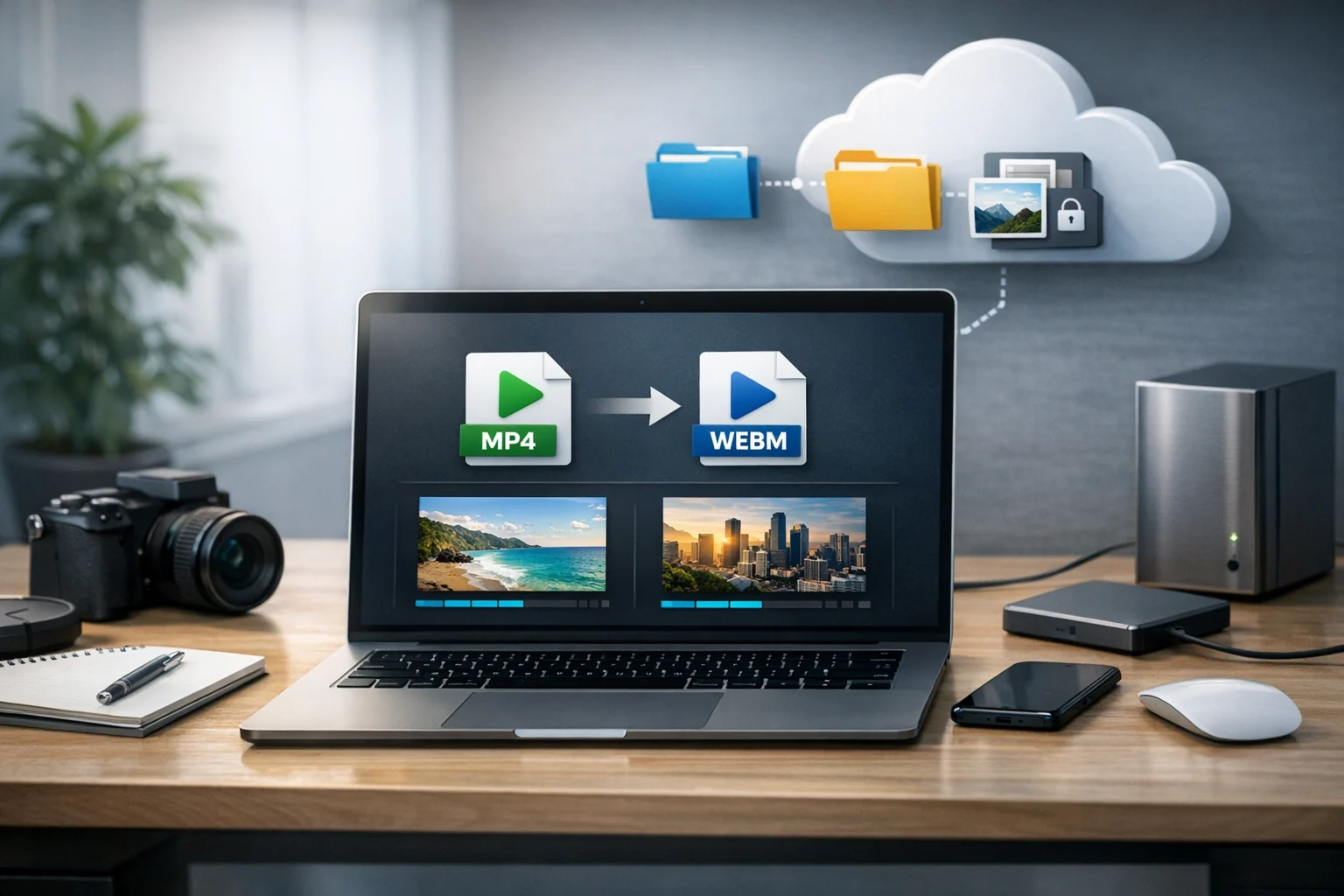
It helps to separate the file container from the video codec. For example, MP4 and MOV are containers. H.264 and H.265 are codecs. That is why a discussion like MP4 vs MOV is really about compatibility and workflow, while codec settings often decide how much quality you keep. If you want a beginner-friendly explanation of these basics, this guide to bitrate, resolution, and format is a helpful starting point.
- Resolution: Converting 4K to 1080p can look good, but converting 1080p to 720p removes detail.
- Bitrate: Lower bitrate means a smaller file, but if it drops too far you will see blockiness, smearing, or banding.
- Frame rate: Changing 60 fps to 30 fps can make motion look less smooth.
- Codec choice: Newer codecs can keep quality at smaller sizes, but device support varies.
- Repeated exports: Every extra re-encode can add more loss.
The biggest mistake is converting without a clear reason. If your original already plays well on your target device or platform, converting may not help much. If you do need to convert, define the goal first. Are you optimizing for playback, editing, upload speed, email limits, cloud storage cost, or long-term backup? The right settings depend on that answer.
Choose the output format based on how the video will be used
The safest way to preserve quality is to convert into a format that matches the destination. For most everyday sharing, MP4 with H.264 is still the most practical choice. It works well across browsers, phones, laptops, office software, and social platforms. If you need better compression at similar visual quality, H.265 can reduce file size further, but older devices and some apps may not handle it as smoothly.
MOV is common in editing workflows and Apple-based environments. It can be perfectly high quality, but it often creates larger files and may be less convenient for broad sharing. If you are deciding between common web-friendly formats, this article on MP4 vs MOV explains the tradeoffs in more detail.
Here is a simple rule that works for most people:
- Use MP4 for websites, email attachments, messaging, training videos, social uploads, and client delivery.
- Use MOV if you are staying inside an editing workflow that already expects it.
- Keep the original master if quality matters more than size and you may need to export again later.
If you need to convert video files for multiple uses, create more than one version instead of one compromised file. Keep a master for editing or backup, then export a smaller MP4 for sharing.
Settings that protect quality during conversion
Keep the original resolution unless you have a reason to change it
If the source is 1080p and the destination supports 1080p, keep it there. Downscaling can still look good, especially from 4K to 1080p, but upscaling almost never improves anything. It only creates a bigger file with the same or worse detail.
For social or web use, downscaling is reasonable when the source is much higher than the viewer needs. For client review, screen recordings, webinars, and tutorials, matching the source resolution is usually the safest move.
Be careful with bitrate, not just file size
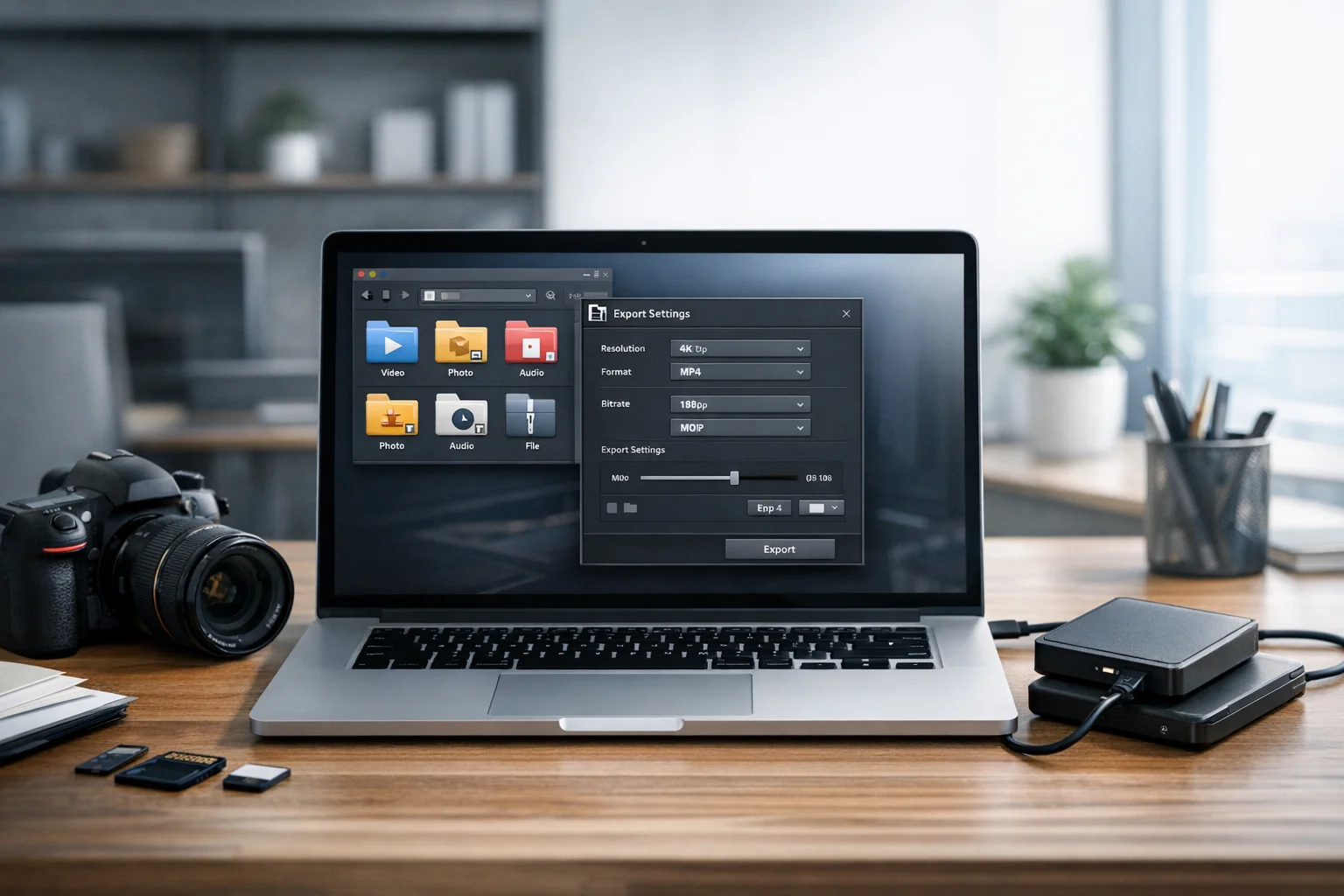
Bitrate is one of the strongest quality controls in any video converter. If a preset promises a huge size reduction, it is usually cutting bitrate hard. That is where artifacts come from.
As a practical starting point:
- 720p video often looks fine at moderate bitrates if the content is simple.
- 1080p usually needs more bitrate, especially for fast motion, gaming, sports, or noisy handheld footage.
- 4K needs significantly more, unless you use a more efficient codec.
If your converter offers quality-based control such as CRF or a quality slider, that is often better than forcing a very low target file size. If it offers variable bitrate, that is usually better than constant bitrate for general viewing because complex scenes get more data while simple scenes use less.
Do not change frame rate unless compatibility requires it
Converting 30 fps to 30 fps is safe. Converting 60 fps to 30 fps can be okay when you need smaller files, but motion will be less smooth. Converting 24 fps film-style footage to other frame rates can also create odd motion if the tool handles it poorly. If you are not sure, keep the original frame rate.
Audio matters too
People often focus only on video quality, but over-compressed audio makes a file feel cheap fast. AAC audio in an MP4 is a reliable choice for most situations. Spoken word can tolerate lower audio bitrate than music or live events, but do not push it too low if clarity matters.
Avoid multiple conversion passes through different apps
One clean conversion is better than a chain of exports. For example, exporting from an editor, then compressing in another app, then uploading to a platform that recompresses again can stack visible damage. If possible, make one carefully chosen output file for the destination and keep the original master untouched.
Good conversion choices for common real-world use cases
The best settings are easier to choose when you start from the use case instead of guessing.
- Website or blog upload: Use MP4, keep the native frame rate, and lower bitrate only enough to improve loading. Test playback in a browser before publishing.
- Social media clip: Match the platform's preferred dimensions, keep motion smooth, and avoid over-compressing text overlays or captions.
- Client review copy: Use MP4 for easy playback, but do not make the bitrate too aggressive. Reviewers need to see detail clearly.
- Internal training video: Favor compatibility. Office teams usually need files that open easily on many devices and software setups.
- Long-term project archive: Keep the source or a high-quality mezzanine file. Delivery copies are not a good master.
- Email or chat sharing: Convert for smaller size, but test a short segment first so faces, screen text, and motion still look acceptable.
Convert for the destination, not for an abstract idea of the smallest possible file.
When compression is better than conversion
Sometimes you do not need to change the video format at all. You just need the file to be smaller for transfer or storage. That is where file compression and video compression have different roles.
Video conversion changes the encoding, container, or both. It is useful when you need better compatibility or lower playback size.
Archive compression wraps files into an archive such as a ZIP archive or RAR archive. That is useful when you are sending multiple files together, like the video, subtitle file, thumbnail, transcript, and release form. It helps with organization more than visual quality.
If you are packaging project assets, using a ZIP archive creator can keep everything together cleanly. Just remember that zipping a heavily compressed video like MP4 will not usually reduce its size much, because the video is already compressed. Archives are best for bundling, versioning, and simpler delivery, not for shrinking finished videos.
Keep the original, then store smaller delivery copies separately
One of the easiest ways to avoid quality regrets is to stop treating the converted file as your only file. Keep the original or master export, then create lighter versions for sharing. That gives you flexibility later if a client asks for a different format, a platform changes requirements, or you need to repurpose old content.
This is where good cloud storage matters. A lot of people hunt for cheap cloud storage, which makes sense if you handle many large video files. But storage cost should not be the only factor. You also want reliable uploads, sensible folder organization, and a clean way to separate originals from web copies. If the files include client work, internal recordings, or sensitive material, look for encrypted cloud storage and secure file storage so your video library is protected while still easy to access.
For teams and freelancers, it also helps to keep a simple structure for file backup and version history. A common setup is:
- Original capture or master export
- Edited source project files
- Delivery copy in MP4
- Thumbnails, captions, and transcripts
- Contracts, notes, and related document storage
That structure keeps your workflow clean and makes re-exports much easier later.
Supporting files matter more than most people expect
Video projects rarely contain only video. You might also need screenshots, thumbnail graphics, slide decks, speaker notes, release forms, or storyboards. That means the same people who convert video files often need an image converter, a PDF converter, and archive tools in the same workflow.
For example, creators and marketers often need to convert image files for thumbnails or previews. If you are deciding on the best image format for a thumbnail, the answer depends on the content. A quick JPG vs PNG comparison usually comes down to file size versus crisp edges. JPG is smaller and often fine for photos. PNG is larger but better for sharp graphics, text, and transparency. For modern web performance, WebP vs PNG is another useful comparison because WebP can offer smaller sizes while keeping solid visual quality for many graphics.
PDFs also show up constantly in video work. Clients may send briefs, scripts, or shot lists as PDFs. Teams may need to convert PDF files into images for slides or social assets, or turn image-based notes into a single PDF for review. If you need a simple image to PDF workflow for storyboards or approval sheets, ConvertAndStore has an Image to PDF converter. If you need PDF to JPG or other image output for presentation assets, the PDF to image converter is useful too.
That broader workflow matters because quality problems often start before the video export. A blurry thumbnail, oversized PDF handout, or badly optimized screenshot can make the entire project feel less polished, even if the video itself looks good.
How to avoid the most common quality mistakes
- Do not chase the smallest file first. Start with acceptable quality, then reduce size carefully.
- Test a short clip before converting a full hour-long video. This saves time and helps you compare settings.
- Keep text readable. Tutorials, presentations, and screen recordings need more careful bitrate choices because tiny interface details break down fast.
- Watch for dark scenes and fast motion. These reveal compression artifacts quickly.
- Do not keep re-exporting the same file. Always work from the source or master, not from an already compressed delivery copy.
- Check playback on the actual target device. A file can look fine on a desktop monitor but fall apart on a phone, or the reverse.
- Preserve a naming system. Use filenames that show master, review, web, social, or archive versions clearly.
A simple workflow that keeps quality high and file sizes reasonable
If you want a repeatable process, this one works well for most users on ConvertAndStore:
- Step 1: Keep your source file untouched.
- Step 2: Decide the destination, such as web, client review, internal training, or backup.
- Step 3: Choose the output container, usually MP4 for broad compatibility.
- Step 4: Match the original resolution and frame rate unless there is a specific reason to change them.
- Step 5: Lower bitrate carefully, or use a quality-based setting instead of chasing a tiny target size.
- Step 6: Export one delivery copy and compare it against the source on a few real scenes.
- Step 7: Store the master safely, then upload the smaller copy for sharing.
This approach prevents most of the common problems people run into with online file conversion. It also fits mixed workflows where the same person may need a video converter today, a PDF converter tomorrow, and archive or image tools later in the week.
Frequently Asked Questions
For most users, MP4 is the best balance of quality, file size, and compatibility. If you use a sensible bitrate and keep the original resolution and frame rate, MP4 usually delivers strong results for sharing, websites, and everyday playback.
Not always in a noticeable way, but most lossy video conversions do remove some data. The loss is usually small if you keep the same resolution and frame rate, avoid aggressive compression, and convert only once from the original file.
Lower bitrate first, but do it carefully. Keeping the original resolution often preserves clarity better, especially for screen recordings and videos with text. Reduce resolution only when the destination does not need the extra detail.
Usually yes. MP4 is more widely supported across browsers, phones, laptops, and business tools. MOV can be great inside editing workflows, but MP4 is often the easier format for client delivery and online use.
It can be, but you should choose a platform that takes privacy seriously and supports secure file handling. If your videos contain sensitive material, prioritize services that offer secure file storage and encrypted cloud storage features.
Yes. Keep the original or a high quality master whenever possible. A converted delivery file is useful for sharing, but the original gives you a better source if you need to make new versions later for different devices, platforms, or clients.