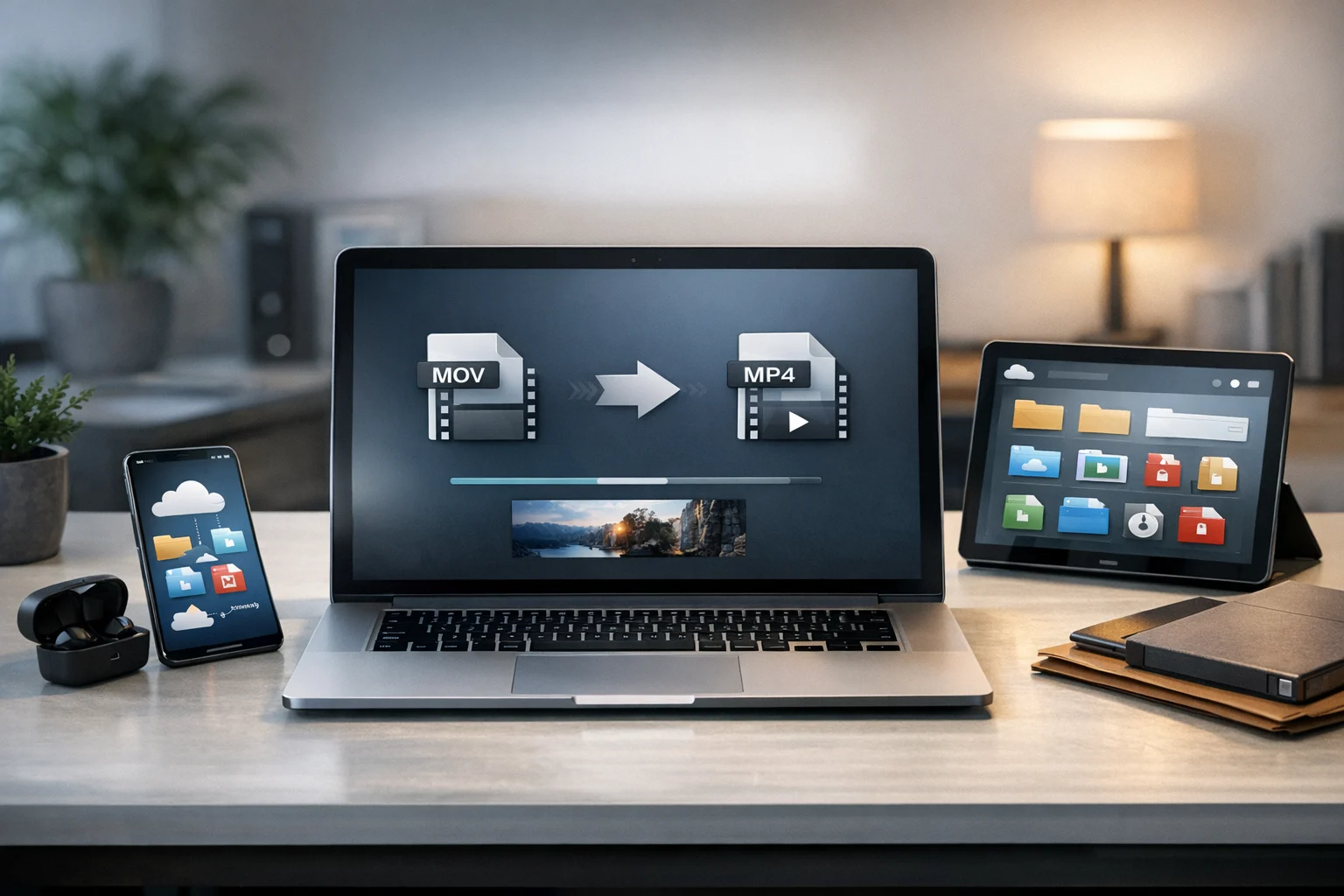
MOV files are common, especially if you record video on an iPhone, iPad, Mac, or use editing software that saves in Apple-friendly formats. The problem is that MOV does not always play smoothly everywhere. Some apps open it without issues, while others struggle with playback, upload limits, file size, or codec support. Many people convert MOV to MP4 for that reason.
MP4 is usually the easier format for everyday use. It works well across Windows, macOS, Android, iPhone, web browsers, video platforms, messaging apps, learning systems, and business tools. If you need to send a clip to a client, upload a training video, post content online, or archive media for later, MP4 is often the safer choice.
This guide explains why converting MOV to MP4 helps, when you should do it, how to avoid quality problems, and what to check before and after conversion. It also covers how video conversion fits into a broader file workflow that may include images, PDFs, archives, and cloud storage.
Why MOV files can be harder to play
MOV is a container format developed by Apple. A container holds video, audio, subtitles, and metadata, but the actual playback experience depends on the codec inside the file. That means two MOV files can behave very differently. One may open instantly, while another may fail to play on a specific device or website.
Common issues with MOV files include:
- Limited compatibility with some Android devices, smart TVs, projectors, and older Windows software
- Larger file sizes than expected
- Playback lag when the file uses a high bitrate or unsupported codec
- Upload errors on platforms that prefer MP4
- Slower sharing through email, chat apps, or team workspaces
For students, creators, office teams, marketers, freelancers, and developers, the challenge is usually not whether the MOV file is valid. It is whether the file is convenient to use. MP4 often solves that problem.
Why MP4 is usually the better choice for playback
When people compare MP4 vs MOV, they are often really comparing convenience. MOV can be excellent for recording and editing, but MP4 tends to be better for playback, transfer, storage, and publishing.
MP4 is widely supported because it is optimized for modern media use. It usually delivers a good balance between quality and size, and many devices, apps, and websites are built to handle it smoothly.
Benefits of converting MOV to MP4 include:
- Better compatibility across devices and operating systems
- Easier playback in browsers and media players
- Smaller files in many cases
- More reliable uploads to social platforms, websites, and learning portals
- Simpler file sharing with clients, teammates, and friends
- Less friction when storing and organizing video libraries
If you want a deeper look at format differences for sharing and publishing, see MP4 vs MOV vs AVI: Best Format for Online Video Sharing.
When you should convert MOV to MP4
You should consider conversion when the current file format is getting in your way. That usually happens in practical situations such as:
- You cannot open the MOV file on your phone, Windows PC, or TV
- Your video uploads fail or take too long
- A platform specifically recommends MP4
- You need a smaller file without making the video unusable
- You are sending files to people who may not use Apple software
- You are building a shared media library and want one consistent format
It is also useful when you want to convert video files into a standard format before archiving them. A mixed folder full of MOV, AVI, WMV, and other formats is harder to manage over time than a cleaner MP4-based collection.
How MOV to MP4 conversion works
At a basic level, a video converter takes the content inside your MOV file and repackages or re-encodes it into MP4. Depending on the source file, the conversion may simply change the container, or it may also compress and re-encode the video and audio streams.
That matters because:
- If the codec is already compatible, conversion can be fast and efficient
- If the converter must re-encode the file, processing may take longer
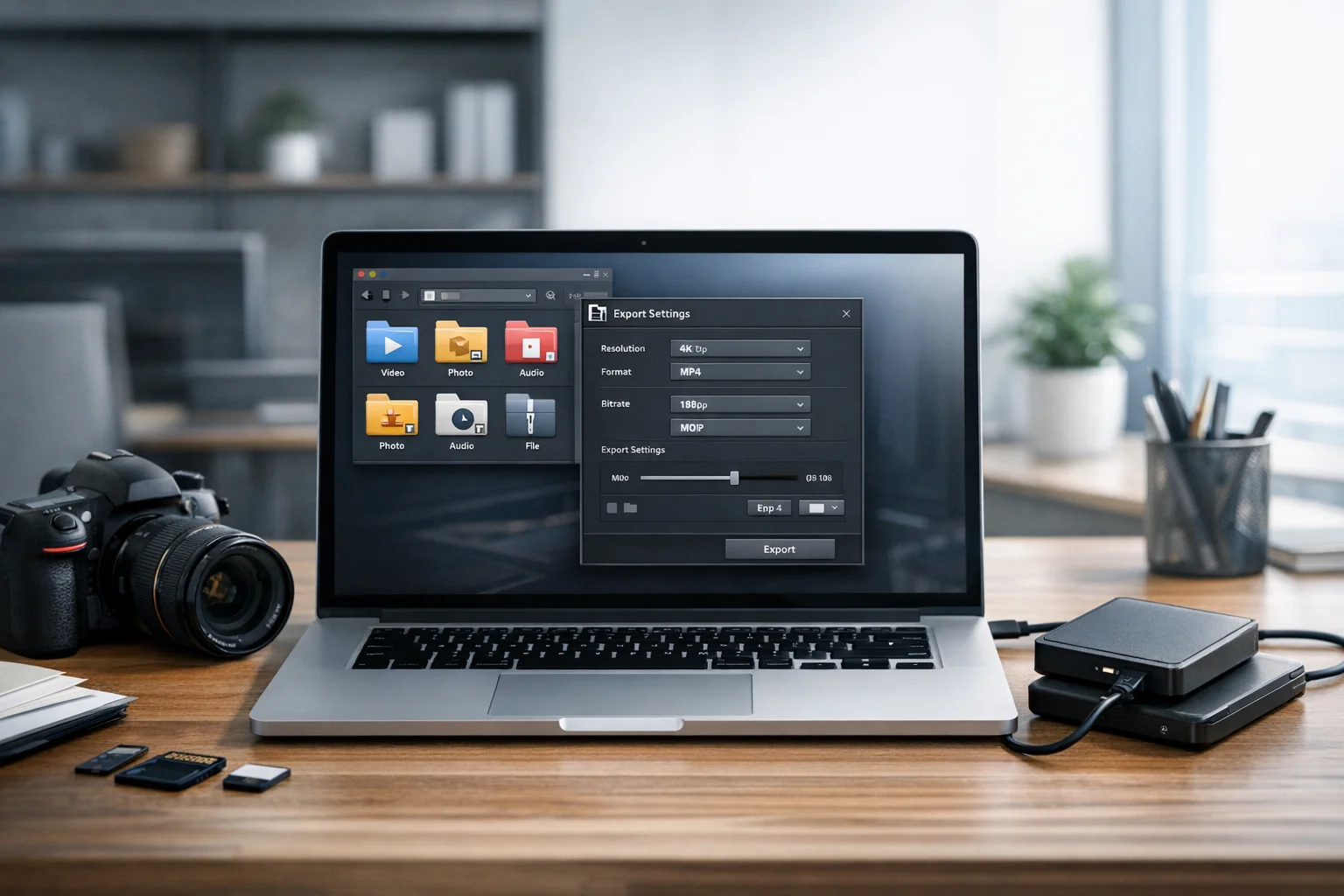
- Output settings such as resolution, bitrate, and frame rate affect quality and file size
A good file converter should make this process simple, but it should also let you keep control over the essentials. The goal is not just to get an MP4 file. The goal is to get one that plays well, looks good, and is easy to store and share.
What to check before converting
1. Resolution
Look at the original video resolution, such as 720p, 1080p, or 4K. If you lower the resolution too much, the file may look blurry. If you keep it too high, the file may stay larger than you need.
2. Bitrate
Bitrate affects both visual quality and file size. Higher bitrate usually means better quality and a larger file. Lower bitrate saves space but can introduce artifacts.
3. Frame rate
Keep the original frame rate when possible, especially for motion-heavy video. Unnecessary changes can make playback feel less natural.
4. Audio settings
Make sure the output audio is compatible and clear. AAC audio inside MP4 is a common, reliable choice.
5. Purpose of the file
Ask yourself where the file is going next. A presentation video, social upload, online course lesson, and personal archive do not all need the same settings.
Best practices for high-quality MOV to MP4 conversion
If you want easier playback without ruining the source footage, keep these best practices in mind:
- Use MP4 with a widely supported codec such as H.264 when available
- Match the original resolution unless you intentionally want a smaller file
- Avoid repeated conversions of the same video
- Test one short file before converting a large batch
- Keep the original MOV file if it is your master copy
- Name files clearly so you can tell originals and converted versions apart
This last point matters more than people expect. If you work with multiple versions, good naming saves time. Something like project-demo-original.mov and project-demo-share.mp4 is much easier to manage than random camera filenames.
How to convert MOV to MP4 step by step
The exact steps vary by tool, but the workflow is usually straightforward:
- Upload or select your MOV file
- Choose MP4 as the output format
- Adjust settings if needed, such as resolution or compression level
- Start the conversion
- Preview the output MP4
- Download, store, or share the converted file
If you regularly work with many types of files, it helps to use one platform for online file conversion rather than switching between unrelated apps. ConvertAndStore offers a central place to manage different file tasks through its All Converter Tools, which is useful when your workflow includes more than just video.
How to reduce file size while converting
One of the biggest reasons to convert MOV to MP4 is size. Many MOV files are larger than necessary for simple playback or sharing. During conversion, you can often reduce the file size without making the video look noticeably worse.
Ways to shrink the output include:
- Use a lower bitrate while staying within acceptable quality
- Reduce resolution if the video will only be viewed on smaller screens
- Trim unnecessary footage before converting
- Compress audio settings if voice clarity is the main priority
This is a form of file compression, but it is worth being careful. Too much compression can create blocky video, muddy gradients, and poor motion handling. For business demos, client deliverables, and educational content, a balanced output is usually better than chasing the smallest possible file.
Common MOV to MP4 conversion problems and fixes
The converted file has no sound
This can happen if the original audio codec is not handled well or the output audio settings were changed incorrectly. Reconvert the file using a standard audio codec such as AAC.
The MP4 file is still too large
Try lowering bitrate or resolution, or trim unused portions. If the source is very high quality, your first conversion settings may still be too generous for the intended use.
The video looks blurry after conversion
You may have lowered the bitrate or resolution too much. Increase the bitrate and preserve the original dimensions if quality matters.
The upload platform still rejects the file
Some websites have specific size, duration, frame rate, or codec rules. Check the platform requirements and convert again using those exact targets.
Playback stutters on older devices
Even within MP4, settings matter. A more standard H.264 profile and moderate bitrate often improve compatibility.
Why storage matters after conversion
Converting the file is only half the job. Once you have an MP4 that plays well, you still need to store it properly. A scattered file system makes it hard to find the right version later, especially if you work with drafts, exports, thumbnails, subtitles, and related documents.
This is where cloud storage becomes useful. Keeping converted videos in organized folders makes them easier to access from different devices and easier to share with teammates or clients. For long-term access, it also supports better file backup and version management.
If your videos contain internal training, client materials, or unreleased campaigns, look beyond convenience alone. Encrypted cloud storage and secure file storage help protect sensitive media and supporting files. That matters for agencies, small businesses, and freelance professionals who handle private assets. If privacy is part of your workflow, read How Encrypted Cloud Storage Protects Sensitive Business Files.
Some users also look for cheap cloud storage when managing larger video libraries. Cost matters, but so do reliability, access control, and organization. The lowest price is not always the best value if the storage is difficult to manage or weak on security.
Organizing converted video with related project files
Video projects rarely exist alone. You may also have scripts, PDFs, still images, logos, screenshots, contracts, or subtitle files. Good document storage keeps these related assets together so your project stays usable months later.
A practical folder structure might include:
- Original footage
- Converted MP4 files
- Preview exports
- Graphics and thumbnails
- Scripts and notes
- PDF instructions or approvals
- Archive files for delivery
This broader workflow is where all-in-one conversion and storage tools make more sense. A team may need to convert video files for playback, convert image files for thumbnails, convert PDF files for easy review, and store everything in one place.
MOV to MP4 is part of a bigger file conversion workflow
Even if your main task is video, most real projects involve multiple file types. A marketer exporting a product demo may also need resized thumbnails. A student submitting media work may need a compressed video plus a PDF report. A small business might need a presentation video, product photos, and archived deliverables for clients.
It helps to think beyond a single format. The same person who needs a video converter today may need an image converter or PDF converter tomorrow.
For example:
- You might need to convert image files for a video thumbnail or website upload
- You may want to compare the best image format for previews, such as JPG vs PNG or WebP vs PNG
- You could need PDF to JPG to turn a document page into a slide image
- You may need image to PDF when packaging screenshots or approvals into one document
- You may have to convert PDF files for easier sharing with clients or coworkers
ConvertAndStore supports these broader tasks too. If you need to handle visual assets around your videos, the image converter tools can help streamline that side of the workflow.
Choosing image formats for thumbnails and supporting visuals
When you publish MP4 videos online, you often need a thumbnail, cover image, or preview graphic. Choosing the right image format makes uploads easier and helps pages load faster.
Here is a quick practical breakdown:
- JPG vs PNG: JPG is usually smaller and better for photos, while PNG is better for graphics, transparency, or sharp text overlays
- WebP vs PNG: WebP often offers smaller file sizes with good quality, which makes it useful for web previews and supporting media
If you are preparing visuals for a page, campaign, or shared folder, converting thumbnails to WebP can save space and improve speed. A handy option is the JPG to WebP converter.
These image decisions may feel separate from MOV to MP4 conversion, but they are often part of the same publishing workflow. When the video, thumbnail, and support documents all use practical formats, everything becomes easier to manage.
Using archives for large video deliveries
Sometimes even a well-compressed MP4 is too large to send as a normal attachment. In that case, an archive can help package related files together. You might send the video, thumbnail, subtitles, and PDF instructions inside one ZIP archive. For some workflows, a RAR archive may also be used, especially when stronger compression or split archives are needed.
Archives are useful when:
- You need to bundle multiple project files
- You want simpler delivery to a client or teammate
- You are creating clean project backups
- You need to split large file collections for transfer
If you want to understand archive choices better, read ZIP vs RAR vs 7z: Which Archive Type Should You Use?. It is a helpful companion if your MOV to MP4 conversion is part of a larger delivery or storage process.
Who benefits most from converting MOV to MP4
Students
MP4 makes it easier to upload assignments, presentations, and media projects to school platforms that may reject MOV or handle it poorly.
Creators
Creators often record on phones or cameras that produce MOV files, then need MP4 for editing previews, social posts, and sponsor review links.
Small businesses
Businesses share product demos, training clips, and marketing assets across mixed devices. MP4 reduces compatibility problems.
Marketers
Marketing teams need formats that upload cleanly to ad platforms, websites, landing pages, and campaign tools.
Developers
Developers working with media libraries, app content, or documentation often prefer standardized formats for integration and testing.
Office teams and freelancers
MP4 is easier to send, store, preview, and archive in daily client work, internal communication, and collaborative projects.
What to do after conversion
After you convert MOV to MP4, take a minute to verify that the file is ready for real use. Open it on a different device if possible. Check audio sync. Scrub through the timeline. Confirm the file size is reasonable. Then place it in the right folder structure so you do not lose track of it later.
If it is part of a client or team deliverable, store it with the related images, PDFs, and notes. If it is important, create a backup. If it contains sensitive content, use protected sharing and secure storage practices. These small steps turn a quick conversion into a dependable file workflow.
Frequently Asked Questions
It can, but it does not have to. If you keep the original resolution and use sensible bitrate settings, MP4 can look very close to the source while being easier to play and share.
MP4 is supported by more devices, browsers, apps, and websites. MOV works well in Apple centered workflows, but MP4 is usually the safer format for everyday playback and uploads.
Yes. Many MOV files can be converted to MP4 with a smaller file size, especially if you adjust bitrate, resolution, or trim unnecessary footage during conversion.
Yes, especially if it is your master recording. Keep the original for backup or future editing, and use the MP4 version for sharing, playback, and publishing.
Yes, as long as you use a reliable provider and good access controls. For sensitive work, encrypted cloud storage and secure file storage practices are the best choice.