If you're choosing between MP4 and WebM, you're probably trying to solve a practical problem. You want a video that plays smoothly, looks good, uploads quickly, and doesn't create headaches later. That could mean posting a product demo on a website, sending training videos to a team, sharing class recordings, or storing project files for future use.
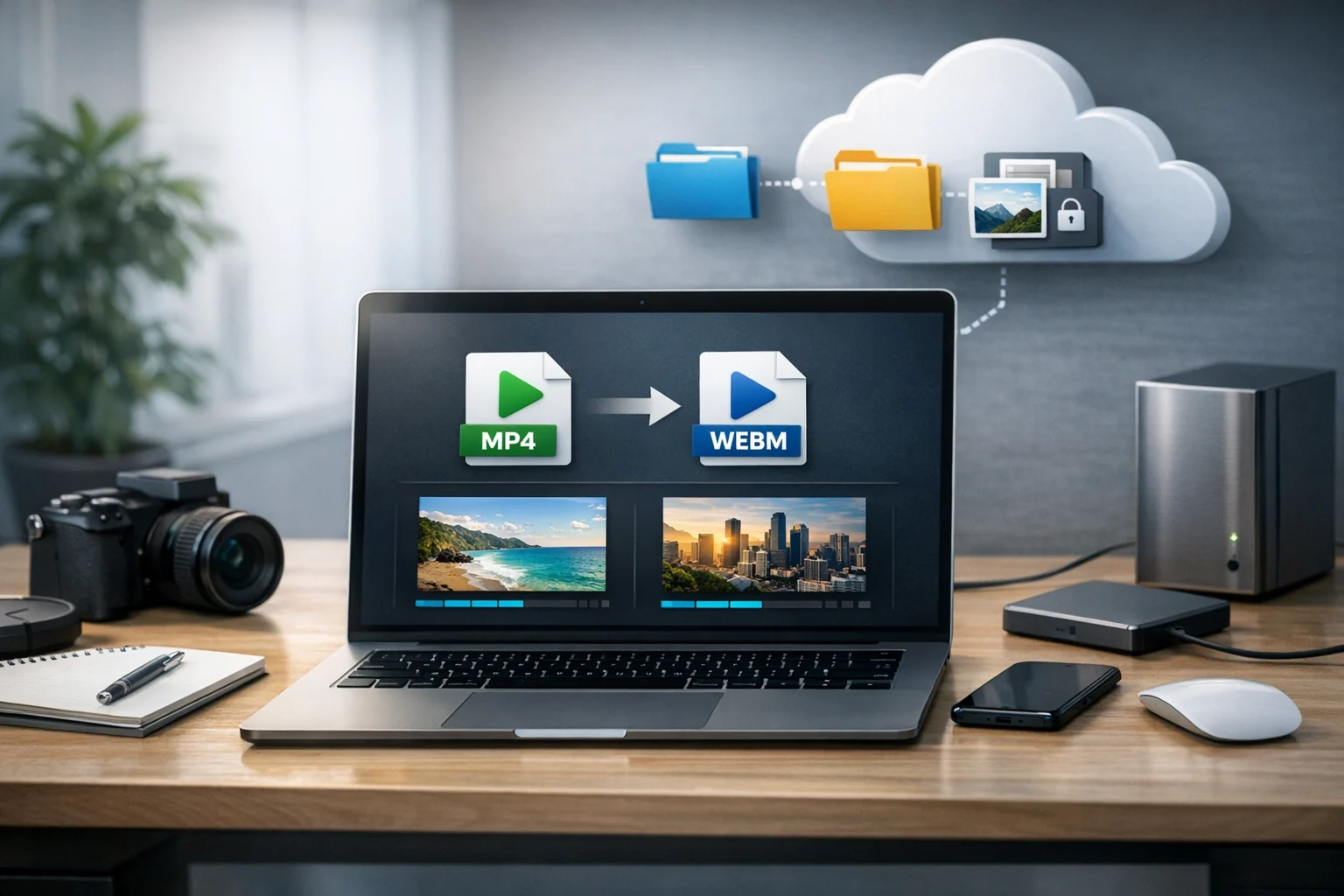
MP4 and WebM can both do the job, but they do not shine in the same situations. One tends to win on compatibility. The other can be very efficient for web delivery. The best choice depends on where the video will be watched, how it will be stored, and whether you're optimizing for playback, size, or workflow.
For most people, MP4 is the safe default. WebM becomes especially useful when browser based delivery and file efficiency matter more than broad device support. If you regularly work with different media types, ConvertAndStore also helps simplify those decisions with file converter tools for everyday online file conversion.
What MP4 and WebM are really designed to do
MP4 is the format most people know because it works almost everywhere. Phones, laptops, tablets, presentation software, messaging apps, learning platforms, and social networks usually support it with very few issues. In many workflows, MP4 means fewer surprises.
WebM was built with the web in mind. It's commonly used with codecs like VP8, VP9, and sometimes AV1. Browsers handle it well, and it can be a smart choice when you want strong compression and efficient online playback.
It's helpful to remember that a format is partly about the container and partly about the codec inside it. That's why two MP4 files can behave differently depending on how they were encoded. The same goes for WebM. If quality, speed, and size all matter, your export settings matter just as much as the format name.
A quick answer for most users
- Choose MP4 if you want the safest format for sharing, editing, presentations, downloads, and playback across devices.
- Choose WebM if your main goal is web delivery, modern browser playback, or smaller files at similar visual quality in some use cases.
- Keep both if you publish video online and also need a master version that works everywhere.
That last option is often the most practical. A business might store the master in MP4, then create a WebM version for a website or app. A creator might upload MP4 to clients and use WebM for embedded previews.
Compatibility: MP4 is still the easier choice
When people search for MP4 vs WebM, what they often mean is, "Which one will play without problems?" In that case, MP4 usually wins.
MP4 has broader compatibility across:
- Windows and Mac devices
- iPhones and Android phones
- Smart TVs and media players
- Office and presentation tools
- Video editing software
- Email attachments and messaging apps
- Learning management systems and client portals
WebM plays well in modern browsers, but outside the browser environment, support can be less predictable. Some apps open it without trouble. Others need a plugin, conversion step, or a different player. If you're sending a video to a client, teacher, team member, or customer and you do not control their device or app, MP4 is normally the safer format.
This is similar to other format choices people make every day. The technically better option is not always the most useful one if compatibility gets in the way. That's the same reason people compare MP4 vs MOV before sharing a file outside Apple focused workflows.
Compression and file size: WebM can be very efficient
WebM's biggest advantage is often compression efficiency. Depending on the source video and codec settings, a WebM file can deliver similar visual quality at a smaller size than an MP4 export. That's attractive when you're trying to speed up page load times, reduce bandwidth use, or store many videos without using excessive space.
There is not a universal rule that WebM is always smaller. Export settings, bitrate, frame rate, resolution, and content type all affect the result. A talking head video behaves differently from a fast sports clip or a screen recording full of tiny text.
If you want a better feel for how bitrate and format work together, ConvertAndStore's guide on video bitrate, resolution, and format explained for beginners is a helpful next read.
For storage and transfer, file size matters in a very real way. Smaller files upload faster to cloud storage, download faster on weak connections, and take less room in shared folders. For marketers, that means faster campaign updates. For students, it means easier assignment uploads. For freelancers, it means smoother client delivery.
Quality at the same size depends on the source and settings
If you're hoping for a simple winner on visual quality, the honest answer is that both formats can look excellent. A well encoded MP4 can look fantastic. A well encoded WebM can also look fantastic. The difference usually shows up when you compare quality at a given file size.
In many web focused situations, WebM can look a little better than MP4 at the same size, especially with modern codecs. But that advantage can disappear if the playback environment does not support it well or if your export settings are not tuned properly.
For example:
- A short homepage background video may benefit from WebM efficiency.
- A recorded webinar for customers may be better in MP4 because more users can open it easily.
- A course video that needs reliable playback on many devices is usually safer as MP4.
- A browser based app preview might be perfect as WebM.
If you need to convert video files without making them look noticeably worse, focus on resolution, bitrate, codec, and whether the source has already been compressed too many times. Repeated conversion usually hurts more than the format choice itself. ConvertAndStore covers that process in how to convert video files without losing too much quality.
Website use: WebM is strong, but MP4 is still important
For websites, WebM often makes a lot of sense. It's built for modern web delivery, can support efficient compression, and is widely supported by browsers. If you care about performance, WebM deserves attention.
Many sites use MP4 as a fallback because it's so widely supported across devices and embedded environments. The best setup for a website is often not WebM or MP4. It's WebM and MP4, giving the browser the best available option while preserving coverage.
If your goal is publishing across websites, social platforms, and stored media libraries, you may want a broader comparison too. This guide on the best video format for websites, social media, and storage can help you decide where each format belongs.
For developers and small businesses, the real question is often workflow efficiency. If your site needs fast loading previews, use WebM where it helps. If your support team, clients, or internal staff need easy downloads, keep an MP4 version ready.
Social media, presentations, and office sharing: MP4 usually wins
MP4 is usually the better choice for social posting, slide decks, internal training, customer handoffs, and email friendly sharing. That's because many platforms, office tools, and upload systems expect MP4 or handle it more consistently.
Think about these everyday scenarios:
- A teacher uploading a lecture to a student portal
- A marketer sending an ad preview to a client
- An office team adding a video to a slide presentation
- A freelancer delivering edited work to a non technical customer
- A startup uploading demo videos to multiple platforms
In all of those cases, MP4 reduces the odds that someone replies with, "I can't open this." That one sentence is often enough reason to choose MP4.
Editing workflows: MP4 is generally easier to manage
If you're editing in common desktop software, MP4 tends to fit better into the workflow. WebM is more of a delivery format than a production friendly format in many cases. Editors often prefer to receive MP4 when they're cutting content, reviewing drafts, or archiving exports for clients.
That does not mean WebM has no role in creative work. It can be useful for preview versions, website assets, and browser first projects. But if you expect lots of back and forth edits, annotations, client notes, or re-exports, MP4 is usually easier to manage.
For long term organization, keep naming consistent and separate your source footage from your exported delivery files. That makes future conversion easier if standards change.
When storage and transfer matter as much as format
File format is only one part of the process. The other part is where those files go after export. A video that looks great but is hard to store, back up, or share can still slow a team down.
That's where cloud storage becomes part of the decision. Large video libraries can fill up fast, so people often look for cheap cloud storage first. Price matters, but so do privacy and organization. If your files include client footage, internal training, contracts, or product demos, encrypted cloud storage and secure file storage matter just as much as cost.
A good setup also supports file backup, easy search, and document storage alongside your media. That matters because video projects rarely live alone. They often sit next to scripts, PDFs, thumbnails, invoices, and approval notes.
For very large folders, file compression can help with transfer. You might package exported videos, subtitle files, thumbnails, and notes into a ZIP archive before sending them to a client. Some users prefer a RAR archive for specific workflows or better compression in certain cases. If you're comparing archive types for storage and delivery, those choices affect convenience more than playback.
Video conversion rarely happens alone
People who need a video converter often need more than a video converter. They may also need a file converter for mixed project assets, an image converter for thumbnails, or a PDF converter for handouts and approvals.
That broader workflow is common across schools, offices, agencies, and solo creators. You might need to:
- convert video files for smoother playback
- convert image files for thumbnails or website graphics
- convert PDF files for preview images or attachments
- turn PDF to JPG for quick review snapshots
- create image to PDF handouts for presentations or training
- prepare documents for sharing and document storage
Even if your main project is video, supporting files matter. A landing page video may also need a poster image. A course lesson may need a thumbnail, transcript PDF, and downloadable worksheet. A sales demo may include screenshots, forms, and archived project files.
The same logic behind MP4 vs WebM shows up when comparing the best image format for thumbnails or web graphics, such as JPG vs PNG and WebP vs PNG. If you're preparing lighter preview images for a video page, ConvertAndStore's JPG to WebP converter can help reduce image size without overcomplicating the workflow.
When to choose MP4
- You need the widest playback compatibility.
- You are sharing with clients, students, coworkers, or customers who may use different devices.
- You want fewer issues in presentations, messaging apps, and uploads.
- You plan to edit, review, and re-export the file in common software.
- You need a reliable format for stored masters and general distribution.
MP4 is the practical default for everyday users because it's accepted in more places with less troubleshooting.
When to choose WebM
- You are optimizing video for a website or browser based experience.
- You want efficient compression for modern web delivery.
- You are comfortable managing fallback formats where needed.
- You care about shaving down file size for faster loading.
- Your audience mostly watches in supported browsers.
WebM is especially appealing when page speed and bandwidth matter, and when your playback environment is mainly browser based.
A simple decision checklist before you export
Ask where the video will be watched
If the answer is "almost anywhere," use MP4. If the answer is "mainly in modern browsers on our site," WebM is worth testing.
Ask whether the file will be edited again
If yes, MP4 is usually easier to keep in circulation through review and delivery steps.
Ask whether file size is a major problem
If bandwidth, upload speed, or storage cost are pressing issues, WebM may give you an advantage. Just test real files instead of assuming.
Ask whether compatibility problems would be costly
If one failed playback could delay approval, cause a missed upload, or create support requests, MP4 is the safer bet.
Ask what else needs to travel with the video
If your project includes images, PDFs, transcripts, or marketing assets, think beyond the video file itself. A clean storage and conversion workflow saves time later.
ConvertAndStore can support that day to day workflow by handling online file conversion for videos, images, and documents in one place.
Frequently Asked Questions
WebM is often better for website performance because it can be very efficient for browser playback. MP4 is still useful as a fallback because it has broader compatibility across devices and platforms.
MP4 is supported by more devices, apps, editing tools, and upload systems. If you are sending a file to people using mixed devices or office software, MP4 usually creates fewer playback issues.
It can, especially if the source file is already compressed and you use aggressive settings. To keep quality higher, use an appropriate bitrate, avoid repeated conversions, and export only as much compression as you actually need.
MP4 is usually the safer choice for long term access because it is widely supported and easier to open later on different devices. WebM can still be useful for web delivery versions stored alongside an MP4 master.
A ZIP archive is usually the simplest option because it is widely supported. A RAR archive can be useful in some workflows, but the recipient may need extra software. For broad compatibility, ZIP is normally easier.
Keep related files such as thumbnails, subtitle files, transcripts, contracts, and PDFs with the video when possible. Organized document storage and file backup make future editing, sharing, and approvals much easier.