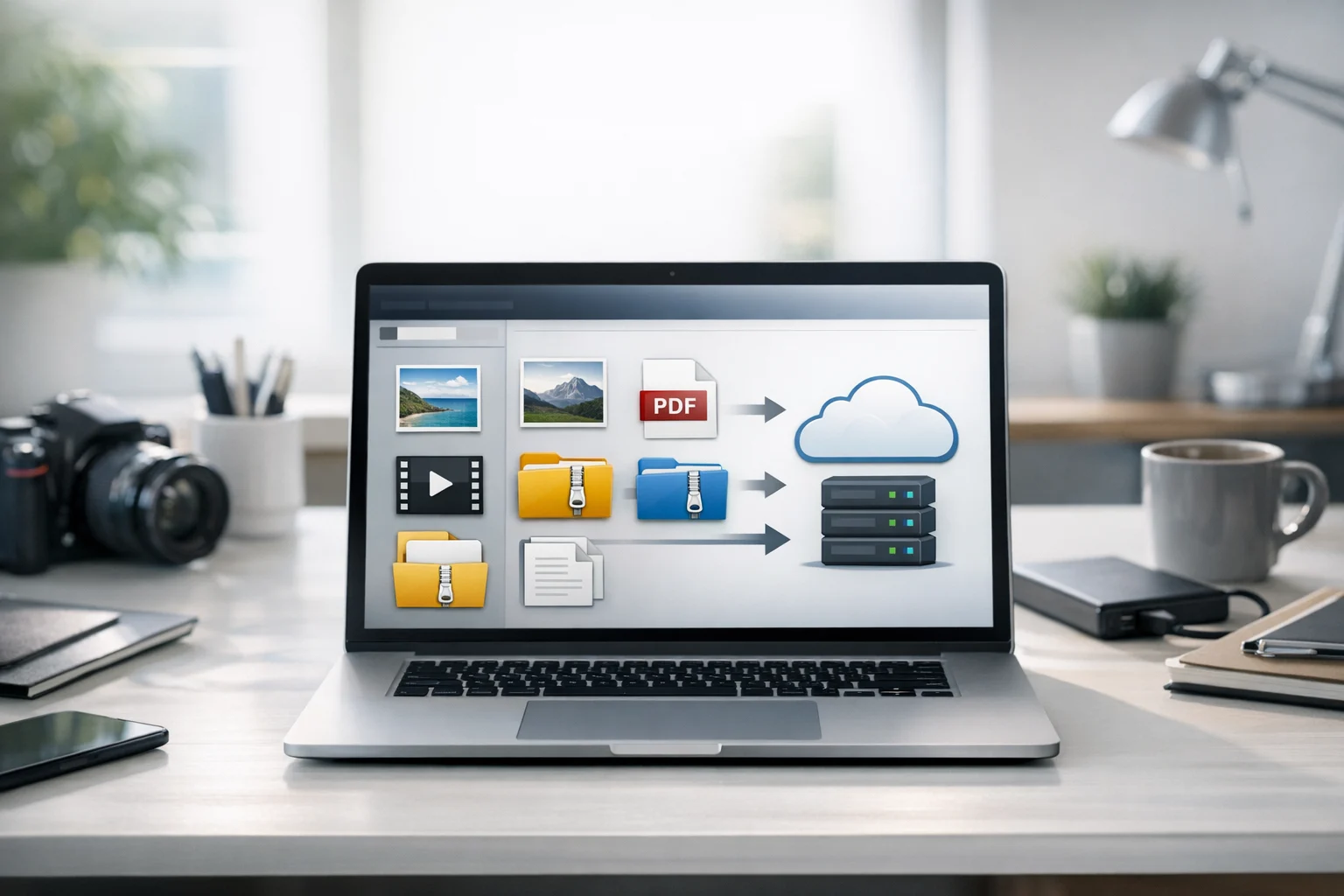
Small teams and freelancers usually don't struggle because they have too many files. They struggle because files arrive in too many formats, from too many places, with no consistent system for naming, converting, storing, or sharing them.
A designer gets JPGs from a client, exports PNGs for social media, then needs WebP images for a website. A marketer collects PDFs, screenshots, and videos from multiple collaborators. A developer stores assets, documentation, and recordings across local folders and shared drives. A freelancer may be a team of one, but the same file chaos still shows up fast.
The best workflow is not the most complex one. It's the one people can actually follow every day. For most small teams, that means creating a clear process for intake, conversion, file compression, storage, permissions, and file backup. When that process is simple, work moves faster and storage costs stay under control.
If you want a central place to manage uploads and access, start with reliable cloud storage that gives your files one home instead of five scattered ones. From there, the workflow becomes much easier to maintain.
Start with one intake point for all incoming files
The first step is deciding where new files go before anyone edits, renames, or shares them. This intake folder is your holding area. Every incoming file from email, chat, client portals, or downloads should land there first.
Most file mess begins when people save directly into random project folders with inconsistent names. Once duplicates appear, nobody knows which version is current.
A simple intake structure can look like this:
- Incoming Files
- To Convert
- To Review
- Approved
- Shared
- Archive
This works for students, creators, small businesses, office teams, and freelancers because it matches the actual life cycle of a file. The item arrives, gets cleaned up, gets approved, then gets delivered or archived.
Focus on consistency first. If every new asset enters the same intake area, you can apply the same workflow every time.
Use predictable file names from day one
Choose a naming format your whole team can follow. A good pattern is:
- project-name_file-purpose_version_date
For example:
- summer-campaign_banner-v2_2026-05-04.png
- client-proposal_signed_2026-05-04.pdf
- product-demo_edit-1_2026-05-04.mp4
This makes search easier, reduces duplicates, and helps your document storage stay readable even months later. It also improves shared work because nobody has to guess what final-final-revised really means.
Convert before you store whenever possible
One of the easiest ways to improve a file workflow is to convert files into more practical formats before they become permanent stored assets. This saves space, improves compatibility, and reduces back and forth later.
Many teams upload whatever they receive, then discover problems when a device, browser, client, or app can't open the file easily. A better approach is to use online file conversion as part of the intake process.
That can mean:
- Using an image converter to prepare web ready images
- Using a PDF converter to standardize reports and documents
- Using a video converter to create shareable playback formats
- Converting archive formats so everyone can extract files without extra software
If your workflow involves graphics, screenshots, client photos, social posts, or web assets, keep a set of image converter tools handy so your team can convert image files before upload instead of storing multiple unnecessary versions.
This is especially useful if you're trying to maintain cheap cloud storage. Smaller, cleaner, compatible files take less space and create fewer support issues. If you want more ideas on reducing storage use early, this guide on how to reduce cloud storage costs before you upload is worth using as part of your team process.
Choose image and PDF formats intentionally
Not every file type deserves equal treatment. Images and PDFs create a lot of clutter because people save too many versions without deciding what each format is actually for.
When a team asks for the best image format, the real answer is: it depends on where the file is going next.
- JPG is usually best for photos and smaller file sizes
- PNG is useful for graphics, transparency, and screenshots
- WebP is often better for websites when you want smaller sizes with solid visual quality
That means common comparisons like JPG vs PNG and WebP vs PNG should be decided by purpose, not habit. If your designer exports everything as PNG, your storage fills up fast. If your social team saves screenshots only as JPG, text can look soft. A simple rule helps: keep original source files if needed, but store the working and delivery formats separately.
PDFs need the same kind of discipline. Teams often save editable docs, exported PDFs, flattened PDFs, scanned PDFs, and image versions all in one folder. Instead, treat PDFs as one of three things:
- A reading file
- A signing or sharing file
- A source for extraction or repurposing
When you need to convert PDF files for screenshots, previews, or social sharing, tools that handle PDF to JPG are useful because they turn static pages into image assets quickly. On the other side, image to PDF is perfect for combining receipts, forms, scanned notes, or visual references into one easier file.
For teams handling proposals, reports, invoices, and approvals, keeping a set of PDF converter tools in the workflow helps standardize output and reduce version confusion.
Compress and archive finished work instead of storing endless loose files
Once a project phase is complete, don't leave every working file loose inside active folders forever. That makes search slower and creates uncertainty about what is still current.
This is where file compression and archives help. When a milestone is approved, package the relevant assets into a single archive and move it to your Archive folder.
Common examples include:
- Campaign assets after launch
- Design exports delivered to a client
- Monthly reports and source documents
- Code deliverables and documentation snapshots
A ZIP archive is the best default for most teams because it is widely supported across systems. A RAR archive can also be useful in some environments, but ZIP is usually easier for broad compatibility. If collaborators send mixed archive formats, keeping access to archive tools makes it simpler to standardize files and keep the storage system clean.
Archiving serves two purposes at once. First, it reduces clutter in active folders. Second, it preserves an exact snapshot of what was delivered at a specific moment, which is helpful for audits, client disputes, and future reuse.
Just remember that an archive is not the same thing as a backup. It improves organization, but it should still live in a protected storage system with a separate file backup plan.
Separate working files, shared files, and backups
Many storage problems happen because teams use the same folder for editing, sharing, and safekeeping. Those are different jobs and should be handled differently.
A practical structure looks like this:
- Working Files: files people are actively editing
- Shared Files: approved versions intended for clients or teammates
- Backups: protected copies that should not be edited directly
This separation prevents common mistakes like editing a client delivered PDF, deleting the only copy of a video, or replacing a final export with a draft by accident.
Your backup copy should be automated when possible. At minimum, schedule weekly duplication of active project folders. For more critical work, use daily or real time syncing. This is especially important for freelancers who often work across laptops, external drives, and mobile devices.
A good file backup routine includes:
- One active working copy
- One cloud based backup copy
- One archived milestone copy for important projects
If you're storing contracts, client records, internal reports, or sensitive creative work, secure storage matters just as much as convenience. Look for secure file storage features, controlled sharing permissions, and ideally encrypted cloud storage for files that should not be casually exposed.
Use permissions that match real roles, not everyone access
Small teams often begin with total openness. Everyone can see everything, edit everything, and share everything. That feels flexible at first, but it gets risky fast.
A smarter workflow uses role based access:
- Editors can update working files
- Reviewers can comment but not overwrite originals
- Clients or external partners can only access approved shared folders
- Archived and backup folders stay restricted
This reduces accidental changes and improves privacy. It also keeps your document storage system easier to manage, because fewer people are moving files around.
For sensitive work, decide which file types should always be stored in protected folders. Signed PDFs, invoices, HR documents, legal paperwork, financial reports, and unpublished campaign assets shouldn't live in open access folders just because it's convenient.
Standardize video formats before handoff
Video files are some of the biggest storage offenders in any workflow. They're also one of the biggest compatibility headaches. Different devices, editing tools, and client review platforms can all prefer different formats.
That's why a simple video standard is worth setting early. For most teams, the easiest share format is MP4. It's broadly supported, streams well, and usually makes delivery smoother than less universal formats.
The common question of MP4 vs MOV usually comes down to this: MOV is often fine for editing or Apple based workflows, but MP4 is generally easier for final sharing and storage efficiency. If collaborators keep sending mixed formats, a reliable video converter helps you convert video files into one standard delivery version.
You don't need ten exports of the same clip sitting in active storage. Keep:
- One source master if necessary
- One working edit file
- One approved delivery file
Anything else should be archived or removed after handoff. This alone can free a surprising amount of space.
Know when to convert, compress, or keep the original
A lot of workflow issues come from doing the right action at the wrong time. Teams either over preserve everything or over optimize too early.
Use this quick rule set:
- Convert when you need compatibility, standardization, or a better delivery format
- Compress when file size is the main issue and the current format still makes sense
- Archive when a project phase is complete and should be stored as a snapshot
- Keep the original when the source file may be needed for editing, legal records, or high quality exports later
For images, this distinction matters a lot. If your team often debates whether to resize, compress, or change format, use a simple decision tree. Large photo for a web page? Convert and compress. Transparent logo? Keep PNG. Web graphic? Test WebP. If you want a deeper breakdown, this article on image compression vs image conversion can help your team decide faster.
Build a weekly maintenance routine so storage stays clean
Even the best folder structure falls apart without regular cleanup. The good news is you don't need hours of admin work. A short weekly routine is usually enough.
Here is a practical weekly workflow for small teams and freelancers:
- Review the Incoming Files folder
- Rename files that still have messy default names
- Convert image, PDF, and video files into your standard formats
- Run file compression on oversized assets when needed
- Move approved items into Shared
- Create a ZIP archive for finished milestones
- Check file backup status
- Delete true duplicates, not just older versions that still matter
This can be done in 20 to 30 minutes per week for many small teams, especially if the intake process is already consistent.
Freelancers can make this even simpler by assigning one day, such as Friday afternoon, as file maintenance time. That habit prevents the all too familiar panic of searching for the right invoice, contract, source image, or client approved PDF days before a deadline.
A simple storage workflow template you can copy
If you want a straightforward structure to use right away, start here:
- 01 Incoming
- 02 Working
- 03 Review
- 04 Approved
- 05 Shared
- 06 Archive
- 07 Backup Reference
Then create a few standard operating rules:
- All new files start in Incoming
- All files must be renamed before editing
- Images for web are converted before storage
- Reports and forms are saved as standard PDFs
- Videos are delivered in MP4 unless a project requires something else
- Completed milestones are archived monthly
- Backup checks happen weekly
This setup works well because it doesn't depend on a specific team size or industry. It can support class projects, content creation, marketing campaigns, internal office documents, product assets, and client work.
Frequently Asked Questions
A simple staged structure works best: Incoming, Working, Review, Approved, Shared, Archive, and Backup. It mirrors how files move through real projects and makes it easier to find the current version.
Yes, when conversion improves compatibility or reduces file size. Converting images, PDFs, and videos before upload can save space, simplify sharing, and reduce the number of duplicate versions you store.
ZIP is usually the better default because most devices and operating systems open it without extra software. RAR can be useful in some cases, but ZIP is easier for general team sharing and long term access.
Use secure file storage with restricted folder access, strong passwords, and encrypted cloud storage when possible. Keep sensitive documents such as contracts, invoices, and signed PDFs in limited access folders separate from general shared files.
JPG is good for photos, PNG is useful for graphics and transparency, and WebP is often strong for web delivery. For video, MP4 is usually the easiest format for sharing because it plays well across devices and platforms.