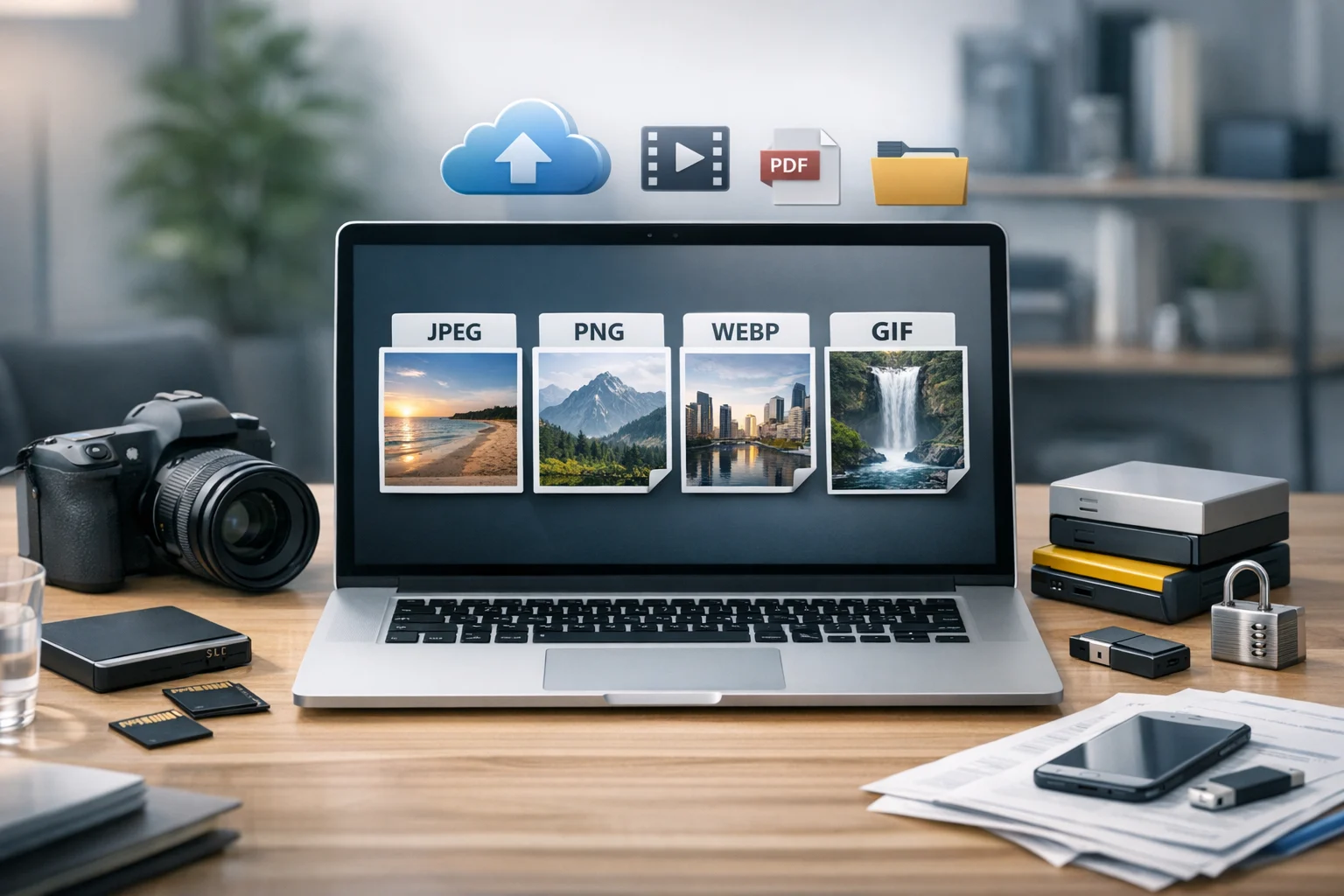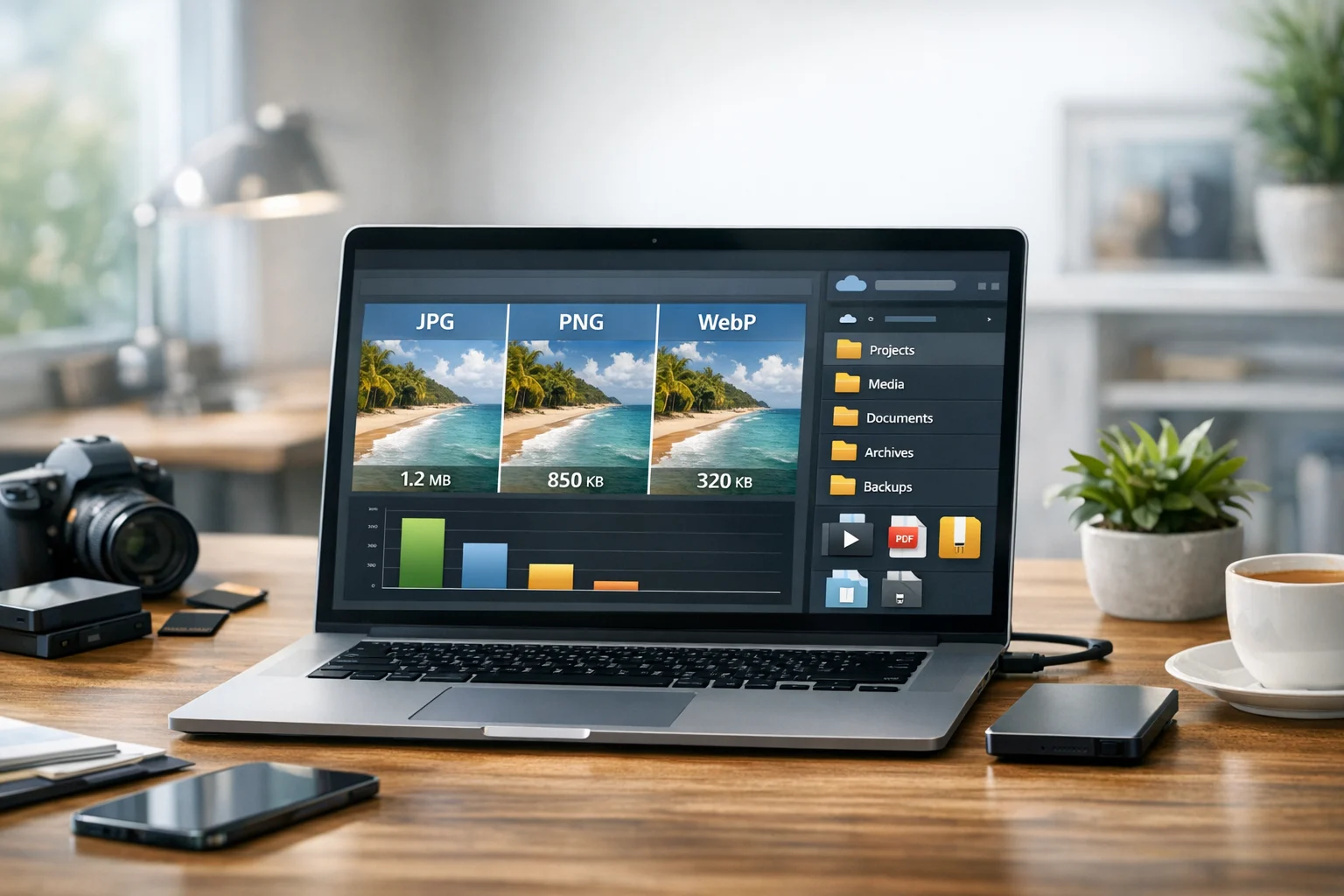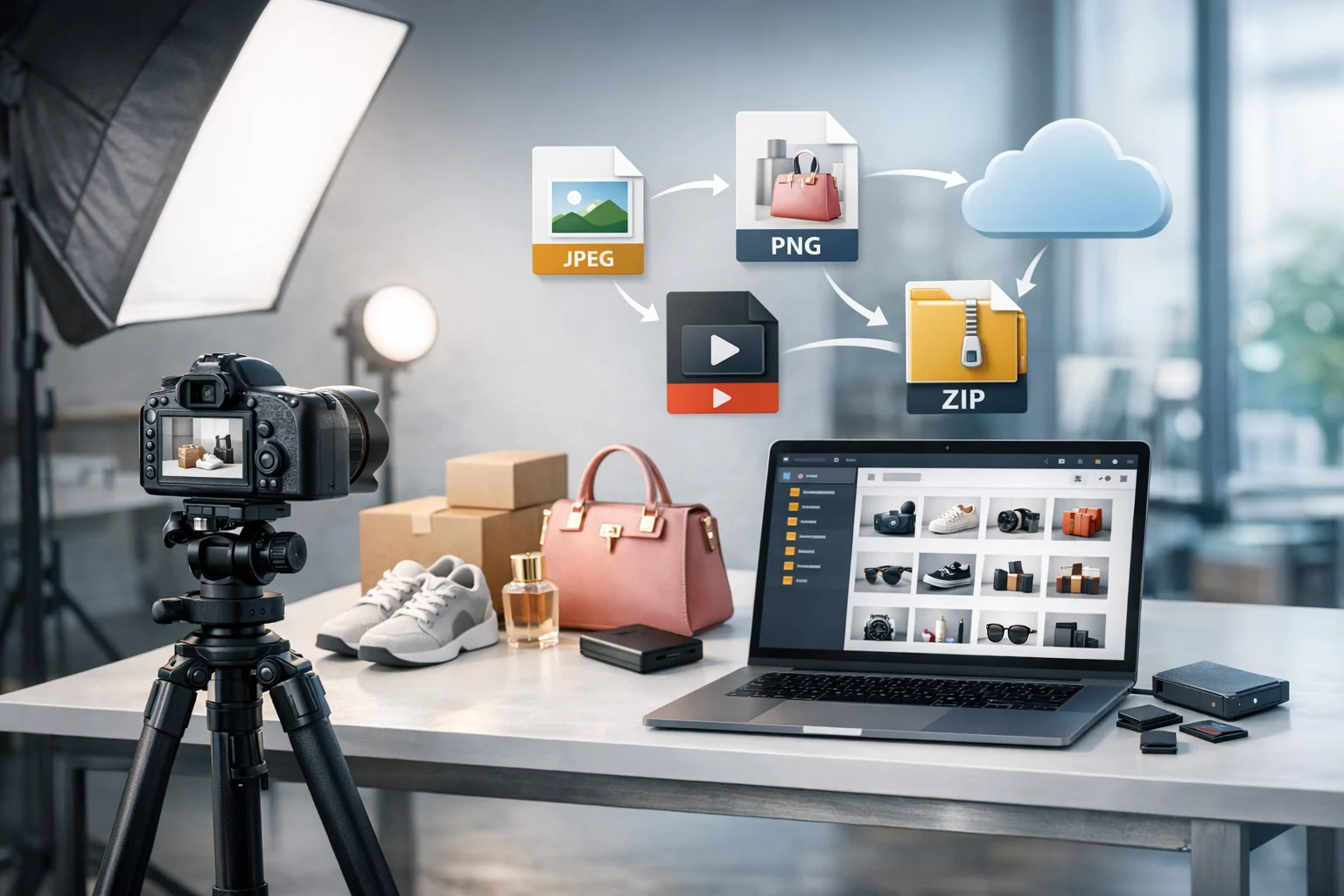
If you sell products online, image format matters more than most people expect. The right file type can make your store feel faster, cleaner, and more professional. The wrong one can slow product pages, hurt mobile performance, and leave you paying for more cloud storage than you need. For most stores, the best image format for product photos shown on the website is WebP, with JPG still playing a big role for compatibility and PNG reserved for specific cases like transparency and graphics.
That short answer helps, but real e-commerce workflows are rarely that simple. You might be managing marketplace uploads, social media exports, printable catalogs, supplier files, and backup copies at the same time. You may need a file converter to standardize incoming images, an image converter to prepare web versions, and a storage system that keeps your original files safe. If you also share spec sheets, turn image to PDF for sales materials, or need PDF to JPG previews for listings, the format question becomes part of a larger file management process.
This guide breaks down when to use WebP, JPG, and PNG for e-commerce product photos, how to keep quality high, and how to organize the files around them so your store stays fast and manageable as your catalog grows.
What matters most for e-commerce product photos
Before comparing file types, it helps to define what a product image needs to do. In e-commerce, a photo is not just a visual asset. It supports conversion, search visibility, customer trust, and daily operations.
- Fast loading so product pages open quickly on mobile and desktop.
- Clear detail so customers can zoom in and inspect texture, color, and finish.
- Consistent appearance across your site, ads, marketplaces, and emails.
- Broad compatibility with shopping platforms, browsers, listing tools, and design apps.
- Efficient storage so large catalogs do not create avoidable file backup and hosting costs.
There is no single perfect format for every situation. The best image format depends on where the image will be used. A product shot on your main store page has different needs than a transparent cutout for a banner, a printable lookbook, or a supplier archive.
For most day-to-day storefront images, you want the smallest file that still looks excellent. That is where WebP often wins. If you are dealing with strict upload requirements, legacy systems, or editing workflows, JPG and PNG still deserve a place.
Why WebP is usually the best default for product photos on your website
If your store platform supports it, WebP is usually the strongest default for online product photography. It was designed for modern web delivery, which means it can keep images looking sharp while reducing file size compared with older formats.
Smaller files help pages load faster. Faster pages improve the shopping experience, especially on phones. They also reduce bandwidth use and can lower storage and delivery costs over time. For stores with dozens or hundreds of product images, those savings add up quickly.
WebP is especially useful for:
- Product gallery images
- Category thumbnails
- Homepage featured products
- Blog images used to support product content
- Email and landing page visuals where lightweight files matter
If you already have a catalog full of JPEGs, you do not need to start over. You can use ConvertAndStore's JPG to WebP converter to create smaller web-friendly versions from your existing files. That is often the fastest way to improve page speed without reshooting products.
WebP also supports transparency, which means it can sometimes replace PNG for cutout-style product images while staying much lighter. That matters in the common WebP vs PNG comparison. If you need transparent backgrounds for design flexibility, WebP can often deliver the same visual result with a smaller file.
WebP is not always your only format. Some marketplaces, older software, and client workflows still expect JPG or PNG. Even if WebP is your website default, it helps to keep easy conversion options available.
When JPG is still the right choice
JPG remains one of the most practical formats in e-commerce. It is widely supported, easy to share, and works well for photographic product images with smooth gradients and realistic detail. If you upload to multiple selling channels, send product packs to partners, or work with people using a mix of tools, JPG is often the safest universal format.
In the classic JPG vs PNG comparison, JPG usually wins for standard photos on white or neutral backgrounds. It creates much smaller files than PNG in most photo-based cases, which makes it easier to email, upload, archive, and publish. The tradeoff is lossy compression, so repeated saves can reduce quality over time.
JPG is a strong choice for:
- Marketplace listings that require or prefer JPEG uploads
- Product images that do not need transparency
- Wholesale and partner sharing
- Ad creatives and social posts
- Master files when you want a lighter but still high-quality photo archive
If a designer or supplier gives you oversized PNG files for normal product photos, converting them can save a lot of space. A quick PNG to JPG converter is often the simplest fix when a file is much larger than it needs to be.
JPG also works well in internal business workflows. Teams often attach product photos to documents, sales sheets, and email campaigns. In those cases, a compact JPG may be easier to handle than a heavy PNG, especially when files move between departments or external partners.
When PNG makes sense for product images
PNG is not usually the best default for standard product photography, but it is still important in e-commerce. Its biggest advantage is lossless quality and support for transparency. That makes it useful when the product image needs to sit cleanly on top of different backgrounds or when graphic precision matters more than file size.
PNG is often the right choice for:
- Transparent product cutouts
- Packaging mockups
- Icons, labels, and on-image callouts
- Interface screenshots used in product listings
- Graphics mixed with text where crisp edges matter
PNG works best as a specialist format in e-commerce. It is excellent when you need exact pixels and transparency, but it is usually too heavy for an entire product catalog of photos. In a WebP vs PNG comparison for storefront delivery, WebP often gives you a much better balance between size and quality.
If you want a broader view of format tradeoffs for websites, this guide to JPEG vs PNG vs WebP explains how each one performs in online publishing and sharing.
A practical workflow: master files, delivery files, and backups
The easiest way to avoid format problems is to separate your source files from your published files. Instead of treating one image as the version for everything, keep a master copy and then export versions for the web, marketplaces, documents, and campaigns.
A simple workflow looks like this:
- Keep a master file in high-quality JPG, PNG, or TIFF depending on how much editing flexibility you need.
- Create storefront versions in WebP for your website.
- Export compatibility copies in JPG for marketplaces, partners, and older tools.
- Use PNG only when needed for transparency or graphics.
- Store everything in organized folders with naming rules by product, angle, size, and channel.
This kind of setup makes online file conversion much easier. Instead of manually resaving files each time, you can convert image files as needed for each destination. ConvertAndStore's image converter tools are useful here because they give you one place to prepare formats for websites, marketplaces, content teams, and client sharing.
For many businesses, master files should also live in secure file storage rather than only on a laptop or a shared desktop folder. Product photo libraries grow fast, and losing them can be expensive. A reliable file backup routine, combined with document storage for related manuals, labels, and reference sheets, helps keep launches and updates from turning into a mess.
How file size affects speed, conversion, and search visibility
Product photography does not exist in a vacuum. Every extra megabyte on a product page makes the page heavier. Heavy pages can feel slow, especially on mobile networks. That affects bounce rate, browsing time, and how smoothly shoppers move from category pages to product detail pages.
The best image format is not just a design choice. It is a performance choice. File compression matters here too. A high-quality product photo that is properly compressed and converted will usually outperform an oversized original uploaded straight from a camera or editing app.
Compression and conversion are not the same thing. Conversion changes the file format. Compression reduces the file size within a format or during export. In practice, most stores need both. You may convert a JPG to WebP and then apply smart file compression settings to keep the file lean without making the photo look soft.
When teams skip this step, they often end up storing giant originals in active product folders and publishing files that are far larger than needed. That slows storefronts and inflates storage bills.
Product photos rarely live alone: PDFs, videos, and archive files matter too
Many e-commerce teams handle more than images. A product launch may include instruction manuals, size charts, spec sheets, assembly guides, lifestyle video clips, and wholesale sell sheets. That is where having a broader file converter workflow helps.
For example, if your supplier sends brochures as PDFs, you may need to convert PDF files into listing previews or marketing assets. A PDF converter can be useful when you want PDF to JPG images for quick sharing, thumbnails, or marketplace uploads. In other cases, you may want image to PDF exports so a sales rep can send a printable product sheet or line sheet built from approved images.
Video assets add another layer. Stores increasingly use short product demos, 360-degree clips, and installation videos alongside still photos. If you need to convert video files for web delivery, a video converter helps standardize formats before uploading. In the common MP4 vs MOV comparison, MP4 is usually the better choice for broad web compatibility and smaller delivery files, while MOV can be useful earlier in editing workflows.
Suppliers also often send complete media packs as a ZIP archive or RAR archive. That is convenient for delivery, but once the files arrive, teams should unpack them, check naming consistency, convert image files into their preferred formats, and archive the originals separately. A little structure upfront saves a lot of cleanup later.
Storage costs and security matter once your catalog starts growing
A few products do not create much pressure on storage. Hundreds or thousands do. Every angle, variant, retouched version, banner crop, and marketplace export takes space. Add seasonal campaigns and duplicate supplier folders, and storage can grow faster than expected.
Cloud storage planning becomes part of image format strategy. Smart conversion reduces the amount of space your published assets need, while keeping masters archived separately protects quality. If you are trying to keep costs predictable, not every team needs the biggest plan. Cheap cloud storage can work well for delivery copies and reference files, but your core media library should still be managed with care.
Look for a setup that supports encrypted cloud storage, secure file storage, and dependable file backup. Product images may not sound sensitive at first, but prelaunch photos, pricing sheets, packaging artwork, and internal documents should not be left scattered across devices and inboxes.
If you are trying to slim down uploads before sending them to storage, this guide on how to reduce cloud storage costs is worth reading. Converting and compressing first can make document storage and asset management much easier to scale.
Recommended formats by e-commerce use case
If you want a quick rule set, use these recommendations:
- Main website product photos: WebP
- Marketplace compatibility uploads: JPG
- Transparent cutouts and graphic-heavy assets: PNG or WebP with transparency
- Editable masters: high-quality JPG, PNG, or TIFF depending on workflow
- Printable catalogs and sell sheets: image to PDF or high-quality JPG placed in PDFs
- PDF previews for listings or support pages: PDF to JPG
- Video demos on product pages: MP4 more often than MOV
- Bulk supplier deliveries: keep originals in a ZIP archive or unpack from a RAR archive and standardize the files
Choose the right format for each job while keeping your originals safe and your published files efficient.
Frequently Asked Questions
WebP is usually the best format for product photos shown on your website because it offers strong quality with smaller file sizes. It is not always the best choice for every workflow, though. Use JPG when you need maximum compatibility, and use PNG when you need transparency or graphic precision.
Usually no. For standard product photos on white backgrounds, JPG or WebP is often the better choice because the files are much smaller. PNG is more useful when the image needs transparency, sharp graphic edges, or lossless editing.
It can reduce quality slightly if you use aggressive compression, but in many cases the visual difference is minimal while the file size drops significantly. A good workflow is to keep the original JPG as a master and create WebP copies for your storefront.
Yes. Many stores use image to PDF files for printable product sheets, catalogs, or sales packets. PDF to JPG is also useful when you need preview images, thumbnails, or fast sharing from product manuals and brochures.
Store master files in organized folders with regular file backup, and use secure file storage or encrypted cloud storage for protection. It also helps to separate original images from published web versions so you can edit, reuse, and recover files more easily.