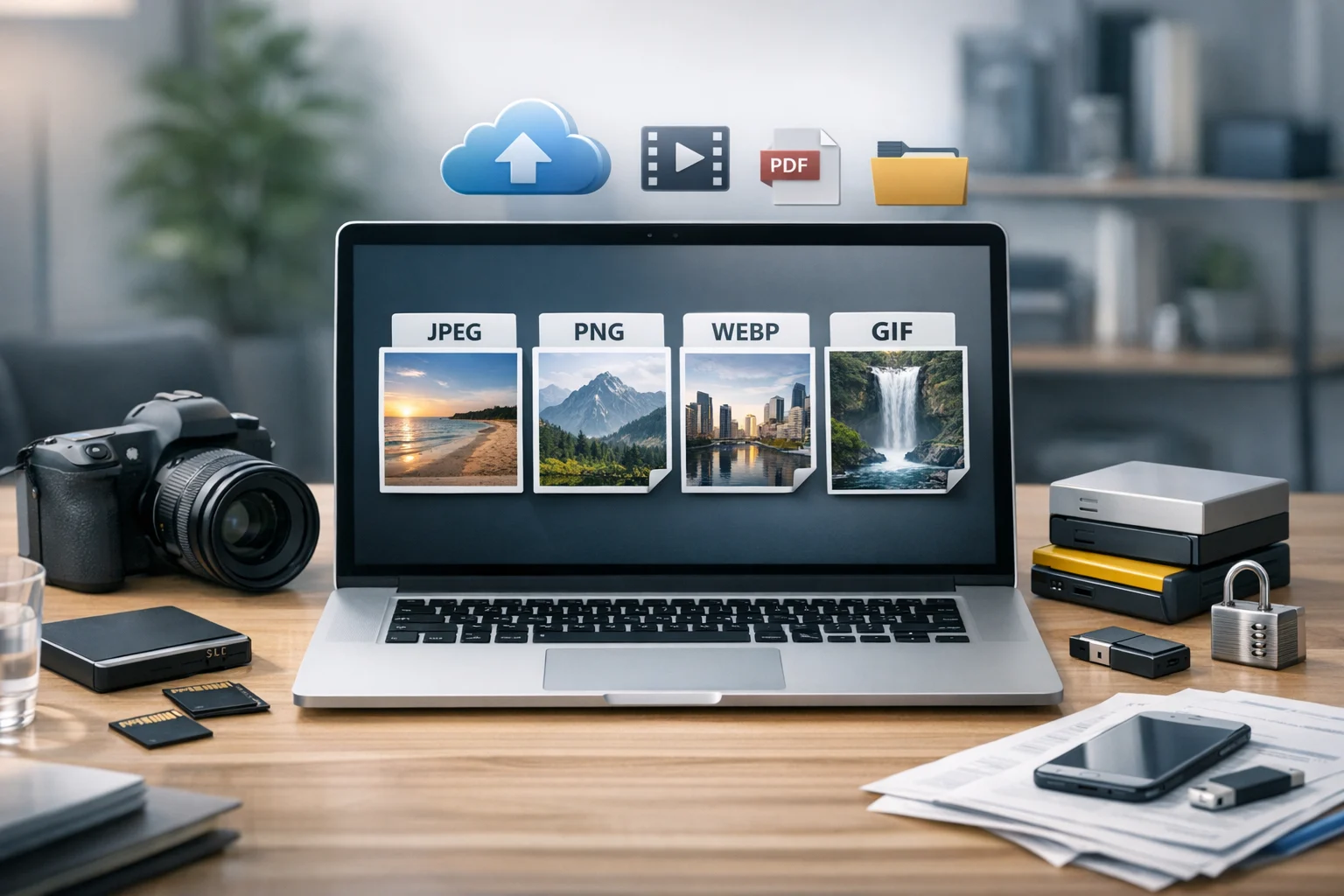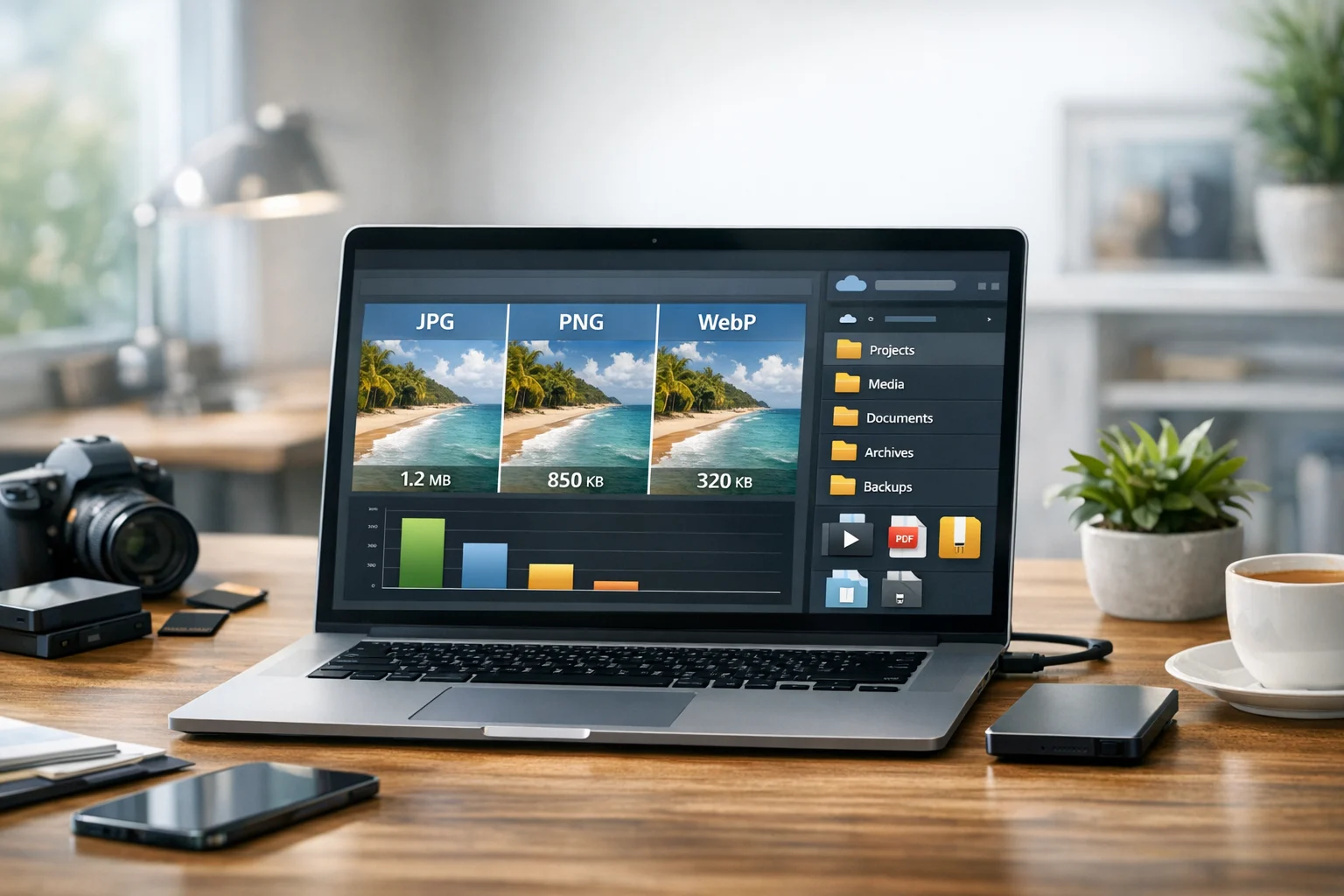
If you want smaller image files without making them look soft, blurry, or oddly compressed, two formats come up again and again: WebP and AVIF. Both were designed to improve on older formats like JPG and PNG, and both can make a big difference when you're uploading photos to a website, sending assets to clients, organizing product images, or simply trying to save space in cloud storage.
But WebP and AVIF aren't interchangeable. One often wins on compatibility and speed. The other can win on file size and efficiency. The best choice depends on where the image will be used, how much editing it still needs, and how important browser support, app support, and loading time are to your workflow.
For students, creators, marketers, freelancers, office teams, developers, and small businesses, the question usually isn't just which format is newer. It's which one helps you keep quality high while making files easier to upload, store, and share. That's where practical file conversion matters. A good file converter helps you test real files instead of guessing from specs alone, and a solid image converter makes it easy to convert image files in batches when you need a faster workflow.
What WebP and AVIF are really trying to solve
Older formats still matter, but they come with tradeoffs. JPG is common and widely supported, but it can create visible artifacts when compressed too much. PNG preserves sharp edges and transparency, but file sizes can get heavy fast. That's why so many people still compare JPG vs PNG before they even start thinking about newer formats.
WebP was created to offer smaller files than JPG and PNG while keeping acceptable visual quality. It supports lossy and lossless compression, transparency, and animation. Because of that balance, it's become a practical format for websites, eCommerce images, blog graphics, and everyday online sharing. If you're looking at WebP vs PNG, WebP often gives you much smaller files for the same visual result, especially for web graphics and photos.
AVIF is newer and more aggressive about compression efficiency. In many cases, AVIF can create even smaller files than WebP at similar quality. It also handles transparency and high color depth well. In practice, AVIF can take more processing power to encode and decode, and support is still less universal across older tools, apps, and workflows.
Which format gives you the smallest files?
If your only goal is the smallest possible file size, AVIF often wins. For photos, screenshots, banners, and layered graphics exported to a flat image, AVIF can produce very compact files while keeping fine detail surprisingly intact. This is especially useful when you have image-heavy pages, large product catalogs, portfolio galleries, or internal content libraries that eat up storage over time.
That said, smaller isn't always better if it slows down your workflow or creates compatibility problems. WebP usually lands in the sweet spot between size, speed, and support. It may be a little larger than AVIF in some cases, but it's still significantly smaller than many JPG or PNG files. For teams that need a dependable format today, WebP is often the safer default.
A simple way to think about it is this:
- AVIF usually wins on maximum compression efficiency.
- WebP usually wins on practical everyday use.
If you're testing product photos, blog headers, social graphics, or homepage banners, compare both formats side by side on the same source file. The best image format isn't always the one with the smallest number. It's the one that looks right, loads quickly, and works everywhere you need it.
What happens to image quality?
This is where many people hesitate. Nobody wants smaller files if faces look smeared, text turns fuzzy, or gradients start banding. The good news is that both WebP and AVIF can look excellent when compressed responsibly.
WebP tends to preserve visual quality well at moderate compression settings. It's reliable for photographs, lifestyle images, blog thumbnails, and screenshots. If your images already look good as JPG or PNG, converting them to WebP can often reduce file size without obvious damage, especially for web delivery.
AVIF can hold quality impressively well at even lower file sizes, but it can also be less forgiving if you push compression too hard. Some images with very fine textures, tiny text, or sharp contrast edges may need careful quality settings. If you export too aggressively, you'll save space but may introduce subtle issues that become noticeable on larger screens.
If the question is WebP vs AVIF for smaller images without ruining quality, the practical answer is this: AVIF often gives you more compression headroom, but WebP is usually easier to tune and trust across mixed use cases.
Where WebP is the better choice
WebP makes sense when you need solid compression and broad support without extra complexity. It's often the right choice for:
- Website images that need dependable browser support
- Marketing graphics used across multiple platforms
- Blog posts, landing pages, and online stores
- Teams sharing assets with clients or coworkers using different apps
- Users who want easier online file conversion with fewer surprises
If you already have JPG photos, using a JPG to WebP converter is one of the quickest ways to reduce image weight for the web. If your source files are transparent graphics or PNG-based exports, a PNG to WebP converter can shrink them dramatically compared with keeping them in PNG.
For many everyday users, WebP wins because it's easier to deploy. You don't need to spend as much time checking whether a CMS, plugin, browser, app, or email workflow will handle it properly.
Where AVIF is the better choice
AVIF stands out when file size is the top priority and you have a modern workflow that supports it. It can be a great fit for:
- Performance-focused websites trying to reduce page weight as much as possible
- Large image libraries that would benefit from more compact storage
- Developers who can control fallback behavior
- Teams optimizing assets for modern browsers and apps
- Users storing many high-resolution photos and trying to cut cloud storage costs
For a media-heavy project, even small savings per image can add up fast. A few hundred kilobytes saved on each file becomes meaningful when you have thousands of assets. That's not just good for speed. It's also helpful for file backup, document storage systems that include image previews, and any archive of design assets or campaign media.
Still, AVIF is often best when you can test carefully. If you need to send assets to clients, printers, or less technical team members, WebP may still be easier. If you're building a modern web stack and controlling exactly how images are served, AVIF becomes much more attractive.
Compatibility matters more than people think
A format can be technically better and still be the wrong choice. If an image doesn't display properly in the tool, app, or platform your audience uses, the smaller file size won't help.
WebP has stronger everyday compatibility right now. Most modern browsers support it well, and many design, CMS, and eCommerce workflows already account for it. AVIF support has improved a lot, but it can still be less predictable in older software, certain editing tools, or internal business environments.
That makes WebP the safer choice when your images move through lots of hands. Think office teams building presentations, marketers uploading to multiple platforms, students submitting assignments, or freelancers delivering files to clients with unknown software setups.
If you're comparing formats beyond images, the same logic applies elsewhere too. People often debate MP4 vs MOV for videos, or use a video converter when they need smaller uploads and wider playback support. The technically best codec isn't always the best practical format. The same is true here.
Speed, editing, and workflow tradeoffs
There are two kinds of speed to think about: page loading speed and processing speed. AVIF can improve page performance because the files are often smaller, but it may take longer to encode and sometimes more effort for software to decode. WebP is usually faster and easier in the middle of a working process.
If you're still editing images regularly, keep your original source files too. Convert compressed delivery copies for websites and sharing, but don't rely on those as your only master files. This is especially important for product photos, client projects, class materials, or branded marketing assets that may need future changes.
Many teams keep a simple system:
- Original files stored safely as masters
- WebP or AVIF copies created for web use
- Smaller thumbnails or previews generated as needed
- Backups stored separately for recovery
That approach supports both quality and organization. It also helps avoid messy duplicates when you're converting at scale.
How to choose between WebP and AVIF by use case
For websites and blogs
Use WebP if you want a reliable balance of compatibility, compression, and easy deployment. Use AVIF if you're squeezing every possible byte and your stack supports it well.
For eCommerce product images
Start with WebP if you need broad compatibility across storefronts, marketplaces, and plugins. Test AVIF on large catalogs where storage savings and faster loading could make a measurable difference.
For graphics with transparency
Both formats can work, but WebP is usually easier to fit into existing workflows. If you're currently choosing between WebP vs PNG for transparent web graphics, WebP is often a major upgrade in file size.
For portfolios and photography
AVIF can be excellent when quality settings are tuned carefully, especially for large galleries. WebP is a safer default when visitors may use a wide mix of browsers and devices.
For internal company files and everyday sharing
WebP is usually the simpler choice. If images are being dropped into documents, presentations, shared drives, or project tools, wider support reduces friction.
Don't confuse image conversion with file compression
People often mix up conversion and compression, but they aren't the same. File compression can mean reducing the size of a file within the same format or packaging files into an archive. Conversion means changing the file format itself. You might convert a PNG to WebP, or convert image files from JPG to another format better suited to web delivery.
Both matter. If you want to understand when each one helps most, this guide on image compression vs image conversion is a useful next read.
Archives also play a role in image workflows. If you're sending a whole folder of visuals, you might bundle them into a ZIP archive before sharing. If a client sends you a RAR archive, you may need to unpack it before converting anything. Archive formats like ZIP and RAR don't replace image conversion, but they help organize transfers and keep file sets together.
Why this choice affects storage and backup too
Image format decisions aren't only about websites. They also affect how much you spend on storage and how easy it is to manage growing file libraries. Smaller images mean less space used in cloud storage, faster uploads, quicker syncing, and lighter backups. That's useful whether you're managing class materials, social media assets, internal reports, or customer documents with embedded images.
If you store a lot of media online, converting before uploading can help reduce waste. That's especially relevant if you're looking for cheap cloud storage without sacrificing organization. A smart workflow is to keep original masters where needed, create optimized web copies, and store everything in secure file storage with clear naming and folder structure.
For sensitive files, encrypted cloud storage adds another layer of protection. That matters for business teams, freelancers with client assets, and anyone keeping project files, invoices, PDFs, or image libraries online. Good storage isn't just about cost. It's also about privacy, access control, and reliable file backup.
ConvertAndStore is useful here because the workflow doesn't stop at a single conversion. You can handle online file conversion, keep optimized assets organized, and support document storage and media storage without scattering files across multiple services.
What about PDFs, videos, and mixed file workflows?
Most people who need image optimization also deal with other file types. A student might convert PDF files for submission, then turn a PDF to JPG for slides. A marketer might combine screenshots into an image-to-PDF handout. A team member might need a PDF converter for contracts, an image converter for graphics, and a video converter to prepare social clips or presentations.
The same principle applies across all of those tasks: choose the format that gives you the best balance of quality, size, and compatibility. Sometimes that means WebP instead of PNG. Sometimes it means a smaller PDF before upload. Sometimes it means deciding between MP4 vs MOV before you convert video files for easier sharing.
If you regularly handle mixed assets, it's helpful to keep your tools in one place. ConvertAndStore's image converter tools make it easier to manage image format changes without adding friction to the rest of your workflow.
Common mistakes to avoid
- Only comparing file size. Always check the image at real viewing sizes before choosing a format.
- Replacing your only original. Keep masters for editing and recovery.
- Ignoring compatibility. If clients or users can't open the file easily, the smaller size won't help.
- Using PNG by habit. In many web cases, WebP vs PNG is not a close contest. WebP is often much smaller.
- Compressing too aggressively. Tiny files can still look bad if quality settings are pushed too far.
- Uploading unoptimized images to storage. That wastes bandwidth and space over time.
A practical way to decide in five minutes
If you're not sure which format to standardize on, use this quick test:
- Pick three real images from your workflow, such as a photo, a graphic, and a screenshot.
- Export or convert each one to WebP and AVIF.
- Compare file size, visual quality, and loading behavior.
- Check them in the browser, app, CMS, or sharing tool you actually use.
- Keep the format that gives you the best mix of quality, size, and reliability.
For many people, that test leads to a simple rule: use WebP as the default, and use AVIF where you specifically need the extra efficiency and know your environment supports it.
If you're ready to try it on your own files, start with ConvertAndStore's image tools to create smaller web-friendly versions, keep the originals backed up, and store everything in one organized place for conversion, sharing, and secure storage.
Frequently Asked Questions
Not always, but AVIF often produces smaller files at similar visual quality, especially for photos. The exact result depends on the image content and export settings, so it's best to test both formats on your actual files.
WebP is usually the safer choice for broad compatibility across browsers, apps, and business workflows. AVIF support is improving, but WebP still tends to cause fewer issues in mixed environments.
Yes. Keep the original file as your master copy for editing, re exporting, and backup. Use WebP or AVIF as optimized delivery versions for websites, sharing, or storage savings.
Yes. Smaller image formats reduce the total space used in cloud storage, speed up uploads, and lower bandwidth use. This can help if you're trying to manage large media libraries or make cheap cloud storage go further.
It can be, but you should use services that take privacy seriously and support secure file storage. For sensitive work, look for clear security practices, reliable file handling, and storage options such as encrypted cloud storage.
Image conversion changes the format, such as PNG to WebP. File compression reduces size within a format or packages files into archives like ZIP or RAR. Many workflows use both to save space and keep files organized.