Creating a ZIP archive is one of the easiest ways to share multiple files without turning an email, chat, or upload form into a mess. Instead of sending ten images, three PDFs, a spreadsheet, and a video one by one, you can package everything into a single folder-like file that is easier to upload, download, and manage.
For students sending assignments, creators delivering assets, freelancers sharing client files, office teams organizing reports, and developers packaging project folders, ZIP files are still one of the most practical tools around. They help with file compression, simplify downloads, and reduce the chance that someone misses an attachment.
This guide explains how to create a ZIP archive for file sharing, when ZIP works best, how to prepare files before compressing them, and how to keep shared files organized and secure. If you want a quick way to get started, ConvertAndStore has a simple ZIP archive creator that helps you package files for sharing in a few steps.
What a ZIP archive actually does
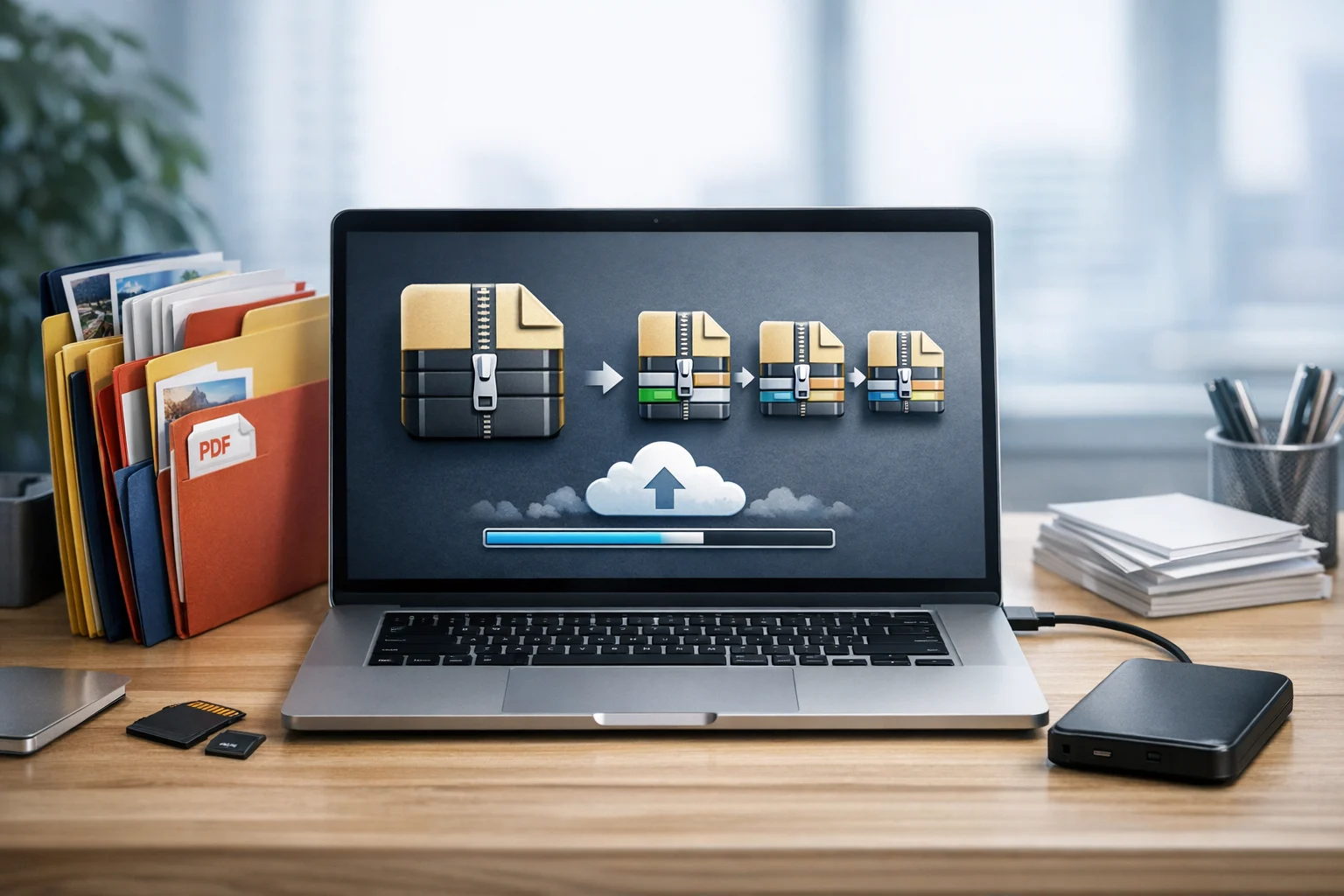
A ZIP archive is a single file that contains one or more files and folders. Think of it as a container. It can keep your folder structure intact, reduce file size in many cases, and make transfer easier because you only need to send one item instead of many.
A ZIP archive is useful because it helps with:
- Organization by bundling related files together
- Compatibility because ZIP is widely supported across devices and operating systems
- File compression which can shrink many file types
- Cleaner sharing through email, messaging apps, websites, and cloud storage
- Safer handling because the folder structure stays together instead of scattering files
ZIP is often the first choice because most users can open it without installing anything extra. That matters when you are sharing files with clients, classmates, customers, or coworkers who need a simple, familiar format.
When ZIP is the right format for file sharing
ZIP works especially well when you need to send a group of files that belong together. Examples include a design handoff folder, a set of images for a campaign, source code, exported reports, class notes, product documents, or invoice records.
It is also a good fit when:
- You want to reduce upload or download clutter
- You need to preserve subfolders and filenames
- You are sending files to different types of users and devices
- You want a simple archive that is easy to open
- You are preparing files for document storage, file backup, or secure file storage workflows
If the main goal is broad compatibility, ZIP usually beats more specialized formats. A RAR archive or 7z archive can sometimes compress certain data more efficiently, but ZIP is often easier for the average recipient to handle.
Prepare files before you create the ZIP
One of the most common mistakes is zipping files first and only later realizing the formats were too large, inconsistent, or inconvenient for the recipient. In many cases, the best result comes from converting files before archiving them.
For example, a file converter can be more useful than compression alone when the original formats are not ideal. If you have oversized PNG screenshots, camera photos, large PDFs, or videos exported in the wrong format, a quick round of online file conversion can save more space than simply placing everything into a ZIP archive.
Here is where conversion makes a real difference:
- Images: Use an image converter to convert image files into a more practical format before sharing. If you are deciding on the best image format for size and quality, comparisons like JPG vs PNG and WebP vs PNG matter. A large PNG may shrink dramatically when converted to JPG or WebP, while some graphics should stay in PNG for transparency or crisp text.
- Documents: A PDF converter can help convert PDF files for easier use. Some people need PDF to JPG previews for presentations or quick review. Others need image to PDF when combining scanned pages into one file. Standardizing documents before zipping them often makes the archive easier for others to use.
- Video: A video converter can convert video files into a more compatible format before you compress and share them. If you are comparing MP4 vs MOV, MP4 is often the better choice for broad compatibility and smaller delivery size.
ZIP helps package files, but it does not magically make every large file much smaller. Formats that are already compressed, such as JPG, MP4, and many PDFs, may not shrink much inside a ZIP. In those cases, converting first is usually smarter than relying on the archive alone.
How to create a ZIP archive step by step
The exact steps vary by device, but the workflow is basically the same everywhere.
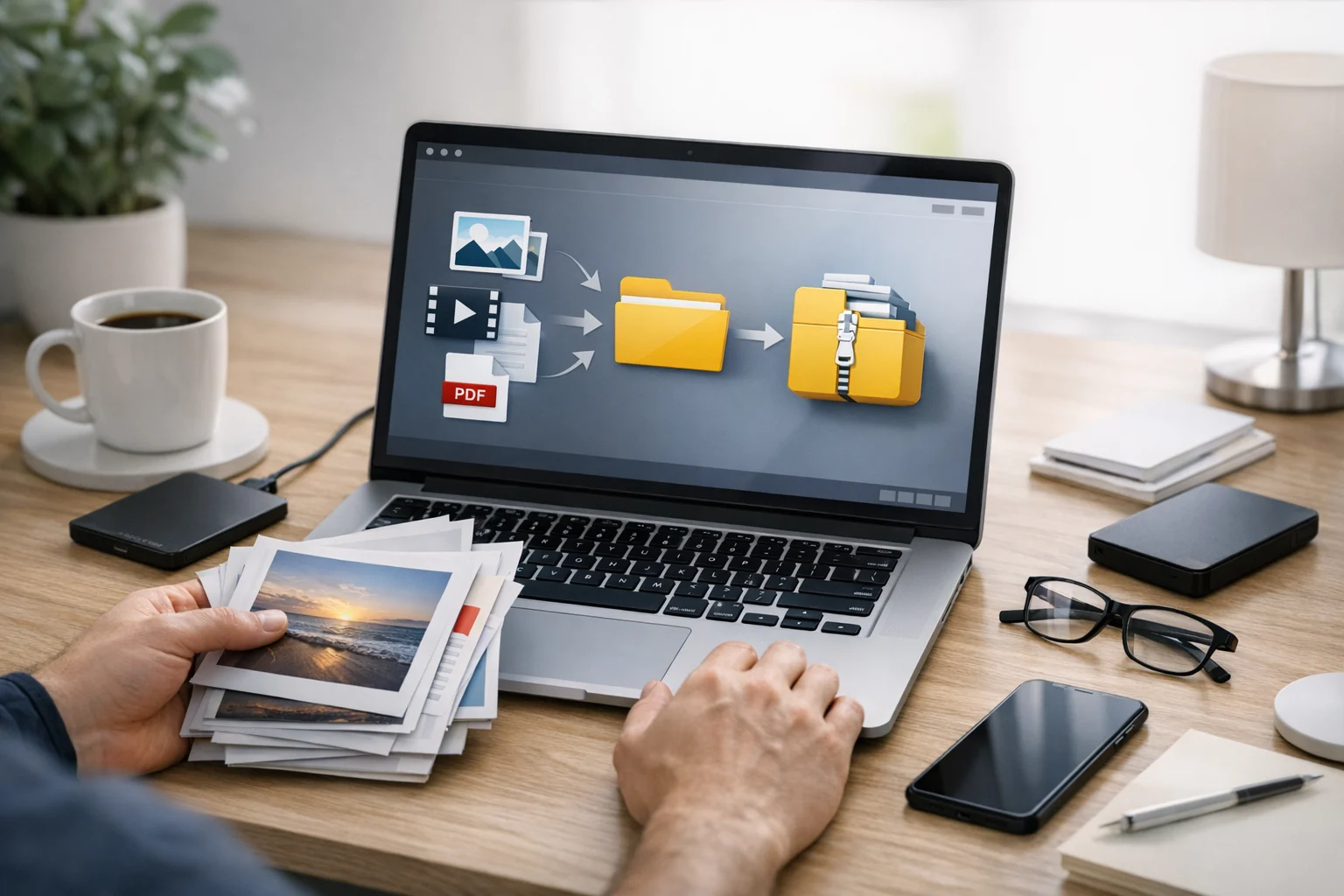
1. Gather the files into one folder
Before you create the archive, place all the items you want to share into a single folder. That could include subfolders like Images, PDFs, Contracts, Source Files, or Videos. This makes the final ZIP cleaner and easier to understand.
2. Remove anything the recipient does not need
Delete duplicates, drafts, temporary exports, and giant raw files that are not part of the handoff. This keeps the archive smaller and avoids confusion.
3. Rename files clearly
Good file names make a huge difference. Use names like project-overview.pdf, final-logo.webp, team-headshots.jpg, or campaign-video.mp4 instead of generic names like scan1, image-final-final, or video-export-new.
4. Create the ZIP archive
On many systems, you can right click the folder and choose a compress or archive option. If you want an easy browser based workflow, use ConvertAndStore's Create ZIP Archive tool to package your files without extra setup.
5. Test the ZIP before sending
Open the archive and make sure the contents are correct. Check that the folder structure looks right, the filenames are readable, and the files open properly.
6. Upload or share
Once the ZIP is ready, send it through email if the file is small enough, or upload it to cloud storage and share a link if it is larger.
How much compression should you expect?
Compression results depend on the file types inside the archive. Text documents, spreadsheets, code files, and some raw data often compress well. Photos, audio, and video that are already stored in compressed formats usually do not shrink much more.
Here is a practical rule:
- Great compression potential: TXT, CSV, DOCX in some cases, source code, logs, uncompressed bitmaps
- Moderate compression potential: some PDFs, layered design files, certain exported documents
- Low compression potential: JPG, MP4, MOV, MP3, WebP, many already optimized PDFs
If your archive is still too large after zipping, do not assume ZIP failed. It may simply mean your files were already compressed. That is when format changes, resizing, or optimization matter more than archiving.
ZIP is for packaging, conversion is for optimization
People often mix these two jobs together. A ZIP archive groups files into one package. A converter changes one format into another. Both are useful, but they solve different problems.
If you need to send a folder of screenshots, for example, using an image converter to convert image files from PNG to JPG or WebP may have a much bigger impact on size than the ZIP itself. If you are sharing reports, a PDF converter may help convert PDF files into lighter or more practical versions first. If you are sending media, a video converter can convert video files from MOV into MP4 for easier playback and smaller upload size.
Many efficient sharing workflows follow the same order: clean files, convert when useful, then archive. That combination saves time for both the sender and the recipient.
ZIP vs RAR and other archive formats
ZIP is not the only archive type. You may also see a RAR archive, 7z, TAR, or TAR.GZ in different workflows. ZIP is usually the safest default for general sharing because it is widely supported. RAR and 7z may offer advantages in some situations, especially for advanced compression, but they can be less convenient for nontechnical recipients.
If someone sends you a RAR archive and you want a more universal format, ConvertAndStore has a simple RAR to ZIP converter. That is especially helpful when you are standardizing shared assets for clients or teams that expect ZIP support.
If you want a deeper comparison of formats before choosing one, it is worth reading ZIP vs RAR vs 7z: Which Archive Type Should You Use?. For everyday file sharing, though, ZIP is usually the easiest option.
Organize your ZIP so the recipient can actually use it
A good archive is not just smaller. It is easier to understand. That means structure matters.
Use a folder layout that reflects how the recipient will work with the files:
- Main folder with project name and date
- Subfolders for images, documents, video, source files, or drafts
- A readme or notes file if the contents need explanation
- Version names that are clear and limited
For example, instead of sending one archive full of random assets, send:
- Brand-Campaign-April-2026.zip
- Images
- Social-Video
- PDF-Reports
- Source-Files
- Delivery-Notes.txt
This is especially useful for office teams, marketers, and freelancers who send files to clients regularly. A clean ZIP archive reduces back and forth and makes you look more organized.
Security and privacy when sharing ZIP files
Creating a ZIP archive is only part of safe sharing. If the contents include contracts, financial records, personal data, business documents, or internal assets, you also need a secure delivery method.
For many users, the best approach is to upload the ZIP to cloud storage and share controlled access rather than attaching it directly to email. This gives you better visibility, more reliable delivery, and an easier way to replace or revoke files if needed.
When privacy matters, use secure file storage practices such as:
- Sharing links only with the right people
- Limiting access permissions
- Using expiration settings when available
- Keeping sensitive files in encrypted cloud storage
- Maintaining a separate file backup for critical records
If you work with sensitive documents, teams, or client assets, secure file storage and encrypted cloud storage matter more than compression alone. For more practical advice, see these secure file sharing tips for documents in cloud storage.
Cost matters too. Large unoptimized files can fill up even cheap cloud storage plans surprisingly fast. Before you upload massive folders, it helps to review ways to reduce cloud storage costs by converting and compressing files first.
Common mistakes to avoid
Most problems with ZIP sharing are simple workflow issues. Avoid these common mistakes:
- Zipping the wrong folder: Double check that you are sharing the final version, not an old draft folder.
- Leaving files in awkward formats: If the recipient cannot easily open MOV, HEIC, or large layered files, convert them first.
- Assuming ZIP will shrink everything: Already compressed files may barely change in size.
- Using vague names: Names like final2, final-final, or document-new create confusion.
- Sending sensitive files without access control: A ZIP file alone is not a complete privacy strategy.
- Forgetting to test the archive: Always open it once before sending.
Real world examples of better ZIP workflows
For students
Put essays, citations, slide decks, and supporting images into one ZIP archive instead of uploading each file separately. If a platform limits upload size, convert oversized images or combine scanned pages with image to PDF before creating the archive.
For creators and marketers
Standardize deliverables first. If a campaign includes web graphics, compare JPG vs PNG and WebP vs PNG based on how the assets will be used. Then archive final exports, captions, and PDFs together for one clean handoff.
For small businesses and office teams
Bundle invoices, reports, spreadsheets, and contracts into dated archives for document storage and file backup. This makes internal sharing cleaner and helps keep records organized across projects.
For developers
ZIP is useful for packaging documentation, release files, scripts, or configuration folders for review. Remove unnecessary build output if the recipient does not need it. That keeps the archive smaller and easier to inspect.
For freelancers
When delivering work to clients, create a structured ZIP archive with a simple folder layout and clear filenames. Include only final approved files unless source files are part of the agreement.
What to do when you receive a ZIP file
Receiving a ZIP is just as common as creating one. Before extracting, check the filename and source so you know what you are opening. Then use a tool that keeps the folder structure intact. If you need a simple browser based option, ConvertAndStore can help you extract ZIP files quickly.
Once extracted, review the contents right away. Make sure important documents open correctly, images display as expected, and video plays on your device. If anything feels missing, it is easier to ask for a corrected archive immediately than after the project has moved on.
When not to use ZIP by itself
There are times when a ZIP archive is helpful but not enough on its own. If you are dealing with huge video footage, high resolution image libraries, or long term records, you may need a broader workflow that includes conversion, selective compression, cloud storage, and backup planning.
For example:
- If video files are too large, convert them before archiving. MP4 vs MOV is often the first decision to make.
- If documents need quick previews, create PDF to JPG copies for review while keeping the original PDFs in the archive.
- If scanned paperwork is spread across multiple images, use image to PDF to make a cleaner document before sharing.
- If your goal is long term document storage, combine archiving with file backup and access control in cloud storage.
The most efficient workflow is not just about making a ZIP. It is about preparing the files so the ZIP is actually useful.
Frequently Asked Questions
A ZIP archive bundles multiple files and folders into one file, making them easier to upload, download, store, and share. It can also reduce size through file compression, depending on the file types inside.
No. ZIP works best on files that are not already compressed, such as text, code, and some documents. Files like JPG images, MP4 videos, and many PDFs may not shrink much because they are often compressed already.
Often, yes. Converting PNG to JPG or WebP, MOV to MP4, or combining scans with image to PDF can reduce size and improve compatibility before you create the ZIP. In many cases, conversion saves more space than archiving alone.
A ZIP file helps package files, but it should not be your only security step. For sensitive documents, use secure sharing methods, controlled permissions, file backup, and encrypted cloud storage when available.
You can open it with compatible archive software, or convert it into ZIP for easier sharing and wider compatibility. This is useful when you need a format that more recipients can open without extra tools.