Archive compression is one of the easiest ways to lower storage costs without deleting files you still need. If you keep project folders, photos, presentations, exported videos, scanned paperwork, or old client assets, your storage use usually grows slowly and then all at once. A few large folders turn into years of clutter, duplicate versions, and backups that eat into your quota.
That matters whether you're paying for personal cloud storage, a team plan, or extra capacity for file backup and document storage. Even cheap cloud storage becomes expensive when your files are larger than they need to be. By combining related files into smaller archives and converting bulky formats before you upload, you can store more, transfer faster, and keep older work accessible at a lower cost.
For students, creators, freelancers, office teams, marketers, developers, and everyday users, the savings often come from simple habits. Compress old folders. Remove duplicate exports. Convert media to more efficient formats. Then archive and store the results in a clean system. That's where archive tools become practical, not just technical.
The hidden cost of keeping files exactly as they are
Most storage bills don't jump because of one giant file. They grow because of hundreds or thousands of small decisions. People save every draft, export the same asset in multiple formats, keep folders uncompressed, and upload source files when smaller delivery formats would do the job. Over time, that turns a manageable library into a bloated one.
Here are a few common reasons storage costs climb faster than expected:
- Large folders are uploaded with no file compression at all
- Images are kept in oversized formats when smaller versions are enough
- Teams store both source files and multiple exported copies in the same place
- Video files are saved in editing formats instead of delivery formats
- Backups repeat the same uncompressed data over and over
- Older folders stay online even when they are rarely accessed
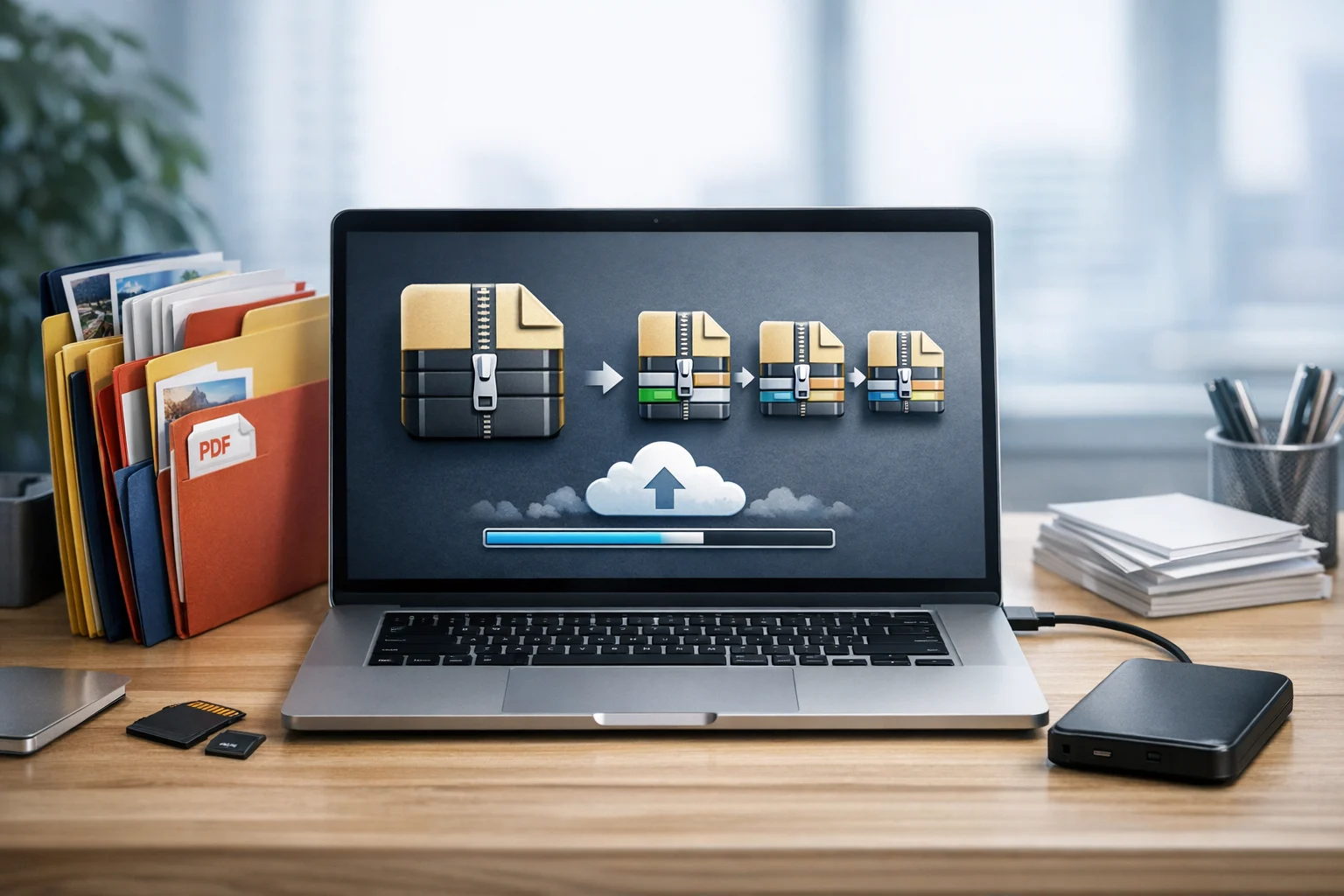
Archive compression helps because it cuts wasted space at the folder level. Instead of uploading a loose collection of files with extra overhead, you package them into a single archive and reduce the total size where possible. That makes storage more predictable and easier to manage.
What archive compression actually does
Archive compression combines files into one container and, in many cases, reduces the amount of space they need. A ZIP archive, RAR archive, or 7z file can hold documents, spreadsheets, images, code, and other assets inside one organized package. Depending on the file types, the archive may be much smaller than the original folder.
It's useful to separate two ideas that often get mixed together:
- Archiving bundles files into one package so they are easier to move, store, and organize
- Compression reduces data size using algorithms that remove redundancy
Many archive formats do both at once. When you compress a folder into ZIP, RAR, or 7z, you get fewer files to manage and often a smaller total upload. For storage platforms, that means less space used. For teams, it also means less folder sprawl and cleaner handoffs.
If you want a simple starting point, ConvertAndStore's Archive Tools make it easier to package folders before you send them to cloud storage or save them for long term file backup.
Why smaller archives lower storage costs
The savings from archive compression are practical, not theoretical. Every gigabyte you avoid uploading is a gigabyte you don't have to pay to store, sync, duplicate, and back up.
- Lower primary storage use: Smaller folders take up less room in your main cloud storage account
- Cheaper backups: File backup copies often double or triple storage needs, so every reduction multiplies
- Faster sync: Smaller archives move faster between devices and team members
- Less bandwidth waste: Uploading and downloading compressed archives cuts transfer time
- Cleaner retention: Archived projects are easier to move to lower cost storage tiers
- Fewer management errors: One archive is easier to track than dozens of loose subfolders
For example, if a small business keeps monthly project folders with invoices, drafts, PDFs, screenshots, and exported assets, compressing those finished folders can cut the storage footprint significantly. Even when the savings per folder look modest, the yearly total can be substantial, especially when those folders are copied into backup systems and shared drives.
Which files compress well, and which ones usually don't
Not every file gets dramatically smaller inside an archive. Knowing what responds well to compression helps you decide when a ZIP archive is enough and when you should convert files first.
Files that often compress well
- Text documents, notes, and manuscripts
- Spreadsheets and CSV files
- Presentations and slide decks
- Code files, JSON, XML, and logs
- Raw scans and uncompressed image formats
- Mixed folders with many small files and repeated patterns
These file types usually contain patterns that compression algorithms can shrink effectively. A folder of documents and source files can often see worthwhile savings with almost no downside.
Files that may not shrink much
- JPG, PNG, and WebP images that are already optimized
- MP4 and MOV videos that are already compressed
- Modern PDF files that already contain compressed media
- Audio formats like MP3 or AAC
- Files that are already in ZIP, RAR, or 7z format
Many people archive a folder of photos or videos and expect huge savings, but the files barely change. In those cases, archive compression still helps with organization, but the real cost reduction comes from choosing better formats before you archive.
Convert first, archive second for bigger savings
If your goal is to reduce storage costs, archive compression works best as the second step, not always the first. A file converter can shrink storage needs by changing a file into a more efficient format before you package it. That is especially useful for images, PDFs, and videos.
Images: choose the right format before you store them
There isn't one best image format for every situation. The right choice depends on quality, transparency, editing needs, and size. If you're storing screenshots, marketing graphics, product photos, blog images, or scanned pages, an image converter can help you convert image files into more efficient versions before you archive them.
The classic JPG vs PNG decision affects storage costs more than many people realize. PNG is great for sharp graphics, transparency, and screenshots with text, but it can be much larger than JPG for photos. If you archive hundreds of photos saved as PNG, you're paying for that extra weight every month. For web and sharing use, WebP vs PNG is another important comparison. WebP often delivers smaller files than PNG or JPG while keeping strong visual quality for many use cases.
Review image folders, convert oversized assets where appropriate, then compress the folder. A modern image converter is often the fastest way to remove wasted space before it reaches your storage account.
PDFs: reduce document weight before long term storage
PDFs can also hide a lot of wasted space. Scanned paperwork, forms with embedded images, marketing one pagers, and exported slide decks can be far heavier than they need to be. A PDF converter or PDF compressor can help you convert PDF files into leaner versions before archiving them for document storage.
Sometimes the best move is not just compression, but restructuring the content. If you only need thumbnail previews from a report, PDF to JPG may be more practical for quick browsing. If you have scans saved as separate images, image to PDF can combine them into a cleaner and easier to store file. The goal is to avoid keeping large, messy versions when a smaller format does the job just as well.
For finished project folders, store the optimized PDF version, not five oversized drafts and a pile of loose scans. Archive compression then becomes the final cleanup layer.
Video: convert bulky editing files before you archive
Video is where format decisions can save the most space. A video converter helps convert video files from heavier formats into versions that are easier to store and share. The common MP4 vs MOV question is a good example. MOV is useful in some editing workflows and camera outputs, but MP4 is often better for delivery, sharing, and smaller file sizes with broad compatibility.
If you archive large folders of raw exports, screen recordings, social cuts, and review copies without converting them, storage costs rise quickly. Keep the true source files only when you need them. For final delivery versions and older projects, smaller MP4 files inside an archive are often much more practical.
How different users save money with archive compression
Students and researchers
Course materials, lecture notes, scans, PDFs, recorded presentations, and research datasets add up fast. Compressing finished semester folders keeps active storage cleaner while preserving older work for future reference. If your notes include many images or scanned handouts, converting them before archiving can make a noticeable difference.
Creators and marketers
Creative work often includes source assets, drafts, exports, thumbnails, social versions, and presentation decks. Teams may keep the same campaign in PSD, PNG, JPG, PDF, and video formats. That is useful during production, but expensive forever. Archive completed campaigns, keep final deliverables in efficient formats, and move the rest to lower cost storage.
Small businesses and office teams
Invoices, contracts, reports, proposals, onboarding docs, and presentation files tend to grow quietly. Archiving completed client folders reduces clutter and lowers the cost of secure file storage. This is especially helpful when a company keeps mirrored backups or stores the same folders across shared accounts.
Developers and freelancers
Code repositories, logs, exports, documentation, screenshots, and packaged deliverables often compress well. Old project folders that are rarely touched can be archived and stored more efficiently. For client handoff, a single archive is also easier to download and verify than a scattered folder tree.
Choosing the right archive format
For most people, a ZIP archive is the easiest place to start. ZIP is widely supported across devices and operating systems, which makes it a safe choice for everyday sharing and long term access. If you want to package folders quickly, you can create a ZIP archive online and keep your files easier to store and send.
RAR and 7z can be useful when you want different compression behavior, extra archive features, or smaller results for certain file collections. If someone sends you a RAR archive but your workflow is built around ZIP, ConvertAndStore's RAR to ZIP converter can make that handoff easier without leaving files trapped in a less convenient format.
The best choice depends on your priorities. ZIP usually wins for compatibility. 7z often appeals to users who want stronger compression on the right file types. RAR can be helpful in specific workflows. If you're still deciding, it also helps to read more about how to reduce cloud storage costs before you upload, because format choice is only one part of the savings.
A practical workflow for lower storage bills
You do not need a complicated system to get good results. A simple repeatable workflow usually saves the most space over time.
- Step 1: Review the folder and remove duplicates, temporary exports, and files you no longer need
- Step 2: Convert oversized images, PDFs, or videos into more efficient formats where quality still fits the job
- Step 3: Group related files into one archive for simpler storage and sharing
- Step 4: Name the archive clearly with project, date, and version details
- Step 5: Upload the archive to cloud storage and move inactive work out of your highest cost tier if possible
- Step 6: Keep a separate file backup plan so your archive is protected if a device or account fails
This workflow is useful whether you manage personal files or team assets. It improves organization, cuts upload size, and makes future retrieval easier. It also prevents a common mistake, paying premium storage rates for files that are rarely opened and badly organized.
Compression helps with organization, but privacy needs another layer
Compression reduces size and simplifies storage, but it does not automatically mean privacy. If your archives contain contracts, financial records, customer details, or sensitive creative work, you should think about protection as well as savings. For many users, the right setup combines archive compression with encrypted cloud storage and a clear permission system.
That matters for small businesses, freelancers, and office teams that need secure file storage, not just cheap storage. If privacy is part of your workflow, it's worth learning how encrypted cloud storage supports safer storage for sensitive files after they have been compressed and uploaded.
Frequently Asked Questions
Archive compression itself is usually lossless, so it does not lower the quality of documents, images, or videos inside the archive. Quality changes happen when you convert files to different formats or use lossy compression settings, such as JPG for images or lower bitrate video.
Documents, spreadsheets, text files, code, logs, and mixed folders with many small files usually compress well. Files that are already compressed, such as JPG, MP4, MP3, or existing ZIP files, often shrink very little.
Yes, often. Converting oversized PNG images to JPG or WebP, large MOV videos to MP4, or heavy scanned PDFs to optimized versions can save more space than archiving alone. The best results usually come from converting first and then compressing the cleaned folder.
A ZIP archive helps with organization and size, but it is not the same as strong security. For sensitive files, use password protection when appropriate and store archives in encrypted cloud storage with controlled access.
There is no single best format for every case. ZIP is usually the most compatible and easiest to share. 7z may offer better compression for some file types. RAR can be useful in certain workflows. The biggest savings usually come from optimizing file formats before archiving.