PDFs keep layouts consistent, but they are not always the easiest format to work with. You may need a single page as an image for a presentation, editable content for notes or website copy, or several PDFs bundled into an archive for easier storage, transfer, or backup. Knowing when and how to convert PDF files can save time, reduce file size, and make sharing simpler.
This guide covers useful ways to convert PDF files to images, documents, and archives. It also looks at quality settings, file compression, storage choices, and security steps that matter when your files contain school work, client documents, invoices, scans, or marketing materials.
Why people convert PDF files in the first place
PDF is a reliable format because it preserves formatting across devices. Students use it for assignments, freelancers use it for contracts, businesses use it for forms, and office teams use it for reports. PDF is not always the best format for every task.
- For visuals: you may need PDF to JPG or PNG so you can post a page online, add it to slides, or share a preview.
- For editing: you may need text from a PDF inside a document, note-taking app, or CMS.
- For storage: you may want to bundle several PDFs into a ZIP archive or RAR archive before upload or transfer.
- For sharing: you may need file compression so email attachments upload faster and take up less space.
- For organization: converting and naming files clearly can make document storage much easier.
If you regularly manage content in multiple formats, a dependable file converter becomes part of your workflow. For many users, online file conversion is faster than opening heavy desktop software, especially when the goal is a simple format change rather than deep editing.
When to convert a PDF into an image
Turning a PDF into an image is useful when layout matters more than editability. A screenshot can work in a pinch, but a proper conversion gives you better control over page quality and output size.
Common use cases include:
- sharing a flyer or brochure preview
- uploading a PDF page to social media or a website
- adding document pages to slide decks
- creating thumbnails for digital asset libraries
- saving scanned pages as image files for review
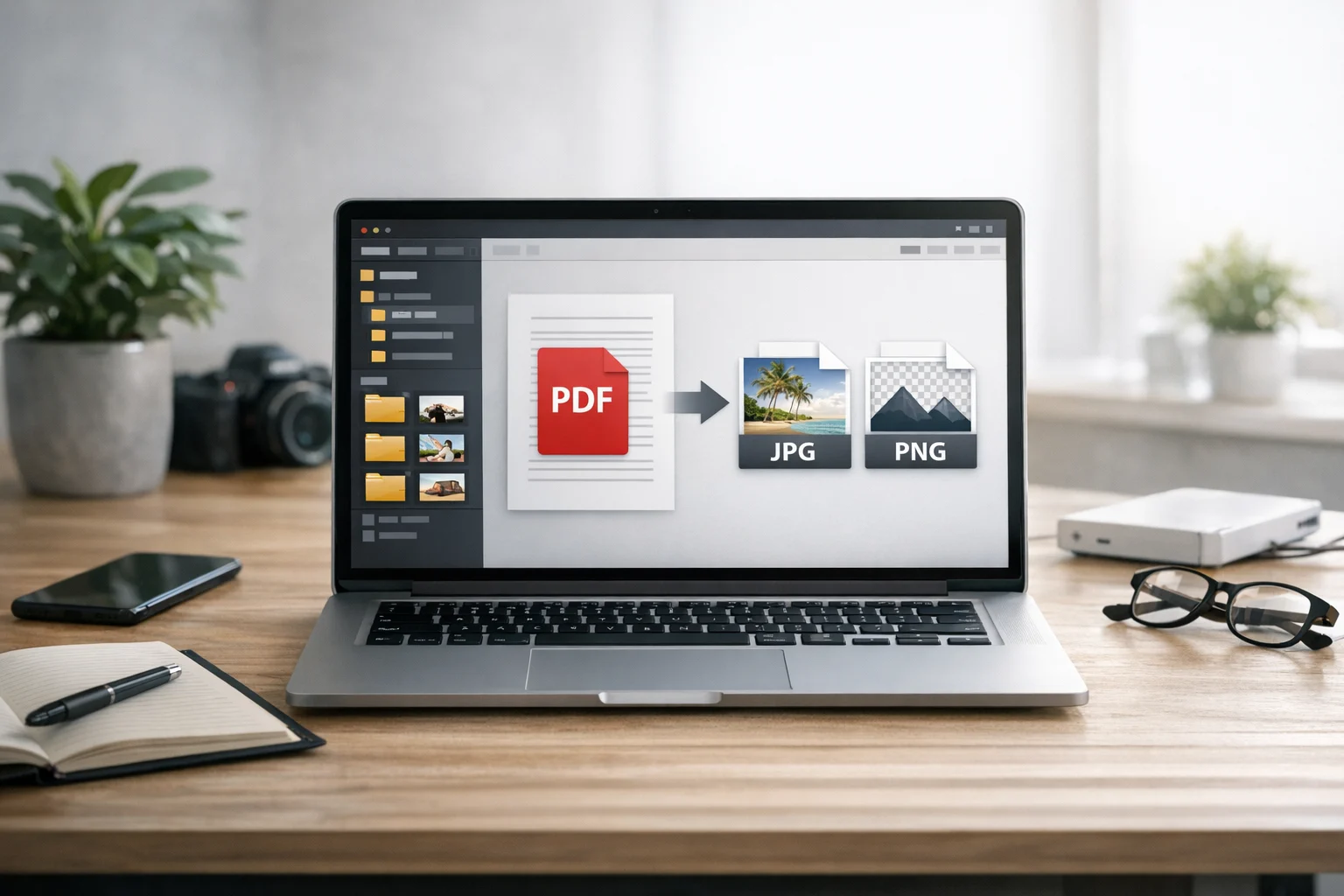
If that is your goal, a dedicated PDF to image converter is the most direct option. It is especially useful when you need to export one page or many pages without manually capturing each one.
PDF to JPG
PDF to JPG is one of the most common conversion tasks because JPG files are widely supported and usually smaller than PNG. If you want a quick preview image, a web upload, or something easy to attach in chat or email, JPG is often the practical choice.
JPG works best for:
- photo-heavy pages
- web previews
- social sharing
- smaller file sizes
The tradeoff is that JPG uses lossy compression. Small text, line art, and scanned black-and-white documents can look softer after export, especially if you choose a low quality setting.
JPG vs PNG for PDF pages
The JPG vs PNG question comes up often when you convert image files or export pages from PDFs. There is no single best image format for every job.
Choose JPG if:
- you want smaller file sizes
- the page includes photos or gradients
- you are posting online and speed matters
Choose PNG if:
- the page contains small text, diagrams, line art, or screenshots
- you want sharper edges
- you need transparency in other image workflows
For scanned documents, forms, tables, and design proofs, PNG often preserves details better. For brochures, magazine pages, and image-heavy PDFs, JPG is usually more space efficient.
WebP vs PNG for sharing converted pages
If your PDF pages are going onto a website, WebP may also be worth considering after conversion. The WebP vs PNG comparison matters because WebP can deliver smaller files while keeping good visual quality. PNG still has the edge for maximum compatibility in some workflows, but WebP is often a strong choice for modern websites and faster loading.
A common path is to convert PDF files into PNG first for clean page quality, then use an image converter later if you need a more web-friendly format. That gives you a high-quality master file and a lighter web version.
How to keep quality high when exporting PDF pages
Quality problems usually come from using the wrong format, too little resolution, or too much compression. Before you export, think about where the image will be used.
- For web previews: 150 DPI to 200 DPI is often enough.
- For print or detailed review: 300 DPI is safer.
- For text-heavy pages: prefer PNG over JPG.
- For file size reduction: use compression after checking readability.
If your original PDF is already large, compressing it before converting may help with uploads and processing. A PDF compressor can reduce file size while keeping the content readable, which is useful for scanned files and long reports.
It is also smart to export a test page first. This lets you check text sharpness, color shifts, and the balance between quality and size before converting a large batch.
Converting PDFs into editable or reusable document content
Sometimes you do not need a static page image. You need the words inside the PDF. This often happens with lecture notes, contracts, proposals, product sheets, invoices, or research material. In that case, the goal is not just viewing the content but reusing it.
There are a few common options:
- PDF to text: useful for extracting written content quickly
- copying pages into a new PDF: helpful when reorganizing or separating sections
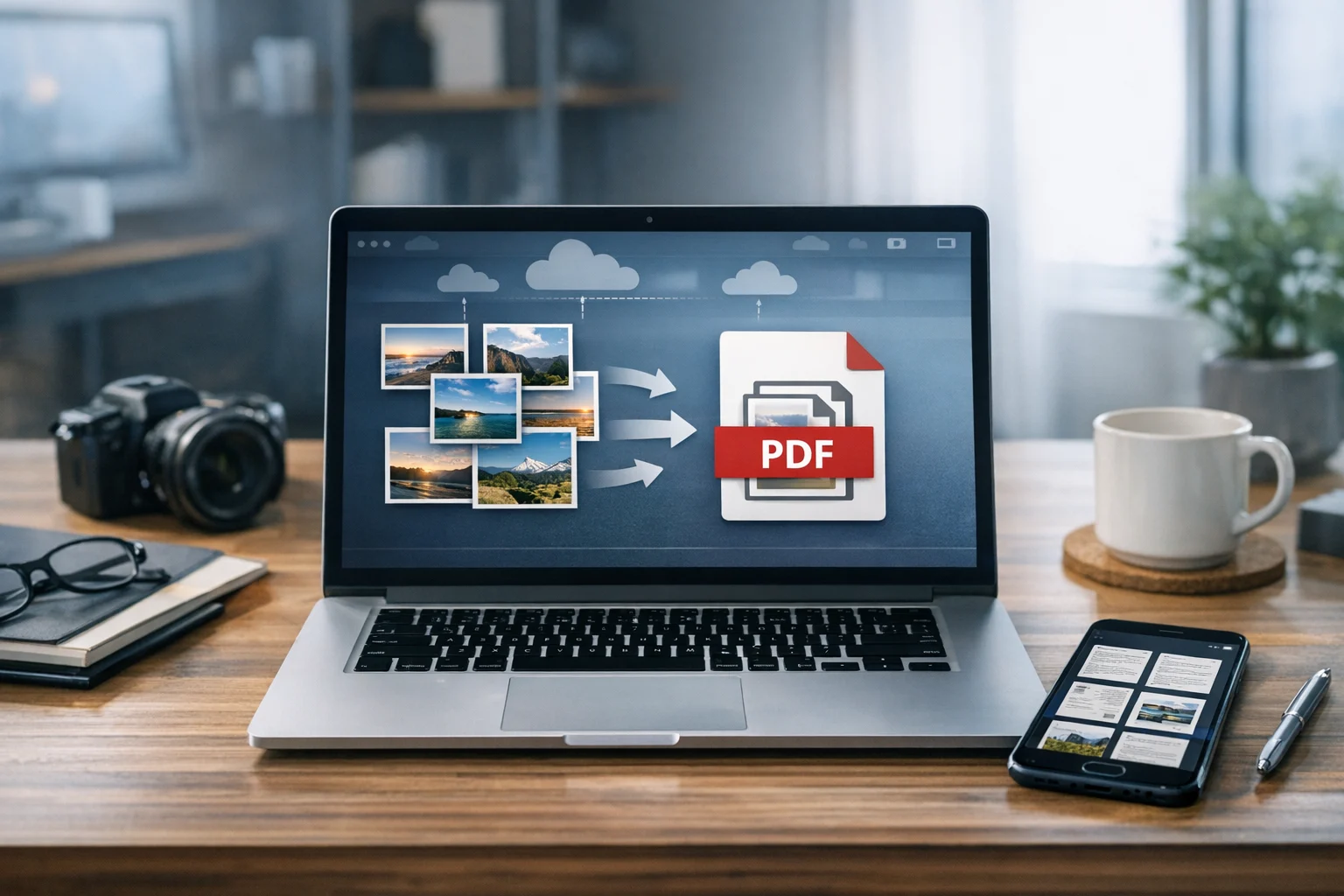
- image to PDF: useful when you want to rebuild a document from screenshots or scanned pages
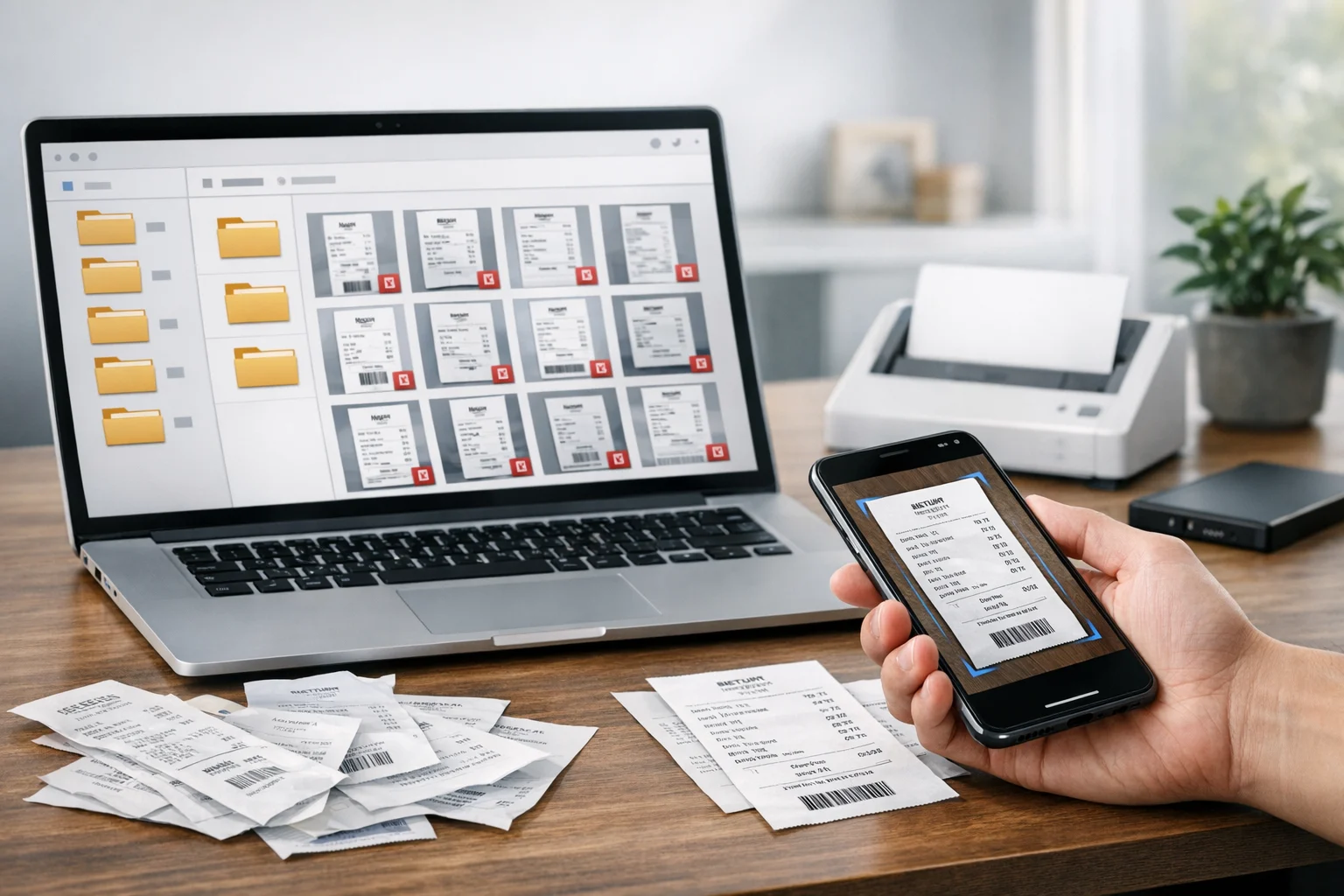
For example, if you photograph receipts, whiteboards, forms, or printed notes, converting those images into one PDF can make them easier to store, send, and search through later. An image to PDF converter is a simple way to combine visual source files into a cleaner document format.
This matters for students creating submission files, marketers packaging assets, and freelancers sending client deliverables. PDFs still feel more polished than a loose folder of image files.
When PDFs should stay PDFs
Not every conversion improves the file. If a PDF is already formatted well and easy to share, converting it may only add duplicate versions and make organization harder. This is especially true for contracts, legal forms, resumes, and any file where consistent formatting matters more than editing.
In those cases, you may get more value from organizing pages, compressing the file, or storing it more securely in cloud storage.
Turning PDFs into archives for storage and transfer
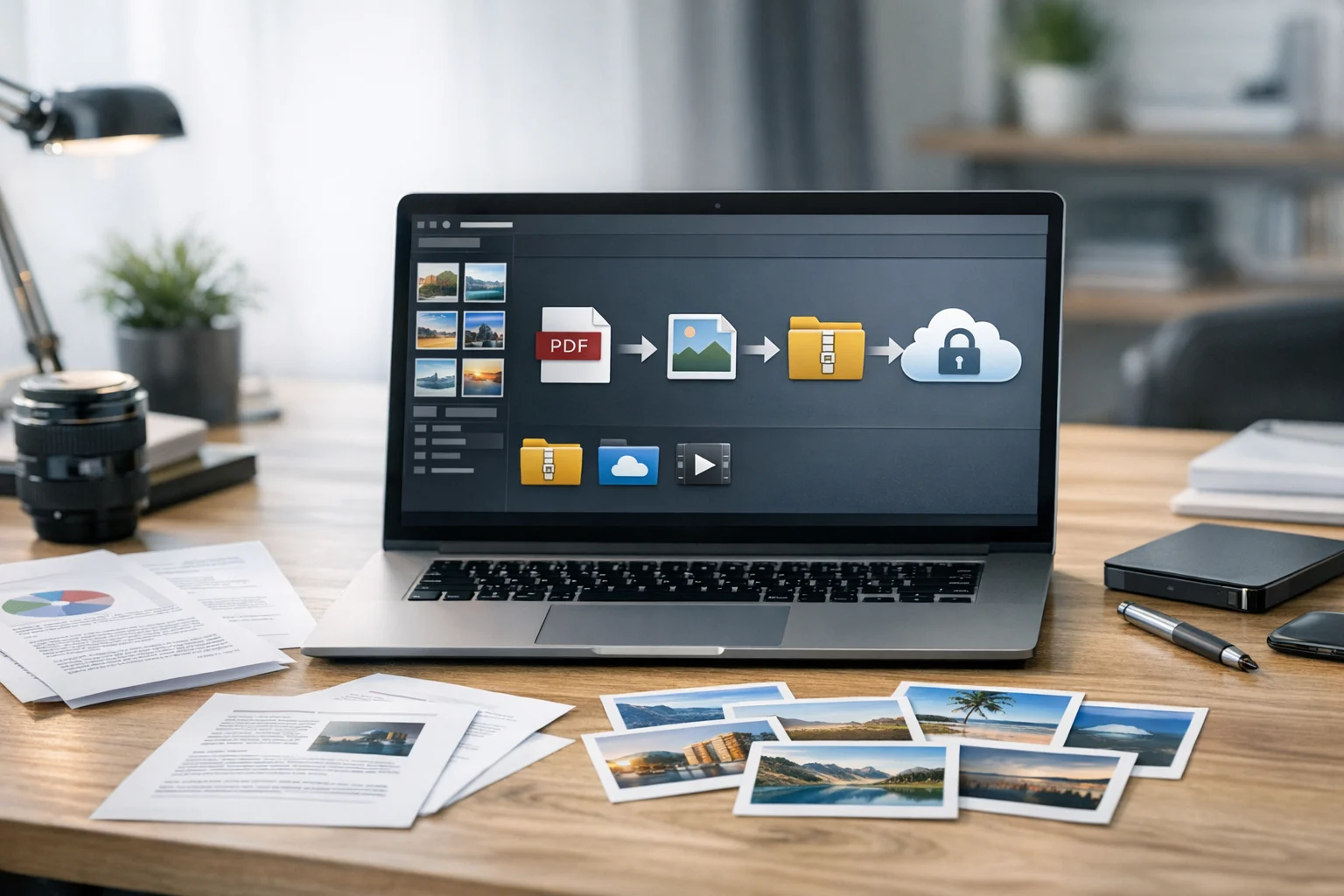
Archives are useful when you have several PDFs or mixed files that need to travel together. A ZIP archive can combine invoices, manuals, signed forms, and image assets into one package. That makes uploads cleaner and downloads easier for the person receiving them.
A ZIP archive is the most common choice because almost every device can open it without extra software. If you need stronger compression or special archival workflows, a RAR archive may also make sense, though ZIP remains the easier option for general use.
Archive creation is especially helpful for:
- project handoffs
- monthly document storage
- client deliverables
- school submissions with multiple files
- file backup sets
If you want a better sense of when packaging files helps, this guide on how to create ZIP archives is a useful next read. It explains why archives can speed up sharing and reduce clutter.
ZIP archive vs RAR archive
Most users should start with ZIP. It is easier to open, easier to share, and supported nearly everywhere. RAR archive files can sometimes compress better or support more advanced workflows, but they may require extra software for recipients.
Use ZIP when:
- compatibility matters most
- you are sending files to clients or classmates
- you want quick file packaging
Use RAR when:
- you already work in software that supports it
- you need a specific archive workflow
- the recipient expects RAR files
Remember that archiving and file compression are not always the same as security. A smaller package is easier to move, but it is not automatically protected.
How cloud storage fits into PDF conversion workflows
After conversion, the next challenge is keeping files organized. Many people convert a document, download it, then lose track of which version is current. Cloud storage helps by centralizing files instead of leaving new versions scattered across desktop folders, email threads, and chat apps.
Good cloud storage supports a more reliable workflow:
- store original PDFs and converted copies together
- keep folders for drafts, finals, and archives
- share links instead of bulky attachments
- maintain file backup across devices
- access document storage from work, home, or mobile
For students and solo professionals, cheap cloud storage can be enough if the files are not sensitive and the volume is moderate. For client documents, financial records, HR files, or private research, encrypted cloud storage and secure file storage should be a higher priority.
This is particularly important if you are storing scans of IDs, contracts, invoices, or internal business PDFs. Security should not be an afterthought once a file leaves your device.
If sharing is part of your workflow, these secure file sharing tips can help you avoid common mistakes such as sending broad-access links or keeping outdated public folders active.
Managing file size without damaging usability
One of the most common reasons people use a PDF converter or archive tool is file size. Large scans, reports with graphics, and exported design files can become hard to upload, slow to open, and expensive to store over time.
Here are practical ways to reduce size without making files useless:
- Compress PDFs before sharing if the recipient only needs to read them.
- Convert pages to JPG when you need lightweight previews.
- Use PNG selectively for detailed pages where clarity matters.
- Create a ZIP archive when you have many files and want a neater package.
- Store originals separately so you do not lose the highest quality version.
Online file conversion can save time here. Instead of opening several desktop apps to shrink, export, and package files, you can handle the main steps in one workflow and then move the results into cloud storage.
How broader format choices affect your workflow
Many users who convert PDFs also manage images and video, so format decisions usually spill into other tasks. A student might turn lecture slides into PDF, export one page as JPG, and upload a class demo as video. A marketer may package PDFs, social graphics, and clips for a campaign handoff. A small business might store scans, receipts, PDFs, and product videos in one system.
It helps to understand related format comparisons:
- JPG vs PNG: smaller files versus sharper detail
- WebP vs PNG: modern web efficiency versus broad workflow familiarity
- MP4 vs MOV: practical sharing versus editing-oriented use cases
For most people, MP4 vs MOV comes down to compatibility and size. MP4 is usually the better delivery format, while MOV is more common in editing workflows and can be larger. If your project includes both PDFs and videos, using a video converter to convert video files into a more shareable format can make storage and collaboration much smoother.
Even though this article focuses on PDFs, format planning across documents, images, and video helps reduce duplication and confusion later. A good file converter is not just about changing one file type. It is about building a workflow that stays manageable.
Practical workflows for different users
Students
Scan handwritten notes, convert image files into a single PDF, compress the PDF for upload, and store the final version in cloud storage with clear course and date naming.
Creators and marketers
Export selected PDF pages as JPG or PNG for social posts, pitch decks, or previews. Keep the original PDF for print or approval use, and archive project files monthly for easier retrieval.
Small businesses and office teams
Convert PDF files into images when sharing quick previews internally, extract content for reports, and package related PDFs into a ZIP archive for accounting, HR, or vendor folders.
Developers and product teams
Use PDFs for documentation, export screenshots or diagrams as images for knowledge bases, and keep compressed versions in secure file storage for team access and version control support.
Freelancers
Send polished proposals and invoices as PDFs, convert pages to JPG for portfolio snippets, and maintain file backup copies of every final deliverable in organized document storage.
Common mistakes to avoid when converting PDF files
- Choosing JPG for text-heavy pages when PNG would keep text sharper.
- Over-compressing files until numbers, signatures, or fine print become hard to read.
- Keeping only the converted version instead of saving the original PDF too.
- Creating too many duplicate copies with unclear names like final, final2, latest, and use-this-one.
- Assuming archives are secure without checking storage permissions and link access.
A simple naming system helps a lot. Include the project name, date, version, and format, such as invoice-2026-05.pdf, invoice-2026-05-preview.jpg, or contracts-q2.zip. That alone makes search, file backup, and document storage much easier.
Frequently Asked Questions
It depends on the content. JPG is usually best for smaller files and photo-heavy pages. PNG is better for text, diagrams, screenshots, and scanned documents where sharp detail matters.
It can. JPG uses lossy compression, so small text and fine lines may become softer. If readability is important, try PNG or use a higher quality JPG setting.
Use a ZIP archive when you want to package multiple PDFs or mixed files together for easier sharing, upload, or file backup. It keeps files organized without changing the original document format.
It can be safe if you use a trusted service and follow good security practices. For sensitive files, choose platforms that support secure file storage, controlled sharing, and preferably encrypted cloud storage.
Usually yes, especially for large scans and reports. Compressing a PDF can save storage space and speed up uploads, but you should always check that text and images still look clear enough for their intended use.
Yes. If you have JPG, PNG, or scanned page images, you can combine them into a PDF. This is useful for receipts, notes, forms, and any files you want to store or share as a single document.