PDF is still one of the most useful formats for sharing information. It keeps layouts consistent, works across devices, and helps documents look the same for everyone who opens them. But a PDF is not always the best format for every task. You might need a product sheet as an image for a website, a page from a handbook as a JPG for a presentation, plain text from a report for editing, or a bundled ZIP archive for easier sending and storage.
Knowing how to convert PDF files properly matters. A good workflow helps you keep quality where it matters, reduce file size when needed, and organize the results so they are easy to find later. For students, creators, freelancers, office teams, marketers, small businesses, developers, and everyday users, the real goal is not just online file conversion. It is getting the file into the right format for the next job.
This guide covers how to convert PDF files to images, documents, and archives, how to choose between formats like JPG and PNG, when file compression helps, and how to store converted files safely in cloud storage without creating a mess of duplicates.
What actually changes when you convert a PDF
A PDF can contain text, vector graphics, photos, form elements, or scanned page images. When you use a PDF converter, the output depends on what the PDF contains and what format you choose.
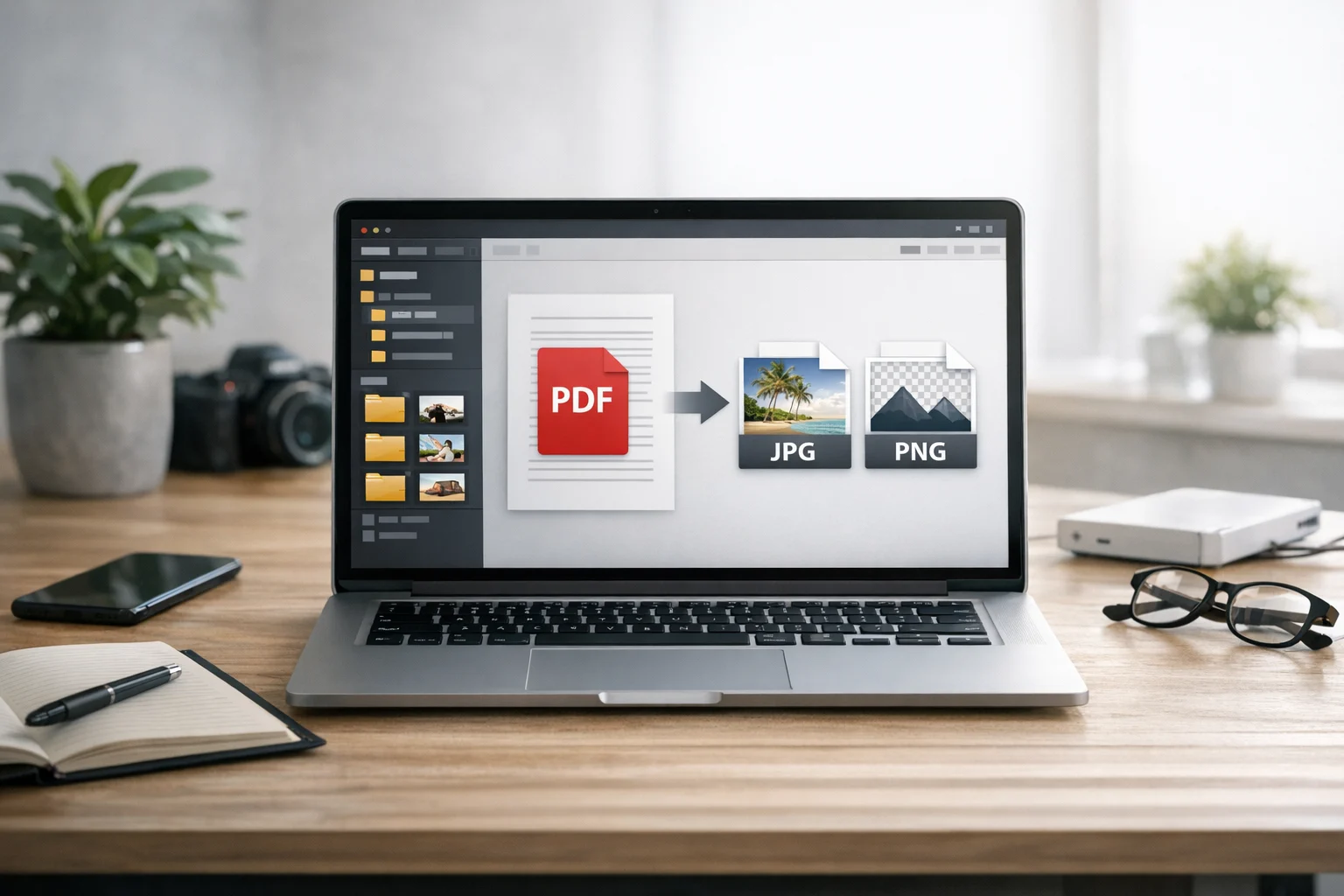
- PDF to image turns each page into a visual file such as JPG, PNG, or WebP.
- PDF to text or document content extracts readable text from digital PDFs and can make reuse easier.
- PDF to archive puts one or more PDFs into a compressed package such as a ZIP archive or RAR archive for storage or sharing.
That means the best output is tied to your purpose. If you only want a quick preview or a social post graphic, image files make sense. If you need editable content, text extraction is more useful. If you are sending a whole document set, archiving may be the cleanest option.
How to convert PDF files to images
Turning PDF pages into image files is one of the most common PDF tasks. It is useful for presentations, product listings, classroom slides, social posts, online previews, document snippets, and support guides. If you want a fast way to do it, ConvertAndStore offers a PDF to image converter that makes it easy to export pages from a document.
When PDF to JPG makes sense
PDF to JPG is a strong choice when you need small file sizes and broad compatibility. JPG works well for photos, mixed content, and everyday web use. If you are sharing a brochure preview, a flyer page, or a report page inside a chat or presentation, JPG is often enough.
Use JPG when:
- You want smaller image files
- You are sharing pages by email or messaging apps
- The page contains photos or gradients
- You need wide compatibility on phones, laptops, and websites
The tradeoff is that JPG uses lossy compression. That means very small text or thin lines can look softer after export, especially if you choose low quality settings.
When PNG is the better option
PNG is often better for screenshots, diagrams, forms, charts, and text heavy pages. If your PDF contains sharp interface elements, logos, line art, or detailed tables, PNG usually preserves edges more cleanly than JPG. This is why the classic JPG vs PNG choice matters. JPG is usually smaller. PNG is usually clearer for graphics and text.
Use PNG when:
- You need sharper text or icons
- You are exporting forms or presentations with solid colors
- You want to avoid visible compression artifacts
- You plan to crop or edit the image later
The downside is larger file sizes. For long documents with many pages, PNG exports can add up quickly.
Where WebP fits in
WebP can be a smart format for websites and modern workflows because it often delivers smaller files than PNG and sometimes smaller files than JPG at similar visual quality. If your goal is web publishing or lighter uploads, WebP deserves a look. The WebP vs PNG decision usually comes down to compatibility needs and image type. PNG may still be safer for some workflows, but WebP is often more efficient for online delivery.
If you are not sure which format is the best image format for pages extracted from a PDF, this guide on how to choose the best image format can help you decide based on quality, speed, and use case.
Choose the right quality and resolution
File format is only part of the decision. Resolution matters too. If you export a PDF page at very low quality, even PNG will not look good. In most cases:
- For screen use, moderate resolution is usually enough
- For print or detailed review, higher resolution is safer
- For web publishing, balance clarity and file size
If you only need one page from a large document, extract or convert just that page instead of the full file. This keeps your output smaller and easier to organize.
How to convert PDFs into reusable document content
Sometimes you do not need a visual copy of the PDF. You need the words, figures, or a reusable version of the information. This is common with contracts, reports, notes, meeting summaries, resumes, and research papers.
For text based PDFs, using a PDF to Text Converter is often the fastest route. It can help when you want to quote a section, copy raw content into another app, search through text more easily, or clean up information for a database or content draft.
When text extraction works best
Text extraction is most effective when the original PDF contains actual text data. That is usually the case for documents exported from word processors, spreadsheet apps, design tools, or presentation software. If the PDF is just a scan of paper pages, the results may be limited unless the file already includes readable text layers.
Convert PDF files to text when you need to:
- Reuse content in another document
- Search and index information
- Clean text for coding, analysis, or import
- Create accessible versions of simple documents
This is especially useful for developers, marketers, researchers, and office teams who handle structured information every day.
Converting images back into PDF documents
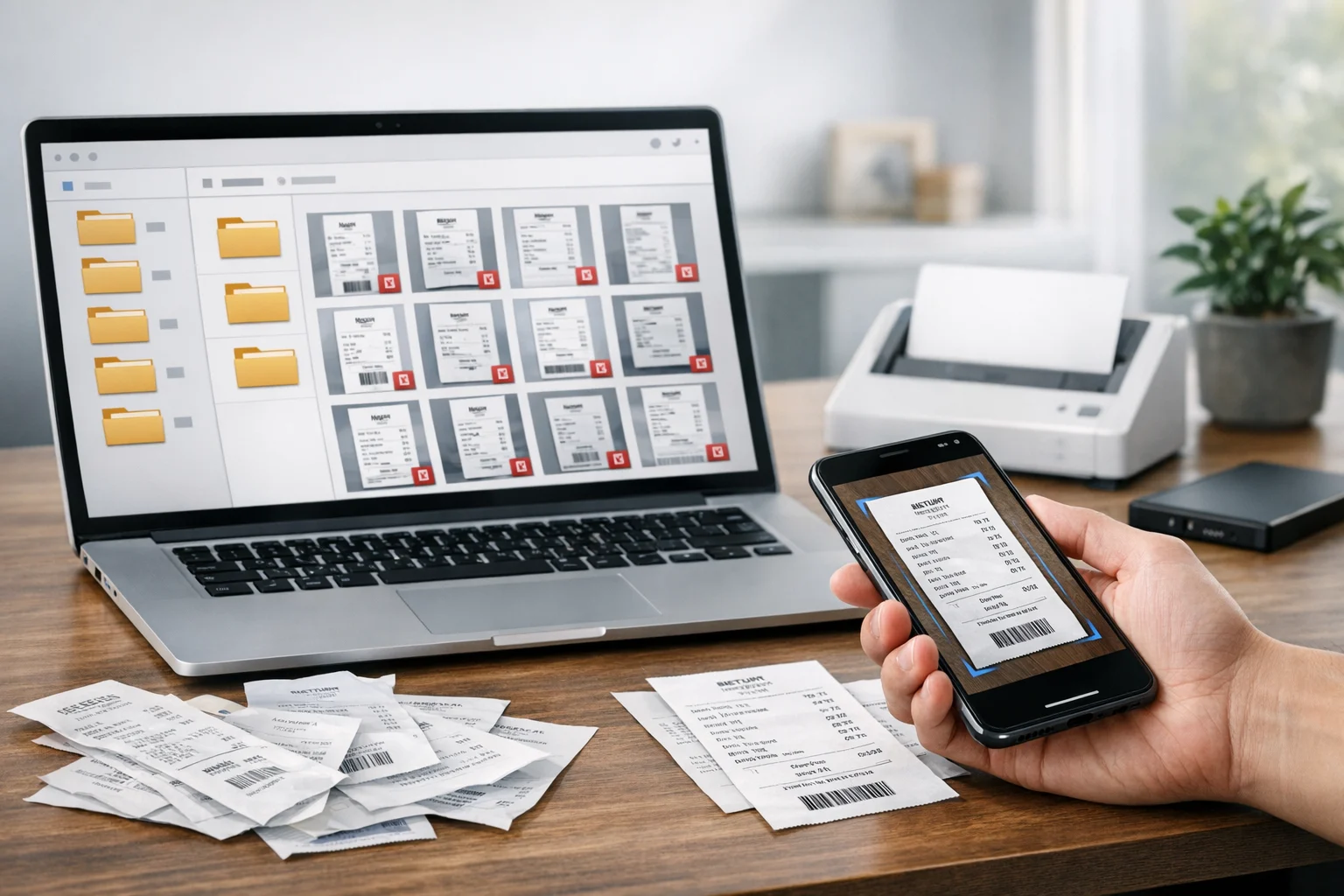
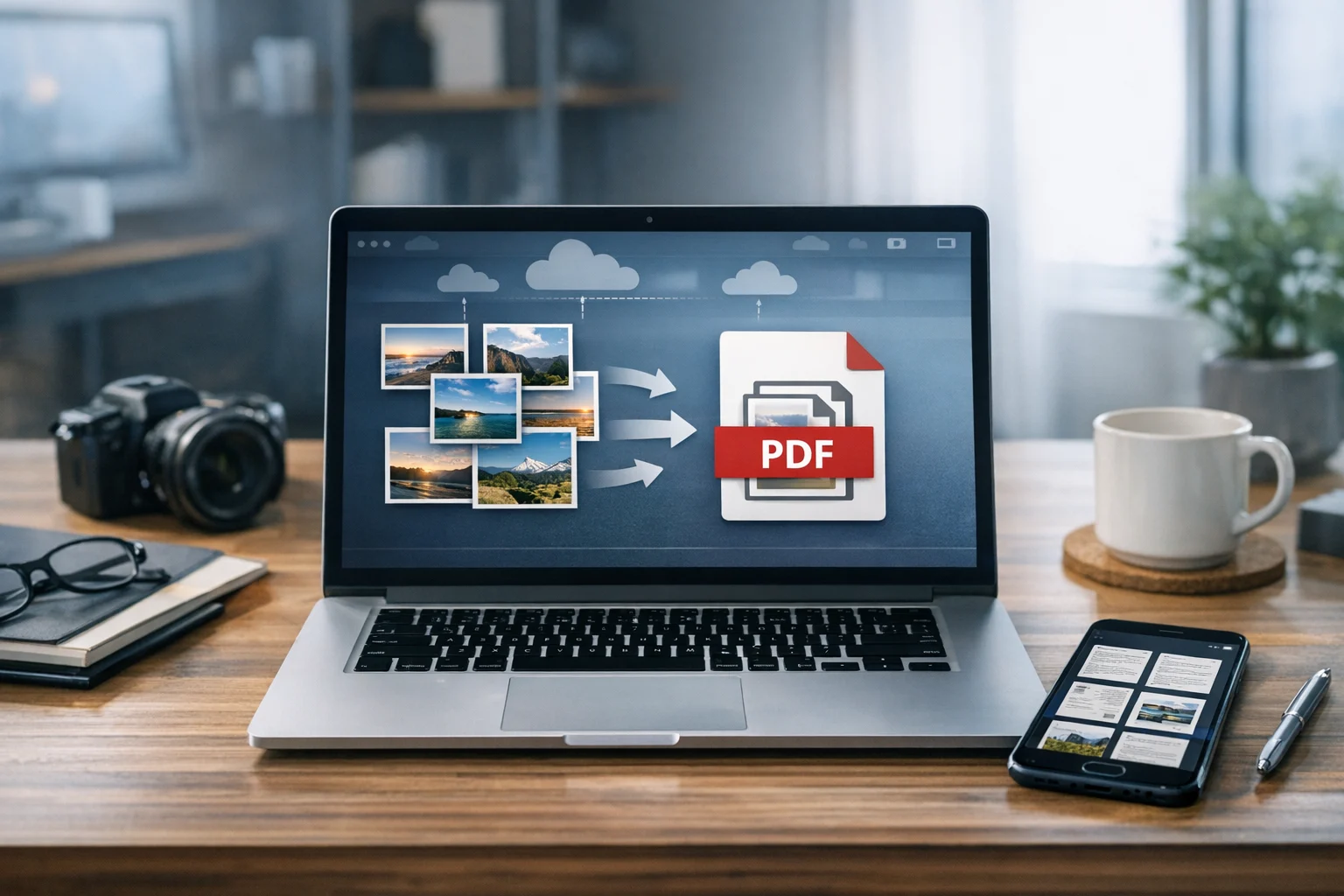
Many workflows go in both directions. You may convert PDF pages into images for editing, annotation, or upload, then rebuild them into a new document later. That is where image to PDF becomes useful. If you have screenshots, scanned receipts, whiteboard photos, or exported pages that need to be bundled into one file, ConvertAndStore has an image to PDF converter for that job.
This is helpful when you:
- Scan documents with a phone and want one shareable PDF
- Convert image files into a cleaner submission format
- Combine design proofs or visual references into a single document
- Turn exported page images back into a structured handoff file
For many users, the real workflow is not just PDF to image. It is PDF to image, minor edits, then image to PDF again for delivery.
How to convert PDFs into archives for easier sharing and storage
Archiving is different from visual or text conversion. You are not changing the content of the PDF itself. You are packaging one or more files together in a format that is easier to send, store, or back up. This is useful when you need to move multiple PDFs at once, group related files, or reduce folder clutter.
ZIP archive vs RAR archive
A ZIP archive is the most universal choice. Most operating systems can open ZIP files without extra software, which makes ZIP ideal for clients, coworkers, and classmates. A RAR archive can be useful in some workflows, especially when recipients already use archive tools that support it or when you want certain advanced packaging options.
Choose ZIP when:
- You want maximum compatibility
- You are sending files to many different users
- You need a simple archive for email, storage, or upload
Choose RAR when:
- Your workflow already uses RAR tools
- You want another archive option for larger project sets
- The people receiving the files can open RAR without issues
For most everyday document sharing, ZIP is the safer default.
Archive creation does not always shrink PDFs much
One common misconception is that putting a PDF into an archive will always make it much smaller. Sometimes it helps, but many PDFs are already compressed internally. If the PDF contains embedded images that were compressed during creation, wrapping the file in a ZIP archive may not reduce the size by much.
That is why file compression is often more effective before archiving. If your main goal is to reduce upload size or speed up sending, use a PDF compressor first, then archive the smaller versions if you still need to bundle them.
This is a practical order of operations:
- Compress the PDF if size is a problem
- Rename files clearly
- Package related documents into a ZIP archive
- Store the originals and the archive separately
How to choose the right format for real world use
The best conversion choice depends on what happens next. Here is a simple way to decide.
- Use JPG for quick sharing, preview images, and smaller files
- Use PNG for diagrams, screenshots, text heavy pages, and cleaner edges
- Use WebP for modern web workflows where size matters
- Use text extraction when you need content, not appearance
- Use ZIP when you are sending several PDFs together
- Use compression when size, upload speed, or storage costs matter
Students may need a chapter page as a PNG for notes. Freelancers may need invoices bundled as ZIP files. Marketing teams may turn PDF brochures into JPG previews for campaigns. Office teams may extract text from policy documents. Developers may need raw content from PDFs for testing, indexing, or import.
The same workflow logic applies to images and video too
Even though this guide focuses on PDFs, most conversion decisions follow the same logic across other file types. A good file converter should help you match format to purpose, not just change extensions. For example, teams often need an image converter to convert image files between JPG, PNG, and WebP, or a video converter to convert video files for sharing and publishing.
If a project includes PDFs, graphics, and demos, you may end up comparing MP4 vs MOV for video delivery at the same time you are deciding between JPG and PNG for exported PDF pages. The core questions are always the same:
- How important is compatibility?
- How small does the file need to be?
- How much quality can you afford to lose?
- Where will the file be stored and shared?
Thinking this way makes online file conversion more consistent across your whole workflow.
Store converted files without losing track of them
Conversion is only half the job. Once you create JPGs, text exports, or archives, you need a reliable place to keep them. This is where cloud storage becomes important. Good storage helps you access files from different devices, share them with others, and avoid redoing work because a converted version went missing.
When comparing storage options, it is tempting to focus only on price. Cheap cloud storage can be useful, but low cost should not come at the expense of reliability, privacy, or organization. If the files include contracts, financial documents, course records, client work, or internal reports, look for encrypted cloud storage and clear access controls. Those features matter for secure file storage, especially if multiple people handle the same document set.
It also helps to treat storage like a system instead of a dumping ground. A simple folder structure goes a long way:
- Originals for untouched source PDFs
- Converted for JPG, PNG, WebP, or text exports
- Compressed for smaller PDF versions
- Archives for ZIP or RAR packages
- Shared for files sent to others
This makes document storage easier to maintain and reduces confusion over which file is the latest one. It also supports better file backup habits because you know what should be preserved and what can be deleted.
Common mistakes to avoid when converting PDFs
- Choosing the wrong image format
Do not default to JPG every time. If the page has diagrams or small text, PNG may be better. - Exporting every page when you only need one
Converting the full document creates clutter and wastes storage. - Compressing too aggressively
Very high compression can make text harder to read and images look damaged. - Archiving before optimizing
Compress the PDF first if size reduction is the real goal. - Keeping no original copy
Always store the source PDF in case you need to reconvert later at a higher quality. - Using unclear file names
Name files by project, version, and date so the converted copy is easy to find.
A simple PDF conversion workflow that stays organized
If you want a repeatable process that works for school, business, and personal files, use this approach:
Start with the original PDF and save it in your source folder.
Decide the output based on the next task. Use JPG or PNG for visuals, text extraction for reusable content, or ZIP for grouped delivery.
Convert only the pages you need whenever possible.
Check the results on the device or platform where the file will actually be used.
Compress large PDFs before sending or archiving.
Store the new files in cloud storage with clear names and folders.
Keep a backup of important originals and final versions.
This process avoids repeat work, reduces storage clutter, and makes collaboration easier. It also helps when you are handling many formats at once, from PDF pages and image assets to archives and media files.
Frequently Asked Questions
JPG is usually best for smaller files and easy sharing, while PNG is better for text, diagrams, and screenshots that need sharper edges. WebP can be a good choice for web use when smaller size matters.
Not always. Many PDFs are already compressed, so a ZIP archive may only reduce the size slightly. If file size is the main issue, compress the PDF first and then archive it if you need to bundle multiple files together.
It can. JPG uses lossy compression, so small text and fine lines may look softer if the export quality is low. For cleaner text and graphics, PNG is often a better option.
Yes. If you export pages as images or scan documents as photos, you can combine them into a single PDF using an image to PDF tool. This is useful for receipts, reports, forms, and visual reference files.
It depends on the platform. Use services that emphasize privacy, secure file handling, and reliable storage practices. For sensitive files, keep originals backed up and store finished versions in secure or encrypted cloud storage.