Business documents move through a lot of hands and systems. A proposal might start as a draft, get reviewed by a team, be exported for approval, and later be archived in cloud storage. An invoice might be generated in a document editor, converted for email, then stored for compliance. A scanned receipt might only exist as an image until someone needs to turn it into a searchable PDF. That’s why choosing the right format matters more than most people expect.
For most teams, the real comparison comes down to three common formats: PDF, DOCX, and image files such as JPG or PNG. Each one solves a different problem. If you pick the wrong one, formatting can break, files can become harder to edit, and storage can get messy fast. If you pick the right one, sharing is smoother, version control is easier, and document storage stays organized.
This guide breaks down when to use PDF, when DOCX makes more sense, and when image files are the better option for business documents. It also covers online file conversion, file compression, archiving, secure file storage, and a few related format comparisons that often come up in real workflows.
What each format is really designed to do
PDF is built for consistency
PDF files are designed to preserve layout. Fonts, spacing, images, headers, signatures, and page breaks stay consistent across devices. That’s why PDF is usually the safest format for contracts, proposals, reports, manuals, brochures, and forms that should look the same for every recipient.
For businesses, PDF is often the final delivery format. It’s easy to print, easy to share, and less likely to shift around than an editable document. If your priority is presentation, compatibility, or record keeping, PDF is usually the strongest choice. ConvertAndStore also offers a full set of PDF tools for common tasks like merging, splitting, compressing, and reorganizing business files.
DOCX is built for editing
DOCX is the better option when a document is still being written, revised, or reviewed. It works well for collaboration, tracked changes, comments, templates, and reusable content. Internal drafts, proposals in progress, onboarding materials, meeting notes, and content calendars are often best kept in DOCX until they’re approved.
The tradeoff is that DOCX files can display differently depending on software, fonts, and device support. A layout that looks polished on one laptop may shift on another. That doesn’t make DOCX bad. It just means it’s better for working files than final versions.
Image files are built for visual capture
Image files like JPG, PNG, WebP, and TIFF are useful when the document is essentially a visual asset or a scanned snapshot. Photos of receipts, scans of signed forms, screenshots, social graphics, product one sheets, and image based ads often start or end as image files.
They’re also helpful when you need to extract a single page from a document for quick sharing. For example, sending one page of a catalog as a JPG can be faster for chat apps or social posts than sending the full PDF. In those cases, a good image converter helps you convert image files without losing the quality you need.
When PDF is the best choice for business documents
PDF should usually be your default when a document is done and needs to be shared professionally. It’s especially useful in situations where formatting must remain fixed.
- Contracts and agreements: PDF helps preserve signatures, clauses, and page numbering.
- Proposals and reports: A polished layout looks more trustworthy when it doesn’t shift between devices.
- Invoices and statements: PDFs are easy to archive and simple for clients to open.
- Training materials and manuals: PDFs work well for printing and digital access.
- Portfolios and presentations: A PDF avoids accidental edits and missing fonts.
PDF is also strong for compliance and retention. Many businesses use it for document storage because it’s stable and widely supported. If you ever need to convert PDF files into another format for reuse, publishing, or social sharing, a dedicated PDF converter is much more reliable than a generic export option inside a random app.
There are limits, of course. PDFs are not always ideal for heavy editing, and very large PDFs can become annoying to email or upload. That’s where file compression matters. If your document is bloated with large images, you can reduce file size with ConvertAndStore’s PDF compressor before sending it to clients or saving it in document storage.
When DOCX is the better business format
DOCX works best when the document is still active. If multiple people need to update copy, adjust tables, leave comments, or duplicate the file as a template, keep it in DOCX until the content is locked.
- Team collaboration: Comments and track changes are easier in DOCX.
- Reusable templates: Sales scripts, invoices, and policy documents are simple to duplicate and edit.
- Content production: Writers, marketers, and assistants often prefer editable drafts.
- Internal workflows: Teams can revise without creating new flattened versions each time.
Small businesses often make the mistake of sending DOCX files to external clients when they really mean to send a final version. That creates two problems. First, the file may open differently. Second, the recipient can easily edit something that should have stayed fixed. A simple workflow is to keep the working version in DOCX, then export to PDF once it’s approved.
That split between editable and final format reduces confusion and helps with file backup. You keep the source document for future updates and the final PDF for records, distribution, and secure file storage.
When image files make sense for business documents
Image files are not a replacement for every document type, but they’re extremely useful in specific cases.
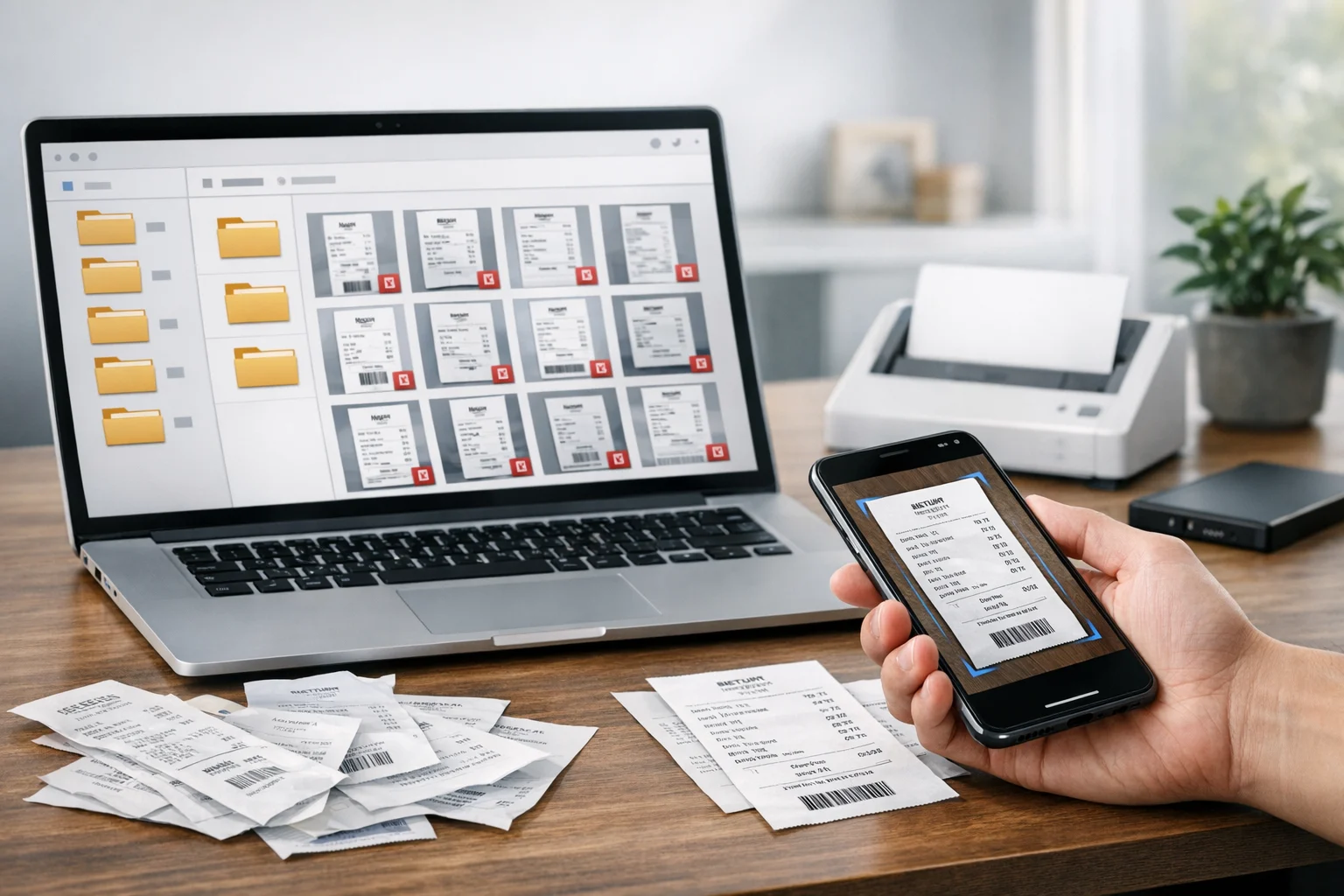
- Scanned receipts and invoices: A phone scan often starts as a JPG or PNG.
- Signed forms: Teams sometimes capture a signed page as an image for quick reference.
- Screenshots and proofs: Great for design feedback, bug reports, or approval snapshots.
- Marketing assets: Social graphics, ads, thumbnails, and banners are image first.
- Single page sharing: Faster to send one image than a multi page document in some apps.
The real question then becomes the best image format for the task. For many business documents, it comes down to JPG vs PNG. JPG is smaller and often better for photos, scanned pages, and quick sharing. PNG is better for sharp text, logos, transparent backgrounds, and screenshots where clarity matters. You may also run into WebP vs PNG when preparing files for websites or landing pages. WebP often gives you smaller file sizes, while PNG can be better for broad compatibility or pixel sharp interface elements.
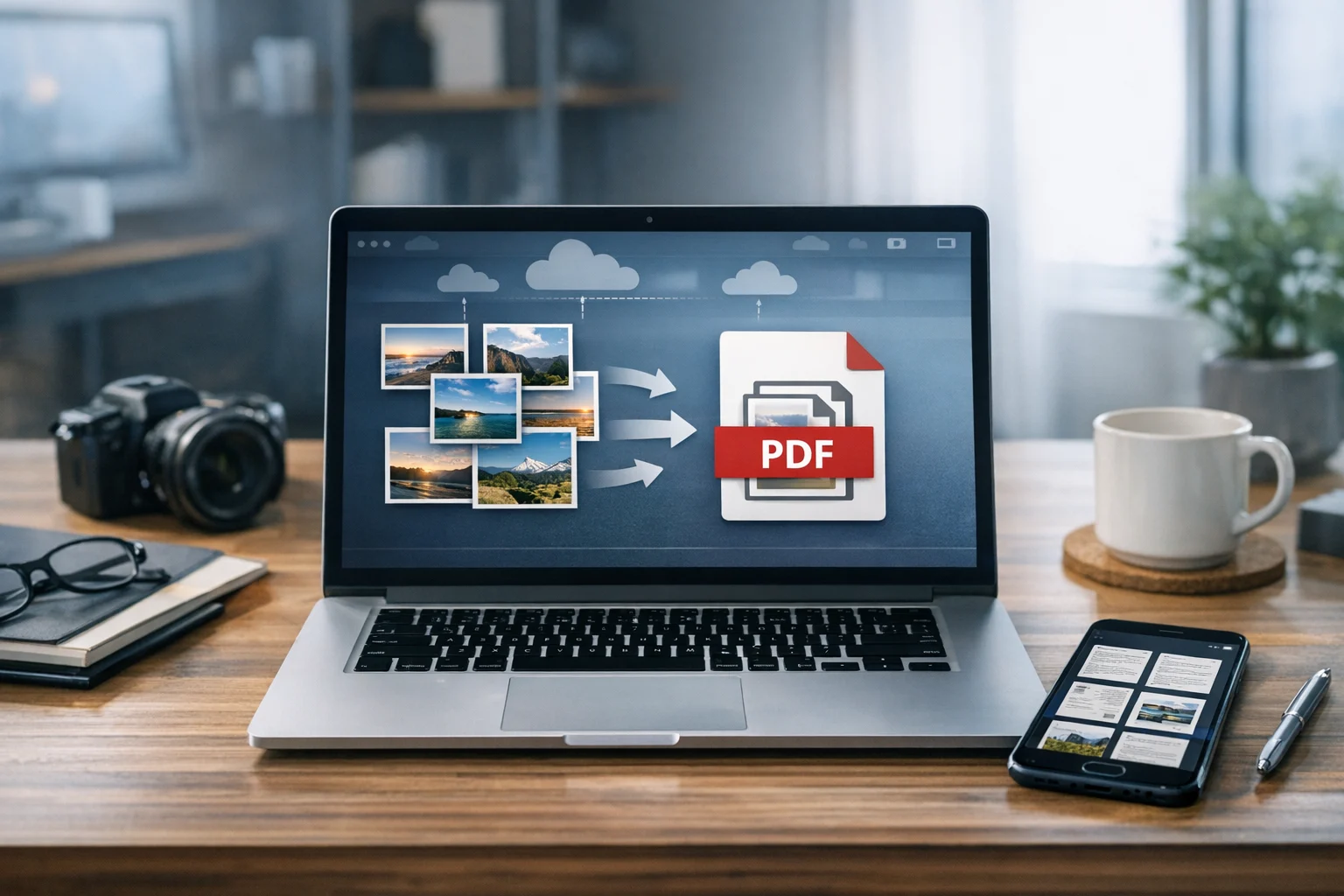
If you need to convert image files for storage or delivery, an image converter makes that easier. For example, you might turn PNG screenshots into JPG to reduce size, or switch a batch of scanned JPG pages into a single PDF for accounting. That second workflow is especially common, and ConvertAndStore’s image to PDF converter is useful when receipts, scans, or photographed pages need to become one shareable file.
Which format fits common business tasks
Format decisions get easier when you look at the job the file needs to do.
- Drafting a proposal: Start in DOCX.
- Sending the approved proposal: Use PDF.
- Saving a signed paper document from a phone: Capture as image, then convert to PDF if it needs formal storage.
- Sharing a receipt in a chat app: JPG or PNG is often enough.
- Archiving invoices for tax records: PDF is usually the safest option.
- Posting a single page flyer on social media: Export it as an image.
- Reviewing a brochure design: PDF for final layout, image versions for thumbnails and previews.
- Creating a fillable packet from multiple files: Merge supporting pages into one PDF package.
If your workflow regularly crosses formats, a reliable file converter is worth treating as a core business tool rather than a last minute fix.
Common conversion workflows teams use every week
Most businesses do not stay in one format. They switch formats based on the next step in the workflow. This is why online file conversion is so useful. Instead of opening desktop software and dealing with export settings every time, teams can convert what they need and keep moving.
DOCX to PDF for final delivery
This is the classic workflow. You write and revise in DOCX, then export to PDF when the document is approved. It’s one of the easiest ways to protect formatting and avoid edit issues after sending.
PDF to JPG for previews and quick sharing
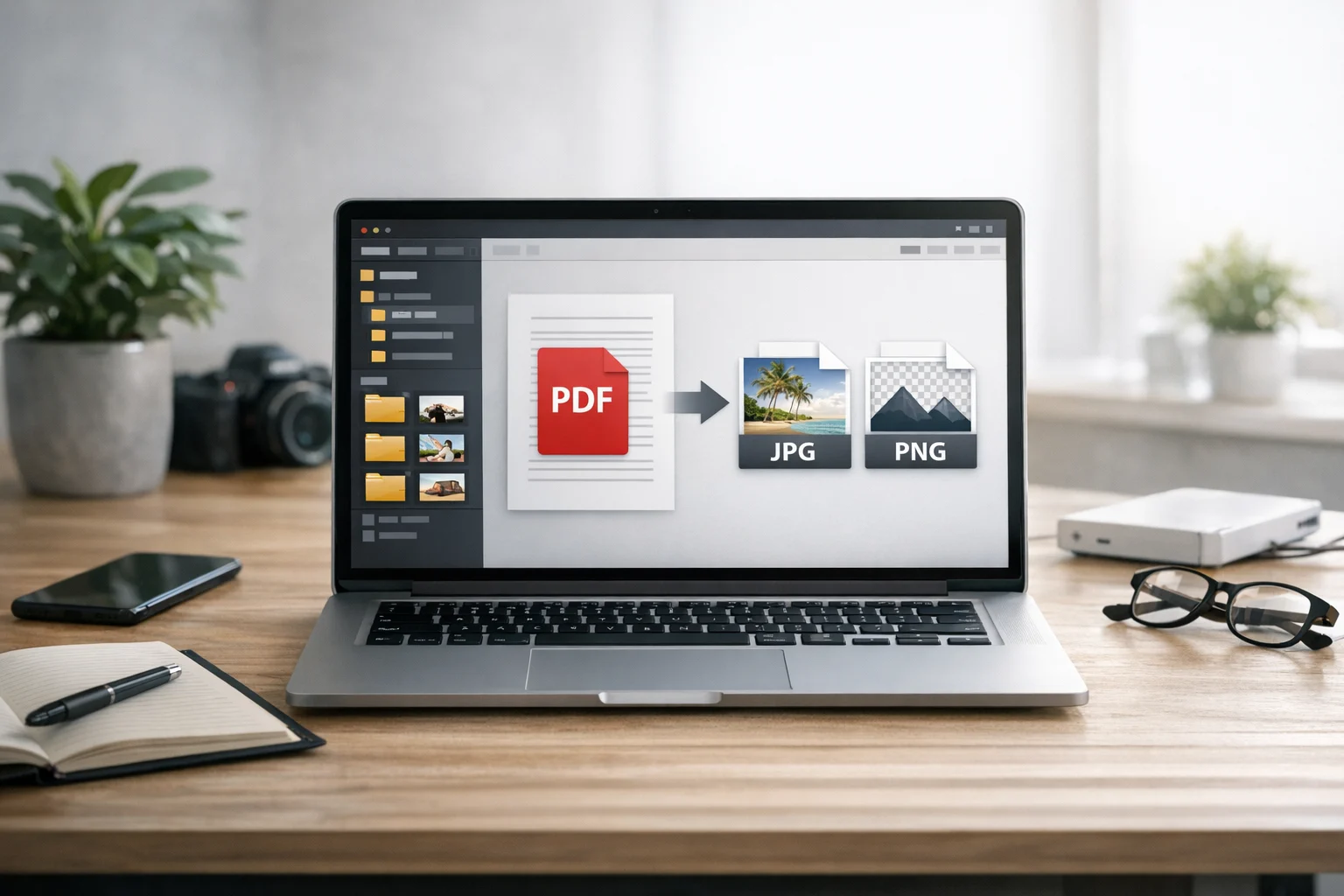
Sometimes a full PDF is too much. A client just wants to see the cover page, a designer needs a page preview, or a marketer wants to post a snapshot of a brochure on social media. That’s where PDF to JPG becomes useful. With ConvertAndStore’s PDF to image converter, you can turn PDF pages into image files for easier previewing, uploading, or reuse.
Image to PDF for scans and records
Phone scans, photographed receipts, and signed pages often come in as separate images. Converting them into one PDF makes them easier to file, search, and share with finance, HR, or clients. It also makes document storage much cleaner than keeping a loose folder full of numbered JPG files.
PDF compression before email or upload
Large files slow down everything. File compression helps reduce upload time, keeps email attachments manageable, and lowers storage clutter. For PDFs, compression is often the fastest fix when a document is too heavy because of scanned pages or oversized images.
The same idea applies outside documents too. Marketing teams often compress images for websites and use a video converter to convert video files into more compatible formats. If you’ve ever compared MP4 vs MOV, you’ve seen the same tradeoff: one format may be better for editing, while another is easier to share across platforms.
Storage matters just as much as format choice
Choosing the right file type is only half the job. The other half is storing it in a way that protects access, privacy, and long term organization. A messy storage system can cancel out every good format decision you make.
For everyday access, cloud storage is the obvious answer. It makes files available across devices and teams, helps with version recovery, and supports file backup without constant manual copying. But not every storage option is equal. Cheap cloud storage can be fine for low risk materials, but businesses should think carefully before putting contracts, HR records, invoices, and client files into the lowest cost option without checking privacy and access controls.
When documents contain sensitive information, encrypted cloud storage is the better path. If privacy is part of your workflow, this guide on encrypted cloud storage explains why protection at rest and in transit matters for business files. Secure file storage is not just about avoiding breaches. It also helps control sharing, reduce accidental exposure, and support cleaner retention practices.
A practical setup usually looks like this:
- DOCX for active drafts in shared folders with version control.
- PDF for approved files stored in organized client, project, or date based folders.
- Images for source captures such as receipts, scans, screenshots, and proofs.
- Regular file backup for final documents and source files.
This structure helps teams find what they need without mixing editable drafts and final documents in the same place.
Use archives when you need to move or store batches
Sometimes the right answer isn’t just choosing between PDF, DOCX, and images. Sometimes you need to bundle everything together. That’s where archives come in.
A ZIP archive is usually the most practical choice for sending a folder of related business files. It’s widely supported, easy to open, and perfect for packaging a proposal PDF, editable DOCX source, supporting images, and spreadsheets together. A RAR archive can also be useful, but ZIP is typically more universal for clients and office teams.
Archives help with file compression too, especially when you’re moving many files at once. They won’t always shrink already compressed formats dramatically, but they do make transfer and organization easier. For project handoffs, audit packages, and monthly backups, archives can keep related files together without losing the original formats.
Related format choices that affect business documents
Even when your main document is a PDF or DOCX, surrounding assets still matter.
JPG vs PNG for embedded images
If you’re building a report, brochure, or proposal, the images inside the document affect file size and clarity. JPG is usually better for photos because it keeps files smaller. PNG is better for screenshots, diagrams, and logos where crisp edges matter.
WebP vs PNG for web delivery
If your business document is being repurposed for a landing page, resource center, or blog, WebP often reduces file size more than PNG. That can improve performance without obvious quality loss. PNG still has a place when transparency and predictable compatibility are more important.
MP4 vs MOV for supporting media
Many business documents now come with screen recordings, product demos, or training videos. In those cases, MP4 vs MOV becomes relevant. MOV can work well in editing workflows, while MP4 is usually more compatible for sharing and publishing. A video converter helps convert video files into the format that matches the next step, just like a PDF converter helps with documents and an image converter helps with visuals.
A simple way to choose the right format fast
If you need a quick decision, ask these questions:
- Does the file still need editing? Use DOCX.
- Does the layout need to stay fixed? Use PDF.
- Is it mainly a scan, screenshot, or visual asset? Use an image format.
- Do you need one searchable file from many images? Use image to PDF.
- Do you need a page preview or social share version from a document? Use PDF to image.
- Is the file too large to send or store easily? Apply file compression.
- Are you packaging many files together? Use a ZIP archive.
- Is the content sensitive? Store it in secure file storage with strong access control.
The best setup is rarely one format for everything. It’s usually a workflow where DOCX supports creation, PDF supports delivery and records, and image files support scanning, previews, and visual publishing.
Frequently Asked Questions
Usually yes. PDF is better for client facing documents because it keeps formatting consistent and is harder to edit by accident. DOCX is better while the document is still being written or reviewed.
Use an image file for scans, screenshots, receipts, signed page photos, and visual assets like social graphics. If you need several images stored or shared as one document, convert them into a PDF.
A proper conversion usually preserves formatting better than sending the DOCX file itself. Small differences can still happen if the source file uses unusual fonts or layout elements, so it’s smart to review the final PDF before sharing.
JPG is often best for smaller file sizes, while PNG is better when text sharpness matters. If the scanned pages need to be stored, printed, or shared as one record, turning them into a PDF is usually the more practical option.
ZIP is the safer default for most business use because it is widely supported and easy for clients and coworkers to open. RAR can work, but ZIP is usually more convenient for sharing and long term access.
Use secure file storage with access controls, regular file backup, and preferably encrypted cloud storage for sensitive records. Keep editable drafts separate from approved PDFs so teams can manage access and retention more cleanly.